A Practical Guide to Using the Jira Mobile App in 2026: Tips
Struggling to manage Jira on the go? Learn practical 2026 tips for focused updates and fewer distractions with the Jira mobile app. Read now.
When a project moves quickly, a small phone screen can make Jira feel harder than it needs to be. You might miss an assignment, struggle to find the right issue, or receive so many alerts that important updates disappear in the noise.
Those problems can slow a simple task, especially when you’re away from your desk or coordinating work across a team. But here's the truth: the Jira mobile app works best when you use it for focused actions, not as a smaller copy of every desktop workflow. A few setup choices and practical habits can help you check work, update issues, and respond without getting pulled into constant notifications. This guide explains what to set up, which tasks suit mobile, and where a desktop experience may still be more effective.
How to use the Jira mobile app effectively in 2026
The Jira mobile app helps you check project activity and handle quick work from your phone. Set up access and notifications first, then use it for focused tasks such as reviewing an issue, adding a comment, or changing a status.
It can be useful when you’re commuting, attending a stand-up, or away from your computer. For example, you can review an issue assigned to you, add a short update, and move it to the next status without opening a laptop.
Here's why: mobile work benefits from a clear limit. Use your phone for quick checks and time-sensitive updates; reserve complicated searches, detailed configuration, and long editing sessions for a larger screen.
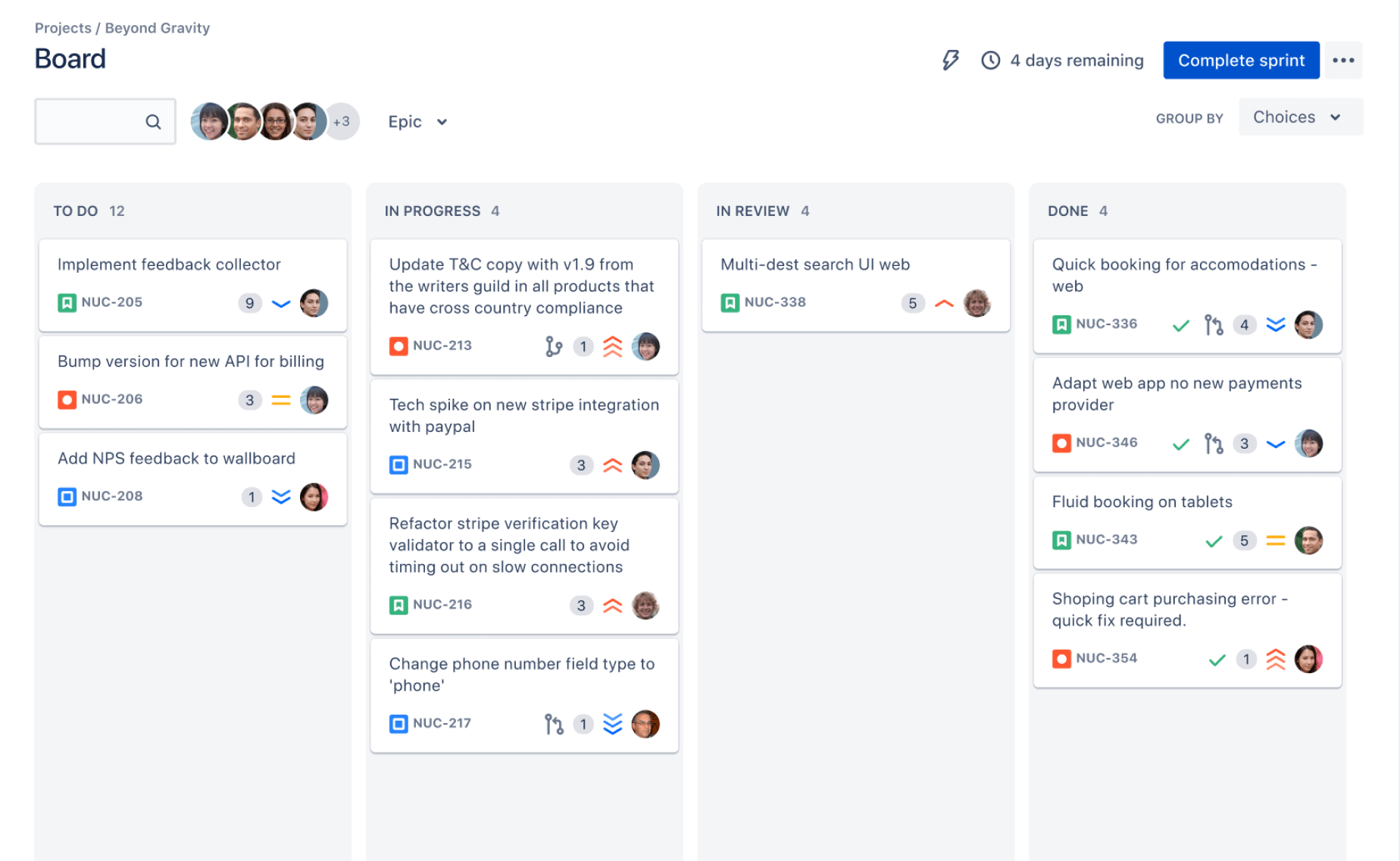
Start with a simple mobile workflow
- Sign in to the correct workspace. Confirm that you’re using the right Jira site and account, especially if your team has separate workspaces.
- Choose the project or board you need most. Keep your main work easy to reach instead of searching through every project each time.
- Review your assigned issues. Check due dates, status, and recent activity before deciding what needs attention.
- Make one useful update. Add a concise comment, adjust a status, or record a detail while it’s fresh.
- Check that the change saved. Reopen the issue or refresh its activity to confirm the update appears.
- Leave complex work for a larger screen. Switch to desktop when you need to compare many issues or edit detailed project settings.
The best part? You don’t need to manage a project from your phone to get value from the app. A quick, accurate update can keep a teammate moving and prevent an issue from going stale.
Set up the app around the work you actually do
Before relying on mobile access, confirm that the app connects to the Jira workspace your team uses. Check your account permissions, project access, and sign-in method. If you use a managed work account, follow your organization’s access and device policies.
Next, identify the two or three activities you’re most likely to handle on your phone. A project lead might review blockers and respond to comments. A developer might check an assigned issue and update its status after testing.
For example, if you mainly need to review new assignments, make that the first screen or project view you open. A setup shaped around real tasks is easier to use than one that tries to surface every team activity.
Make navigation easier
Keep the project list focused on active work. If you regularly switch between several projects, learn where each one is in the app rather than relying on a long sequence of taps every time.
When you search, use a distinctive issue title, key, or project term. Short, specific searches are usually more practical on a phone than trying to recreate a complex desktop query with a small keyboard.
Choose mobile tasks that fit a small screen
Mobile is especially useful for brief actions with a clear result. You can check an issue’s status, read a recent comment, add a quick response, or make a straightforward transition when your permissions allow it.
Consider a stand-up meeting: a teammate asks whether a bug is ready for review. You can open the issue, check the latest activity, and share a precise update while the conversation is still happening.
Some tasks are less comfortable on a phone. Comparing many issues, building a detailed filter, editing complex descriptions, or changing project configuration can take longer and increase the chance of mistakes.
Use a quick decision test
- Use mobile when the action is short, familiar, and easy to verify.
- Move to desktop when the task requires several fields, extensive typing, or a broad view across a board.
- Pause before changing priority or status if the update could affect other people’s work.
Let me explain: a phone is a pocket-sized control point, not always the best place to plan an entire sprint. Matching the task to the screen helps you stay efficient without sacrificing accuracy.
Tune notifications so important updates stand out
Notifications can help you respond to mentions, assignments, and project changes. They can also become distracting if every routine update reaches your lock screen. Start by deciding which events genuinely need a fast response.
For example, a project lead may want alerts for direct mentions and urgent blockers, while routine status changes can wait until a scheduled check-in. Your role and team agreements should guide those choices.
You might be wondering: should you switch off all alerts? Usually, a more balanced approach is better. Keep notifications that support timely decisions, then reduce the rest through the app and device settings available to you.
Build a notification routine
- Keep high-priority alerts limited to issues that need your attention soon.
- Review lower-priority activity at planned times instead of reacting to every alert.
- Check that device-level notification permissions match your Jira preferences.
- Tell teammates how quickly you can respond when you’re away from your desk.
A clear team agreement can prevent confusion. If colleagues know that mobile alerts are not a guarantee of an immediate reply, they can use the agreed escalation path for urgent work.
Understand connectivity, access, and privacy limits
Mobile access depends on a working connection and the permissions attached to your account. If a project or issue is unavailable, check your network and access before assuming the app has lost the work.
Don’t assume every change will remain available without a connection. If you’re heading into an area with unreliable service, finish important updates while connected and confirm they appear before closing the app.
Security matters too. Use your organization’s approved sign-in method, keep your device protected, and avoid leaving project details visible on an unlocked phone. If a device is lost, follow your company’s account and device response procedures.
Reduce the chance of a missed update
After a change, look for the updated status or comment in the issue activity. If the connection drops before confirmation, check again when service returns rather than repeating the action several times.
For sensitive work, follow your organization’s rules for mobile access. A convenient update is only useful when it also respects the way your team protects project information.
Jira mobile app tips for common situations
A few small habits can make mobile project work more dependable. Before a meeting, open the issues you expect to discuss and check their latest activity. That saves time compared with searching while everyone waits.
When you comment, include the next useful detail. “I’m checking the test result and will update this issue after review” gives teammates more context than a vague “Looking into it.”
If you’re triaging new work, check the issue description and recent discussion before changing its priority. A fast adjustment can affect the order of work for the whole team, so make sure you understand the request first.
Keep updates clear and easy to act on
- Write comments that explain what changed or what needs to happen next.
- Use the issue’s existing context before asking a question already answered in its activity.
- Make one change at a time when several fields need updating.
- Verify important status changes before moving on to another task.
These habits are especially helpful during handoffs. A teammate opening the issue later can understand the current state without searching through a long chat conversation.
ONES.com as a broader project management option
Value proposition: ONES.com brings project management and knowledge management together in one platform, powered by ONES Assistant. ONES Project is its project management product and a Jira alternative; ONES Wiki is its knowledge management product and a Confluence alternative. They are sold separately.
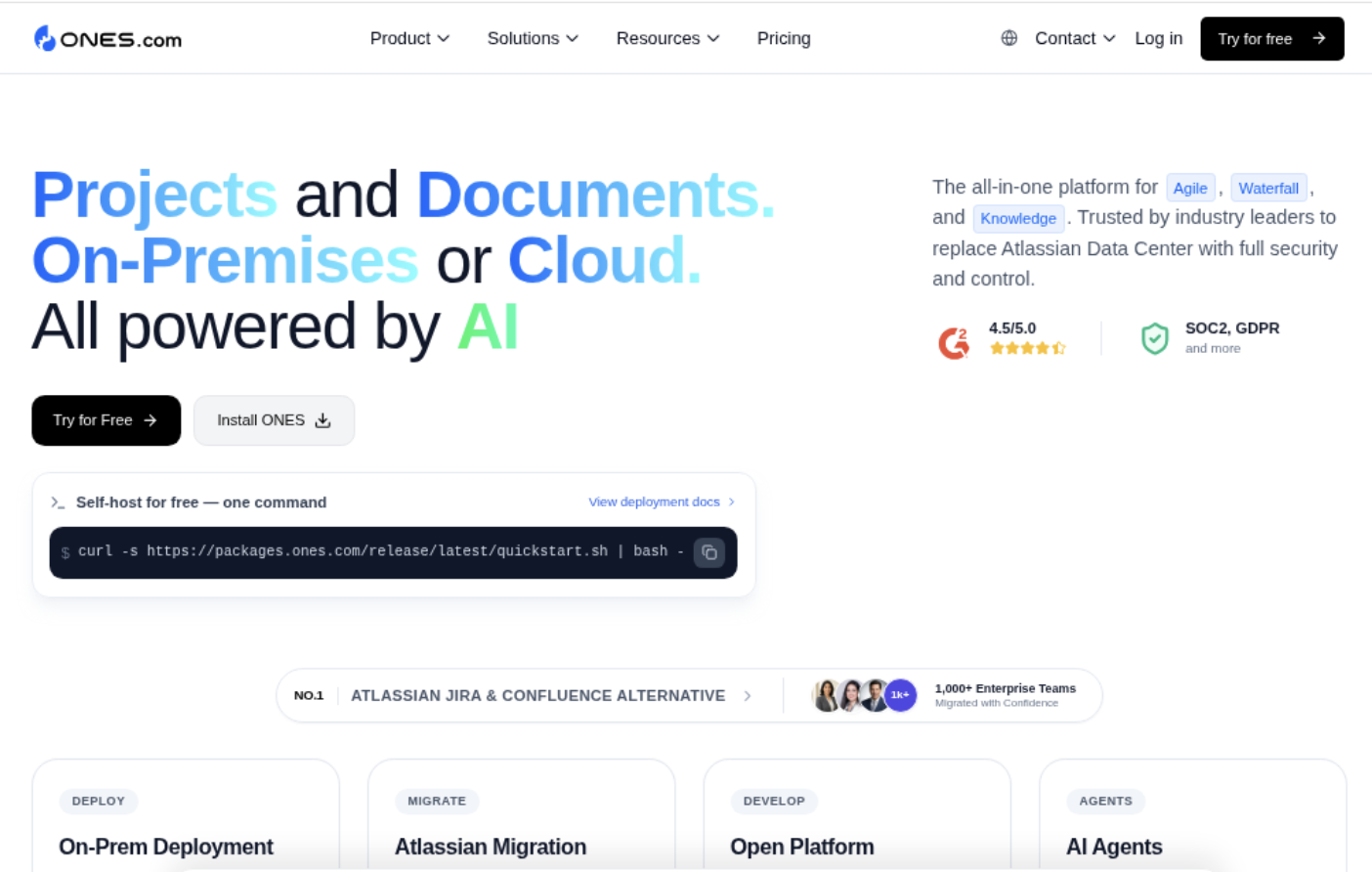
If your team is reviewing its project setup, ONES Project offers Jira-compatible workflows and built-in reporting. It can support teams that want to reduce reliance on plugins or need self-hosted deployment options alongside cloud access.
Core capabilities
- Challenge: Existing workflows are hard to replace. ONES Project supports Jira-compatible workflows, helping teams preserve familiar processes while evaluating another platform.
- Challenge: Teams rely on many add-ons. Built-in reporting and automation can reduce the need to assemble routine capabilities through separate plugins.
- Challenge: Each team needs different project fields. Custom workflows and fields let teams shape issue tracking around their work.
- Challenge: Sprint planning needs a consistent home. Sprint management supports teams coordinating planned development work.
- Challenge: Reporting is scattered across tools. Built-in reporting gives teams a place to review project progress and activity.
- Challenge: Deployment requirements differ. ONES.com offers Cloud, On-Premise, Private Cloud, and Air-gapped deployments.
- Challenge: Self-hosted teams fear feature gaps. The self-hosted version has feature parity with the cloud version, so deployment choice need not mean giving up listed capabilities.
- Challenge: Project work and team knowledge are disconnected. ONES Project and the separately sold ONES Wiki can address project management and knowledge management within the ONES.com platform.
ONES.com offers a free plan for up to 30 seats. This can give a small team room to evaluate its project workflows before deciding whether the platform fits its requirements.
Application scenarios
A Jira team simplifying its setup: A team using Jira-compatible workflows can assess ONES Project while reviewing which existing plugins it still needs. Built-in reporting, automation, custom fields, and sprint management may cover parts of its current routine.
A company with restricted deployment needs: An organization that cannot use a standard cloud setup can evaluate On-Premise, Private Cloud, or Air-gapped deployment options. Its IT team can compare those choices with security and administration requirements.
A project group managing knowledge separately: A team that wants to manage project work and team knowledge under the ONES.com platform can consider ONES Project and ONES Wiki. Since they are sold separately, the team can assess each product against its needs.
Common challenges and practical fixes
- Problem: Too many notifications interrupt focused work. Review app and device notification settings. Keep alerts for direct or urgent requests, then schedule a separate time to scan routine activity.
- Problem: A project is missing from the app. Confirm the active account, workspace, and project permissions. If access still appears incorrect, ask your Jira administrator to check your account access.
- Problem: Small-screen editing leads to errors. Use mobile for concise updates and simple changes. Move detailed edits or multi-issue reviews to desktop, where you can compare more context.
- Problem: You can’t tell whether an update saved. Wait for confirmation and review the issue activity. If connectivity failed, check the issue again once service returns before repeating the change.
- Problem: Teammates expect an instant reply to every alert. Agree on response expectations and define a separate escalation route for urgent blockers.
FAQs about using Jira on your phone
What can I do in the Jira mobile app?
You can use the app to access project work and handle quick issue-related actions, depending on your permissions and the app version. Common mobile tasks include checking an issue, reviewing activity, responding to a comment, and making a straightforward status update. Complex configuration and large-scale planning are often easier on a desktop screen.
Can I use the app without an internet connection?
Don’t assume that Jira changes will sync without a connection. Mobile availability depends on the app and the service you’re using. Before going offline, complete critical updates while connected and confirm they appear. If you lose service mid-task, check the issue again once your connection returns before trying the change again.
How do I stop Jira notifications from becoming distracting?
Start with the alerts that require a timely response, such as a direct mention or an urgent blocker. Reduce routine notifications through the settings available in Jira and on your device. Then set a regular time to review project activity. A team agreement about response times can also prevent every alert from feeling urgent.
Is the Jira mobile app suitable for managing a whole sprint?
It can help you check sprint work and make quick updates while you’re away from your computer. However, planning a full sprint often involves comparing issues, reviewing dependencies, and balancing workload. Those tasks may be clearer on a larger screen. Many teams use mobile for quick coordination and desktop for detailed planning.
Conclusion
The Jira mobile app is most useful when you give it a focused role: check project activity, respond to a clear request, and make short updates you can verify. Set up access carefully, tune notifications, and match each task to the screen that handles it best.
When mobile work feels frustrating, the issue may be too many alerts, poor access, or a task that needs a wider view. Adjust the workflow before adding more steps. With a few deliberate habits, you can keep work moving from your phone without treating every project task as a mobile task.