A Step-by-Step Guide to Connect Jira and GitHub Projects
Want to connect Jira and GitHub without losing track of work? Follow this step-by-step guide to link issues and code. Read now to get started.
When Jira and GitHub operate separately, developers can spend time copying issue updates instead of building and reviewing code. A missed issue key can also leave a pull request disconnected from the work it belongs to, making progress harder to track.
But here's the truth: connecting the services is only part of the job. You also need consistent issue keys, clear repository access, and an understanding of what the integration does—and does not—sync.
You can connect Jira and GitHub through the GitHub for Jira app, then link development activity by including Jira issue keys in branch names, commits, and pull requests. If you mean GitHub Projects boards, plan for a separate workflow or connector. The steps below help you set up the right connection, test it, and avoid common permission and tracking problems.
How to connect Jira and GitHub step by step
The standard Jira–GitHub connection links GitHub repository activity to Jira issues. The app can display branches, commits, and pull requests on the related Jira issue when the issue key appears in the development activity.
Follow these steps for a typical Jira Cloud setup. Menu names can vary slightly by Jira version and organization settings.
- Confirm which connection you need. Decide whether you want GitHub repository activity to appear in Jira, or whether you want to synchronize work items between Jira and GitHub Projects. These are different outcomes. The GitHub for Jira app is commonly used for repository activity; project-board synchronization may require a separate connector or automation.
- Check administrative access. You may need Jira administrator access to install or configure the app, plus GitHub organization-owner or app-installation permissions to authorize repositories. Ask both administrators to approve the setup before you begin.
- Install GitHub for Jira. In Jira, open the app marketplace or app-management area and find GitHub for Jira. Start the installation and follow the prompts to connect your GitHub account or organization.
- Authorize the GitHub organization. Review the permissions requested by the GitHub app. Select the organization and repositories that Jira should access. If your organization restricts third-party apps, an owner may need to approve the request.
- Choose the repositories to connect. Connect only repositories relevant to the Jira projects you want to track. For example, a product team might connect its application repository and its test automation repository, while leaving unrelated repositories unselected.
- Use Jira issue keys in development activity. Add an issue key such as
APP-248 to a branch name, commit message, or pull request title. A branch might be named feature/APP-248-export-settings. Consistent keys help Jira associate activity with the correct issue.
- Test with a real issue. Create a test branch, make a commit containing the issue key, and open a pull request that includes the same key. Then check the Jira issue’s development area for the expected activity.
- Set team conventions and access rules. Tell developers where issue keys belong and who can install apps or approve repository access. Record how your team handles renamed repositories, archived projects, and access changes.
The best part? Once the connection is authorized, developers can keep working in GitHub while Jira displays related development activity. The link still depends on clear issue keys and appropriate permissions.
Understand what the Jira–GitHub connection tracks
Connecting Jira to GitHub usually means bringing development context into Jira. A Jira issue can show associated branches, commits, and pull requests, helping a project manager see whether work has started or is awaiting review.
For example, if a developer creates bugfix/WEB-91-checkout-timeout and opens a pull request titled WEB-91: Handle checkout timeout, Jira can associate those items with issue WEB-91. The team can then follow the development trail from the issue.
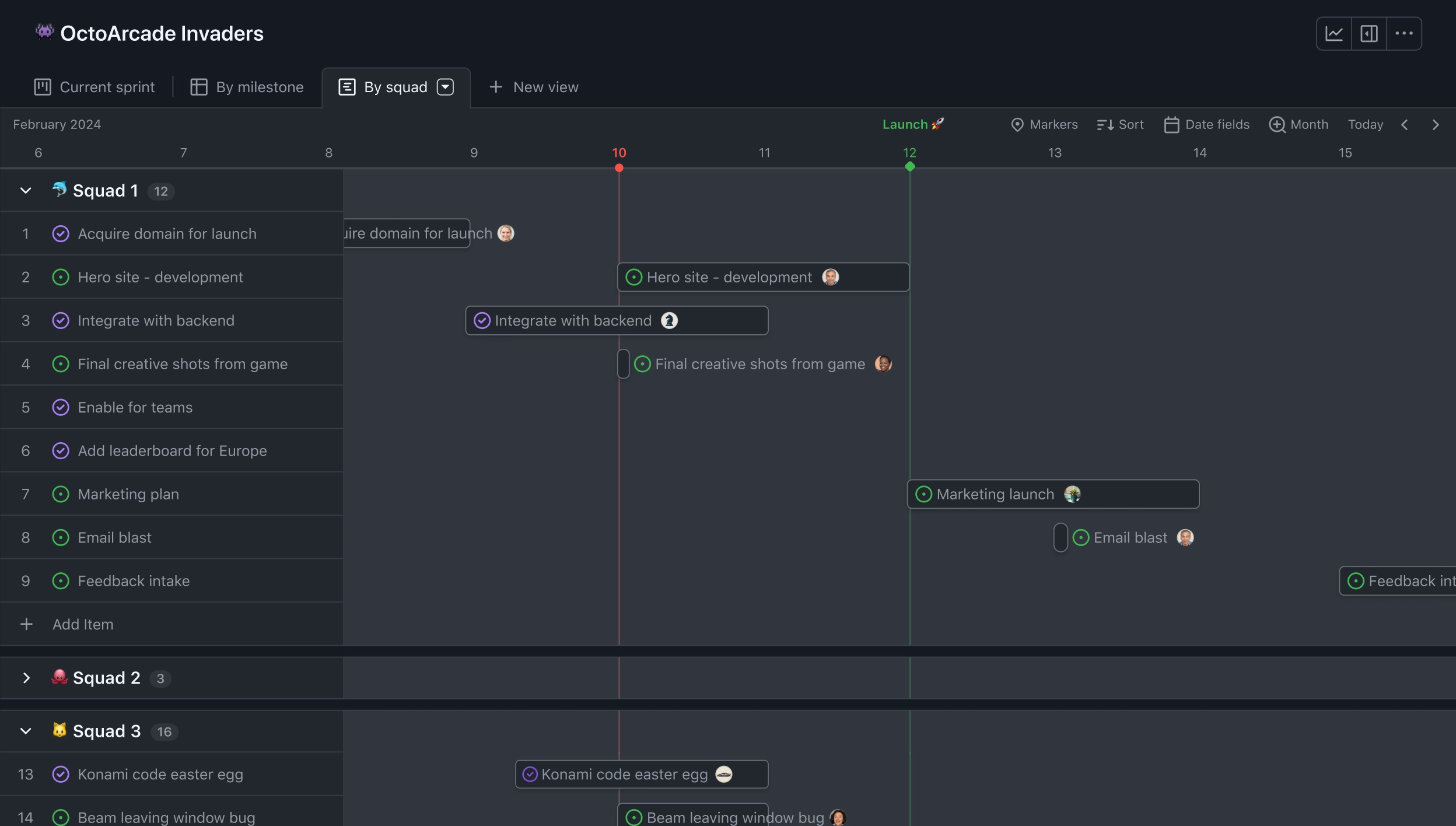
Here's why the distinction matters: GitHub Projects is a planning board, while GitHub repositories hold code and related development activity. The Jira app connection does not automatically mean every card, status, field, or comment on a GitHub Projects board will stay synchronized with Jira.
If your goal is to move work items between project boards, define exactly which fields should map, which system owns each status, and whether updates flow one way or both ways. A narrow, explicit workflow is easier to maintain than a vague promise of “full sync.”
Plan the issue-key and project workflow
Issue keys are the practical link between Jira work and GitHub activity. Pick a consistent convention before rollout, such as including the key in branch names and pull request titles. Commit messages can include it too, especially when your team uses short, frequent commits.
Consider a small feature with issue PAY-64. A branch called feature/PAY-64-saved-cards and a pull request titled PAY-64: Add saved cards make the relationship easy to recognize. A branch called update-settings gives Jira less context to connect.
Let me explain: a repository connection can show development activity without replacing your team’s planning process. If Jira remains the place where priorities and delivery status live, tell developers to update Jira fields there rather than assuming a GitHub board change will update them.
For teams that need board synchronization, begin with a small mapping. You might sync a GitHub Project status to one Jira workflow status, while leaving assignees and priority under Jira’s control. Test what happens when two people update the same item before applying the pattern broadly.
Verify the connection before rolling it out
Use one test issue and one repository first. Confirm that the repository appears as connected, the app has the expected access, and a branch or pull request with the issue key appears on the Jira issue.
Test more than the happy path. Try a commit with a missing or mistyped key, a pull request with the key in its title, and a repository that the app has not been authorized to access. These checks reveal whether your team’s convention is clear and whether permissions are scoped correctly.
You might be wondering: how do you know the setup is ready? A developer should be able to create a branch, include the issue key, and see the expected activity without asking an administrator to repair the link.
For a team using GitHub Projects as well, test board updates separately. Verify whether a status change reaches Jira, whether a Jira update reaches the board, and what happens when both sides change before synchronization completes.
Keep permissions and maintenance under control
Give the app access only to the repositories needed for the Jira workflow. If a team changes ownership or archives a repository, review whether that repository should remain connected. Smaller access scopes make reviews more straightforward.
When the integration stops showing activity, check the issue key first, then repository authorization and app permissions. A typo such as WEB-19 instead of WEB-91 can look like a broken connection even when the app is working correctly.
Also agree on who manages the integration. If one administrator installs the app and later leaves, another authorized person should know how to review access, reconnect an organization, and update the team’s conventions.
For a project-board connector or automation, include failure handling in the maintenance plan. Decide who investigates a stalled sync and how to resolve conflicting updates, rather than letting mismatched Jira and GitHub statuses go unnoticed.
ONES.com solution for project and knowledge management
Value proposition: ONES.com brings project management and knowledge management together in one platform, powered by ONES Assistant. ONES Project handles project work, while ONES Wiki organizes team knowledge; the products are sold separately.

Connecting Jira with GitHub is a specific integration task. If you are also reviewing how your team manages projects and shared knowledge, ONES.com offers another way to structure that work. It does not change the setup steps above, and you should confirm any GitHub connection requirements separately before choosing a platform.
Core capabilities
- Scattered project context → ONES Project: Manage project work alongside team coordination in a project management platform, helping teams keep tasks and delivery discussions organized.
- Knowledge kept apart from project work → ONES Wiki: Maintain team knowledge in a dedicated knowledge-management product, giving people a clearer place to find working practices and project guidance.
- Different teams need different workflows → Custom workflows and fields: Adapt work stages and tracked details to the team’s process, rather than forcing every project into identical fields.
- Sprint planning needs structure → Sprint management: Organize sprint work and follow progress within ONES Project, supporting a repeatable planning and review cycle.
- Manual status reporting takes time → Built-in reporting: Use reporting capabilities to review project progress without relying only on individual status updates.
- Repeated administrative tasks slow delivery → Automation: Automate suitable workflow actions to reduce routine handling and keep project processes moving.
- Teams rely on Jira-compatible workflows → Jira-compatible workflows: Preserve familiar workflow patterns when evaluating ONES Project as a Jira alternative, while reviewing how your own configuration maps.
- Extensions add operational overhead → Native feature parity: ONES.com provides feature parity between its cloud and self-hosted versions, which can help teams assess deployment needs without treating self-hosting as a reduced-feature option.
Application scenarios
A distributed software team: A team can manage sprint plans in ONES Project and keep process guidance in ONES Wiki. Developers can continue evaluating a separate GitHub connection according to their repository and board requirements.
An organization with deployment constraints: A team that cannot use a public cloud deployment can evaluate ONES.com’s On-Premise, Private Cloud, or Air-gapped options alongside Cloud. Its free offering supports up to 30 seats, which can help a small team assess fit before expanding.
A Jira alternative review: A project operations lead can compare required workflows, custom fields, reporting, sprint management, and automation against ONES Project. Because ONES Project and ONES Wiki are sold separately, the team can assess each product for its own needs.
Common challenges when linking Jira and GitHub
- Development activity does not appear: Check that the repository is authorized, the app has the required permissions, and the Jira issue key is correct. Test with a new branch or pull request containing the exact key.
- Teams expect GitHub Projects to sync automatically: Confirm whether the goal is repository activity or board-item synchronization. For board sync, select a connector or automation and define the fields, direction, and conflict rules.
- Issue keys are inconsistent: Publish a short naming convention with examples for branches, commits, and pull requests. Add the key when work begins, not after the code is already under review.
- Access is too broad or too limited: Review the authorized organization and repository list with the relevant administrators. Adjust access to include the repositories needed, while avoiding unnecessary scope.
- Jira and GitHub show different statuses: Decide which platform owns each status and whether a particular update should sync. If two-way changes are required, test simultaneous edits and specify how conflicts should be resolved.
FAQs about connecting Jira and GitHub
Can Jira connect directly to GitHub?
Yes. Jira teams commonly use the GitHub for Jira app to connect GitHub repositories and show related branches, commits, and pull requests on Jira issues. You need suitable permissions in Jira and GitHub to authorize the connection. The exact setup screens can vary, so confirm that the app is available and permitted in your organization before planning a team-wide rollout.
Does connecting Jira to GitHub sync GitHub Projects boards?
Not necessarily. The standard repository connection focuses on development activity, such as branches, commits, and pull requests linked to Jira issues. A GitHub Projects board has its own cards, fields, and status workflow. If you need board items or statuses to sync with Jira, evaluate a separate connector or automation and test the field mapping in both directions.
What should developers include to link work to a Jira issue?
Use the Jira issue key, such as APP-248, in relevant branch names, commit messages, and pull request titles. A consistent pattern gives Jira a clear way to associate GitHub activity with the intended issue. Agree on the convention with the team and check that the key is correct; a small typo can prevent the activity from appearing where expected.

Why is GitHub activity missing from a Jira issue?
First check whether the activity includes the correct Jira issue key. Then verify that the repository is connected and that the GitHub app has access to it. If the key and access look right, ask an administrator to review the app authorization and connection status. Testing with a new branch and pull request can help identify whether the issue is limited to older activity.
Conclusion
To connect Jira and GitHub, install and authorize the GitHub for Jira app, select the right repositories, and make issue keys part of your development workflow. Test the setup with a real issue before asking the whole team to rely on it.
Keep repository activity separate from GitHub Projects board synchronization in your planning. When teams mistake one for the other, statuses and work items can drift apart. Define what should sync, who owns each update, and how access will be maintained.
With those decisions in place, Jira and GitHub can provide a more connected view of planned work and development activity. Start small, confirm the result, and expand the workflow once the team can use it consistently.