A Step-by-Step Guide to Connecting Asana with Jira Projects
Tired of chasing updates across Asana and Jira? Learn how to set up asana integration with jira step by step. Read now to sync projects smoothly.
When Asana and Jira hold different parts of the same project, teams can lose time copying updates, chasing owners, and reconciling conflicting task statuses. A development task may be marked complete in Jira while its Asana milestone still looks unfinished. That gap makes project reporting harder and can leave stakeholders unsure about what happens next.
Connecting the two platforms can reduce that manual work, but a rushed setup may create duplicate tasks, confusing status changes, or unwanted information sharing. The right approach starts with deciding what should sync, who owns each update, and how you’ll test the connection.
Here’s a practical, step-by-step way to plan and set up Asana integration with Jira. You’ll learn how to choose a connection method, map fields, test real work, and maintain the workflow as projects change.
How to Connect Asana with Jira Projects
To connect Asana and Jira, define the workflow, select a supported connector, map the project fields and statuses, then test the sync before rolling it out. The exact setup depends on your Jira edition, Asana plan, and the integration method you choose.
But here's the truth: connecting two platforms is only useful when everyone understands which system controls each update. Use these steps to avoid building a sync that creates more work than it removes.
- Choose a specific workflow. Identify the work that needs to move between Asana and Jira. For example, a marketing launch plan in Asana might need linked Jira issues for engineering work. Avoid starting with every project and every task.
- Decide which platform owns each detail. You might manage milestones and stakeholder updates in Asana, while Jira owns technical status, sprint assignment, and development estimates. Write down these boundaries before configuring the connection.
- Select a supported connection method. Check whether your teams can use an available integration in the platforms’ app marketplaces, an approved integration service, or a custom API-based setup. Confirm compatibility with your account plans, permissions, and security requirements.
- Set up access carefully. Have an administrator or authorized project owner grant only the permissions the connector needs. Use a dedicated service account if your organization’s policies allow it, and document who can change or revoke its access.
- Map projects, tasks, and fields. Decide how an Asana task relates to a Jira issue. Match only useful fields, such as task name, owner, due date, priority, and status. Avoid syncing fields that have different meanings across teams.
- Define status rules. Map equivalent stages rather than assuming the labels match. For example, Asana’s “In progress” could correspond to a Jira workflow status such as “In Development.” Decide what happens when a task is reopened or moved to a different stage.
- Test with a small project. Create a few sample tasks and Jira issues. Change a title, assignee, and status in each platform, then check whether the expected updates appear. Also test deletions, reopened work, and duplicate prevention where supported.
- Roll out gradually and review. Start with one team or project. Ask participants to report missing or unexpected updates, review connector logs if available, and adjust the mapping before expanding the setup.
Here’s why a small pilot matters: a status mismatch that affects three test tasks is easy to fix. The same mismatch across hundreds of active tasks can undermine trust in both systems.
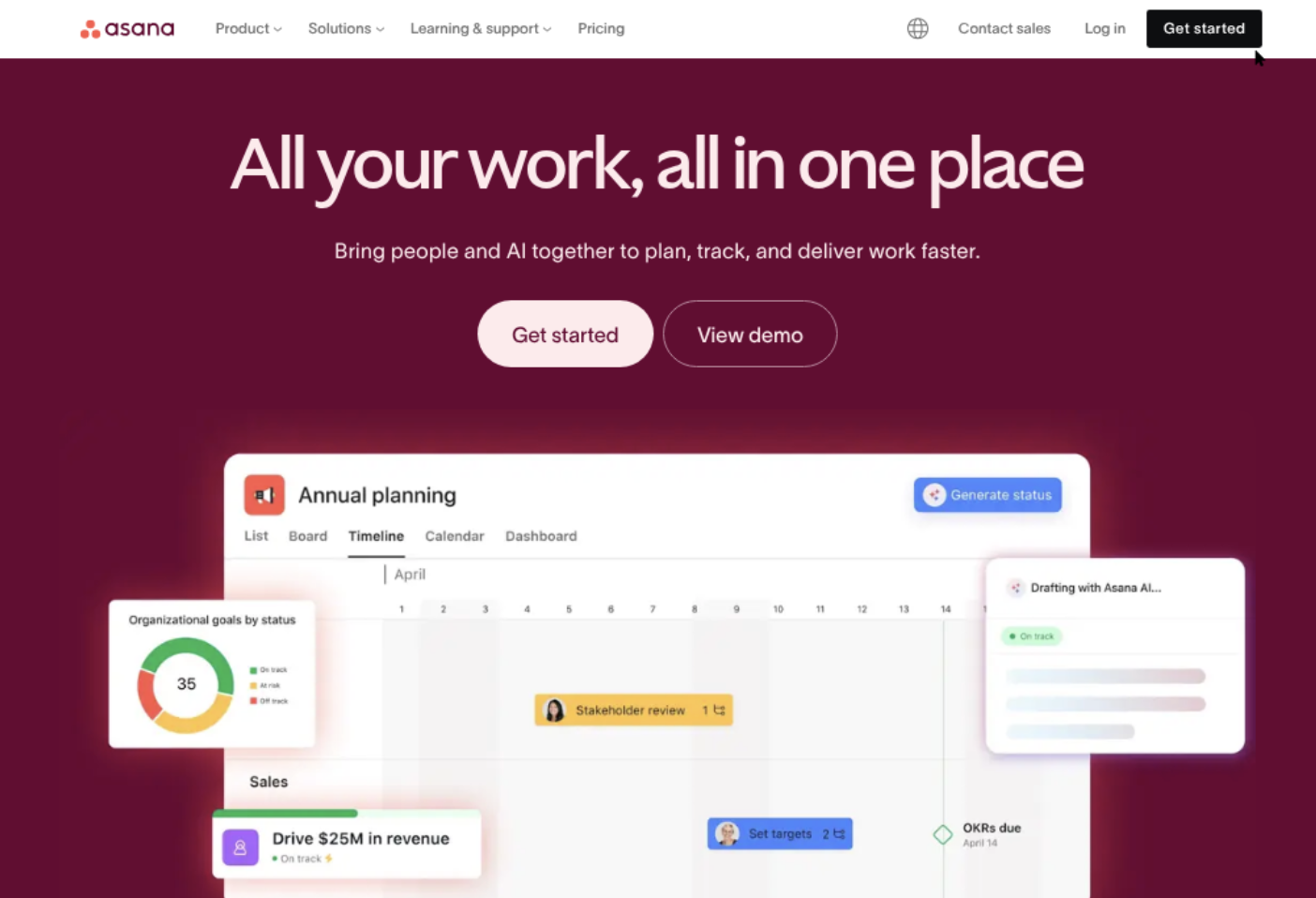
Choose the Right Connection Method
The best method depends on how much control your workflow needs. A ready-made connector may be quicker to configure, while middleware or a custom integration can support more specific rules. Compare options by fit, maintenance, access controls, and failure visibility.
| Method | Often a good fit when | Check before choosing |
|---|
| Marketplace integration | You need a straightforward connection and supported setup. | Supported fields, direction of sync, plan requirements, and vendor permissions. |
| Integration service | You need conditional rules across several applications. | Task limits, error alerts, security controls, and ongoing service costs. |
| Custom API integration | Your workflow needs specialized logic or internal controls. | Development effort, API limits, authentication, and maintenance ownership. |
For example, a small product team might use a connector to create a Jira issue when an Asana task reaches “Ready for development.” A larger organization may need a service that applies different rules by team or project.
You might be wondering: should updates flow in both directions? Start with the fewest directions that solve the problem. One-way status updates can be easier to understand than two-way syncing, where a change in either system may overwrite the other.
Plan What Should Sync
A useful integration transfers the information people need to act, not every available field. Begin with a simple mapping and add complexity only when a real workflow requires it.
For instance, a launch task in Asana could link to a Jira issue while keeping its stakeholder-facing description in Asana. Jira can own the technical assignee and sprint, while the Asana task reflects a broad milestone status.
Agree on task and issue ownership
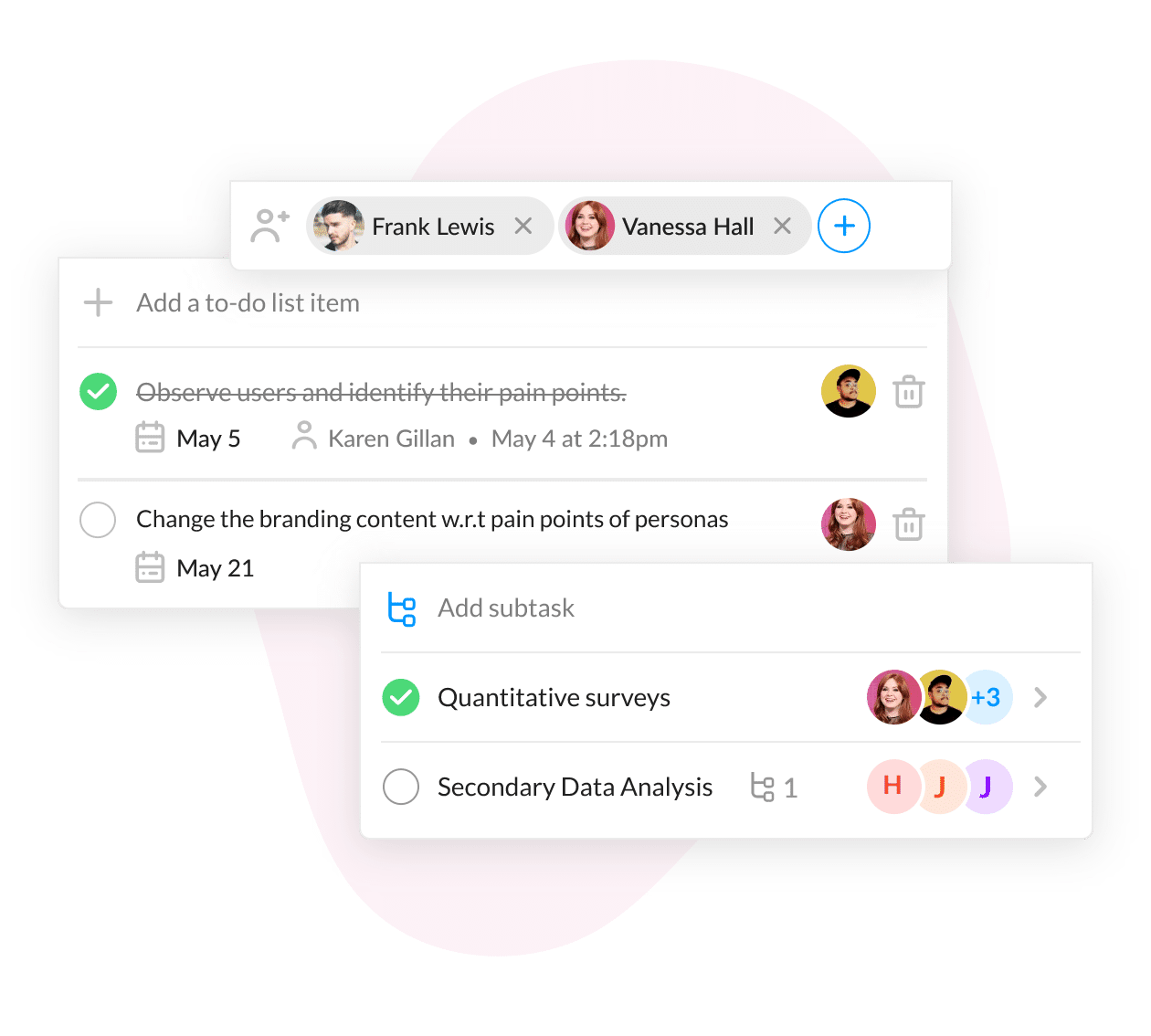
Define whether the connection creates a new Jira issue from an Asana task, links an existing issue, or supports both. Give each work item a clear owner. Without that agreement, people may create separate issues for the same request.
Map fields with matching meanings
Field labels can look alike while describing different things. An Asana priority and a Jira priority may use different scales, for example. Map values deliberately, and leave a field unsynced if there is no reliable equivalent.
Set rules for status changes
Write down what should happen when work moves, pauses, or reopens. A Jira issue marked “Blocked” might need to keep its Asana task active while adding a note for the project lead. Test that behavior instead of assuming it.
Test the Connection Before Expanding It
A test should cover the everyday actions people take, along with less common changes that can disrupt a workflow. Use a separate project or a small set of clearly identified test tasks.
- Create an Asana task and confirm whether the intended Jira issue appears.
- Update a task title, owner, due date, and status, then check which changes sync.
- Make a change in Jira and verify whether Asana updates as expected.
- Reopen or move an issue to an unusual status to check transition rules.
- Look for duplicate items, delayed updates, and clear error notifications.
- Confirm that people without access to a project cannot see restricted work through the connector.
Keep a short test log with the action, expected result, and actual result. If changing an Asana owner fails to update Jira, decide whether that’s a configuration issue or an intentional boundary between the tools.
The best part? A controlled test gives teams a chance to learn the new workflow without putting every active project at risk.
Roll Out and Maintain the Workflow
Once the pilot behaves as expected, introduce the connection to a small group and explain what it syncs. A brief walkthrough can prevent someone from manually duplicating a Jira issue that the connector will create automatically.
Assign an owner to review the setup when projects, team roles, or workflows change. A connector can keep running while its field mapping becomes outdated, so schedule a regular check and review problems when teams report them.
Make ownership visible
Tell participants which platform owns each field and where to make a change. For example, “Update sprint and technical status in Jira; update milestone notes in Asana” is clearer than asking people to keep both platforms current.
Monitor failures and duplicates
Check available sync history or alerts after rollout. If the same Jira issue appears twice, pause the relevant automation if needed, identify the trigger, and correct the rule before restarting it.
Review access as teams change
When a project ends or a team changes, confirm that the connection still has appropriate permissions. Remove access that is no longer needed, and make sure someone knows how to restore the integration if its account credentials change.
A Unified Project Management Alternative: ONES.com
When the ongoing work of keeping two project systems aligned becomes difficult, you can also consider whether one project environment would better fit the workflow. ONES.com combines project management and knowledge management in a unified platform powered by ONES Assistant.

ONES.com is not an Asana-to-Jira connector. It is an alternative to coordinating work across separate platforms, and ONES Project is a Jira alternative. ONES Project and ONES Wiki are sold separately, so teams can choose the product that matches their needs.
Core capabilities
- Split project tracking creates duplicate updates. ONES Project provides project management in one environment, helping teams reduce repeated task maintenance across systems.
- Teams need familiar issue workflows. Jira-compatible workflows support teams that want a familiar way to manage work while evaluating a Jira alternative.
- Different teams need different processes. Custom workflows and fields let teams shape work tracking around their processes, helping keep relevant details visible.
- Sprint planning needs a clear home. Sprint management supports planning and tracking development work alongside project activity.
- Manual repeat actions take time. Automation can handle supported routine steps, reducing repetitive updates for project teams.
- Project leads need progress visibility. Built-in reporting helps teams review work progress without relying on separate reporting plugins for every view.
- Project guidance is scattered. ONES Wiki provides knowledge management as a Confluence alternative, so teams can maintain project knowledge in a related environment.
- Infrastructure rules vary across organizations. ONES.com offers Cloud, On-Premise, Private Cloud, and Air-gapped deployments, allowing teams to evaluate an option against their hosting requirements.
- Self-hosted teams worry about missing features. Cloud and self-hosted versions have full feature parity, so deployment choice does not require giving up feature availability.
Where it may fit
A software team that spends time copying issue statuses into a separate project tracker could assess whether ONES Project better matches its daily planning and development workflow. The team should compare its current requirements, permissions, and processes before deciding.
A regulated organization with strict hosting requirements may evaluate the On-Premise, Private Cloud, or Air-gapped deployment options. A team that also needs project knowledge management can consider ONES Wiki separately from ONES Project.
ONES.com offers a free plan for up to 30 seats. If you are considering it, compare its capabilities and deployment options with the workflow you need rather than assuming a platform change will automatically solve every coordination issue.
Common Challenges and Practical Fixes
Updates appear in the wrong system
Why it happens: The team has not agreed which platform owns each field, or bidirectional rules allow conflicting edits. What to do: Set a clear owner for every synced field and reduce sync directions until the conflict is resolved.
Duplicate tasks or Jira issues appear
Why it happens: More than one automation may respond to the same event, or the connector cannot identify an existing linked item. What to do: Check triggers and linking behavior with test tasks, then disable overlapping rules.

Status labels do not match
Why it happens: Each team uses workflow stages with different meanings. What to do: Create an explicit mapping, test uncommon transitions, and leave statuses unmapped when there is no sensible equivalent.
People stop trusting the sync
Why it happens: Delays or silent failures leave tasks out of date. What to do: Assign an owner to review alerts or sync history, explain how to report issues, and tell participants where to make authoritative updates.
Frequently Asked Questions
Can Asana and Jira sync in both directions?
Some connection methods support two-way updates, while others focus on one-way actions or selected fields. Capabilities vary by connector and account plan. Before enabling two-way sync, decide which platform owns each field and test conflicting edits. If changing a status in either system could cause confusion, begin with one-way updates and expand only when the team has a clear reason.
What information should I sync between Asana and Jira?
Start with fields that help people act across teams, such as a task name, link, owner, due date, priority, or broad status. The right selection depends on who uses each system. A stakeholder may need a milestone update, while an engineer may need sprint details in Jira. Avoid syncing fields that have different meanings or are not useful to the receiving team.
How can I prevent duplicate tasks?
Choose a clear creation rule, such as creating a Jira issue only when an Asana task enters a specific stage. Confirm whether the connector links future updates to the existing issue. Test repeated triggers and changes to task status before rollout. If more than one automation can create the same issue, remove overlapping rules or add conditions that distinguish the intended action.
What should I do if the integration stops updating?
Check the connector’s status, permissions, and available sync history first. Confirm whether account access changed or whether a project’s fields and workflow were modified. Test one known task to see where the update stops, then involve the integration owner or administrator. Let the team know which system to update manually while the issue is being resolved.
Conclusion
Connecting Asana and Jira works best when you define the workflow before choosing a connector. Decide what syncs, establish field ownership, test everyday changes, and roll out the connection gradually.
If the integration starts creating duplicate work or confusing status changes, revisit the mapping and permissions instead of adding more automation. A clear pilot and a named owner can help keep the connection useful as projects evolve.
When maintaining two project platforms becomes more effort than the coordination is worth, review whether your current workflow or a unified project environment better meets your team’s needs.