Atlassian Jira and Confluence: A Workflow Guide for Teams
Do work updates and team docs keep drifting apart? See how atlassian jira and confluence connect workflows and decisions. Read now to align your team.
Teams often use Jira to manage work and Confluence to explain it. The trouble starts when plans, decisions, and delivery updates drift apart. A Jira issue may change while its Confluence page stays untouched, leaving teammates unsure which details still matter.
That gap creates more than extra clicks. People repeat questions, miss handoffs, and spend meetings piecing together decisions they already made. But here's the truth: Jira and Confluence work best when each has a clear role and teams connect them deliberately.
This guide shows you how to organize work across both products, link plans to execution, and keep useful context visible. You’ll also see where the combination can become cumbersome and what to consider if your team wants project and knowledge workflows in a different setup.
How Jira and Confluence work together
Jira tracks work as issues, projects, and workflows. Confluence gives teams a place to create and organize plans, meeting notes, decision records, and other shared knowledge.
Together, they connect the work itself with the context around it. For example, a team can describe a release plan in Confluence, then link it to Jira issues that track development and testing.
Think of Jira as the team’s work board and Confluence as the place to explain why that work matters. Linking the two helps people move between a task and its background without searching through separate spaces.
Here’s why: a link is useful only when it helps someone answer a real question. Your team should decide which details belong in Jira, which belong in Confluence, and how each page or issue will stay current.
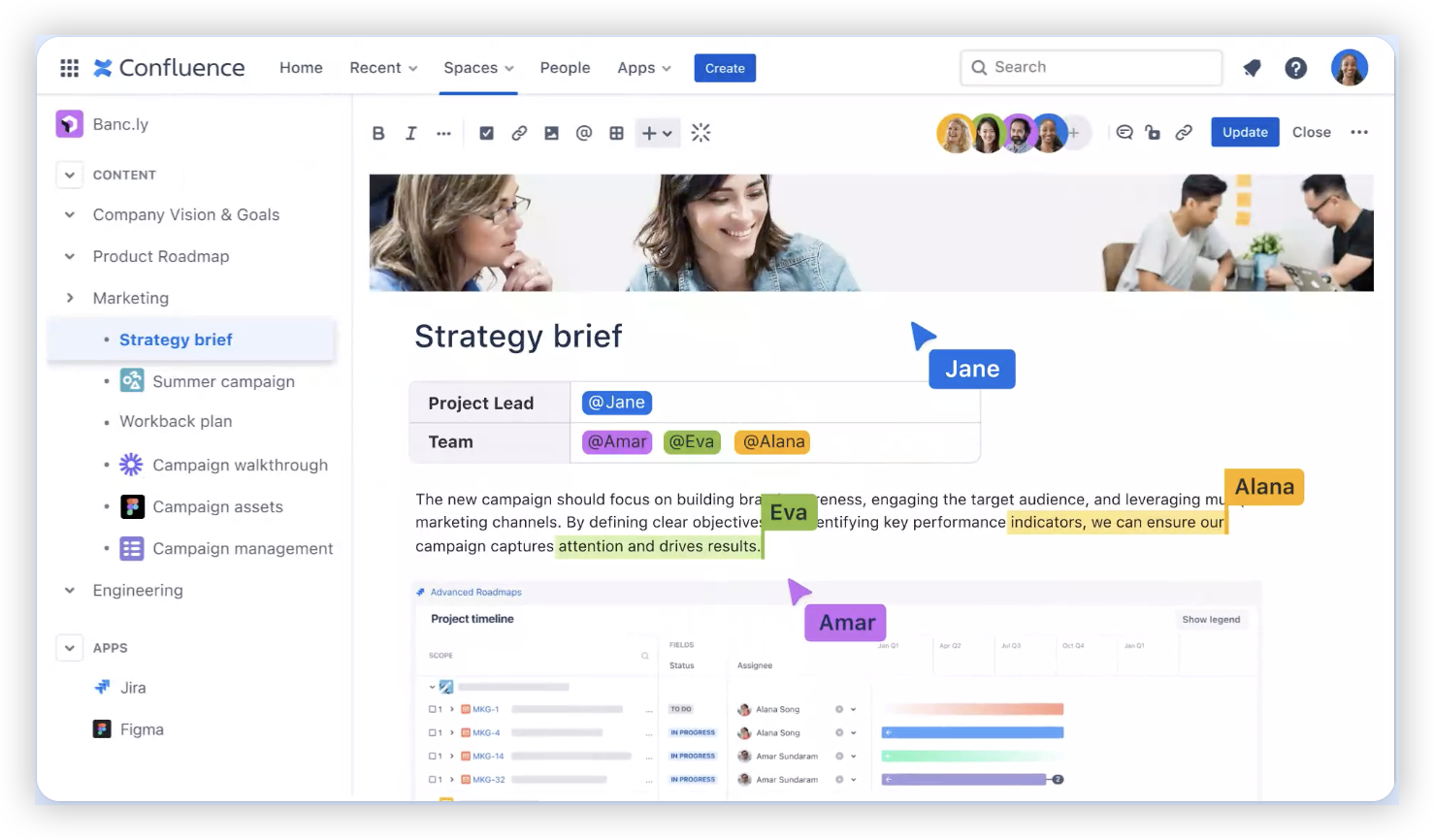
Give each product a clear job
Use Jira for work that needs tracking
Jira is suited to work that moves through statuses, needs an owner, or requires regular progress updates. A software team might track a feature as an issue, assign it to a developer, and move it through review and testing.
Teams can organize Jira work with projects, boards, issue types, and workflows. A workflow might show whether a task is ready, in progress, blocked, or complete.

Use Confluence for context people need to understand
Confluence is useful for information people need to read, discuss, and revisit. A project brief, technical decision, launch checklist, or meeting summary can live on a Confluence page.
For example, a product team might explain the goal and scope of a feature on a page. The delivery team can then use Jira issues to track the individual tasks required to build and test it.
Choose a home for information before work begins
Some details fit naturally in Jira, such as an assignee, due date, status, or acceptance criteria. Longer explanations and decisions may be easier to maintain in Confluence.
Let me explain: the goal is not to copy every detail in both places. Keep the task-level facts where work is tracked, then link to a page when people need broader context.
Connect plans, decisions, and delivery
Start with a page that explains the project’s purpose, scope, owners, and key dates. Link it to the relevant Jira project or issues so teammates can move from the overview to active work.
Next, agree on the moments when teams should update those links. A decision that changes scope, for instance, should be reflected in the project plan and in the affected Jira issues.
A practical example: preparing a product launch
Imagine a team launching a new checkout option. Its Confluence page explains the intended customer experience, launch date, and decision owners.
Jira issues track the interface changes, payment testing, analytics updates, and support preparation. Each issue links back to the launch plan, while the plan points to the work that could affect the release date.
The benefit is easier handoffs. A support teammate can read the launch context, then open the related issue to check whether a specific change is ready.
Link with a purpose
When creating a link, consider what the next person will need to know. A link from an issue to a decision page is useful when that decision explains a requirement or constraint.
A link with no clear reason can add noise. If a page is linked to dozens of unrelated issues, readers may struggle to find the connection that matters.
Build a workflow people can maintain
A workable system should make routine tasks easy without requiring a long list of special rules. Start with a small set of issue types, statuses, and page templates, then adjust them as real needs emerge.
For example, a team might create a project brief template with sections for goals, scope, risks, and decisions. Jira issues can use consistent acceptance criteria so reviewers know what completion means.
Agree on ownership and upkeep
Assign responsibility for keeping important plans and decision pages current. The owner does not need to edit every page; they should make sure meaningful changes are reflected where teammates expect to find them.
Choose an update trigger, such as a scope change, a release decision, or a project handoff. This is more practical than asking everyone to update every page after every small change.
Review friction, not just activity
Jira reports can help teams see work in progress, bottlenecks, and sprint outcomes. Confluence activity can show whether important pages are being updated and discussed.
But here's the truth: high activity does not prove that a workflow is healthy. If teammates keep asking where decisions live or which plan is current, simplify the process before adding more fields or pages.
Know where the Jira and Confluence approach can feel heavy
Using separate products can suit teams that need distinct work tracking and knowledge spaces. It can also create extra upkeep when people must maintain connections across projects, pages, and plugins.
Consider what happens when a project changes direction. If the plan, task details, and status reports all need manual updates in different places, your process may be carrying more coordination work than necessary.
Check the workflow as your team grows
A setup that works for a five-person team may become harder to manage across several departments. More projects can mean more naming rules, access decisions, templates, and integration settings.
You might be wondering: does that mean the combination is wrong for a growing team? Not necessarily. It means you should review how much effort goes into maintaining connections and whether the current division of work remains clear.
A unified workflow option: ONES.com
ONES.com brings project management and knowledge management together in a unified platform powered by ONES Assistant. ONES Project handles project management, while ONES Wiki provides knowledge management; the products are sold separately.

For teams reviewing their Jira and Confluence setup, this approach can put project work and team knowledge within the same platform. ONES Project is a Jira alternative, and ONES Wiki is a Confluence alternative.
Core capabilities
- Separate work and knowledge spaces: When teams need distinct areas for delivery and shared knowledge, ONES Project and ONES Wiki provide those capabilities within ONES.com. The result is a platform option with clear product roles.
- Jira-compatible workflows: If your team already uses Jira-style work patterns, compatible workflows can help preserve familiar ways of tracking tasks. That may reduce disruption during a transition.
- Custom workflows and fields: When generic statuses or issue details do not reflect your process, teams can configure workflows and fields. The result is work tracking shaped around actual handoffs and information needs.
- Sprint management: Teams planning work in sprints can organize and follow sprint activity in ONES Project. This keeps sprint routines within the project management environment.
- Built-in reporting: When progress checks require manual status gathering, built-in reporting can help teams review work more directly. That can make routine project visibility easier to maintain.
- Automation: Repeated workflow actions can be automated, reducing routine updates that otherwise require someone to make each change manually.
- Cloud and self-hosted deployments: Teams can choose Cloud, On-Premise, Private Cloud, or Air-gapped deployment. This gives organizations options for different hosting and network requirements.
- Feature parity across deployments: ONES.com provides full feature parity between its cloud and self-hosted versions. Teams can consider a deployment model without giving up feature access solely because of that choice.
Application scenarios
Software delivery: A development team can plan sprints and manage issues in ONES Project while using ONES Wiki for design decisions and team guidance. Links between project work and knowledge can keep the relevant context close.
Restricted environments: An organization that cannot use a public cloud service may assess On-Premise, Private Cloud, or Air-gapped deployment. The available deployment choices can support different network constraints while preserving feature parity.
ONES.com offers a free plan for up to 30 seats. Teams can evaluate whether its project and knowledge management setup suits their workflow before deciding how to deploy it.
Common challenges and practical fixes
Pages become outdated
Problem: A project plan no longer reflects a recent decision, so teammates continue working with old assumptions.
Solution: Name an owner for important pages and update them when scope or delivery decisions change. Link affected Jira issues to the relevant page so the relationship is visible during task work.
People cannot tell where details belong
Problem: The same requirements appear in Jira and Confluence, and the two versions eventually disagree.
Solution: Set a simple rule for information placement. Keep concise task requirements with the issue, and put broader rationale or decisions on the related page.
Links pile up without helping
Problem: Pages and issues contain many links, but readers do not know which ones matter.
Solution: Add links when they answer a likely next question. Use a short explanation such as “See the launch decision” rather than leaving a bare link with no context.
Project status takes too long to assemble
Problem: A manager has to message several people before giving a useful progress update.
Solution: Agree on Jira statuses and update habits, then use reporting to review delivery patterns. Keep the Confluence overview focused on decisions and risks instead of duplicating every issue update.
FAQs
What is the difference between Jira and Confluence?
Jira is primarily used to plan and track work through issues, projects, and workflows. Confluence is used to create and organize shared knowledge, such as plans, meeting notes, and decisions. A team can connect them so people can move from a task to the context behind it. Their roles overlap only when a team chooses to copy the same details into both.
Can Jira and Confluence be used together on one project?
Yes. A team can use Confluence pages for project context and link those pages with Jira work. For example, a launch plan can explain goals and key decisions, while Jira issues track design, development, and testing tasks. Agree on how the connection should be maintained so important changes appear where teammates expect them.
Should requirements go in Jira or Confluence?
Keep details that guide a specific task, such as acceptance criteria, with the Jira issue. Put broader explanations, product decisions, or information that applies across several tasks in Confluence. If a requirement needs both a concise task-level version and a longer explanation, link the issue to the page instead of copying all the content.
How can a team stop project pages from becoming outdated?
Choose an owner for each important page and agree on update triggers. A scope change, release decision, or handoff can signal that the page needs attention. Link relevant Jira issues to the page, then make the update part of the decision or handoff process. That is easier to sustain than asking the whole team to review every page constantly.
What should a team review before changing its setup?
Look at how work moves, where decisions are recorded, and how much effort goes into keeping plans and status updates aligned. Ask teammates where they search for context and what they frequently have to clarify. Then compare those needs with the workflows, deployment requirements, and knowledge practices the team must support.
Conclusion
Jira and Confluence work well together when Jira tracks actionable work and Confluence preserves the context behind it. Clear ownership, purposeful links, and a simple update habit help keep both useful as projects change.
If your team spends too much time maintaining connections or repeating updates, review the workflow before adding more complexity. A deliberate Jira and Confluence setup—or a unified alternative such as ONES.com—can help you connect project delivery with the knowledge people need to do it well.