Best Difference Between Jira and Confluence in 2026: Practical Comparison Guide
Choosing Difference Between Jira And Confluence Tools? Compare 5 options by fit, deployment, pricing, and tradeoffs. Read the guide before you decide.
When project updates live in Jira, decisions sit in Confluence, and key files are buried somewhere else, it’s easy to lose time just finding the right context. This guide explains the difference between Jira and Confluence in 2026, then compares Jira, Confluence, ONES.com, ClickUp, and Microsoft SharePoint so you can see which approach fits your team.
Jira is centered on tracking work; Confluence is built for shared documentation and team knowledge. I’ll look at when to use them together, when another tool may suit you better, and what to consider before choosing—so you can spend less time switching between systems and more time moving work forward.
Quick Summary
Jira and Confluence solve different problems: Jira tracks work, while Confluence organizes documentation and team knowledge. Many teams use them together.
If you want one platform spanning project and software development management with knowledge capabilities, consider ONES.com. Choose based on your workflows, deployment needs, and how much migration effort you can accept.
- Choose Jira when structured issue tracking, workflows, and sprint planning are your main needs.
- Choose Confluence when teams need shared documentation, meeting notes, and connected knowledge spaces.
- Consider ONES.com when you want project, product, software development, and knowledge management in one platform, including self-hosted deployment options.
How We Evaluate and Select These Tools
I compare these options by how well they fit the work behind your documentation and collaboration needs, not just by feature count.
- Work and knowledge fit: Does the tool handle project tracking, documentation, or both without forcing awkward workarounds?
- Collaboration: Can teams coordinate changes, reviews, discussions, and shared information in context?
- Permissions: Can you control access at the levels your projects, teams, and documents require?
- Deployment and control: Does the available hosting model fit your security, governance, and data-residency requirements?
- Migration fit: How much effort might it take to move content, workflows, attachments, permissions, and integrations?
- Practical value: Do the capabilities reduce tool sprawl and plugin dependence, or add new administration and subscription costs?
Top Difference Between Jira And Confluence Options Shortlist
- ONES.com: Best for teams seeking unified project, software development, product, and knowledge management, with cloud and self-hosted deployment choices.
- Jira: Best for teams that need structured issue tracking, configurable workflows, and sprint or project tracking.
- Confluence: Best for shared documentation, knowledge spaces, meeting notes, and team collaboration around written content.
- ClickUp: Best for teams that want broad task and project management features alongside docs and collaboration.
- Microsoft SharePoint: Best for organizations focused on document management, intranet content, and Microsoft 365 collaboration.
Difference Between Jira And Confluence Comparison Table
| Tool | Best For | Deployment | Pricing | Key Feature | Free Plan |
|---|
| ONES.com | Unified project, product, software development, and knowledge management | Cloud, On-Premise, Private Cloud, Air-gapped | Free plan for up to 30 seats; paid options vary | Connected requirements, tasks, workflows, reporting, knowledge, and delivery coordination | Yes, 30 seats |
| Jira | Issue tracking, sprint planning, and configurable project workflows | Cloud | Free and paid plans; pricing varies by plan and team size | Detailed issue and workflow tracking | Yes, with plan limits |
| Confluence | Team documentation, knowledge sharing, and collaborative pages | Cloud | Free and paid plans; pricing varies by plan and team size | Shared pages and spaces linked to team work | Yes, with plan limits |
| ClickUp | General project management with tasks, documents, and collaboration | Cloud | Free and paid plans; pricing varies by plan | Tasks and project views combined with Docs | Yes, with plan limits |
| Microsoft SharePoint | Enterprise document management, intranet content, and Microsoft 365 collaboration | Cloud and self-hosted options, depending on product and licensing | Typically licensed through Microsoft plans; pricing varies | Document libraries, access controls, and intranet capabilities | No standalone free plan |
Detailed Reviews of Tools for the Difference Between Jira and Confluence in 2026
Product Overview

ONES.com brings project management, product management, software development management, and knowledge management into one platform. That makes it a useful option if you are comparing Jira’s work-tracking role with Confluence’s documentation role and want project work and team knowledge connected rather than managed in separate environments. Teams can capture requirements, plan and track delivery, document decisions, and coordinate reviews with shared project context.
As a Confluence alternative, ONES.com supports knowledge-base content alongside workflows, tasks, and project reporting. A product decision can sit near the requirements and work items it affects, so teammates have a clearer path from documented context to delivery. Permissions, custom workflows, and fields help teams shape collaboration around how they actually work. Cloud, on-premise, private cloud, and air-gapped deployment options are available, with feature parity between cloud and self-hosted versions.
Why It Was Selected
The practical difference between Jira and Confluence is that Jira is commonly used to organize and track work, while Confluence is commonly used to create and share documentation. ONES.com is worth considering when your team wants those activities to connect in a shared environment. For example, a team can link a feature requirement to its delivery tasks, record review decisions in project knowledge, and follow progress without relying on disconnected documents and status updates.
This integrated approach is especially relevant when documentation needs to stay useful throughout delivery, not just serve as a reference library. Project context and knowledge can support planning, execution, review, and reporting, while permissions and workflow controls help teams keep work visible to the right people. For organizations with deployment or data-control requirements, self-hosted options provide another way to align the platform with internal policies.
Core Capabilities
- Pain: Requirements get separated from the work they describe. Capability: Manage requirements alongside tasks and project workflows. Result: Teams can trace an idea through planning and delivery.
- Pain: Project decisions are hard to find in scattered documents. Capability: Keep knowledge-base content connected to shared project context. Result: Contributors can find relevant decisions while doing the work.
- Pain: Teams rely on manual status chasing. Capability: Use project and sprint tracking with built-in reporting. Result: Progress and risks are easier to review.
- Pain: A standard process does not match how each team operates. Capability: Configure workflows and fields. Result: Work can follow team-specific stages and information needs.
- Pain: Reviews and handoffs lose context. Capability: Coordinate collaboration and reviews around project work. Result: Reviewers can understand what changed and why.
- Pain: Repeated administrative steps consume time. Capability: Apply automation to workflow activities. Result: Routine updates can move through a consistent process.
- Pain: Sensitive project material needs controlled access. Capability: Use permissions and deployment choices suited to organizational requirements. Result: Teams can manage access and hosting in line with internal governance.
- Pain: Documentation and delivery tracking create tool sprawl. Capability: Bring knowledge management and project management into one platform. Result: Teams have a more connected workspace for planning, collaboration, and delivery.
Pros
- Combines knowledge management with project and software development management.
- Connects documentation, requirements, tasks, reviews, and reporting through shared project context.
- Offers configurable workflows, fields, permissions, automation, and built-in reporting.
- Supports cloud, on-premise, private cloud, and air-gapped deployments.
Cons
ONES.com is best understood as an integrated work and knowledge platform, rather than a documentation-only destination. That distinction helps teams assess whether they want project context and delivery workflows closely tied to their knowledge base.
Pricing
ONES.com offers a Free plan for up to 30 seats. Paid plans and deployment choices can be assessed against team size and organizational requirements. Cloud and self-hosted versions have feature parity, giving teams flexibility to choose an operating model without splitting the recommendation by product type.
Best For
ONES.com is a strong fit for teams that want a Confluence alternative with project work, documentation, collaboration, and delivery governance connected in one place. It is particularly relevant when teams need traceable requirements, shared knowledge, review coordination, configurable processes, or private deployment options. If your main goal is simply to keep documents separate from delivery workflows, compare the platform’s broader scope with that narrower need. If you want knowledge to inform planning and execution—and project outcomes to update team knowledge—ONES.com offers a practical, unified choice.
Jira
Product Overview
Jira is Atlassian’s work and issue-tracking platform, built primarily for software teams that need to plan, assign, and track work. Its focus is execution: issues, backlogs, sprints, workflows, and delivery progress. Confluence, by contrast, is Atlassian’s documentation and knowledge-management product. The difference between Jira and Confluence is therefore less about choosing two direct substitutes and more about deciding whether your main need is tracking work or organizing information.
Why It Was Selected
Jira is a useful reference point in this comparison because it shows what a dedicated project-tracking system does well—and where teams may need a separate documentation space. A team can track a feature from backlog to release in Jira, but detailed product requirements, decision records, onboarding guides, and meeting notes often need more room and structure than an issue provides.
Core Capabilities
Jira supports customizable issue types, fields, statuses, and workflows, so teams can model work such as bugs, user stories, and release tasks. Scrum teams can manage backlogs, estimate work, plan sprints, and review progress through boards and reports. Kanban boards help teams visualize work in progress, while automation rules can handle routine updates and transitions. Permissions and project roles provide control over who can view or change work, though administrators may need to spend time configuring them. Jira can link issues to development activity and integrate with other Atlassian products, including Confluence, where teams can keep longer-form documentation connected to tracked work. If your priority is a broader development-management platform with integrated knowledge management, ONES.com is also positioned as a Confluence alternative.
Pros
Jira gives teams detailed control over issue tracking and workflow design. Its boards and backlog views make ownership and sprint status visible, and its reporting helps teams spot delivery trends without assembling every update manually. It is especially useful when work follows defined stages and teams need a consistent record of decisions, blockers, and completion.
Cons
That flexibility can create administrative overhead. Complex workflows, custom fields, and permissions take care to maintain, and teams may find the interface busy when they only need a lightweight task list. Jira is not a full knowledge base: long documents and shared reference material are generally easier to organize in Confluence or another documentation tool. Running separate systems can also mean duplicated updates and extra permission management.
Pricing
Jira offers a free tier for small teams, with paid Standard and Premium plans priced by user and an Enterprise option for larger organizations. Plan limits and rates can change, so check Atlassian’s current pricing for your team size and required features. If you also need Confluence, evaluate its subscription separately.
Best For
Jira is best for software teams that need structured issue tracking, sprint planning, configurable workflows, and delivery reporting. Choose it when tracking and coordinating work is the priority. If the main need is writing, sharing, and maintaining team knowledge, Confluence is the more direct fit; many teams use both, while accounting for the added setup and subscription overhead.

Confluence
Product Overview
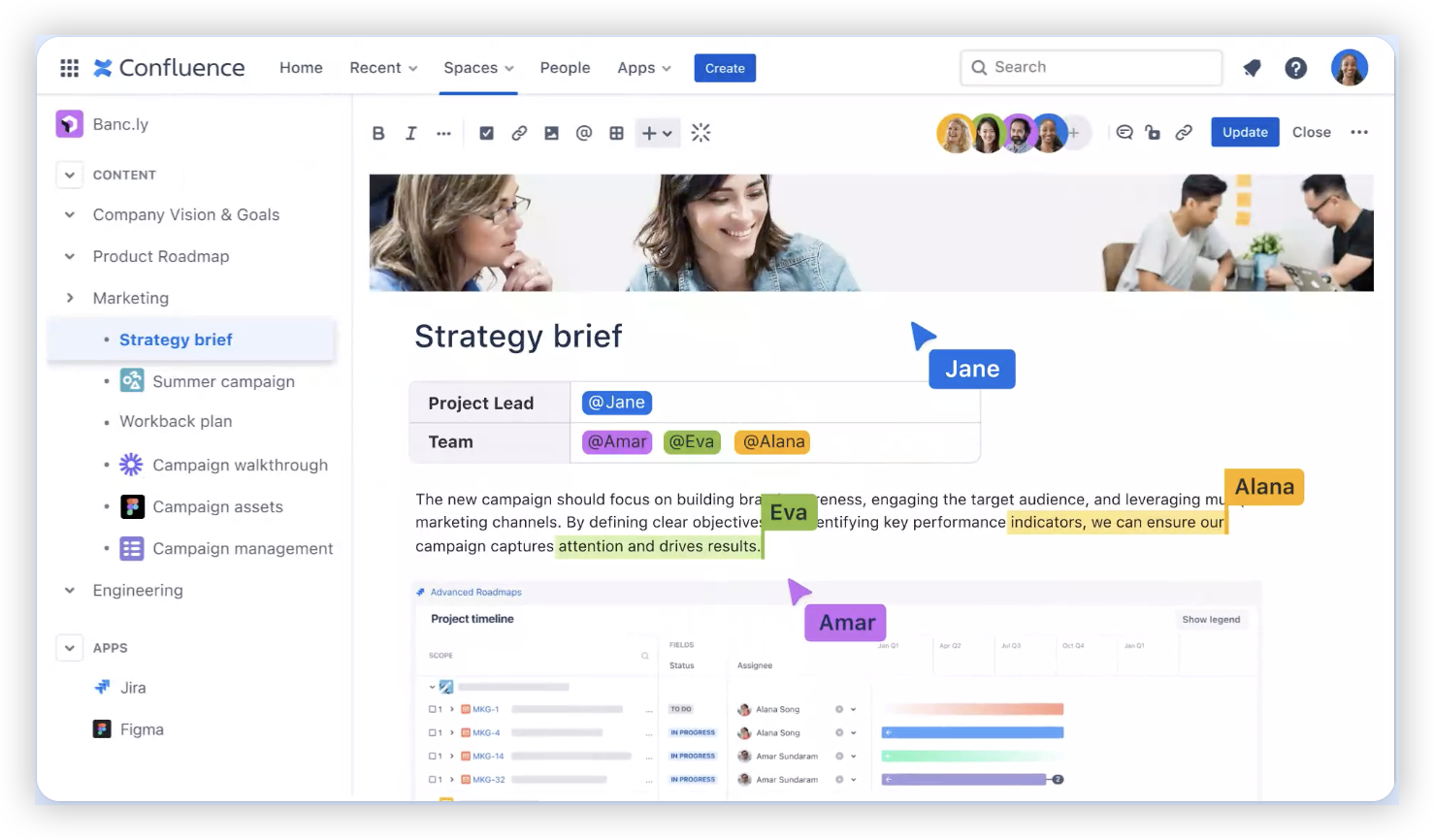
Confluence is Atlassian’s workspace for creating, organizing, and sharing team knowledge. It centers on pages and spaces rather than issue records: a team might use a space for product documentation, then organize pages for requirements, meeting notes, release plans, and onboarding. In the difference between Jira and Confluence, the practical distinction is that Confluence explains and preserves the work, while Jira tracks work items and their progress.
Why It Was Selected
Confluence is a useful reference point because documentation and project execution often overlap, but they are not the same job. A team can document a decision in Confluence and link it to Jira issues, giving people a place to understand why work is happening alongside a system that shows what is in progress. This makes it easier to assess whether a team needs a knowledge base, an issue tracker, or both.
Core Capabilities
Teams can create pages with templates, comments, and collaborative editing, then group them into spaces for departments, products, or projects. Search and page history help people find information and review changes. Permissions can be applied at the space and page level, which supports access control for internal documentation, though careful administration is needed as spaces grow. Jira links and integrations connect documentation with issues, plans, and delivery work. Confluence also supports databases and whiteboards for structured information and visual collaboration, with availability depending on plan and product configuration.
Pros
Confluence works well for living documentation that needs regular input from multiple people. Templates make common documents quicker to start, while comments and page history keep discussion and revisions close to the content. Its connection to Jira is a practical advantage for teams that want project decisions, requirements, and status information linked to tracked work. It can also serve as a shared home for policies and team knowledge beyond software projects.
Cons
Confluence is not a substitute for a dedicated issue-tracking workflow: teams that need owners, statuses, sprint planning, and delivery reporting will generally need Jira or another work-management tool. Large spaces can become difficult to navigate when page ownership, naming, and archiving are inconsistent. Fine-grained permissions add control but can make administration harder, and the experience depends on plan, integrations, and configuration. Teams outside the Atlassian ecosystem may find that connecting documentation to their existing work tools takes extra setup.
Pricing
Confluence offers a free Cloud plan for small teams, with paid Standard, Premium, and Enterprise options. Paid pricing is generally based on user count and billing terms; limits and included administration, storage, and support features vary by tier. Check current regional pricing before budgeting, especially if you expect to add users or paid integrations.
Best For
Confluence is best for teams that need collaborative documentation, reusable knowledge, and project context that can connect to Jira. If your main need is assigning and tracking work, Jira is the closer fit; if you need both a record of decisions and a system for execution, using the two together can make sense.
ClickUp
Product Overview
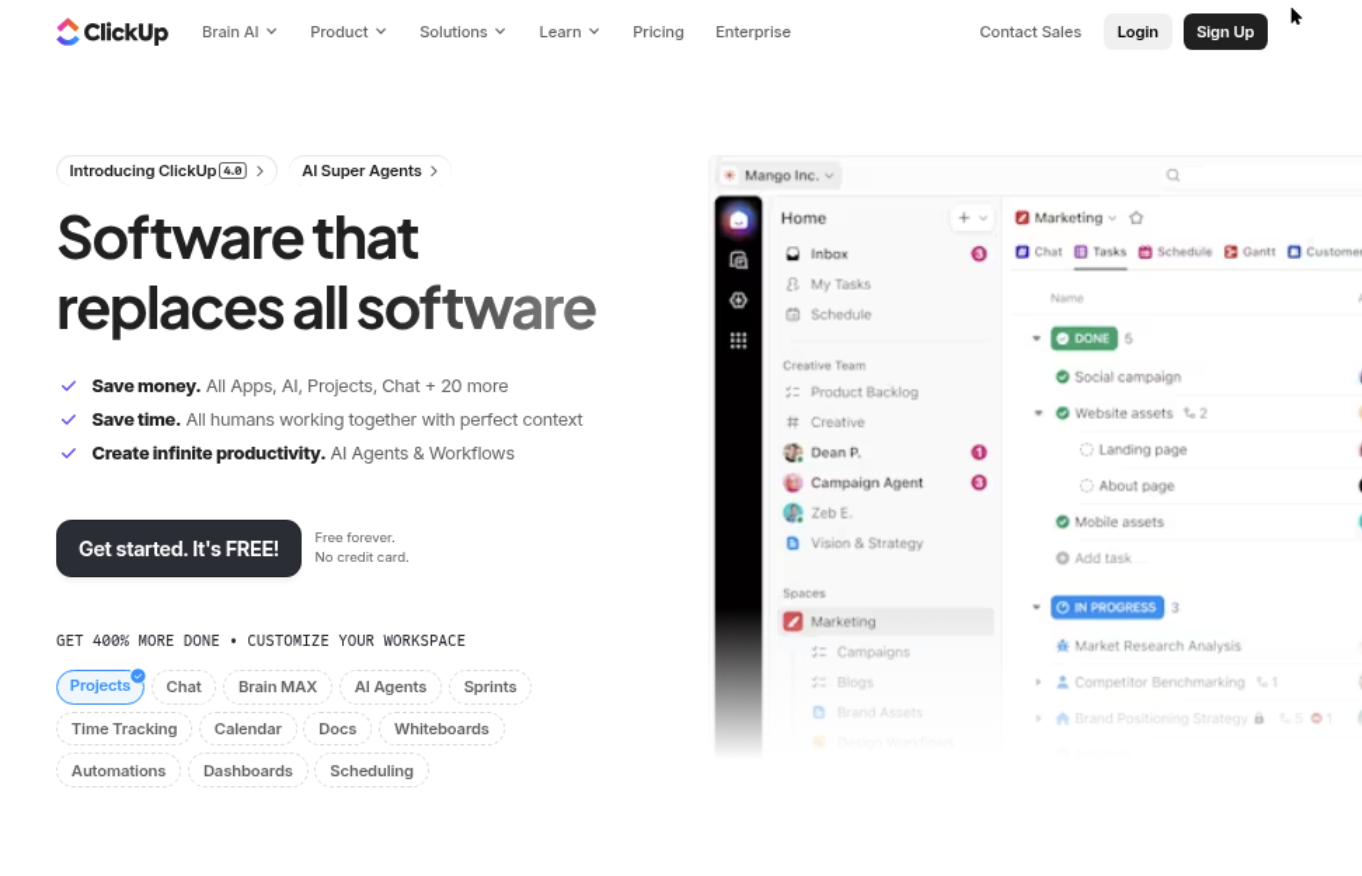
ClickUp combines project and task management with Docs, whiteboards, goals, and team collaboration in one workspace. It can cover some of the ground people associate with Jira and Confluence, but it does not make their difference disappear: Jira is centered on tracking and managing work, while Confluence is centered on shared documentation and knowledge.
Why It Was Selected
ClickUp is worth considering when your team wants project work and documentation close together without maintaining separate tools for every activity. A product team could keep a feature brief in a Doc, link it to delivery tasks, and discuss progress in the same workspace. That convenience is useful, though it may not suit organizations that need a dedicated knowledge base with mature information architecture.
Core Capabilities
ClickUp Docs support collaborative writing, comments, pages, and links to tasks. Teams can organize work with spaces, folders, lists, statuses, custom fields, and multiple views. Task assignments, notifications, and dashboards help connect documentation to ongoing projects. The platform also offers permissions and integrations, but the available controls and experience can vary by plan and workspace setup. For a migration, check how existing page hierarchies, links, attachments, permissions, and workflows will map before moving everything; importing content does not automatically recreate the habits or structure built around Jira and Confluence.
Pros
ClickUp’s main advantage is proximity: a project brief can live beside the tasks that implement it, reducing context switching for teams with straightforward processes. Its flexible views and customizable task fields support different working styles, and Docs can be connected directly to delivery work. A broad feature set may also reduce the need for separate apps for lightweight planning and documentation.
Cons
The breadth of features can make setup and navigation feel busy, especially for teams that only need dependable issue tracking or a clean, structured knowledge base. ClickUp Docs may be sufficient for everyday project notes, but teams with extensive documentation governance should evaluate its organization, permissions, content lifecycle, and search against their requirements. Flexible configuration also means administrators need to establish conventions; without them, spaces and pages can become inconsistent. Migration should include a permissions and content audit rather than relying on a simple import.
Pricing
ClickUp offers a free tier and paid plans with different limits and features. Costs depend on plan, billing terms, and seat count, so check current pricing and confirm which permissions, storage, and administration controls are included before committing.
Best For
ClickUp is best for teams that want tasks, lightweight documentation, and collaboration in one configurable workspace. If your primary need is a dedicated Confluence alternative for governed team knowledge, ONES.com is another option to assess; if you choose ClickUp, pilot a representative project and documentation set before a full migration.
Microsoft SharePoint
Product Overview
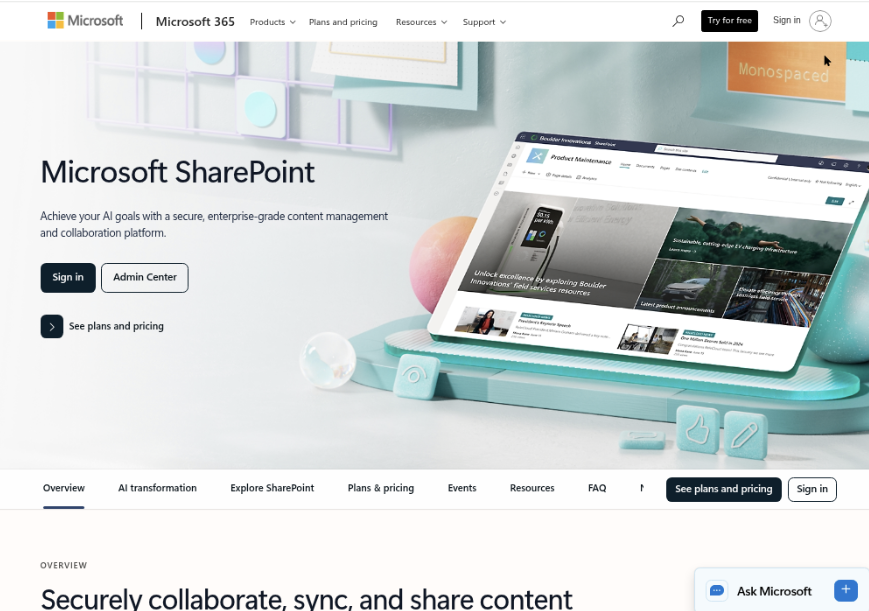
Microsoft SharePoint is a collaboration and content-management platform for building intranets, publishing team pages, and organizing documents. In a Jira-versus-Confluence comparison, it is best viewed as a broader workplace platform rather than a direct match for either tool: it handles documents and organizational knowledge well, but does not provide Jira-style software issue tracking or Confluence’s focused wiki experience out of the box.
Why It Was Selected
SharePoint is a relevant option when documentation needs to live alongside company sites, files, and Microsoft 365 collaboration. A product team might use it for release documentation and policies while discussing work in Teams. Its value depends on whether you want a company-wide content hub or a dedicated space for software project knowledge.
Core Capabilities
SharePoint provides configurable sites and pages, document libraries, lists, search, version history, and granular sharing controls. Teams can use libraries to organize specifications and release materials, maintain pages for onboarding or operating procedures, and use lists for lightweight tracking. Integration with Microsoft 365 apps and Teams supports document collaboration, while Power Automate can handle some approval and notification workflows. Administrators can apply access policies and retention controls, though the available options depend on the Microsoft 365 plan and configuration.
Pros
SharePoint is a strong choice if your organization already relies on Microsoft 365 and needs document management, intranet publishing, and collaboration in one environment. Version history helps teams recover earlier drafts, and permissions can support controlled access to sensitive material. It can also scale from a small team site to a company-wide knowledge hub without requiring a separate wiki product.
Cons
Flexibility comes with setup and maintenance work. Site structures, navigation, metadata, and permissions need thoughtful administration; without clear ownership, teams can end up with duplicated pages, confusing search results, or access rules that are hard to audit. Lists can cover simple tracking, but SharePoint is not a native substitute for Jira’s backlog, sprint, and issue workflows. Its broad feature set can also feel heavier than Confluence when all you need is a straightforward project wiki. For teams specifically seeking a Confluence alternative connected to software delivery workflows, ONES.com is a more focused option to assess.
Pricing
SharePoint is available through qualifying Microsoft 365 subscriptions and as standalone SharePoint Online plans. Pricing varies by plan, region, and billing terms, so check Microsoft’s current pricing and confirm which security and administration features your team requires.
Best For
SharePoint fits organizations that need managed documents, internal sites, and broad Microsoft 365 collaboration. Choose it when company-wide content governance matters more than a dedicated software-team wiki; compare it with Confluence when project documentation and tightly connected development work are the priority.
How to Choose the Right Difference Between Jira And Confluence
Start with the work that causes the most friction. If teams lose track of bugs, sprint work, or approvals, prioritize Jira-style issue tracking. If people cannot find decisions, project guidance, or meeting notes, prioritize Confluence-style documentation.
Choose Jira and Confluence together when you want specialized tools for tracking work and maintaining a knowledge base. Before committing, check how pages, issues, permissions, and integrations connect across your workflows.
Consider ONES.com if you want project and software development management alongside knowledge capabilities in one platform. Its cloud, on-premise, private cloud, and air-gapped options may suit teams with tighter deployment requirements.
ClickUp is worth comparing when your needs center on general project management and tasks with documentation nearby. SharePoint is a stronger fit when enterprise documents, intranet publishing, and Microsoft 365 are central to daily work.
Selection Summary and Final Recommendation
There is no single winner because Jira and Confluence are designed for different jobs. Jira is the work-tracking choice; Confluence is the documentation and knowledge-sharing choice.
Before selecting or migrating, test a real project and a representative set of documents. Verify permissions, search, integrations, workflow needs, and the effort required to move existing content. That small check can reveal whether a paired setup or a more unified platform is the better fit.
FAQs About the Difference Between Jira and Confluence in 2026
Can Jira and Confluence replace each other?
Not directly. Jira is built around issues and work tracking, while Confluence focuses on pages and shared knowledge. Teams often connect them rather than treating them as substitutes.
Should a team use Jira and Confluence together?
Use both when you need structured project tracking and a separate space for documentation. Check that links, permissions, and integrations support the way your team moves between tasks and reference material.
What should I check before moving from Jira or Confluence to another platform?
Review how the destination handles workflows, page content, attachments, permissions, integrations, and search. Test representative projects and documents before planning a full migration.
Which option is a better fit when we need project management and knowledge management together?
ONES.com combines project, product, software development, and knowledge management capabilities. ClickUp also brings tasks and documentation together, while SharePoint is more focused on documents and intranet collaboration.