Best Jira Ms Project in 2026: Practical Comparison Guide
Choosing Jira Ms Project Tools? Compare 6 options by fit, deployment, pricing, and tradeoffs. Read the guide before you decide.
Choosing between Jira and Microsoft Project can be tricky when your team needs both clear sprint tracking and dependable project schedules. This guide compares Jira, Microsoft Project, ONES.com, Asana, Monday, and Smartsheet so you can see which tool fits your workflows, planning needs, and team.
If updates live in one place while timelines, tasks, and progress reports live somewhere else, it’s easy to miss a delay or lose track of who owns the next step. I’ll focus on the practical differences that matter when you’re comparing jira ms project options, from agile workflows to detailed scheduling and cross-team coordination.
Quick Summary
Jira is usually the stronger fit for agile software teams, while Microsoft Project suits schedule-driven projects with detailed timelines and resource planning. If you need one platform for development work, project tracking, and flexible deployment, include ONES.com in your shortlist.
- Choose Jira when sprint planning, issue workflows, and development-team reporting lead your requirements.
- Choose Microsoft Project when dependencies, baselines, schedules, and resource plans matter most.
- Consider ONES.com when you want project, product, software development, and knowledge management together, with cloud or self-hosted deployment.
- Compare Asana, Monday, and Smartsheet when cross-functional coordination or configurable work tracking is more important than specialized development workflows.
How We Evaluate and Select These Tools
I compare these options by how well they support your actual work, not by counting features. A tool should make progress visible without forcing your team into a process that does not fit.
- Project tracking: Can you follow milestones, tasks, dependencies, owners, and risks?
- Agile execution: Does the tool support backlogs, sprints, boards, and development workflows where needed?
- Reporting: Can project leads see delivery status and bottlenecks without assembling reports manually?
- Workflow customization: Can you adapt fields, statuses, views, and automations to your team’s process?
- Migration fit: Consider whether your existing data, integrations, and working habits can transfer without costly disruption.
- Deployment and cost: Compare hosting choices, plan limits, paid features, and any additional app or administration costs.
Top Jira Ms Project Options Shortlist
- ONES.com — A unified choice for software development, product, project, and knowledge management, with cloud and self-hosted deployment options.
- Jira — A strong fit for agile software teams managing issues, backlogs, sprints, and customized workflows.
- Microsoft Project — Suited to schedule-led planning, dependencies, timelines, and resource management.
- Asana — A practical option for coordinating projects and tasks across business teams.
- Monday — A configurable work management platform for teams that want visual boards and adaptable workflows.
- Smartsheet — A spreadsheet-style option for project tracking, structured work, and reporting.
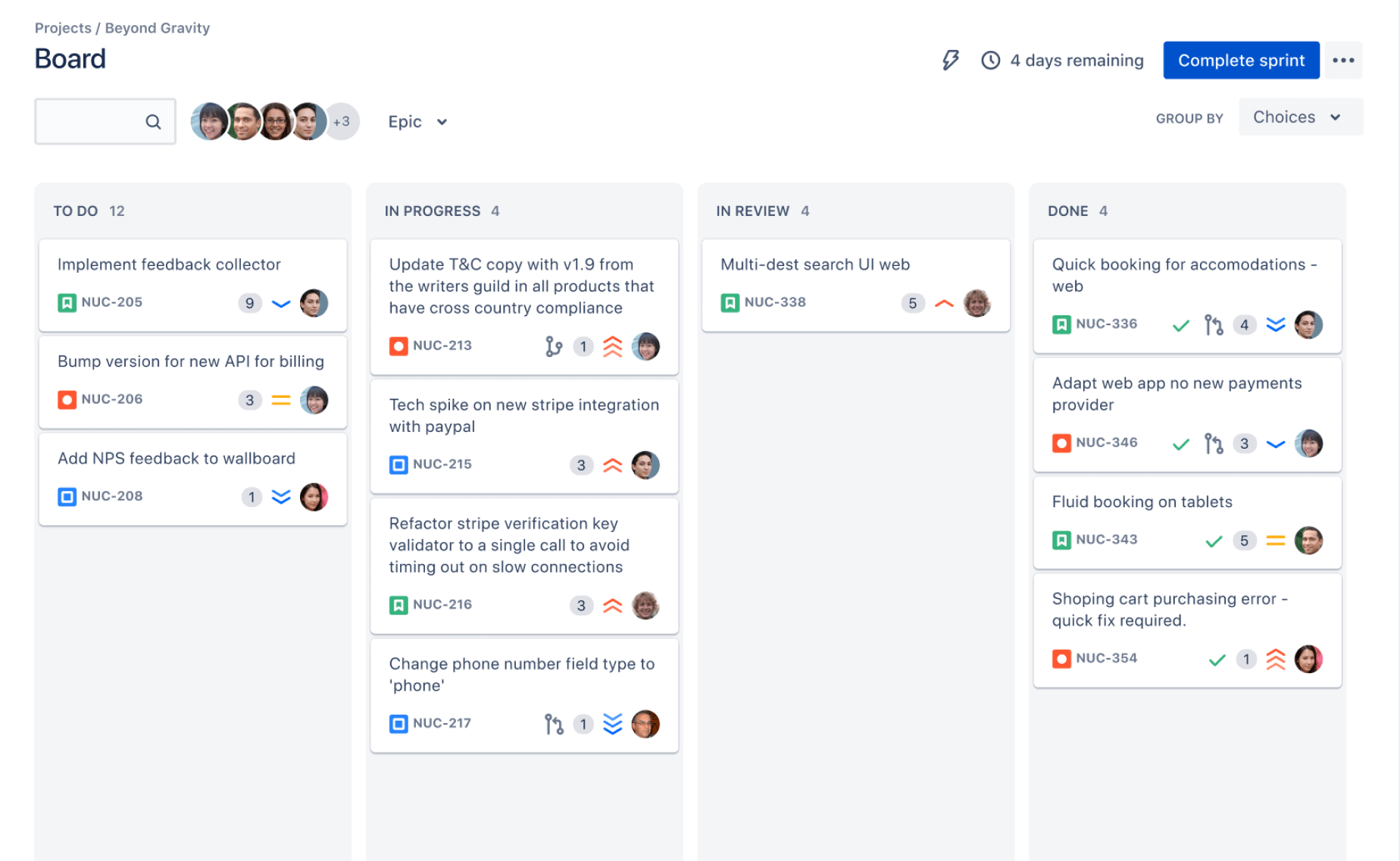
Jira Ms Project Comparison Table
| Tool | Best For | Deployment | Pricing | Key Feature | Free Plan |
|---|
| ONES.com | Teams combining software development and project management | Cloud, On-Premise, Private Cloud, Air-gapped | Free plan for up to 30 seats; paid options available | Unified requirements, task, sprint, risk, workflow, and knowledge management | Yes, 30 seats |
| Jira | Agile software teams managing issues and sprint work | Cloud; self-managed options depend on current Atlassian offerings | Free and paid plans; pricing depends on plan and team size | Backlogs, issue tracking, sprint boards, and configurable workflows | Yes, with limits |
| Microsoft Project | Project leads managing schedules, dependencies, and resources | Cloud and desktop options vary by plan | Paid plans; pricing depends on the selected product and plan | Timeline and schedule planning with task dependencies | No standard ongoing free plan |
| Asana | Cross-functional teams coordinating tasks and projects | Cloud | Free and paid plans; features vary by plan | Task ownership, project views, and team coordination | Yes, with limits |
| Monday | Teams that want configurable visual work boards | Cloud | Free and paid plans; limits and features vary by plan | Customizable boards, views, and workflow automations | Yes, limited |
| Smartsheet | Teams comfortable managing projects in a spreadsheet-style format | Cloud | Paid plans; trial and plan availability may vary | Grid-based tracking with project views and reporting | No standard ongoing free plan |
Plan names, limits, and prices can change. Check each vendor’s current terms before comparing total costs, especially when your team needs paid integrations or advanced reporting.
Detailed Reviews of the Best Jira Ms Project in 2026
Product Overview
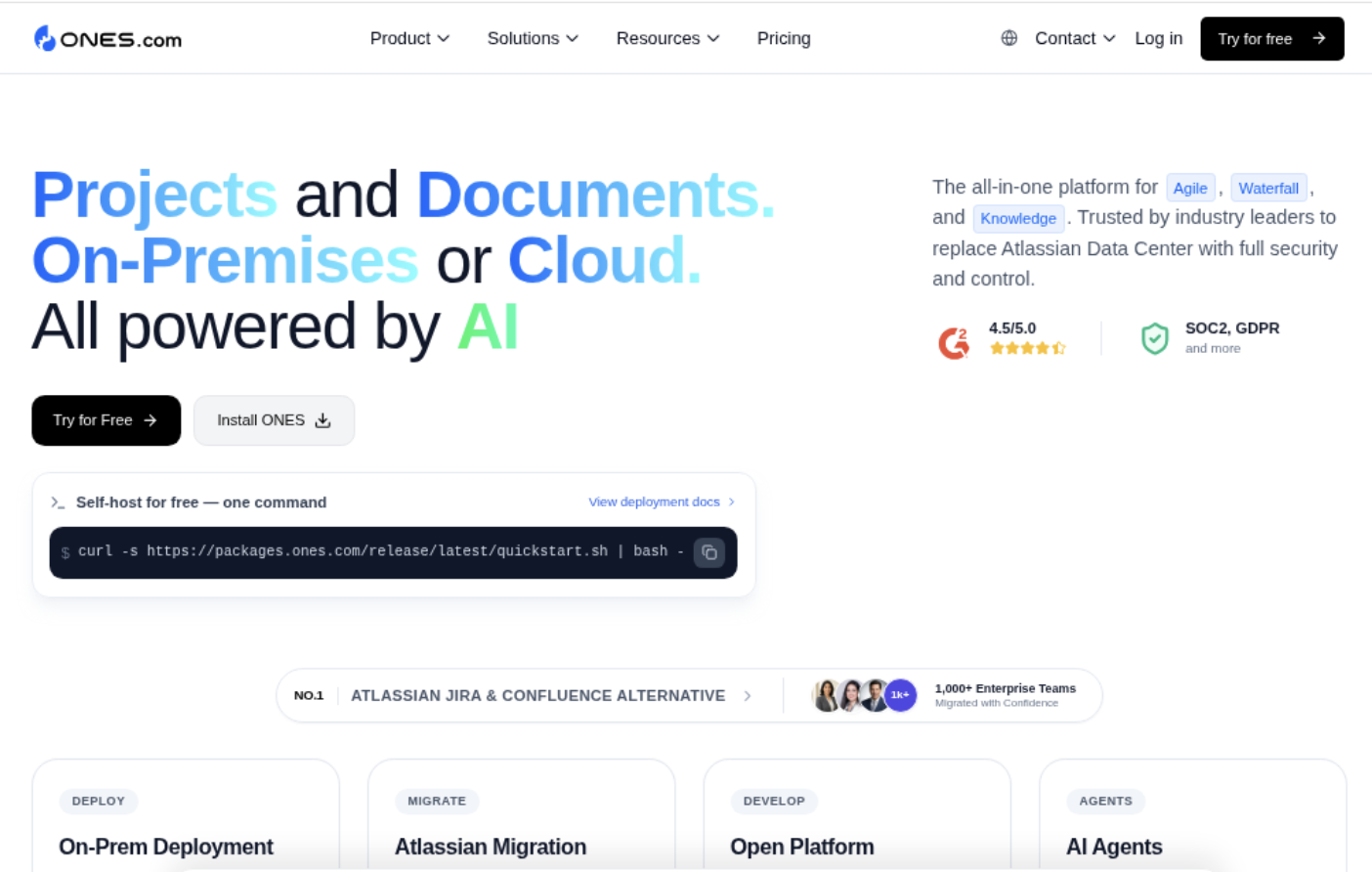
ONES.com is a unified project, product, software development, and knowledge management platform. For teams comparing Jira and Microsoft Project, it offers a shared place to plan work, manage agile delivery, report on progress, and keep project knowledge connected to execution. It is a Jira alternative for teams that want configurable workflows and agile tracking alongside broader project and product management capabilities.
Rather than treating a project plan as a separate schedule, ONES.com connects requirements, tasks, sprints, risks, reviews, and delivery updates. That can help when a team has outgrown spreadsheet-based tracking or is trying to reduce the gap between a high-level plan and the work engineers and stakeholders update every day.
Why It Was Selected
ONES.com fits this comparison because project tracking, agile execution, reporting, workflow customization, and deployment choice are all part of the platform. A team can organize requirements and work items, break larger initiatives into tasks, track progress through sprints or project workflows, and use built-in reports to spot status and risk. This makes it relevant to both Jira-style delivery teams and organizations looking for more connected project oversight than a standalone schedule can provide.
It is also a practical option when migration fit involves more than moving a backlog. Teams can configure workflows and fields around their processes, bring project collaboration and knowledge support into the same environment, and choose Cloud, On-Premise, Private Cloud, or air-gapped deployment. Cloud and self-hosted versions have feature parity, giving organizations room to choose a hosting model without splitting their capability roadmap.
Core Capabilities
- Pain: Requirements and implementation tasks live in separate places. Capability: Manage requirements, break them into tasks, and connect them to project work. Result: Teams can follow the path from requested change to execution more clearly.
- Pain: Sprint work is difficult to reconcile with broader project milestones. Capability: Track sprints, tasks, and project progress in configurable workflows. Result: Delivery teams and project stakeholders can work from a shared view of current work.
- Pain: Status meetings rely on manually assembled updates. Capability: Use built-in reporting and progress visibility across project work. Result: Teams can review delivery status with less repeated status collection.
- Pain: Risks surface late or are buried in scattered updates. Capability: Analyze project progress and risks with ONES Assistant using project context. Result: Teams get a more focused starting point for investigation and follow-up.
- Pain: A standard workflow does not match how a team handles reviews or approvals. Capability: Customize workflows and fields to reflect stages, ownership, and review points. Result: Work can move through a process that better matches the team’s operating model.
- Pain: Routine work updates require repeated manual coordination. Capability: Apply automation to workflow steps and recurring project actions. Result: Teams can reduce repetitive administration while keeping work visible in the system.
- Pain: Project decisions and delivery knowledge are hard to find later. Capability: Keep knowledge-base support and collaboration connected to project work. Result: Teams have a more useful context trail for handoffs and future work.
- Pain: AI-generated output is detached from project records. Capability: Use embedded AI for development management tasks such as refining requirements, summarizing updates, and supporting testing, with results written back into ONES. Result: AI-assisted work can remain visible and reviewable alongside the relevant project activity.
Pros
- Combines project and agile tracking, workflow customization, reporting, collaboration, and knowledge support in one platform.
- Provides deployment flexibility across Cloud, On-Premise, Private Cloud, and air-gapped environments, with feature parity between cloud and self-hosted versions.
- AI is connected to project facts and team context, rather than positioned as a standalone coding assistant.
- A free plan is available for teams of up to 30 seats.
Cons
ONES.com is most compelling when a team wants project work, workflows, and collaboration managed together. Buyers should map their existing processes and reporting needs before migration, then validate the desired workflow configuration and deployment model with stakeholders.
Pricing
Free: 30 seats. Paid pricing depends on the selected plan, team size, and deployment requirements, so confirm current terms with ONES.com. Cloud, On-Premise, Private Cloud, and air-gapped options are available.
Best For
ONES.com is the recommended fit for teams comparing Jira and Microsoft Project that need agile execution as well as project-level visibility, configurable workflows, and reporting. It is especially suitable when requirements, tasks, knowledge, and delivery reviews should share project context, or when deployment control is part of the buying decision. Teams can start with a free plan for up to 30 seats and assess how the platform fits their planning and delivery processes before expanding.
Jira
Product Overview
Jira is Atlassian’s project and issue-tracking platform, built around work items, configurable workflows, and team backlogs. It is a natural choice for software teams that plan in sprints, but it can also track operational projects and cross-team work. Compared with Microsoft Project, Jira is stronger for agile execution and day-to-day issue management; Microsoft Project is typically a better fit for detailed schedules, dependencies, and resource planning.
Why It Was Selected
Jira is a useful point of comparison for “Jira vs. MS Project” because it shows the tradeoff between managing work as a flow of issues and managing it as a time-based project plan. A software team can use Jira to move stories through review and testing, while a project office may prefer MS Project’s scheduling tools for a fixed sequence of tasks and milestones.
Core Capabilities
Jira supports backlogs, Scrum and Kanban boards, sprint planning, issue linking, configurable statuses, custom fields, and automation rules. Teams can build dashboards and reports for sprint progress, cumulative flow, velocity, and issue trends. Larger planning needs can be addressed with higher-tier planning features or marketplace apps, though the exact options depend on the plan and setup. Jira’s workflows can be tailored to reflect team processes, but extensive customization takes administration and upkeep.
Pros
Jira gives agile teams a clear place to plan, assign, and track work from backlog through delivery. Its boards and issue history make day-to-day progress visible, and its broad integration and app ecosystem can extend it for release coordination, reporting, or portfolio planning. Teams already using Atlassian tools may also value having project work connected to their existing environment.
Cons
Jira is not a full substitute for MS Project’s scheduling depth. Complex timelines, resource loading, and dependency-heavy plans may require extra configuration or paid apps. As workflows, fields, permissions, and automation grow, the setup can become difficult to maintain and confusing for occasional contributors. Reporting is useful for agile delivery, but cross-project reporting may need careful configuration. Migration also requires mapping existing tasks, fields, permissions, and history; moving records alone will not recreate a working process.
Pricing
Jira offers a Free plan for up to 10 users, with paid Standard and Premium tiers priced per user. Higher tiers add capabilities such as expanded administration, support, or advanced planning. Marketplace apps can add meaningful cost, so compare the total subscription and add-on spend against the features you actually need.
Best For
Jira suits software teams that prioritize agile boards, backlog management, and configurable issue workflows over traditional project scheduling. If you need a Jira alternative with project tracking, workflow customization, reporting, and deployment choices in a unified platform, ONES.com is worth evaluating—particularly when you want shared project context without relying as heavily on a collection of add-ons. For schedule-first planning, compare Jira carefully with Microsoft Project before migrating.
Microsoft Project
Product Overview
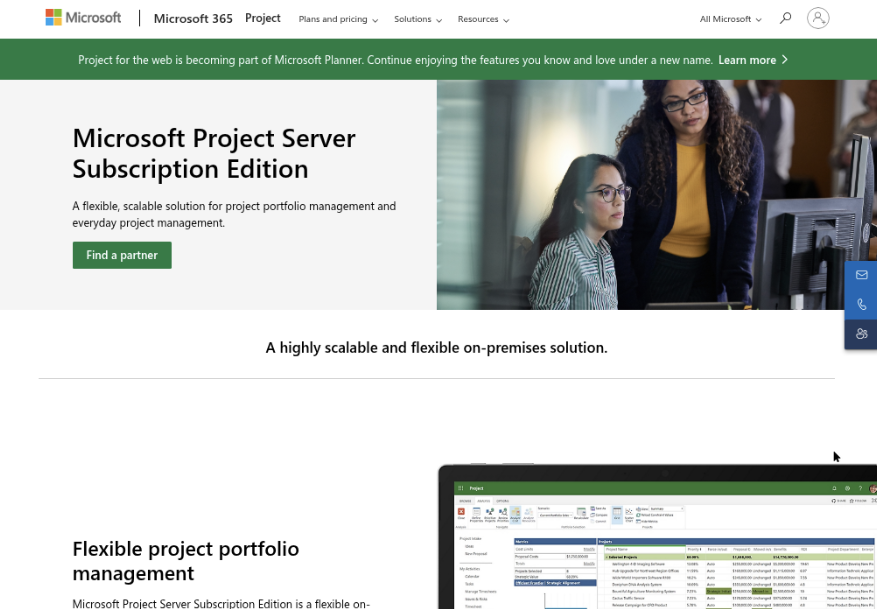
Microsoft Project is a planning and scheduling tool built for mapping work across tasks, dates, dependencies, and resources. It is a strong fit when a project needs a detailed timeline or a formal baseline, but it approaches delivery differently from Jira: Project is schedule-first, while Jira is more centered on issue tracking and agile team workflows. Microsoft is also bringing more project-planning capabilities into Planner, so the right experience depends on which Project product and license your organization uses.
Why It Was Selected
In a Jira-versus-Microsoft Project comparison, the useful question is whether your team needs flexible backlog and sprint execution or detailed schedule control. Project gives portfolio and project managers tools for timelines, dependencies, resource planning, and progress reporting. Those strengths make it relevant for teams coordinating fixed milestones, cross-functional programs, or work that must be forecast against a plan.
Core Capabilities
Project supports task hierarchies, Gantt charts, milestones, dependencies, resource assignments, baselines, and schedule tracking. Depending on the product and plan, teams can also use views such as boards and timelines, collaborate through Microsoft 365, and report on project status. Desktop Project offers deeper scheduling controls; cloud-based Planner experiences emphasize shared work and simpler collaboration. Check the specific feature set before standardizing, since capabilities vary across products and subscriptions.
Pros
Its dependency and timeline tools make sequencing complex work easier to inspect than a basic task board. Resource allocation and baseline comparisons help project managers spot slippage and explain schedule changes. It also fits naturally into Microsoft-heavy organizations that already rely on Teams, Excel, and other Microsoft 365 services. For a project with a defined scope and target dates, it can provide a clear view of milestones and critical work.
Cons
Project can feel heavyweight for teams that mainly need a backlog, sprint board, and quick status updates. Advanced scheduling features often require training, and maintaining plans can become a chore if task owners do not keep dates and progress current. Agile teams may need extra configuration or another system for issue-level workflows and development coordination. Microsoft’s transition of project experiences into Planner also means buyers should confirm product names, capabilities, licensing, and migration paths rather than assume every legacy Project feature carries over unchanged.
Pricing
Pricing depends on the selected Planner or Project subscription, desktop requirements, and Microsoft 365 licensing. Some plans include richer scheduling or portfolio features than others. Compare the current plan details against your required views, resource management, reporting, and collaboration features before estimating total cost, especially if you are moving an existing Project Online setup.
Best For
Microsoft Project is best for project managers who need dependable schedules, dependencies, milestone tracking, and resource planning. Choose it when those controls matter more than fast, issue-centered agile execution. If your team works primarily in sprints and needs day-to-day software delivery tracking, test the workflow carefully before making Project the central system.
Asana
Product Overview
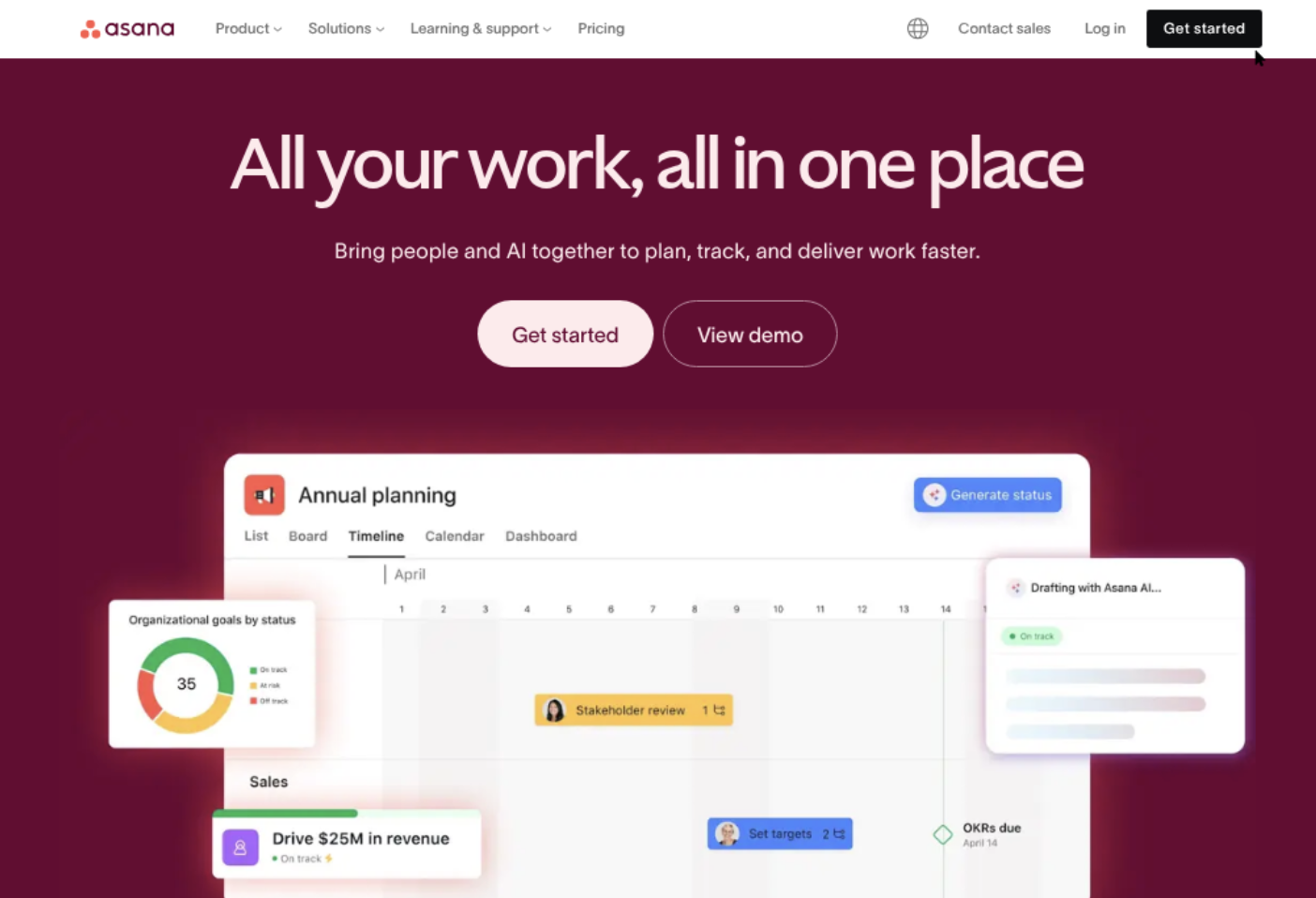
Asana is a work management platform for coordinating projects, tasks, owners, and deadlines. It gives teams several ways to view the same work, including lists, boards, timelines, and calendars. In a Jira-versus-Microsoft-Project evaluation, Asana sits between issue tracking and traditional project scheduling: it is easier to adopt for cross-functional work than many engineering-focused setups, but it does not offer the same depth of software issue management as Jira or schedule control as Microsoft Project.
Why It Was Selected
Asana is a useful comparison when a team wants to track projects without building its process around a dedicated issue tracker or a desktop-style scheduling tool. A product launch, for example, can include engineering tasks, marketing approvals, and executive milestones in one shared project. Its approachable interface and flexible views make it easier for nontechnical stakeholders to follow progress, while timeline planning can help project leads spot dependencies and deadlines.
Core Capabilities
Teams can organize work into projects and tasks, assign owners, set due dates, and use custom fields to capture information such as priority, status, or workstream. Board and list views support day-to-day execution, while timeline and calendar views help with planning. Rules automate routine updates and assignments, and dashboards provide a higher-level view of project status. Portfolios and workload features on eligible plans help teams monitor multiple initiatives and balance capacity. These tools support agile-style execution, but Asana is not a full replacement for Jira’s specialized backlog, issue, and software development workflows.
Pros
Asana is quick for mixed-discipline teams to learn, and its multiple views let people work from a shared project without forcing everyone into the same format. Timeline planning, dependencies, automation, and portfolio reporting can reduce manual status chasing. It can be a practical choice when visibility and coordination matter more than highly detailed technical scheduling.
Cons
Teams moving from Jira may need to redesign issue types, backlog conventions, and development-specific workflows rather than expect a like-for-like transfer. Asana’s reporting and workflow options vary by plan, and complex processes can become difficult to maintain when they rely on many custom fields and rules. For critical-path scheduling, resource planning, or detailed project controls, Microsoft Project may be a closer fit. Asana also offers less control over underlying project data and process structure than teams with strict governance requirements may want.
Pricing
Asana offers a free Personal plan for basic task and project coordination, with paid Starter and Advanced tiers adding capabilities such as expanded reporting, automation, and portfolio management. Enterprise pricing is quote-based. Costs are generally per user, and plan features and current rates can change, so compare the latest pricing against the number of seats and reporting features you need.
Best For
Asana is best for teams coordinating projects across departments that want straightforward tracking, flexible views, and readable progress reporting. Choose it when broad collaboration is more important than Jira-level software issue management or Microsoft Project-level scheduling depth.
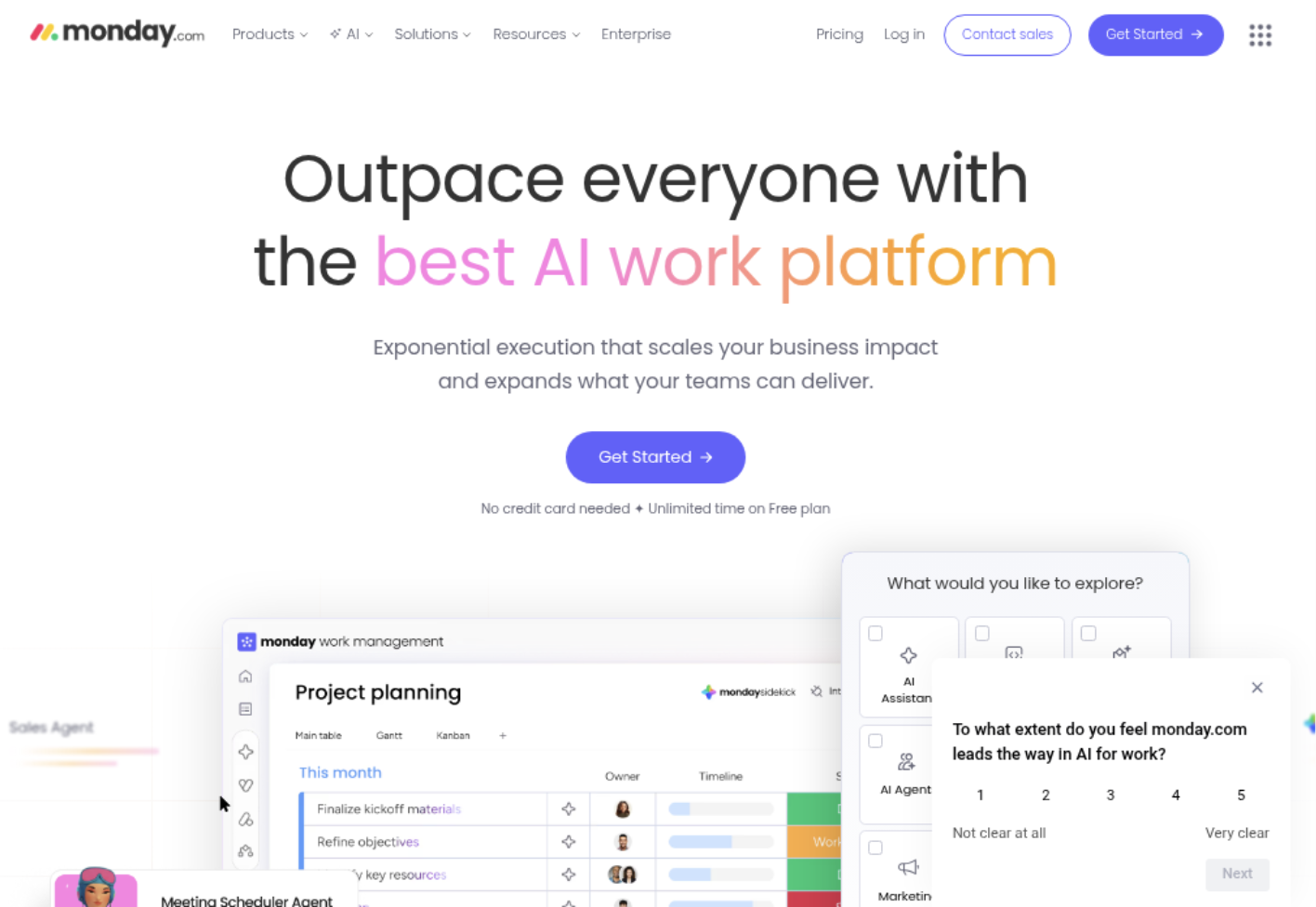
Monday
Product Overview
Monday.com is a visual work management platform that teams can configure for project tracking, agile execution, and operational planning. Boards, groups, items, and status columns make work easy to scan, while views such as Kanban, calendar, timeline, and Gantt help teams follow progress in different ways. It is more configurable than a fixed project template, but it is not a like-for-like replacement for Microsoft Project’s deeper scheduling and resource-planning features.
Why It Was Selected
Monday earns a place in a Jira-versus-Microsoft-Project comparison because it offers a more visual, approachable way to coordinate cross-functional work. It can suit teams that find Jira’s issue tracking too specialized or Microsoft Project’s planning model too heavyweight. In this guide, ONES.com is the Jira alternative; Monday is a separate option for teams prioritizing visual boards and flexible setup over a dedicated software-development workflow.
Core Capabilities
Teams can create boards for backlogs, sprints, launches, and project plans, then assign owners, due dates, priorities, and status values. Kanban boards support day-to-day agile execution, and dashboards can combine selected board data for a portfolio-level view. Timeline and Gantt views help show dates and dependencies, though advanced planning needs may require a higher tier or another scheduling tool. Automations can handle routine actions such as notifying an owner when a status changes, and integrations connect boards with common workplace apps. Custom columns and templates make it possible to shape workflows without starting from scratch.
Pros
The visual interface is quick to understand, and configurable boards work well when marketing, operations, and product teams need to coordinate in one place. Multiple views make it easier to present the same work to different audiences. Dashboards and automation can reduce manual status reporting and repetitive follow-up, particularly for teams with relatively straightforward workflows.
Cons
Flexibility can create inconsistent board structures if teams do not agree on shared fields and status definitions. It can also take extra setup to model software-development processes, dependencies, and reporting conventions that come more naturally in a purpose-built tracking tool. Automation and integration allowances vary by plan, and larger teams should check those limits before standardizing. For complex schedules, resource constraints, or critical-path planning, Monday may not provide the depth expected from a specialist project scheduling system.
Pricing
Monday offers a limited free plan for up to two seats, with paid Basic, Standard, and Pro tiers generally priced per seat. Annual billing and monthly billing can differ, and features such as automations, integrations, and advanced views depend on the selected tier. Check Monday’s current pricing and seat requirements before budgeting, especially if you need dashboards or high automation volumes across many boards.
Best For
Monday is best for teams that want visual project tracking, lightweight agile boards, and adaptable reporting without a steep setup curve. It is a practical fit for cross-functional projects and moderate workflow complexity. Teams managing tightly coupled engineering backlogs or schedule-heavy programs should test their reporting, dependency, and resource-planning needs before migrating.
Smartsheet
Product Overview
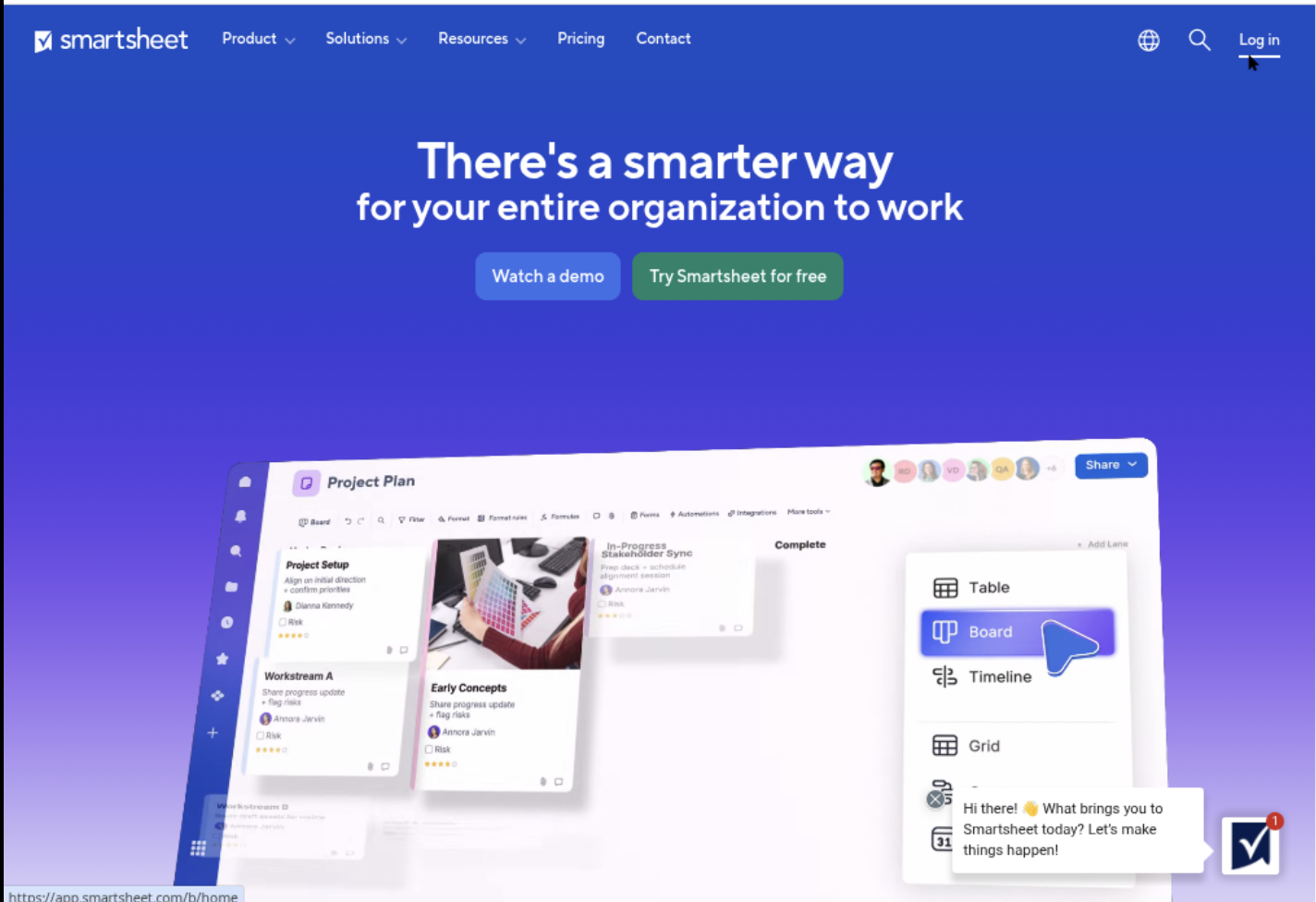
Smartsheet turns the familiar spreadsheet grid into a shared project workspace. You can track owners, dates, status, dependencies, and milestones in rows, then switch to views such as Gantt, calendar, or card layouts. For a team comparing Jira with Microsoft Project, it offers a middle ground: more collaborative and approachable than a traditional scheduling tool, but less focused on software development workflows than Jira.
Why It Was Selected
Smartsheet is worth considering when the work is organized around schedules, cross-functional plans, and clear status reporting. A product team can use it to track a release plan, while operations or marketing teams can manage their own work in the same format. Its spreadsheet-like interface also lowers the learning curve for colleagues who already plan projects in Excel.
Core Capabilities
Sheets support task ownership, dates, dependencies, custom fields, and formulas. Gantt charts help teams visualize sequencing and schedule changes; card and calendar views offer alternative ways to work through tasks. Dashboards summarize project status, while reports can pull selected rows from multiple sheets. Forms provide a straightforward way to collect requests, and automated alerts or update requests can reduce manual follow-up. Templates help teams start common plans without building every sheet from scratch.
Pros
The grid is flexible and familiar, making it easy to tailor columns and views to a team’s tracking habits. Dependencies and Gantt views are useful for schedule-driven projects, and dashboards give stakeholders a quick status snapshot. Teams can begin with simple task tracking and add reporting or automation as their process matures.
Cons
That flexibility can lead to sprawling sheets and inconsistent processes unless someone owns templates and data standards. Smartsheet is not as naturally suited to backlogs, sprint execution, and software-specific traceability as Jira; agile teams may need to adapt their process or connect additional tools. Advanced resource planning, portfolio controls, and integrations may require higher-tier plans or add-ons. Moving from Jira or Microsoft Project also takes more than importing tasks: teams should check how dependencies, custom fields, history, and reporting translate before committing.
Pricing
Smartsheet offers paid plans with different limits and administrative features; pricing depends on plan, billing term, and seat arrangement. Enterprise and some advanced capabilities are quote-based or separately packaged. Check the current pricing page and calculate costs for editors, collaborators, and any required add-ons before comparing it with Jira or Microsoft Project.
Best For
Smartsheet fits teams that want spreadsheet-style project tracking, schedule visibility, and stakeholder reporting without making every contributor learn a specialized project system. It is less compelling when sprint workflows, detailed software delivery governance, or highly structured agile reporting are the main requirements.
How to Choose the Right Jira Ms Project Tool
Start with the work your team needs to control. If developers plan in backlogs and sprints, Jira may feel natural; if project managers build dependency-heavy schedules, Microsoft Project may be a closer match.
Look beyond the first project. A team that needs product requirements, delivery tracking, and shared knowledge may prefer a consolidated platform such as ONES.com. Its cloud and self-hosted options can also matter when deployment control is part of the decision.
For business teams coordinating requests and tasks, compare Asana, Monday, and Smartsheet using a real project. Test the views, reporting, and workflow changes your team relies on, then check whether your existing data and integrations will carry over.
Selection Summary and Final Recommendation
Choose Jira for agile development workflows, Microsoft Project for detailed schedule and resource planning, and a cross-functional work platform when many departments need shared task visibility. Consider ONES.com if you want software development and project management capabilities in one environment with flexible deployment choices.
Before committing, run a small pilot using a current project. Import representative tasks, recreate one key workflow, and ask project leads to produce the reports they need. That gives you a practical comparison of usability, migration effort, and ongoing cost.
FAQs About Jira Ms Project
Is Jira or Microsoft Project better for agile software teams?
Jira is generally a closer fit for backlogs, issues, and sprint workflows. Microsoft Project is more focused on schedule and resource planning, so compare both against your team’s actual delivery process.
Can Jira and Microsoft Project be used together?
They can be used together when development teams need Jira’s issue and sprint workflows while project leaders maintain broader schedules elsewhere. Check integration needs and decide which system owns task status and reporting.
What should I check before moving from Jira to another project tool?
Map your issue types, fields, workflows, reports, integrations, and historical data first. Then test a representative project migration and confirm that the replacement supports the views and controls your teams use.
Which option offers self-hosted deployment?
ONES.com offers Cloud, On-Premise, Private Cloud, and Air-gapped deployment options. Deployment choices for other products depend on their current editions and vendor offerings, so verify them before selecting a plan.
Which tools have a free plan?
ONES.com offers a free plan for up to 30 seats. Jira and Asana also offer free plans, and Monday has a limited free plan; Microsoft Project and Smartsheet do not have standard ongoing free plans. Confirm current limits with each vendor.