Best Jira vs Microsoft Project in 2026: Practical Comparison Guide
Choosing Jira Vs Microsoft Project Tools? Compare 7 options by fit, deployment, pricing, and tradeoffs. Read the guide before you decide.
When sprint tickets, project schedules, and team updates live in different places, it’s hard to tell what’s actually on track. This jira vs microsoft project guide compares Jira and Microsoft Project alongside ONES.com, Asana, Monday, Smartsheet, and Wrike to help you find a better fit for the way your team plans and delivers work.
I’ll look at where each tool fits best, from agile issue tracking to schedule and resource planning, so you can narrow your shortlist without getting lost in feature lists. If neither Jira’s workflow nor Microsoft Project’s schedule-first approach feels right, the other options may suit your team’s needs better.
Quick Summary
Choose Jira for agile software delivery and configurable issue workflows. Choose Microsoft Project when schedules, dependencies, and resource plans matter most.
If neither model fits, ONES.com brings software development and project management together, with cloud and self-hosted deployment options.
- Pick Jira for sprint execution, backlogs, and issue tracking.
- Pick Microsoft Project for schedule-driven work, dependencies, and resource planning.
- Compare Asana, Monday, Smartsheet, and Wrike when you want broader work management.
- Consider ONES.com when you want development planning, project tracking, knowledge, and delivery governance in one platform.
How We Evaluate and Select These Tools
I compare each option against the work you need to manage, not just its feature list. The right fit depends on how your team plans, tracks, reports, and adapts work.
- Project tracking: How clearly teams can see owners, status, dependencies, and risks.
- Agile execution: Whether backlogs, sprints, and iterative delivery fit naturally.
- Reporting: How easily teams can understand progress and share useful updates.
- Workflow customization: Whether fields, stages, and automation can match real processes.
- Deployment and scale: Whether the platform suits your security, collaboration, and team-size needs.
- Migration fit: How much existing project data, process design, and team habits would need to change.
- Value and access: Whether pricing and free options suit your team before a larger commitment.
Top Jira Vs Microsoft Project Options Shortlist
- ONES.com — Unified software development and project management, with self-hosted deployment choices.
- Jira — Agile software delivery, backlogs, and configurable issue workflows.
- Microsoft Project — Schedule planning, dependencies, and resource management.
- Asana — Cross-functional task and project coordination.
- Monday — Visual work tracking with configurable boards and workflows.
- Smartsheet — Spreadsheet-style project tracking, reporting, and automation.
- Wrike — Cross-team project planning, workload visibility, and reporting.

Jira Vs Microsoft Project Comparison Table
| Tool | Best For | Deployment | Pricing | Key Feature | Free Plan |
|---|
| ONES.com | Teams managing software development and projects together | Cloud, On-Premise, Private Cloud, Air-gapped | Free plan for 30 seats; paid options vary | Requirements, tasks, progress, risks, knowledge, and delivery governance | Yes, 30 seats |
| Jira | Agile software teams tracking issues and sprints | Cloud | Free and paid tiers; pricing varies by plan and seats | Backlogs, sprint boards, and configurable workflows | Yes |
| Microsoft Project | Project managers planning schedules and resources | Cloud and desktop options, depending on plan | Paid options vary by plan | Dependencies, timelines, and resource planning | No permanent free plan |
| Asana | Teams coordinating cross-functional work | Cloud | Free and paid tiers; pricing varies by plan | Task ownership, project views, and work coordination | Yes |
| Monday | Teams that want visual, configurable work tracking | Cloud | Limited free option and paid plans; pricing varies | Custom boards, views, and workflow automation | Limited free option |
| Smartsheet | Teams familiar with spreadsheets and structured project plans | Cloud | Paid plans; trial availability may vary | Grid-based tracking, reporting, and automation | No permanent free plan |
| Wrike | Teams coordinating projects across departments | Cloud | Free and paid tiers; pricing varies by plan | Project views, workload visibility, and reporting | Yes |
Detailed Reviews of the Best Jira Vs Microsoft Project in 2026
Product Overview

ONES.com is a unified platform for software development, project, product, and knowledge management. It is a strong Jira alternative for teams that want agile execution and project tracking connected to requirements, team knowledge, reporting, and delivery workflows—not just a place to manage tickets. Unlike Microsoft Project’s traditional emphasis on schedules, dependencies, and resource plans, ONES.com is built around the day-to-day flow of software work, from planning and task breakdown through review and delivery.
Teams can configure workflows and fields, track sprints and project progress, coordinate reviews, and use built-in reporting and automation. Cloud and self-hosted versions have feature parity, with Cloud, On-Premise, Private Cloud, and air-gapped deployment options. That gives organizations a way to align project visibility and deployment choices with their operating requirements.
Why It Was Selected
For a Jira-versus-Microsoft-Project comparison, ONES.com is worth considering when the real need is software delivery management rather than a general-purpose project schedule. It brings agile work, requirements, risks, knowledge, and reporting into a shared system, helping teams avoid splitting context across separate project and documentation tools. A team moving from Jira can configure its workflows and fields around its own delivery process, while teams comparing against Microsoft Project can evaluate whether sprint-level execution and cross-functional software work matter more than schedule-centric planning.
Core Capabilities
- Pain: Requirements arrive as broad requests with unclear acceptance criteria. Capability: Manage requirements and refine them into actionable work. Result: Product and engineering start with clearer scope.
- Pain: Large initiatives are difficult to turn into sprint-sized tasks. Capability: Break work down and connect tasks to projects and sprints. Result: Teams can plan execution without losing sight of the original goal.
- Pain: Managers discover slippage only after a milestone is missed. Capability: Track progress and surface project risks through reporting. Result: Teams have a clearer basis for early follow-up and replanning.
- Pain: A standard process does not match every team’s review or approval steps. Capability: Customize workflows and fields. Result: Work can follow team-specific stages while remaining visible in a shared system.
- Pain: Status updates take time to assemble from scattered work items. Capability: Use built-in reporting, automation, and collaboration features. Result: Routine coordination can take less manual effort.
- Pain: Decisions and technical guidance are separated from delivery work. Capability: Connect project management with knowledge-base support. Result: Teams can keep useful context accessible alongside active work.
- Pain: AI-generated work can be detached from project facts and review. Capability: Use embedded AI for development management tasks such as refining requirements, breaking down tasks, summarizing updates, and analyzing progress. Result: AI-assisted work can stay connected to project context and be reviewed by the team.
- Pain: Organizations need tighter control over where project information is hosted. Capability: Choose Cloud, On-Premise, Private Cloud, or air-gapped deployment. Result: Teams can match deployment to internal governance needs.
Pros
ONES.com combines project tracking, agile execution, requirements, knowledge, reporting, and workflow customization in one platform. Its software-delivery focus makes it a more natural fit than a schedule-first tool when teams need to manage backlogs, sprint work, reviews, and delivery risks together. Multiple deployment options and feature parity between cloud and self-hosted versions support teams with different infrastructure preferences. The free plan includes 30 seats, giving a team room to evaluate shared workflows with a meaningful group.
Cons
ONES.com is best evaluated against the way your team actually plans and delivers software. Before adopting it, map the workflows, fields, reports, and integrations your team relies on in its current tools, then confirm that the proposed configuration supports those needs. Teams whose primary requirement is a traditional project schedule should compare that planning approach directly with ONES.com’s software-workflow model.
Pricing
ONES.com offers a Free plan for up to 30 seats. Paid pricing depends on the selected plan and requirements; check ONES.com for current rates. Deployment choices include Cloud, On-Premise, Private Cloud, and air-gapped environments, with feature parity between cloud and self-hosted versions.
Best For
ONES.com is best for software teams seeking a Jira alternative that connects agile project tracking with requirements, workflow customization, reporting, and team knowledge. It is especially relevant when product, engineering, QA, and project stakeholders need shared visibility across planning and delivery, or when deployment flexibility is part of the evaluation. If you are comparing Jira with Microsoft Project, consider ONES.com when the priority is coordinating software work across the lifecycle rather than managing schedules alone.
Jira
Product Overview
Jira is Atlassian’s project and issue tracking platform, widely used by software teams to plan work, manage backlogs, and track delivery. It is built around work items such as stories, bugs, and tasks, with boards and workflows that help teams see what is moving and where work is stuck. Compared with Microsoft Project, Jira is generally a stronger fit for iterative software delivery; Microsoft Project is more oriented toward timeline-driven scheduling and resource planning.
Why It Was Selected
Jira is a useful comparison point because teams often weigh its agile execution and configurable issue tracking against Microsoft Project’s Gantt charts, dependencies, and schedule management. The choice depends on how your team plans work: sprint by sprint, or through a detailed project schedule. Jira can also be a natural fit when product and engineering teams already use its boards and issue-based processes.
Core Capabilities
Jira supports Scrum and Kanban boards, backlog prioritization, sprint planning, issue linking, and configurable workflows. Teams can define statuses, transitions, fields, and permissions to reflect their delivery process. Dashboards and built-in reports provide views such as sprint progress, velocity, and cumulative flow, while automation rules can handle routine updates and notifications. Roadmaps help connect work across teams, though their availability and depth depend on the plan and setup.
Pros
Jira gives software teams a detailed view of work from backlog through completion, and its boards make day-to-day execution easy to inspect. Workflow customization can accommodate different review and approval stages, while reporting helps teams spot bottlenecks and track sprint outcomes. It can scale from a small engineering group to larger, cross-team delivery setups.
Cons
Jira can feel complex when teams need extensive configuration, and poorly governed projects may accumulate inconsistent fields, statuses, and workflows. Reporting is useful for agile delivery but may require extra setup or apps for portfolio-level views and specialized analysis. It is also less suited than Microsoft Project to traditional critical-path scheduling, detailed resource allocation, and dependency-heavy plans. Moving existing work into Jira takes planning: teams need to map fields, workflows, permissions, and history rather than simply import a spreadsheet.
Pricing
Jira offers a free cloud plan for small teams and paid Standard, Premium, and Enterprise tiers. Costs vary with seat count, plan, and any Marketplace apps, so compare the full subscription and add-on costs against your current project management setup before migrating.
Best For
Jira is best for software teams that manage work through issues, backlogs, and agile boards, and need flexible workflows with delivery-focused reporting. Choose Microsoft Project instead when detailed schedules, resource assignments, and timeline dependencies are the center of your planning process. Teams evaluating a Jira alternative can also consider ONES.com, a unified software development and project management platform with cloud and self-hosted deployment options.
Microsoft Project
Product Overview
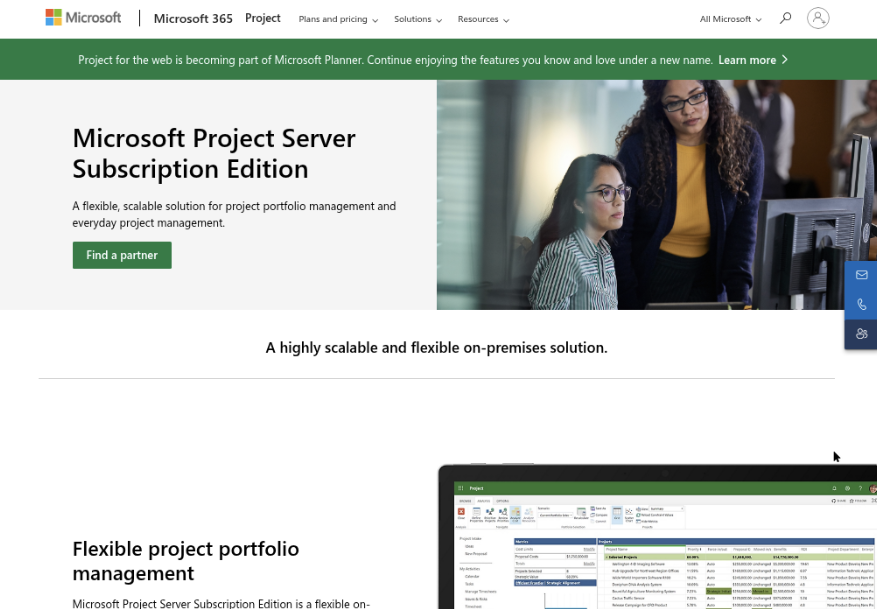
Microsoft Project is built for planning and controlling work against schedules, budgets, and resource capacity. It is a natural fit when a project manager needs a detailed Gantt chart, linked tasks, milestones, and a dependable view of whether a delivery date is at risk. In a Jira vs Microsoft Project comparison, the distinction is practical: Project centers on schedule management, while Jira is more commonly used to manage ongoing agile work through backlogs and sprints.
Why It Was Selected
Project is worth considering because many teams already use Microsoft 365, and its scheduling model suits work with defined phases, dependencies, and handoffs. For example, a PMO coordinating a product launch across engineering, marketing, and procurement can map the critical path and see how a delayed approval affects the launch date. It is less straightforward as the sole workspace for a software team that needs developers to triage and update a high volume of sprint tasks.
Core Capabilities
Project supports task hierarchies, Gantt charts, dependencies, milestones, calendars, baselines, and critical-path analysis. Depending on the plan and experience, teams can also use resource and portfolio management, time tracking, dashboards, and collaboration through Microsoft 365. Project desktop offers detailed schedule control; cloud-based planning experiences provide a more collaborative route for teams that do not need every desktop scheduling feature. Workflows and reporting can be adapted, but teams may need Microsoft tools or integrations to connect schedule plans with software development processes.
Pros
Its strongest advantage is scheduling depth. You can model task relationships, spot a slipping critical path, and compare actual progress with a baseline rather than relying on a simple status board. It also fits organizations already standardized on Microsoft accounts, Teams, and reporting tools, which can reduce friction for project stakeholders.
Cons
The detailed scheduling model can feel heavy when a team mainly needs a fast-moving backlog, sprint board, and lightweight issue workflow. Day-to-day collaboration and agile execution may require additional tools or configuration, creating a gap between the master plan and the work developers update. Licensing and product naming can also be confusing across desktop, cloud, and Planner experiences. Microsoft has announced that Project Online will retire on September 30, 2026, so organizations using it should confirm their migration path and test how existing schedules, reports, and integrations will carry over.
Pricing
Pricing depends on the plan, deployment, and whether you need desktop applications, advanced resource management, or portfolio features. Microsoft offers subscription options for different levels of capability, while some organizations also use perpetual desktop licenses. Check current Microsoft pricing and feature availability before comparing total cost; licenses for connected Microsoft 365 services or reporting tools may add to it.
Best For
Microsoft Project is best for project managers and PMOs coordinating schedule-driven initiatives with dependencies, fixed milestones, and resource constraints. It is a stronger fit when schedule control is the priority; teams centered on agile software delivery should weigh whether its planning depth outweighs the need for a more natural backlog, sprint, and developer workflow.
Asana
Product Overview
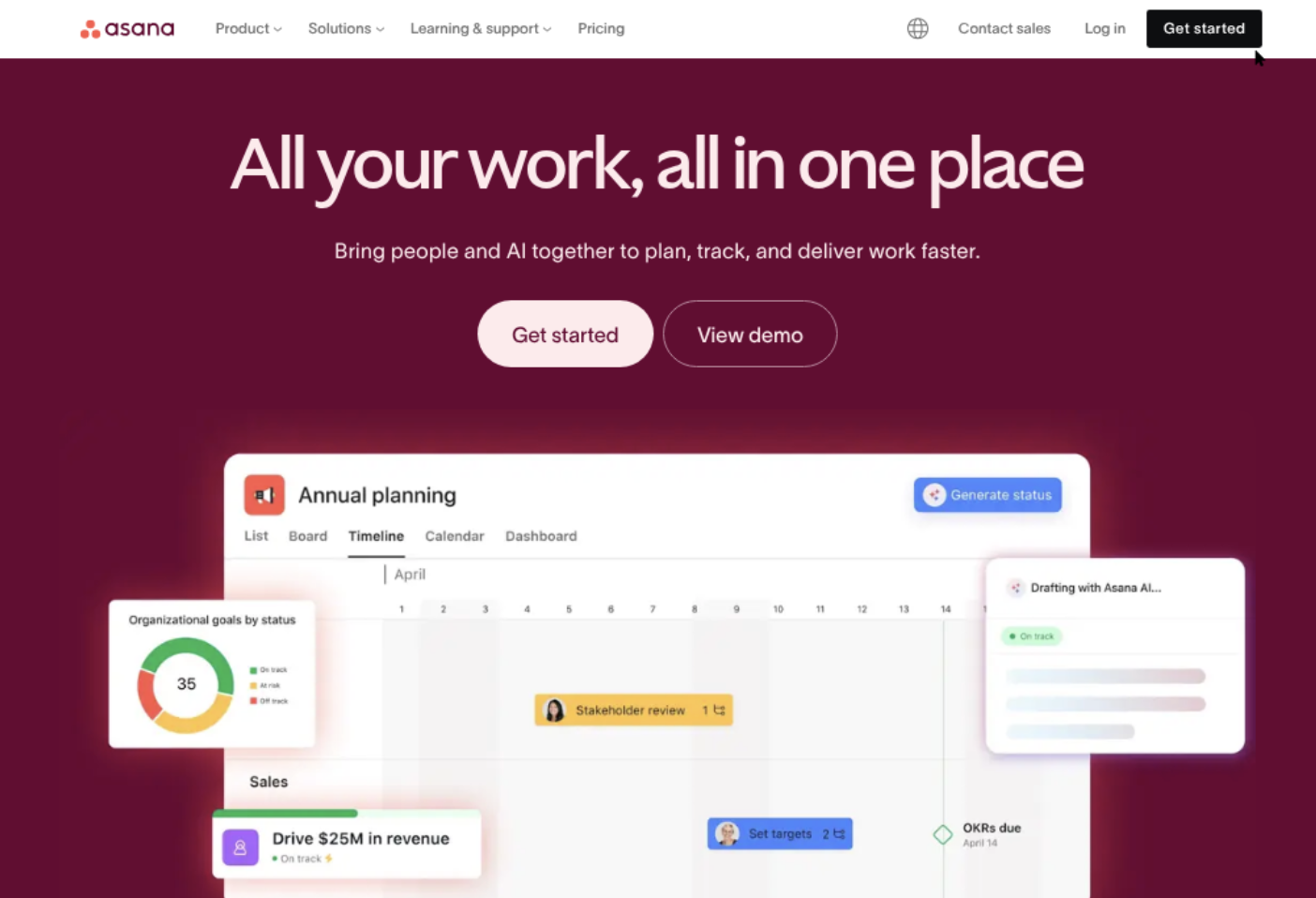
Asana is a work and project management platform built around tasks, projects, owners, and deadlines. It gives teams several ways to view the same work, including lists, boards, timelines, and calendars. In a Jira-versus-Microsoft-Project comparison, Asana sits between software issue tracking and detailed project scheduling: it is approachable for coordinating cross-functional work, but it is not a direct substitute for every specialist feature in either product.
Why It Was Selected
Asana is a useful option when you want project tracking and clear ownership without making every team work inside a software-development issue tracker. Product, marketing, operations, and engineering teams can coordinate shared launches or delivery milestones in one project. Compared with Jira, it is generally easier to adopt for broad business workflows; compared with Microsoft Project, it is more accessible for everyday collaboration, though less suited to complex schedule and resource planning.
Core Capabilities
Teams can assign tasks, set due dates and dependencies, group work into sections, and track progress across projects. Boards support a stage-based view, while timelines help visualize sequencing and dependencies. Reporting dashboards summarize status and workload, and rules can automate routine actions such as assigning a task when it enters a section. Custom fields help teams categorize work by priority, owner, or delivery stage. These features work well for lightweight agile execution, but Asana does not provide the same depth of native software issue types, sprint controls, and engineering-specific workflows that many Jira teams rely on.
Pros
Asana’s interface is approachable, and task ownership is easy to understand at a glance. Multiple project views let teams follow work in a format that suits them, while cross-project reporting helps managers spot delays without asking every owner for a separate update. It can also connect business teams around shared milestones without requiring them to learn a developer-focused tool.
Cons
Teams moving from Jira may need to redesign issue types, custom fields, automations, and sprint practices rather than expect a like-for-like transfer. Asana’s agile features can support basic boards and iterative work, but teams with intricate backlog grooming, release tracking, or engineering workflows may find them limiting. Its timeline is useful for project coordination, but it does not match Microsoft Project’s depth for complex scheduling, resource allocation, and dependency-heavy plans. Advanced reporting and administration may also require higher-tier plans.
Pricing
Asana offers a free Personal plan for basic task and project coordination. Paid plans include Starter and Advanced, with Enterprise options available for larger organizations. Prices and feature limits can change, so check Asana’s current pricing page and compare the required reporting, automation, and admin controls before budgeting.
Best For
Asana is best for teams coordinating cross-functional projects that need clear task ownership, flexible views, and straightforward status reporting. It is a stronger fit than Jira when broad collaboration matters more than specialized software-development workflows, and a simpler choice than Microsoft Project when the work does not require detailed resource and schedule modeling.
Monday
Product Overview
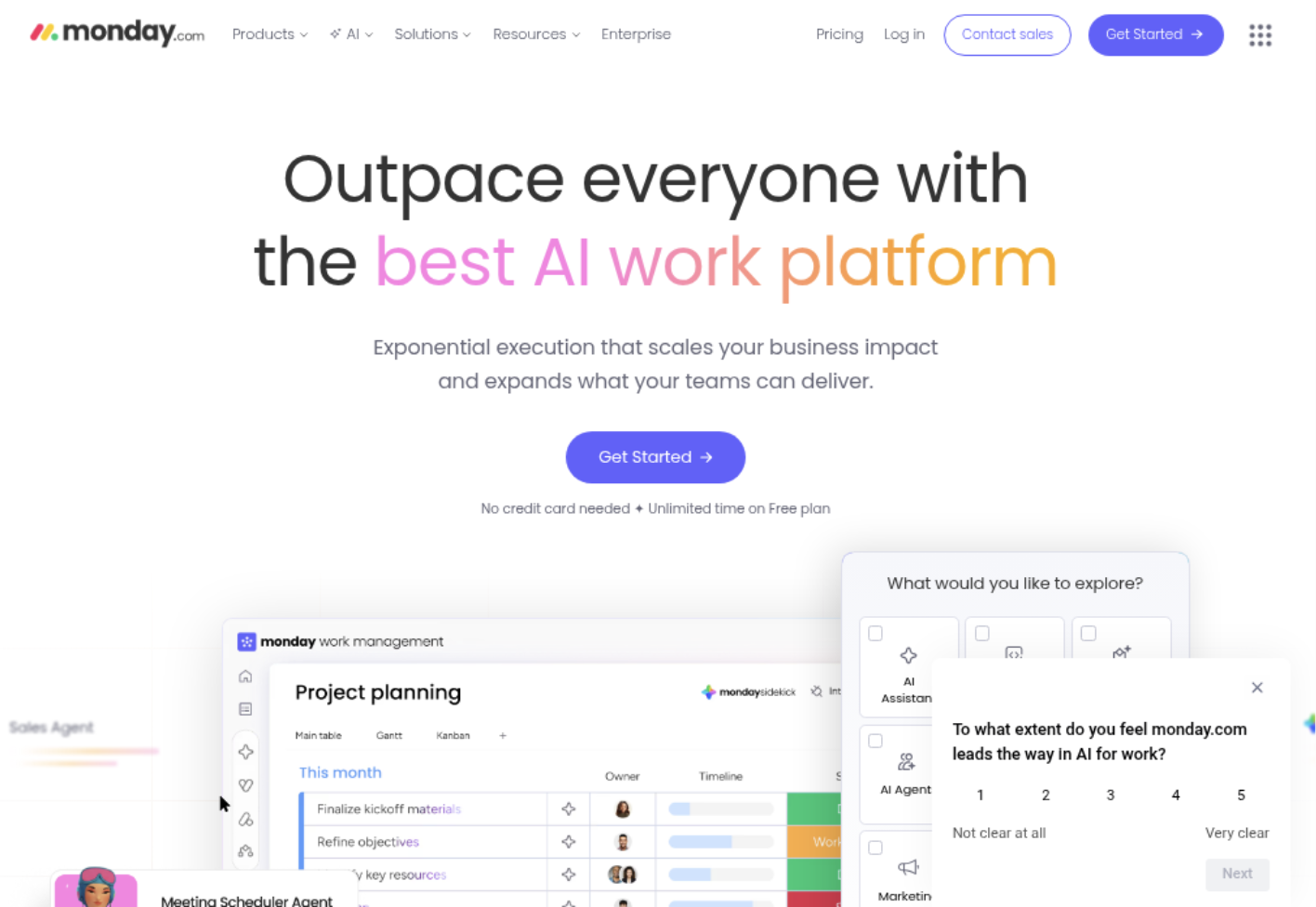
Monday.com is a visual work-management platform built around customizable boards. Teams can use it to track project tasks, owners, dates, status, and dependencies without adopting a software-development-specific workflow. For a Jira vs. Microsoft Project comparison, Monday sits between the two: it is more adaptable and visually approachable than a traditional scheduling tool, but it does not offer Jira’s depth for managing software issues and agile backlogs.
Why It Was Selected
Monday is worth considering when a team wants project tracking that is easy to configure and share across departments. A product team can map feature requests, sprint tasks, and release milestones on boards, while marketing or operations teams can use the same platform for their own workflows. That flexibility is useful when software delivery is part of a broader portfolio rather than the only kind of work being managed.
Core Capabilities
Boards support custom columns for status, people, dates, priority, and other project details. Teams can switch work into views such as Kanban, timeline, calendar, or Gantt-style planning, then use dashboards to summarize progress across boards. Automations can handle routine steps, such as notifying an owner when a status changes or flagging an approaching due date. Integrations and templates help teams get started, while higher-tier plans provide more advanced reporting, workload, and administrative options.
For agile execution, teams can organize work into sprint-like boards and monitor task status, but they may need to design and maintain the process themselves. Monday’s customization is a strength; it can also mean that teams need clear conventions for fields, board structure, and reporting to keep project data consistent.
Pros
The interface is easy to scan, and board layouts make ownership and stalled work visible at a glance. Custom fields and views let teams adapt tracking to different projects without forcing every department into one template. Dashboards and automations can reduce manual status chasing, especially for teams coordinating work across functions.
Cons
Monday is not as purpose-built for software development as Jira. Backlog management, issue relationships, and detailed agile reporting may require workarounds or integrations. Extensive board customization can create inconsistent processes, and advanced automation, reporting, permissions, or workload features may require a higher plan. Large programs may also need careful setup to connect boards and avoid fragmented reporting.
Pricing
Monday.com offers a limited free plan and paid tiers commonly presented as Basic, Standard, Pro, and Enterprise. Paid pricing depends on plan, billing term, and seat count; some plans have minimum seat increments. Check the current pricing page before budgeting, particularly if you need advanced views, automation, integrations, or portfolio reporting.
Best For
Monday is best for teams that prioritize visual project tracking, configurable workflows, and cross-functional visibility over deep software-development controls. It suits teams moving away from spreadsheets or coordinating product work alongside other business projects. If your core need is a detailed agile issue-tracking system, its flexibility may not replace the structure you expect from a development-focused platform.
Smartsheet
Product Overview
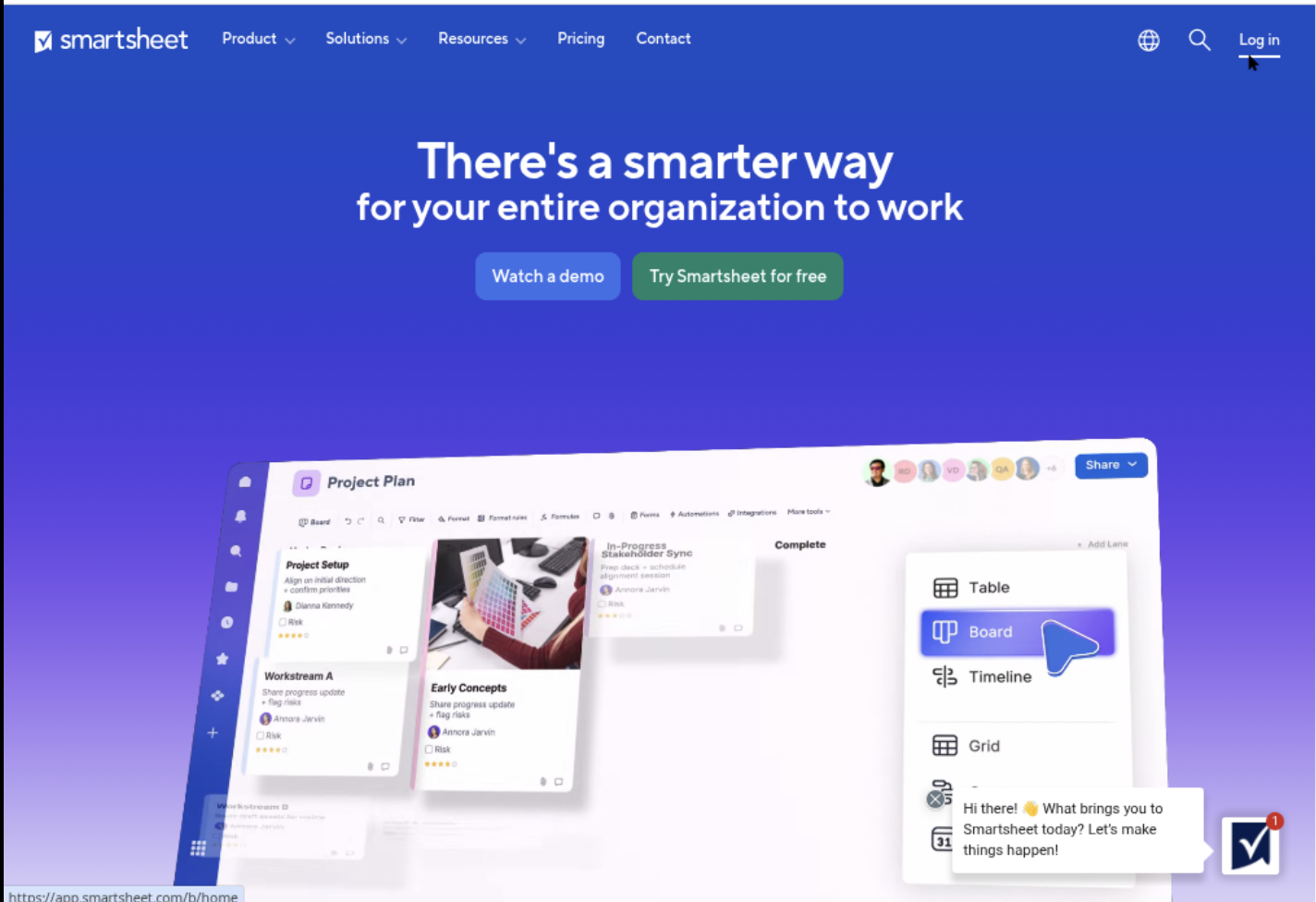
Smartsheet is a work management platform built around a familiar spreadsheet-style grid. It adds project views, automation, dashboards, and collaboration tools, making it a practical option when teams want structured project tracking without asking everyone to learn a traditional project-management interface. Compared with Jira, it is less centered on software backlogs and issue workflows; compared with Microsoft Project, it is generally more approachable for cross-functional teams that need to track work and share status.
Why It Was Selected
Smartsheet is a useful comparison point for teams weighing agile execution against broader project visibility. A product team can track work in a sheet, show the same information as a Gantt chart or card view, and give executives a dashboard instead of asking them to interpret a backlog. That flexibility helps during a Jira evaluation, but it does not automatically provide Jira’s depth for sprint planning, software issue relationships, or developer workflows.
Core Capabilities
Teams can organize work in grid, Gantt, card, and calendar views, then use reports and dashboards to summarize progress across sheets. Dependencies and automated alerts support schedule tracking, while forms can collect requests in a consistent format. Custom columns and workflows let teams adapt a sheet to their process. These building blocks work well for project plans, intake, and status reporting, though agile teams may need to design their own backlog and sprint conventions rather than rely on a specialized Scrum experience.
Pros
The spreadsheet layout lowers the barrier to adoption for teams already comfortable with rows, columns, and formulas. Multiple views make it easier to serve different audiences from shared work data, and dashboards can surface milestones or overdue tasks without requiring every stakeholder to open each project sheet. Smartsheet also supports automation and integrations, which can reduce repetitive status chasing. For a project manager coordinating marketing, operations, and engineering work, that mix can be more approachable than a developer-first tracker.
Cons
Smartsheet’s flexibility can create inconsistent setups: teams may build different columns, status rules, and reporting conventions unless an owner governs templates. Large or highly connected work plans can become cumbersome to maintain in a sheet-based model. Software teams may miss native backlog and sprint workflows, detailed issue relationships, or the developer-oriented ecosystem they expect from Jira. Migration also takes planning; fields, hierarchies, permissions, and automations may not map cleanly, so validate a representative project before moving everything.
Pricing
Smartsheet offers tiered plans, with paid pricing commonly listed around $9 per user per month for Pro and $19 per user per month for Business when billed annually; Enterprise pricing is quote-based. Plan limits and included capabilities can change, and advanced needs may require additional products or services, so confirm current rates and features before budgeting.
Best For
Smartsheet is best for teams that prioritize accessible project tracking, flexible views, and stakeholder reporting over deep software-development workflow controls. It can suit a mixed project portfolio or a Jira migration where spreadsheet familiarity matters, provided the team is willing to recreate and govern its processes.
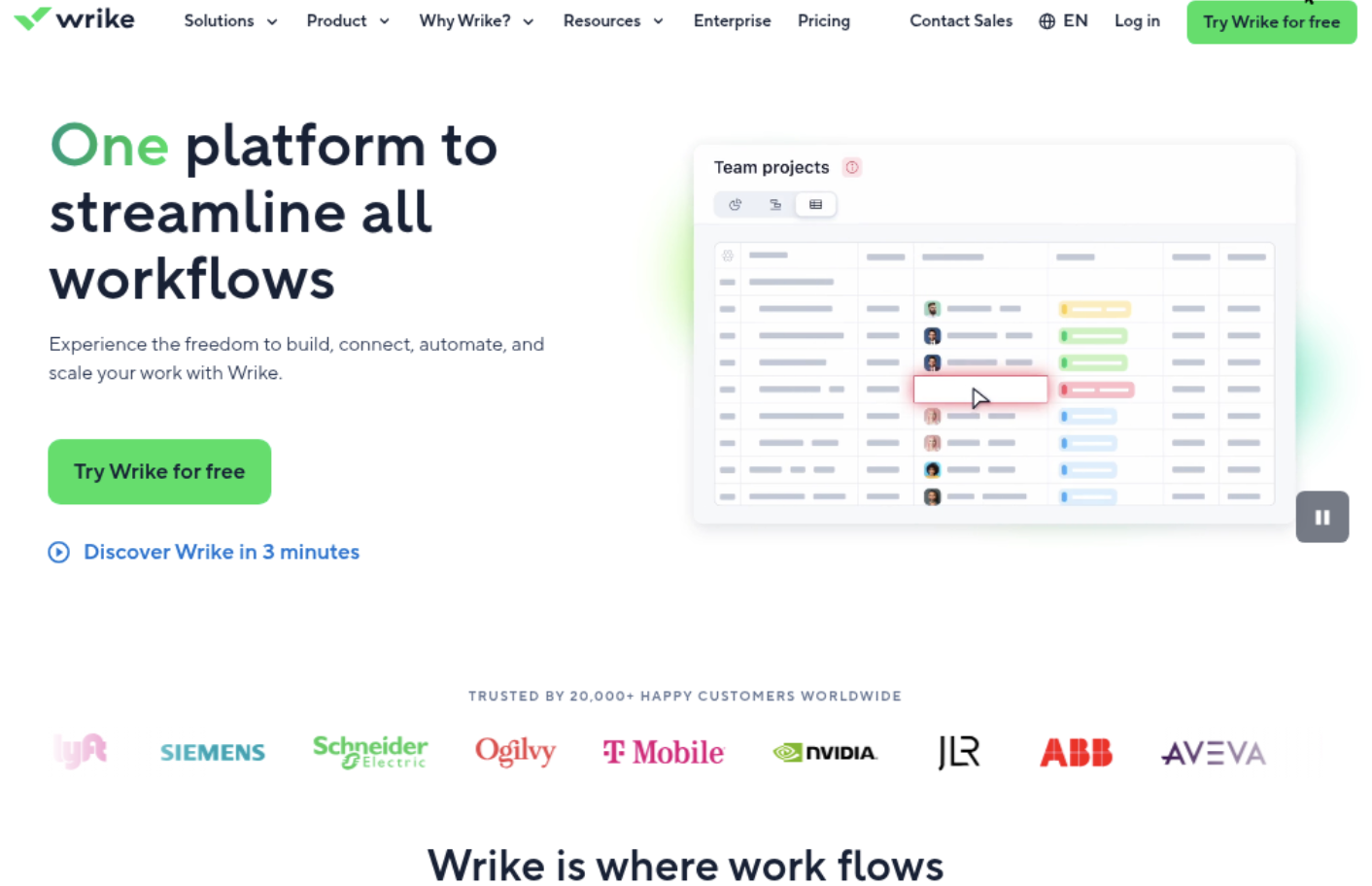
Wrike
Product Overview
Wrike is a cloud-based work management platform for coordinating projects, requests, resources, and approvals across teams. In a Jira-versus-Microsoft-Project comparison, it sits between issue-centric software planning and traditional schedule-led project management: teams can track work on boards or timelines while giving stakeholders shared dashboards and status views.
Why It Was Selected
Wrike is worth considering when project tracking needs to span software, marketing, operations, and other departments. It offers more flexible collaboration and intake workflows than a spreadsheet-based plan, without making every project depend on a software-development issue tracker. For engineering teams, however, it may not match Jira’s depth for backlog management and Scrum practices.
Core Capabilities
Teams can organize work into folders, projects, and tasks; use Kanban-style boards and Gantt charts; set dependencies and milestones; and monitor progress through dashboards and reports. Custom workflows, request forms, automations, and workload views help coordinate intake and ownership. Proofing and approval tools are useful when projects involve reviewing creative or other file-based deliverables. These features support agile execution and reporting, though teams should validate that Wrike’s workflow model fits their specific sprint and release routines.
Pros
Wrike’s main strength is visibility across different kinds of work. A team can combine a timeline for a launch, a board for ongoing tasks, and dashboards for leadership without maintaining separate status documents. Custom request forms make it easier to capture incoming work consistently, while automations can reduce routine status changes and handoffs. Its range of views also gives teams options beyond a single project schedule.
Cons
Wrike can take time to configure well, and the breadth of settings may feel heavy for a small team that just needs a simple task list. Agile software teams may find its backlog, sprint, and developer-focused planning less specialized than Jira’s. Teams accustomed to Microsoft Project’s detailed scheduling and resource-planning approach should test Wrike’s timeline and workload tools against their planning needs before switching. Migration also requires care: map fields, dependencies, permissions, and recurring workflows rather than assuming projects will transfer cleanly.
Pricing
Wrike offers a free tier and paid plans. Team pricing is commonly listed around $10 per user per month, with Business around $25 per user per month when billed annually; higher-tier Enterprise and Pinnacle plans use custom pricing. Rates, limits, and included features can change, so confirm the current plan details and any minimum-seat requirements before budgeting.
Best For
Wrike is best for organizations that need cross-functional project tracking, configurable intake, and portfolio-level reporting in one workspace. It is a stronger fit for coordinating mixed project work than for teams seeking Jira-level software-development specialization or Microsoft Project-style scheduling control.
How to Choose the Right Jira Vs Microsoft Project Option
Start with the work your team tracks every day. A software team managing bugs, backlogs, and sprint commitments will usually find Jira’s model more natural.
Choose Microsoft Project when the plan depends on linked tasks, milestone dates, and resource assignments. It is a stronger fit for schedule-led projects than day-to-day agile issue work.
For mixed teams, compare the workflow before comparing dashboards. Asana, Monday, Smartsheet, and Wrike can suit broader coordination, while ONES.com combines development planning, project tracking, and knowledge management.
Before switching, map your current fields, statuses, reports, and integrations. Test a representative project to see which information transfers cleanly and where teams would need to adjust.
Selection Summary and Final Recommendation
Jira is the practical starting point for agile software execution; Microsoft Project is the better starting point for detailed scheduling and resource planning.
If your teams need both development delivery controls and wider project visibility, evaluate ONES.com alongside those two. Check deployment requirements, workflow fit, reporting needs, and migration effort before choosing.
Run a small pilot with real work, then ask the people maintaining plans and reports which steps became easier. That will reveal more than a feature checklist.
FAQs About Jira Vs Microsoft Project
Should a software team choose Jira or Microsoft Project?
Jira is usually a closer fit for backlogs, sprint planning, and issue tracking. Microsoft Project is better suited to schedule-led work with dependencies and resource plans.
Can Microsoft Project replace Jira for agile development?
It can support project schedules, but Jira is generally more directly organized around agile backlogs, issues, and sprint execution. Compare your actual development workflow before moving.
Which option is best for teams that need both project tracking and development management?
Compare ONES.com if you want software development planning, project tracking, requirements, knowledge, and delivery governance in one platform. Also assess whether Jira or a broader work-management tool fits your existing process better.
What should I check before migrating project data?
Review fields, statuses, dependencies, attachments, reports, integrations, and access rules. Test a representative project first, since migration effort depends on how closely the destination supports your existing setup.
Which tools offer a free plan?
ONES.com offers a free plan for 30 seats. Jira, Asana, and Wrike also offer free plans, while Monday has a limited free option. Check each vendor's current terms because plan details can change.