Confluence Jira Integration: A 7-Step Setup Guide for Teams
Need smoother workflows? This 7-step confluence jira integration guide connects Jira and Confluence to reduce duplication and delays. Click to discover!
Jira tracks work. Confluence explains it. When those systems stay disconnected, your team spends time searching, copying updates, and checking whether information is current.
That friction grows quickly. A developer may update a Jira issue while the related Confluence page still shows an old requirement. A project lead may read a status page without seeing the latest blockers. Small gaps become missed decisions, duplicated effort, and slower delivery.
But here's the truth: a reliable Confluence Jira integration can connect planning, execution, and knowledge in one workflow. This guide walks you through seven practical setup steps, common mistakes, security considerations, and alternatives for teams that need tighter collaboration.
How to Set Up Confluence and Jira Integration in 7 Steps
The basic process is simple: choose the connection, prepare permissions, link the products, connect spaces and projects, add smart links, build automation, and test the workflow.
- Confirm your product editions and access. Check whether your team uses Jira Cloud, Jira Data Center, Confluence Cloud, or Confluence Data Center. You also need administrator access for both products.
- Review privacy and permission requirements. List the projects, spaces, issue types, and teams that need access. Decide whether every linked page should be visible to every project member.
- Connect Jira and Confluence. In the administration settings, open the application link or product connection area. Follow the authorization prompts, then confirm that both products recognize each other.
- Link the relevant project and space. Associate a Jira project with a Confluence space when your team needs a shared home for requirements, meeting notes, release plans, or project updates.
- Add links and smart references. Place Jira issue links on Confluence pages. Add Confluence page links to Jira issues. Use smart links or macros when you want previews, status indicators, or filtered issue lists.
- Build a useful workflow. Create templates for project pages, link requirements to work items, and decide where status updates should appear. Add automation only after the manual process works clearly.
- Test, train, and maintain the connection. Test access with several roles, open links from both products, and verify that updates appear correctly. Review permissions and unused connections every quarter.
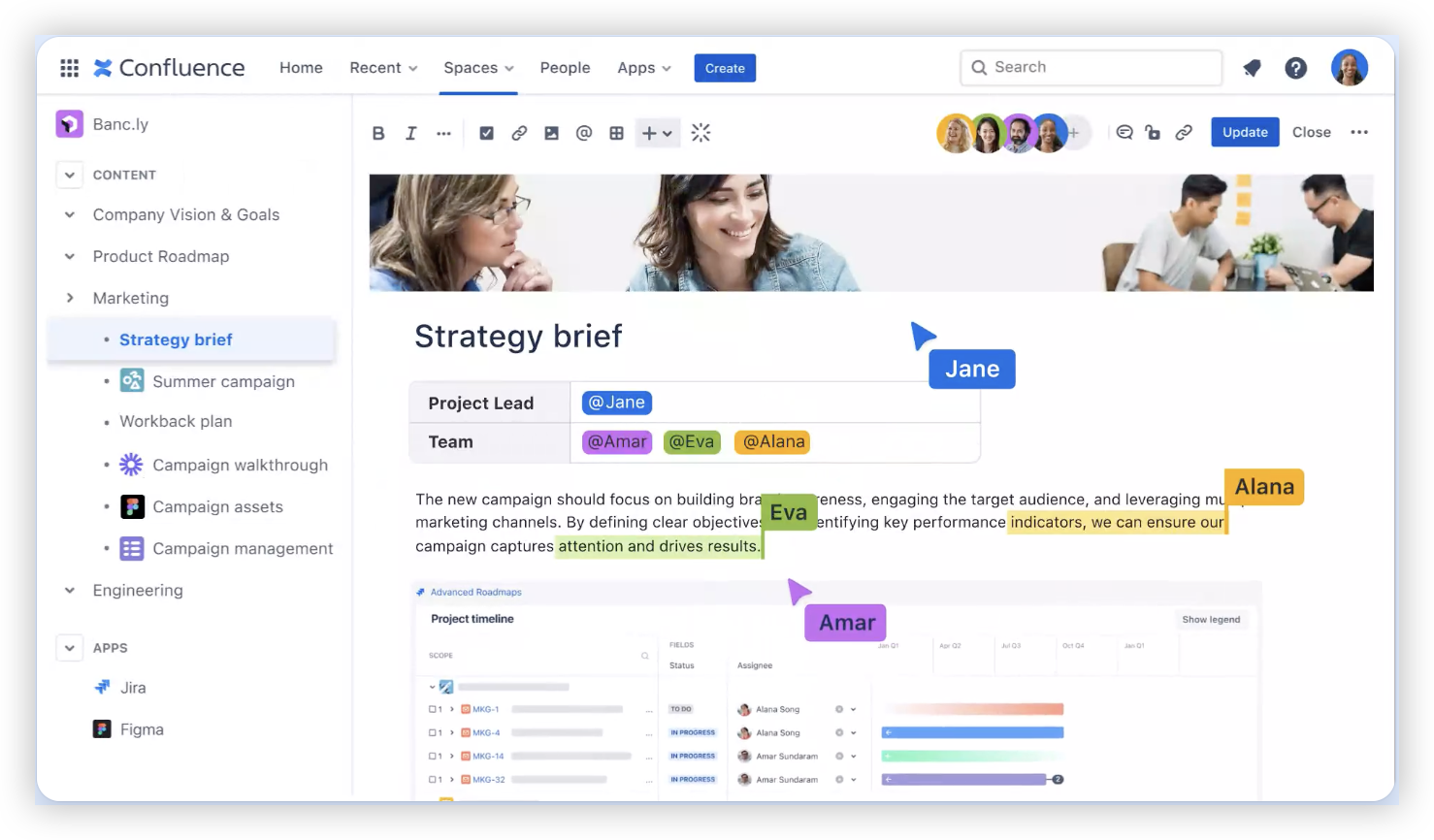
Step 1: Map the work before connecting anything
Start with a small workflow map. For example, a product team might move through discovery, requirements, development, testing, and release.
Then identify the best home for each activity. Jira usually handles tasks, bugs, sprints, and progress. Confluence often handles explanations, decisions, plans, and team guidance.
Here's why: integration works better when each product has a clear responsibility. Connecting two messy workspaces only makes confusion easier to access.
Step 2: Prepare administrators and permissions
Integration rights are separate from ordinary project access. A person may view an issue without being able to connect applications or configure macros.
Prepare an access checklist before setup. Include administrators, project leads, space owners, developers, and external collaborators.
- Confirm administrator access for both products.
- Identify restricted projects and private spaces.
- Check whether external contributors need read-only access.
- Review authentication requirements, including single sign-on.
- Decide who can create linked pages and automation rules.
A practical example helps. If a release plan contains commercial details, you may link selected Jira issues without giving every engineer access to the entire planning space.
Step 3: Establish the application connection
Open the administration area in the product that will initiate the connection. Look for application links, connected applications, or product connections.
Enter the address of the other product, then approve the authorization request. Depending on your deployment, you may need an administrator to confirm trust between the two environments.
After connection, test both directions. Open a Jira issue from Confluence, then open a Confluence page from Jira. One-way access often indicates a permission or authentication problem.
Step 4: Connect projects, spaces, and templates
A product-level connection does not automatically create a useful team workflow. You still need to connect the right project areas and establish conventions.
Create a standard project space with sections such as:
- Project overview
- Goals and scope
- Requirements
- Decision history
- Meeting notes
- Release planning
- Retrospectives
Then link each section to relevant Jira work. A requirement page might show related stories. A release page might display unresolved bugs. A retrospective page might connect to improvement tasks.
Step 5: Add smart links and issue views
Smart links make references easier to understand. A plain URL can become a visible card, an issue preview, or a status element.
Use issue lists carefully. A filtered view showing every task can overwhelm readers. A release page usually needs unresolved blockers, recently completed work, and high-priority risks.
For example, a launch page might include a Jira view filtered by the next release and status categories. Stakeholders can see progress without opening every issue.
Step 6: Design automation around real decisions
Automation can reduce repetitive updates, but it should support a clear decision process. Start with a few high-value rules.
- Create a Jira task when a page template marks an action as required.
- Update a release page when critical work changes status.
- Notify a page owner when a linked issue becomes blocked.
- Assign a review task when a requirement reaches approval.
Let me explain: automation should move information toward the person who needs to act. Notifications without ownership create noise rather than progress.
Step 7: Test the complete journey
Test the workflow as different people. An administrator, developer, manager, and guest may see different results.
Use a realistic test scenario. Create a requirement, link it to a Jira story, move that story through several statuses, and confirm the linked information remains understandable.
Record problems during testing. Look for broken links, missing previews, unexpected visibility, stale issue lists, duplicate alerts, and unclear page ownership.
What the Integration Actually Connects
Confluence Jira integration connects project knowledge with active work. It can show Jira issues inside Confluence and place Confluence references inside Jira.
The connection usually supports several practical relationships:
- A requirement page can link to implementation stories.
- A project overview can display sprint progress.
- A release page can show open bugs and delivery risks.
- A Jira issue can point to design decisions or technical guidance.
- A meeting page can create follow-up tasks.
The best setup preserves context. Someone reading a Jira issue should understand why it matters. Someone reading a project page should see what work is actually moving.
Jira for execution and Confluence for context
Jira is strongest when your team needs structured work tracking. It supports assignments, statuses, priorities, sprints, estimates, and issue history.
Confluence is useful when information needs explanation. A page can describe a product decision, explain a process, or capture a meeting outcome.
Think of the relationship like a map and a vehicle. Confluence explains where the team is going. Jira shows the vehicles, routes, delays, and completed journeys.
Where links provide the most value
Integration produces the clearest benefits at handoff points. These are moments when information changes ownership or moves between activities.
| Handoff | Useful connection |
|---|
| Requirements to development | Link requirement pages to Jira stories and acceptance criteria. |
| Development to testing | Show related bugs and test tasks on the release page. |
| Meetings to follow-up | Connect action items with assigned Jira issues. |
| Delivery to support | Link release notes to operational guidance. |
| Retrospective to improvement | Turn agreed improvements into trackable work. |
How to Design a Team Workflow That Stays Clean
Connecting products is only the beginning. Your team also needs rules for naming, ownership, page structure, and update responsibility.
The best workflow answers three questions quickly: where should information live, who updates it, and when should another team act?

Give every page and issue a clear purpose
A page should explain something, help someone decide, or provide a useful project view. A Jira issue should represent actionable work, a defect, or a meaningful request.
Avoid creating pages for every minor update. Avoid creating Jira issues for conversations that need no action. Clear boundaries reduce clutter in both products.
Use templates for repeatable project work
Templates reduce variation between teams. A project overview template might include goals, owners, milestones, risks, linked work, and recent decisions.
A meeting template might include attendees, decisions, action owners, due dates, and Jira links. This structure turns discussion into accountable follow-up.
Make ownership visible
Assign a page owner and a project lead. The page owner checks whether important information remains current. The project lead checks whether linked work reflects reality.
For example, a release page may belong to the product manager, while Jira workflow administration belongs to the project operations team.
Keep status views narrow
A useful status view answers a specific question. “What blocks the next release?” is better than “Show every issue in the project.”
Use separate views for blockers, overdue work, completed work, and upcoming milestones. Readers can then find the right signal without scanning hundreds of items.
Permissions, Security, and Governance
Integration can expose information across teams, so permissions deserve attention before launch. A link does not always grant access, but it can reveal that restricted content exists.
Review access at the project, space, page, issue, and user-group levels. Pay close attention to guest accounts and external collaborators.
Use the least-access principle
Give each person enough access to complete their work. A support specialist may need release guidance and selected issue details, without seeing confidential planning pages.
Test restricted content with a low-privilege account. If the account can open a private page through a linked issue, adjust the permissions immediately.
Separate visibility from workflow participation
Someone may need to see a release status without editing requirements. Another person may need to create Jira issues but cannot change project workflows.
Separate viewing, commenting, editing, and administration wherever possible. This makes responsibility easier to audit.
Review access after team changes
People change roles, projects end, and contractors leave. Unused permissions can remain active unless someone reviews them.
Schedule a quarterly review. Remove inactive accounts, confirm group membership, check guest access, and test high-risk spaces.
How to Measure Whether the Connection Helps
Measure outcomes rather than the number of links created. A large number of links does not prove that people find information faster.
Choose a few indicators that reflect your team’s problems. For example, track how long it takes to answer a release-status question before and after setup.
| Goal | Possible indicator |
|---|
| Reduce searching | Time needed to find the latest requirement or release status. |
| Improve handoffs | Percentage of stories linked to approved requirements. |
| Reduce stale guidance | Age of the last update on active project pages. |
| Improve follow-through | Percentage of meeting actions with owners and due dates. |
| Reduce notification noise | Number of unnecessary alerts reported by team members. |
Use a small pilot first. Select one project, one release, or one department. Compare the workflow before expanding it across the organization.
The best part? A pilot exposes permission gaps and confusing conventions while the impact remains manageable.
Natural Confluence Jira Integration Solution: ONES.com

Value Proposition
ONES.com combines project management and knowledge management in one platform powered by ONES Assistant. It can suit teams that want connected work without maintaining separate Jira and Confluence environments.
ONES Project is the project management product and a Jira alternative. ONES Wiki is the knowledge base product and a Confluence alternative. They are sold separately.
Core Capabilities
- Scattered project knowledge → ONES Wiki pages connect with ONES Project work → Teams can keep decisions and delivery activity closer together.
- Complex Jira migrations → Jira-compatible workflows support familiar project patterns → Teams can reduce retraining during a transition.
- Too many extensions → Built-in reporting and workflow features cover common needs → Administrators may rely on fewer plugins.
- Rigid process tracking → Custom workflows and custom fields reflect team-specific processes → Different departments can track work in suitable ways.
- Limited sprint visibility → Sprint management keeps planned and active work together → Delivery teams can monitor commitments more clearly.
- Repetitive coordination → Automation handles selected status and assignment actions → Teams can reduce routine follow-up.
- Deployment restrictions → Cloud, on-premise, private cloud, and air-gapped deployments are available → Teams can choose an environment that fits security requirements.
- Different behavior across hosting models → Self-hosted and cloud versions offer full feature parity → Teams can preserve capabilities while changing deployment style.
- High entry cost for small teams → The free plan supports up to 30 seats → Smaller teams can evaluate the platform before broader adoption.
Application Scenarios
Scenario one: a regulated engineering team. The team needs restricted deployment and detailed project traceability. It can use an on-premise or air-gapped environment, then connect requirements, sprint work, approvals, and technical guidance within its chosen setup.
Scenario two: a growing product organization. The organization currently divides planning across separate systems. It can use ONES Project for sprint execution and ONES Wiki for product knowledge, reducing the number of places people check for context.
Scenario three: a Jira migration project. A team wants Jira-compatible workflows but fewer plugins and stronger deployment control. ONES Project can provide a Jira alternative while ONES Wiki supports connected knowledge management.
Common Challenges and Practical Fixes
Challenge: Links work for administrators but fail for ordinary team members
Why it happens: Administrators often have broader permissions than project contributors.
Fix: Test with representative roles. Review project, space, page, issue, and group permissions. Record the minimum access needed for each workflow.
Challenge: Pages become outdated after launch
Why it happens: Teams create pages without assigning an owner or review schedule.
Fix: Add an owner, last-review date, and review trigger. A major release or workflow change should prompt a content check.
Challenge: Too many notifications reduce attention
Why it happens: Automation rules notify large groups about low-impact events.
Fix: Notify people who can act. Reserve broad alerts for blockers, approval needs, security events, and release risks.
Challenge: Teams duplicate the same information
Why it happens: People copy Jira status into pages instead of linking to live views.
Fix: Keep changing status in Jira and stable explanation in Confluence. Add a short summary only when readers need context.
Challenge: The connection becomes difficult to maintain
Why it happens: Teams add custom macros, automation rules, and exceptions without ownership.
Fix: Maintain a simple administration register. List connections, owners, critical rules, restricted areas, and review dates.
FAQs
What does Confluence Jira integration do?
It connects Confluence knowledge pages with Jira work items. You can place Jira issues, filters, and status views in Confluence. You can also link Confluence pages from Jira issues.
The practical goal is shared context. A requirement can point to implementation work, while a Jira story can point to the decision or guidance behind it.
Do I need administrator access to connect Jira and Confluence?
Usually, yes. Application connections and security settings commonly require administrator permissions. Ordinary contributors may still create links or use connected views after setup.
Ask an administrator to configure the connection, then test it with the roles your team actually uses.
Can I connect Jira Cloud with Confluence Data Center?
Possibly, but the supported connection depends on the product versions, network access, authentication method, and vendor configuration.
Check compatibility before planning the rollout. Hybrid environments may also need firewall rules, identity configuration, and additional security review.
How should I organize linked pages?
Start with pages that support active work. Useful categories include project overview, requirements, decisions, release planning, meeting actions, and retrospective improvements.
Give each page an owner and connect it to the Jira work that readers need. Avoid linking every issue to every page.
Is a Confluence Jira connection enough for project collaboration?
No. The connection improves visibility, but your team still needs clear ownership, naming rules, permissions, and review habits.
For example, a release page will not stay useful if nobody updates its scope or checks whether its linked work remains relevant.
Conclusion
A successful Confluence Jira integration connects context with execution. The seven-step process is straightforward: prepare access, connect the products, link project areas, add useful views, design focused automation, and test the complete workflow.
But here's the truth: the technology matters less than the operating rules around it. Give information a clear home, assign ownership, protect restricted content, and measure whether people find answers faster.
Start with one project and one repeatable workflow. Once your team can move smoothly from requirements to delivery, expand the pattern to releases, support, and continuous improvement.