Connect Jira to Confluence: A 5-Step Setup Guide for Teams
Tired of losing project context between tools? Connect Jira to Confluence in five steps to link issues and pages. Read now to simplify team handoffs.
When Jira tracks the work and Confluence holds the project context, teams can lose time switching tabs and asking where decisions were made. An issue may say “see the project plan,” while the plan offers no clear route back to the work. That disconnect makes handoffs harder and leaves important details scattered across tools.
But here's the truth: connecting Jira to Confluence can make those relationships easier to follow. You can link issues and pages, surface relevant context, and help teammates move between planning and execution. The setup depends on whether you use cloud or self-managed Atlassian products, and a few permission checks can prevent common snags.
Use this five-step guide to connect the products, link the right work, and verify that teammates can access what they need. I’ll also cover permissions, troubleshooting, and a unified alternative for teams reviewing their project and knowledge workflows.
How to Connect Jira to Confluence in Five Steps
Start by confirming your product editions and access, then establish or verify the connection. After that, link a Jira issue to a Confluence page and test the experience with the people who will use it.
- Confirm your Jira and Confluence editions. Check whether your team uses Cloud, Data Center, or another supported self-managed configuration. The connection process and available controls can differ between editions.
- Check your permissions. Make sure you can administer or configure the relevant products. Ask a Jira or Confluence administrator to help if you cannot see integration settings.
- Connect the products or verify the existing connection. In Atlassian Cloud, connected products may be available through the product integration experience. In self-managed environments, an administrator may configure an application link. Follow the current Atlassian instructions for your edition and confirm both products recognize the connection.
- Choose a real Jira issue and Confluence page to link. Open the issue and add the page through the available link or content controls. You can also paste a page link into an issue comment or description; Jira may display it as a smart link.
- Test the link as a teammate. Open the issue, follow the page link, and check whether the right people can view it. Then test the return path by adding an issue link to the page, if your workflow needs one.
Here's why the final check matters: a link can be valid while its destination remains restricted. Test with an account that has ordinary team permissions, not only an administrator account.
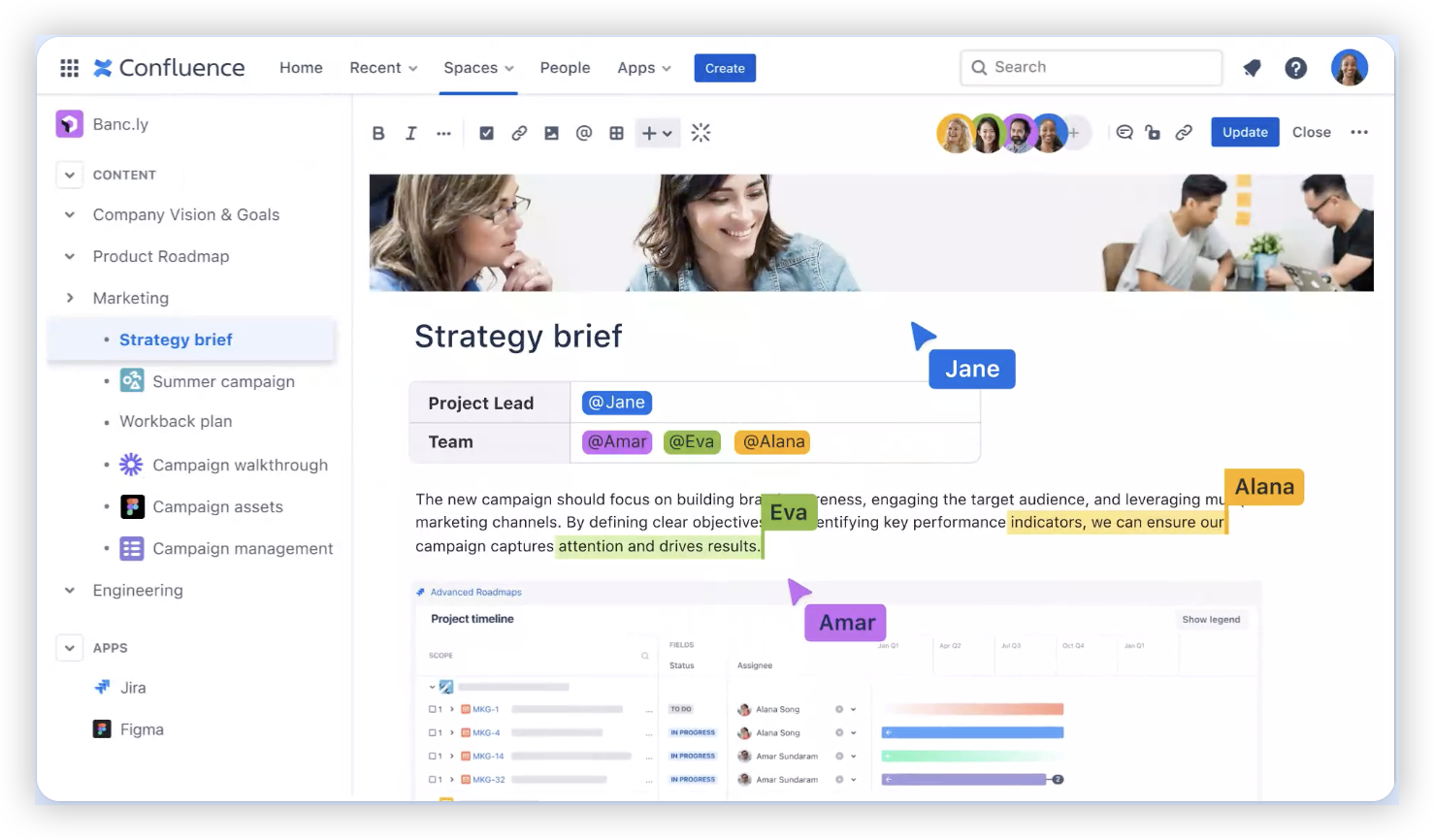
What a successful connection looks like
A successful setup lets your team move between related Jira work and Confluence knowledge without guessing which page or issue matters. For example, a release issue might link to its rollout plan, while that plan links back to the related delivery issue.
Connection does not automatically grant access to every page or issue. Each product’s permissions still apply, so check access separately when a teammate hits a restriction.
Prepare Your Team Before You Connect
A little preparation makes the integration more useful. Decide what information belongs in Jira, what belongs in Confluence, and how teammates should connect the two.
Agree on the role of each product
Jira usually tracks actionable work, such as bugs, tasks, owners, and delivery status. Confluence often holds longer-lived context, such as project plans, meeting decisions, and technical explanations.
For example, keep a bug’s status and assignee on its Jira issue. Put a broader investigation summary on a Confluence page, then link the issue to the relevant section or page.
Choose a simple linking convention
Decide which pages should link to Jira issues and which issues should link back to Confluence. A team might link every epic to a project brief, then add issue links to pages that explain a decision or process.
Keep the convention easy to follow. If teammates need a long checklist to decide whether to add a link, they may skip the step when work gets busy.
Check access before sharing links widely
Jira project permissions and Confluence space or page permissions are separate. A teammate who can view an issue may still lack access to the page linked from it.
Let me explain: a link is a route, not an access pass. Test a few representative accounts, including people who work across teams or spaces.
Link Jira Issues and Confluence Pages Clearly
Once the connection is in place, link specific work to the context that helps people understand it. A useful link answers a question, such as “Why are we doing this?” or “Where is the agreed plan?”
Add a Confluence page to a Jira issue
Open the Jira issue and use the available link or content controls to attach the relevant Confluence page. Depending on your edition and interface, you may be able to search for a page or paste its URL.
Choose the page that gives the issue meaningful context. A focused implementation note is often more helpful than a broad space landing page with no clear pointer to the relevant topic.
Add Jira issue links to a Confluence page
On a Confluence page, paste the Jira issue link or use the Jira-related macro or integration option available in your environment. A smart link may show useful issue details directly on the page.
For example, a sprint planning page could include links to the sprint’s highest-priority issues. A release page might point to the open tasks that still need attention.
Use links to support the work, not decorate it
A page full of unrelated issue links can make a project harder to understand. Add links where they help someone take action, confirm a decision, or find the next step.
The best part? A small number of well-chosen links can make a plan easier to use than a long list with no explanation. Add a short label or sentence that says why each link matters.
Keep Permissions and Ownership in View
Jira and Confluence remain separate products with their own access controls. The connection helps people navigate related work, but administrators still need to manage who can view, edit, and administer each area.
Match access to the audience
Before linking a page in a widely visible issue, check whether the page is intended for that audience. A project page may contain internal decisions, while an issue could be visible to a broader group.
For instance, a product team might restrict its planning space while sharing a limited set of approved pages with customer-facing teams. The issue link should not imply that every viewer can open the page.
Assign owners for connection health
Choose an administrator or team contact to handle connection changes, access questions, and integration checks. This is especially helpful when teams rename projects, spaces, or products.
For self-managed environments, include the connection in routine administration checks. Changes to network rules, authentication, or product addresses can affect how applications communicate.
Review links during project changes
When a project closes or a team reorganizes, review its key Jira and Confluence links. Remove outdated references or update them to point to the current plan.
A brief review at release or project close can prevent teammates from relying on stale instructions months later.
Troubleshoot Common Connection Problems
If a link fails, first identify what failed: the connection, the destination, or the viewer’s access. That simple distinction helps you ask the right administrator for help.
The products do not appear connected
Confirm that both products are supported for your setup and that an administrator completed the required connection steps. In self-managed environments, check the application link configuration and confirm that the product addresses are reachable.
If your team uses Cloud, check the current product integration settings. The labels and navigation can change, so use the instructions for your specific Atlassian edition.
A teammate can see the link but cannot open the page
Ask a Confluence administrator to check the page and space permissions. Also confirm that the teammate is signed into the expected account and has access to the correct site.
Do not assume that changing Jira permissions will solve a Confluence access issue. Each product has its own permission model.
A link opens the wrong page or issue
Check that the link points to the intended Jira site, project, or Confluence space. Similar project names can make a wrong destination easy to miss.
Replace outdated links with the current page or issue address. Then test the updated link using a regular team account.
Issue details do not appear as expected
Smart link behavior can depend on your product edition, configuration, and viewer access. Check whether the same issue opens directly in Jira before investigating the page display.
If the direct issue link works but the preview does not, ask your administrator to review the integration settings and supported display options.
ONES.com Solution: Connect Project Work and Team Knowledge

Value Proposition
ONES.com brings project management and knowledge management together through ONES Project and ONES Wiki, sold separately. Teams evaluating a Jira and Confluence connection can consider this approach when they want project work and team knowledge in a unified platform.
Core Capabilities
- Scattered project context: ONES Project supports project tracking, while ONES Wiki provides a knowledge base. This gives teams a connected environment for managing work and its supporting knowledge.
- Jira workflow familiarity: ONES Project is a Jira alternative with Jira-compatible workflows. Teams can carry familiar work patterns into a project management environment.
- Limited workflow flexibility: Custom workflows and fields let teams reflect their own review stages and project details. This can reduce workarounds when a team’s process changes.
- Manual status reporting: Built-in reporting helps teams review project progress without assembling every update by hand.
- Sprint coordination needs: Sprint management supports teams organizing iterative work, making it easier to plan and follow sprint activity.
- Repeated routine tasks: Automation can handle selected recurring actions, helping teams spend less time on repetitive workflow steps.
- Plugin overhead: Native capabilities can reduce reliance on extra plugins for common project workflows. Teams can review which add-ons remain necessary for their particular needs.
- Deployment constraints: ONES.com supports Cloud, On-Premise, Private Cloud, and Air-gapped deployments. Its cloud and self-hosted versions have full feature parity, giving teams deployment choices without a stated feature split.
Application Scenarios
Software team managing releases: A team can track sprint work and release tasks in ONES Project, then maintain technical knowledge in ONES Wiki. This can help developers move between delivery activity and team knowledge within the ONES.com environment.
Organization with restricted network requirements: A team that cannot use a public cloud deployment can evaluate ONES.com’s On-Premise, Private Cloud, or Air-gapped options. Administrators can assess the deployment against their access and infrastructure requirements.
Planning a move or evaluation
ONES Project and ONES Wiki are sold separately, so identify which capabilities your team needs before evaluating them. If you want to try the platform, the free plan supports up to 30 seats.
ONES Assistant provides AI-powered support within ONES.com. If your main need is simply connecting Jira and Confluence, focus first on the five setup steps in this guide; you do not need to change platforms to make those links useful.
Common Challenges and Practical Fixes
- People cannot find the right page. Use a clear linking convention and add a short explanation beside important links. For example, label a page link “Release checklist” rather than leaving a bare URL.
- Links work for some teammates but not others. Review access in both products and test with accounts that have different team roles. A successful administrator test does not confirm that the full team can open a destination.
- Pages and issues become outdated. Assign an owner to review key links at milestones, such as release completion or project close. Replace links that point to retired plans or obsolete work.
- Teams add too many links. Set a purpose for each link, such as explaining a decision or showing an action item. Remove links that do not help readers understand or complete work.
Frequently Asked Questions
Can Jira and Confluence be connected automatically?
Some Atlassian Cloud setups make connected products available through built-in integration features. Self-managed environments may require an administrator to configure an application link. The exact process depends on the editions and configuration your organization uses, so verify the current instructions for your setup.
Does connecting Jira to Confluence give everyone access to every page?
No. A connection does not automatically change each product’s permissions. A teammate still needs permission to view the Jira issue and the Confluence page. If someone can see a link but cannot open its destination, ask the relevant product administrator to check access.
Can I link a Jira issue from a Confluence page?
Yes. You can usually add an issue URL to a page or use an available Jira integration option. Depending on your setup, the link may display as a smart link or show selected issue details. Test the result with a teammate who has standard access.
Do I need an administrator to connect the products?
You may need an administrator, especially if your account cannot access integration settings or if the products require an application link. Even when you can add page and issue links yourself, an administrator can confirm that the underlying connection and permissions are configured correctly.
What should I do if a Jira link works but its Confluence page does not?
Check the page’s address, then confirm that your account has permission to view the page and its space. If other teammates have the same problem, ask a Confluence administrator to review access settings. If only one person is affected, first confirm they are signed into the right account.
Conclusion
Connecting Jira and Confluence starts with checking your editions, confirming the product connection, and verifying permissions. Then link the pages and issues that help your team understand decisions, track actions, and move between project context and delivery work.
But here's the truth: a connection is only useful when people can open the destinations and understand why each link matters. Test with everyday team accounts, keep key links current, and assign someone to review them as projects change.
With a clear linking habit, your team can spend less time searching and more time acting on shared context. If you are reviewing your broader setup, compare your current workflow with an approach that brings project management and knowledge management together.