Connect Jira to Confluence: Step-by-Step Setup Guide (2026)
Tired of stale project updates? Learn how to connect Jira to Confluence, link issues and pages, and check permissions with this 2026 guide. Read now.
Jira tracks the work, while Confluence holds the plans and decisions. When the two stay disconnected, you end up copying links, repeating updates, and wondering whether a project page still reflects the latest issue status.
That friction grows quickly. A developer may miss a requirement buried in a Confluence page, or a stakeholder may read an outdated status and make the wrong call. The good news: connecting the products can make project context easier to find and maintain.
Here’s how to connect Jira to Confluence, add issue and page links, and check that permissions work. I’ll cover Cloud and Data Center setups, plus practical ways to keep the connection useful after you’ve finished configuring it.
How to Connect Jira to Confluence
For Jira Cloud and Confluence Cloud, the simplest setup is to have both products on the same Atlassian site. For Data Center installations, configure an application link between the Jira and Confluence instances.
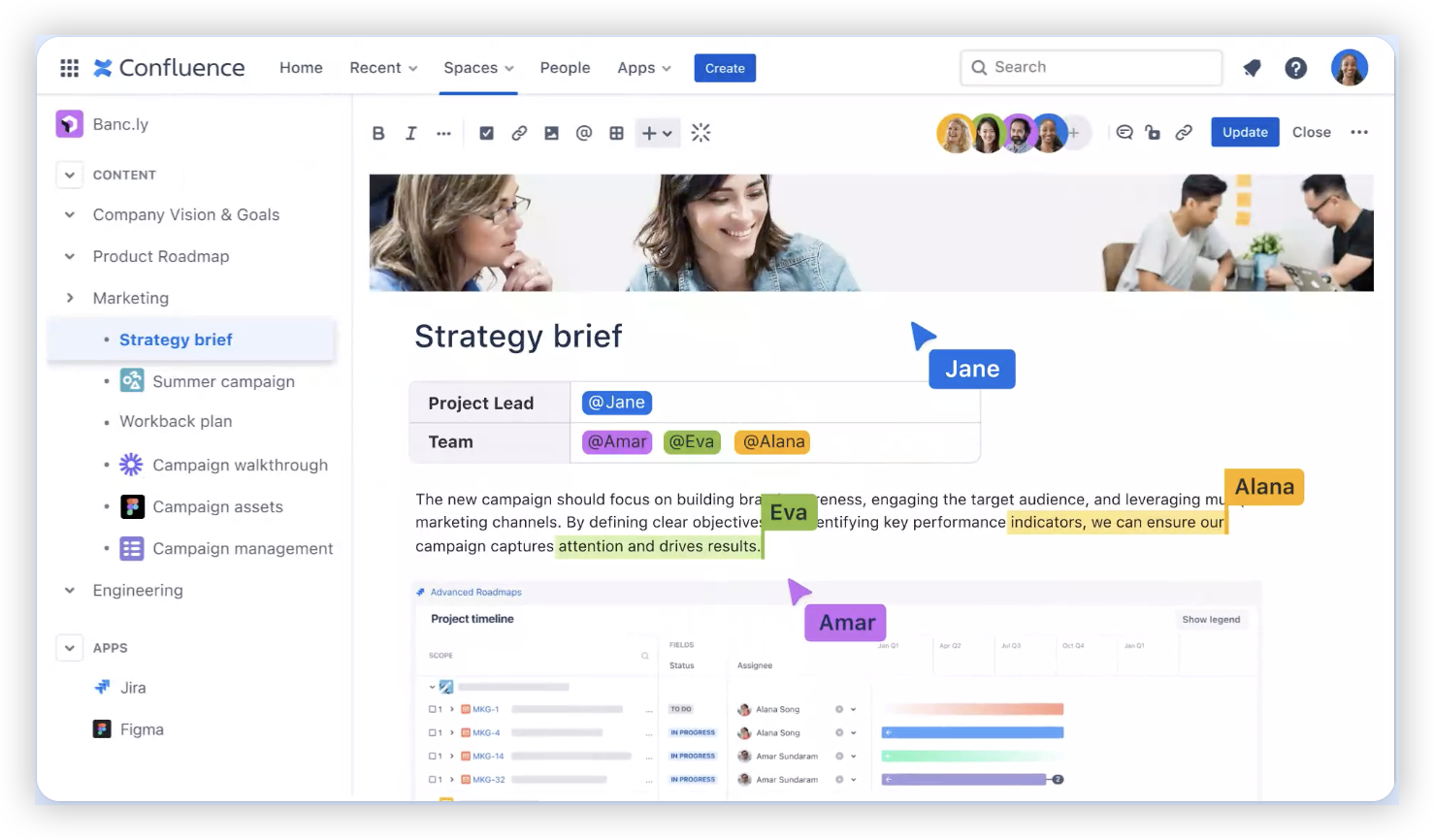
Once connected, you can add Jira issues to Confluence pages and link relevant pages to Jira work. Follow the steps for your deployment, then test the connection with a page and an issue you can access.
1. Check Your Products and Permissions
Confirm whether you use Cloud or Data Center. The setup differs, and a Cloud product menu will not match the administration screens in a self-hosted installation.
For Cloud, check that Jira and Confluence appear under the Atlassian site you intend to use. You also need an account with permission to view the relevant projects, spaces, issues, and pages.
For Data Center, note the base URL for each instance and confirm that both can reach each other over the network. An administrator may need to handle the setup.
2. Connect Jira Cloud and Confluence Cloud
Sign in to your Atlassian site and confirm that both Jira and Confluence are available there. If one product is missing, ask your site administrator to check the product setup.
Open the Jira project and Confluence space you plan to use. Check that your account can view the project issues and the pages you’ll link.
In Confluence, create or open a page. Type /jira in the editor and choose the Jira work items option when it appears.
Search for an issue by its key, such as PAY-42, or by a phrase from its summary. Select the issue and insert it into the page.
Open the linked issue and check that it displays the Confluence page link, if that option is available in your Jira view. If not, add the page URL to the issue description or a comment.
Test the link as a teammate with the permissions they normally have. Confirm that the page opens and that the issue details are visible.
But here’s the truth: a working link doesn’t grant access by itself. If a teammate sees an access request, review the project and space permissions before changing the integration.
3. Connect Jira and Confluence Data Center
Sign in to Jira as an administrator and open the application links settings. Depending on your version, this may be under Jira administration, then Applications.
Choose the option to create a link and enter the Confluence base URL. Use the address people and systems can reach, not a temporary test address.
Follow the authorization prompts. Choose the authentication method supported by your Jira and Confluence versions, and complete any required reciprocal setup.
Check the link status in the administration screen. If Jira prompts you to finish the connection in Confluence, sign in there as an administrator and complete that step.
Open a Confluence page and use the Jira work items option to search for an issue. Insert one, then follow the link back to Jira.
Test with accounts that have different permission levels. A link that works for an administrator may still be blocked for a project member or page reader.
Menu names and available authentication choices can vary by product version. If a prompt differs from these steps, use the administration guidance for the exact versions your team runs.
4. Verify the Connection with a Real Example
Choose one issue that has a clear project page, such as a launch requirement tracked as WEB-18. Add the issue to the page and link the page back from Jira.
Then ask a teammate to open both links. Check that the issue summary makes sense in the page, the page provides useful context, and neither link leads to an access error.
What You Can Do After Connecting the Products
Once the connection works, use it to bring project context closer to the work. A Confluence page can show a Jira issue or a group of issues, while a Jira issue can point teammates to the plan or decision behind it.
For example, a release page might include open defects, owners, and current statuses. A Jira issue for a specific defect can link back to the release plan, so an engineer can see why the fix matters.
Show Jira Issues on a Confluence Page
Use the Jira work items feature to search for issues and add them to a page. You can display one issue or a set of results, depending on the page editor and options available in your product version.
For a release plan, you might show issues assigned to the release, then organize the page around milestones and decisions. Keep the search or selection focused: a page crowded with unrelated tickets is harder to use.
Link a Confluence Page from Jira
A Jira issue is easier to understand when it points to the right project context. Add a link to the relevant design, decision, or release page in the issue’s available link area, description, or comment.
For instance, link a payment change ticket to the page explaining the customer impact and acceptance criteria. The engineer can move from the task to its context without searching across spaces.
Choose Between a Live Issue View and a Simple Link
A Jira issue view can make status and ownership easier to scan on a Confluence page. A plain URL can be enough when you only need to direct readers to a specific page or ticket.
Here’s why: the two approaches serve different needs. Use a live issue display for a release overview; use a simple link in meeting notes when the goal is just to preserve context.
Permissions and Access: Check Both Sides
Jira and Confluence permissions are managed separately. Someone may be able to open a project but not a particular space, or read a page but lack permission to view the issue shown on it.
Imagine a product manager who can open the launch plan but sees an error beside a Jira item. The page link may be fine; the person may simply lack access to that project or issue.
Test with the Right Account
Ask a teammate who represents the intended audience to test the connection. An administrator’s broad access can hide permission problems that affect the rest of the team.
Check the project role, issue security settings, space permissions, and any page restrictions. Make the smallest permission change that gives the right people access to the right content.
Keep Sensitive Work Separate
Before adding Jira issues to a widely shared page, check whether the issue contains details that should stay limited to a smaller group. A visible link does not mean every reader can open the issue, but the surrounding page may still reveal sensitive context.
For example, a general project page can show high-level milestones, while restricted operational details stay on a page with narrower access. That keeps shared planning useful without exposing more than intended.
Keep the Jira–Confluence Connection Useful
A successful setup is only the beginning. The links need to remain clear, current, and easy to navigate as a project changes.
The best part? You don’t need a complicated linking scheme. A simple convention—one project overview page, focused issue links, and named owners—can prevent a lot of confusion.
Use Consistent Page and Issue References
Choose a clear location for project plans, such as a dedicated space or a predictable page tree. Add the most relevant page link to Jira issues that need that context.
A team might use one release overview page for milestones and a separate page for technical decisions. That gives people a sensible place to look without sending every issue to the same catch-all page.
Review Links When Work Changes
When a release closes or a project changes direction, review its important links. Retire outdated pages, update the overview, and remove references that point to superseded plans.
A short review during a release retrospective can catch broken or misleading links. It’s easier to fix a few references then than to discover months later that the team has been following an old plan.
Give Teams a Small Linking Convention
Explain when to embed Jira work items, when to add a plain link, and where the main project page lives. A brief convention helps new team members understand how the two products fit together.
For example, you could ask project owners to link the release plan from each major Jira epic. That gives engineers a practical route to the plan without requiring the same link on every minor task.
A Unified Project and Knowledge Option: ONES.com
When teams want project work and team knowledge in one environment, ONES.com brings project management and knowledge management together on a unified platform powered by ONES Assistant. ONES Project is the project management product and a Jira alternative; ONES Wiki is the knowledge management product and a Confluence alternative. They are sold separately.

Value Proposition
If your team is weighing how it manages work and project knowledge, ONES.com offers an option with project tracking and knowledge capabilities under one platform. You can choose the product that fits your needs rather than assuming every team needs both.
Core Capabilities
Disconnected work tracking: ONES Project supports Jira-compatible workflows, helping teams carry familiar processes into an alternative project management setup.
Limited visibility into progress: Built-in reporting helps teams review work status without relying on a collection of added reporting plugins.
Rigid project processes: Custom workflows and fields let teams shape issue handling around their own approval or delivery steps.
Sprint planning needs: Sprint management supports teams organizing work into planned iterations and reviewing progress as they go.
Repetitive project administration: Automation can reduce recurring manual actions, such as routine status transitions or task assignments.
Scattered project knowledge: ONES Wiki gives teams a knowledge management product for organizing project guidance and team knowledge.
Plugin-heavy setups: Native capabilities can reduce reliance on plugins for common project needs, while preserving familiar workflow patterns.
Deployment constraints: ONES.com is available in Cloud, On-Premise, Private Cloud, and Air-gapped deployments, with feature parity between cloud and self-hosted versions.
Small-team evaluation: The free plan supports up to 30 seats, giving a team room to evaluate the platform before deciding whether it fits.
Application Scenarios
A software team that wants Jira-style issue tracking with custom workflows and sprint management could evaluate ONES Project as a Jira alternative. It can review whether built-in reporting and automation cover needs that currently rely on extra plugins.
A team that needs to keep project knowledge alongside its project management environment could consider ONES Wiki and ONES Project together. Since they are sold separately, the team can assess each product against its requirements.
An organization with strict network or hosting requirements can compare Cloud, On-Premise, Private Cloud, and Air-gapped deployments. That helps the team assess a platform against its operating environment instead of changing its deployment expectations.
Common Challenges and Practical Fixes
The Jira Link Opens, but the Issue Is Hidden
Problem: A teammate can open the Confluence page but cannot see a linked Jira issue.
Fix: Check project permissions, issue security, and the teammate’s access to the issue. Test again with the affected account rather than an administrator account.

The Page Shows the Wrong Issues
Problem: A page displays tickets that belong to a different release or team.
Fix: Review the issue search or selection used for the page. Narrow it to a specific project, release, or other suitable criteria, then confirm the results with the project owner.
Cloud Setup Menus Don’t Match the Guide
Problem: You can’t find an application link setting or a menu mentioned in older instructions.
Fix: First confirm that both Cloud products are on the intended Atlassian site. Cloud setup differs from Data Center administration, and menus can change between product versions.
Data Center Instances Cannot Reach Each Other
Problem: The link setup fails or does not complete between self-hosted instances.
Fix: Ask an administrator to check that each instance can reach the other using its configured base URL. Then review the authorization prompts and any network restrictions that could block communication.
FAQs
Do Jira and Confluence Need to Be on the Same Atlassian Site?
For a straightforward Cloud setup, having both products on the same Atlassian site is the simplest approach. If they are on separate sites, some links may still work as URLs, but the connected experience can differ. Check your site configuration and test the specific Jira and Confluence features your team expects to use.
Can I Add Jira Issues to a Confluence Page?
Yes. In the Confluence editor, type /jira and choose the Jira work items option if it is available in your version. Search for the issue, select it, and insert it. You can also use a direct URL when you only need a simple link. Readers still need permission to view the Jira issue.
Why Can’t a Teammate See an Issue on a Confluence Page?
Jira and Confluence permissions are separate, so access to the page does not necessarily grant access to the issue. Check whether the teammate can view the Jira project and the specific issue. Issue security settings or project roles may also restrict access, even when the page itself is available.
Does This Setup Work for Jira and Confluence Data Center?
Yes. Data Center administrators can create an application link between the Jira and Confluence instances, then complete the authorization steps supported by their installed versions. The exact screens and available authentication methods may vary. After setup, test links with regular team accounts as well as an administrator account.
Can I Just Paste a Jira URL into Confluence?
Usually, a direct URL is enough when you want to point readers to a single issue. The Jira work items option can provide a more informative issue display on a page. Choose the approach that suits the page: a release overview may benefit from issue details, while meeting notes may only need a link.
Conclusion
Connecting Jira and Confluence gives your team a practical path between tracked work and the knowledge behind it. Start by confirming your deployment and permissions, then connect Cloud products on the intended site or configure a Data Center application link.
After setup, test real issue and page links with a teammate. Keep permissions clear, choose focused links, and review them when project plans change.
If disconnected work and project knowledge remain a challenge, consider how your team wants those capabilities organized. A clear connection—or a platform approach that fits your needs—can make project context easier to find and act on.