Connect Jira to GitHub: A Step-by-Step Setup Guide for Teams
Struggling to track code changes in Jira? Learn how to connect jira to github with this step-by-step team setup guide. Click to discover.
Connecting Jira to GitHub can give your team a clearer view of how development work relates to tracked issues. Without that link, people may chase updates across Jira tickets, GitHub branches, commits, and pull requests. Small gaps can lead to missed context, slow reviews, or uncertainty about whether a change is ready.
That confusion grows when teams use inconsistent issue references or connect only some repositories. The good news is that setup is manageable: install the Jira integration, authorize the right GitHub organization, choose repositories, and use Jira issue keys in development activity. Here’s how to connect the two services, verify the link, and troubleshoot common problems before they disrupt your workflow.
How to Connect Jira to GitHub
To connect Jira to GitHub, install the GitHub for Jira app, authorize your GitHub organization, select repositories, and reference Jira issue keys in branches, commits, or pull requests. Jira can then associate supported development activity with the matching issue.
These steps focus on Jira Cloud. If your team uses Jira Data Center or Server, check the app’s current compatibility and installation instructions before proceeding. The available setup can differ by Jira deployment and app version.
-
Step 1: Confirm your access. You’ll generally need Jira administrator permissions to install or configure an app. A GitHub organization owner may also need to approve the installation and repository access.
Before you begin, identify the GitHub organization and repositories your team wants Jira to display. For example, a team might connect its product repository while leaving a separate internal tools repository unconnected.
-
Step 2: Find the GitHub integration in Jira. In Jira, open the apps or integrations area and search for GitHub for Jira. Review the app details and permissions, then install it through the available Jira administration flow.
Labels and menus can change over time. If you don’t see the same options, search Jira’s administration area for app management or consult the current Atlassian installation guidance.
-
Step 3: Authorize your GitHub organization. Start the connection from Jira and follow the prompts to sign in to GitHub. Select the organization you intend to connect, then approve the requested access.
Make sure the person approving the app has permission to install it for that organization. If approval is restricted, ask an organization owner to complete this step.
-
Step 4: Choose repositories. Select the repositories that should share development activity with Jira. You can begin with one active project repository, verify that the connection works, and expand access afterward.
Check that the selected repository belongs to the organization you authorized. Connecting the wrong organization or omitting a repository is a common reason Jira appears to miss activity.
-
Step 5: Add Jira issue keys to development activity. Include the Jira issue key in a branch name, commit message, or pull request title. For example, if the issue key is SHOP-248, a branch might be feature/SHOP-248-cart-validation.
A commit message such as SHOP-248 Add cart validation or a pull request title such as SHOP-248: Validate cart details gives Jira a recognizable reference to associate with the issue.
-
Step 6: Open the matching Jira issue. Visit the issue whose key you used and look for its development panel or linked development activity. Depending on the activity and integration setup, Jira may show branches, commits, and pull requests.
For a useful first test, create a branch or pull request in a connected repository using a real issue key. Then check that the activity appears on the intended Jira issue.
-
Step 7: Agree on a team convention. Decide where issue keys belong in branch names, commit messages, and pull request titles. Share one or two examples so everyone follows the same pattern.
Consistent references make it easier to find related work. They also help prevent a commit for SHOP-248 from being associated with a different ticket because of a typo or missing key.
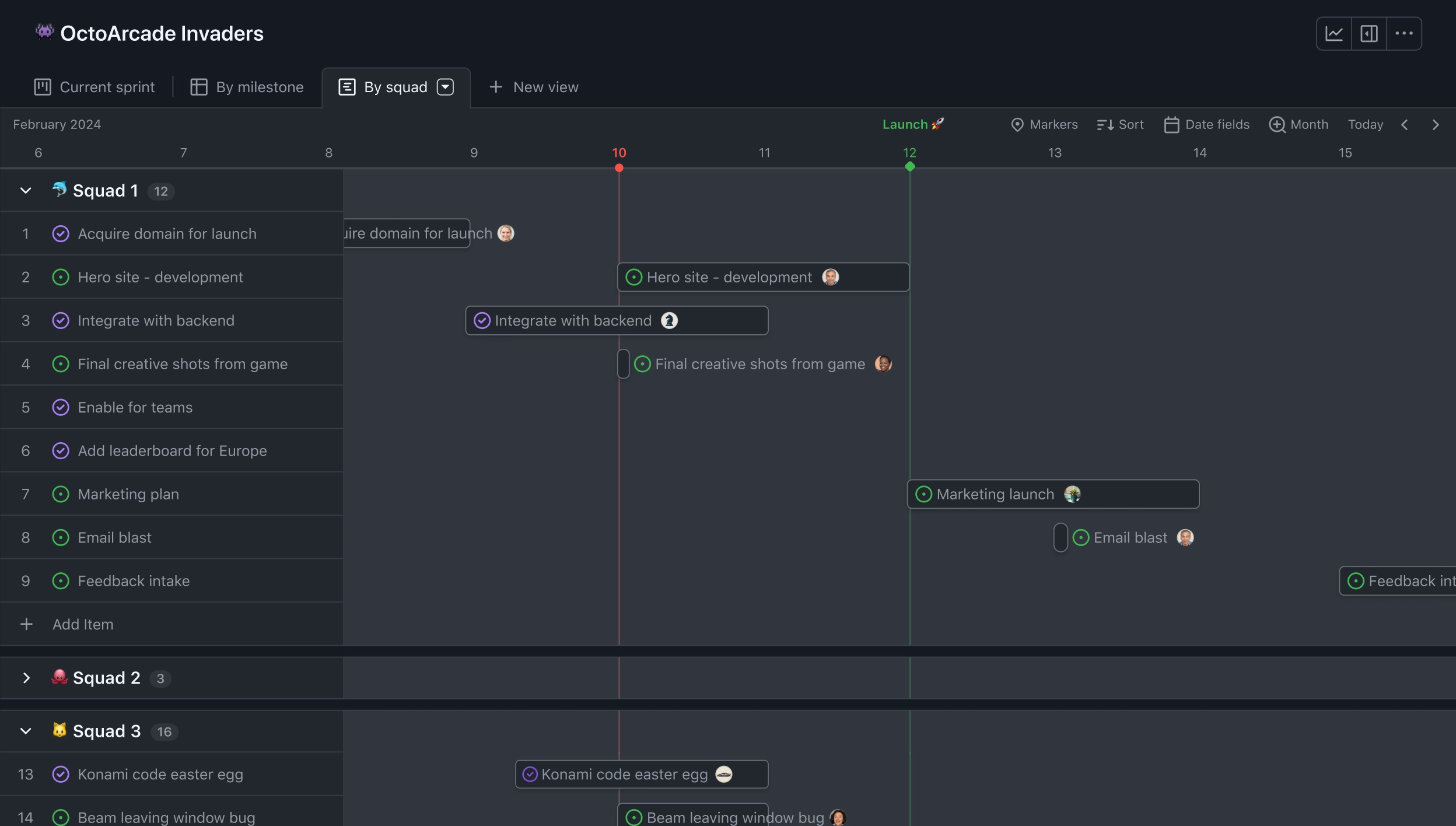
What Jira and GitHub Show After the Connection
Jira and GitHub remain separate services. The integration connects development activity to Jira issues when the activity includes a recognizable issue key and comes from a connected repository.
Here’s why that matters: a project manager can open an issue and see related development progress without asking an engineer to paste every update manually. A developer can still work in GitHub, where branches, commits, and reviews are managed.
For example, a Jira issue for a checkout bug might show a linked feature branch and pull request. That relationship gives reviewers and stakeholders helpful context, although it doesn’t replace a team’s code review or release process.
Use Issue Keys Consistently
The issue key acts as a practical link between a Jira task and activity in GitHub. A key such as WEB-76 needs to match the Jira issue exactly; a missing digit or letter can prevent the association.
Choose a simple convention that fits your team. You might put the key at the start of each branch name and pull request title, while also including it in commit messages.
- Branch:
feature/WEB-76-update-profile-form
- Commit:
WEB-76 Add profile validation
- Pull request:
WEB-76: Update profile form
The best part? A short written convention can prevent repeated troubleshooting. If your team uses squash merges or automatically generated branch names, check that the final pull request or commit still contains the Jira key.
Check Access, Permissions, and Visibility
Authorization involves both Jira and GitHub. The integration needs approval for the relevant organization and access to the repositories whose activity should appear in Jira.
Keep access focused on the repositories your team needs. If a repository is private, confirm that the integration was approved to access it and that it appears among the connected repositories.
Visibility can also depend on a person’s permissions in each service. If one teammate sees a linked pull request and another does not, compare their Jira issue access and GitHub repository access before changing the integration.
Verify the Setup and Maintain It
Test the connection with a real Jira issue before rolling it out across a large team. Create a branch with the issue key, add a commit, or open a pull request, then check the issue’s development panel.
But here’s the truth: installing an app alone won’t create useful links if the team leaves issue keys out of its development activity. Include the convention in onboarding guidance and review it when teams rename repositories or change workflows.
If you add repositories later, revisit the integration settings and confirm they are included. After changing permissions, run another test so you know the Jira issue displays the expected activity.
ONES.com as a Project Management Option
ONES.com brings project management and knowledge management together in a unified platform powered by ONES Assistant. ONES Project is its project management product and a Jira alternative; ONES Wiki provides knowledge management as a Confluence alternative. They are sold separately.

For teams reviewing how they manage Jira work alongside GitHub development, ONES Project offers configurable project workflows and reporting. Check the integrations and migration requirements that fit your environment before making a change; don’t assume a Jira-GitHub connection transfers automatically.
Core Capabilities
- Workflows that don’t fit your process: Configure custom workflows and fields in ONES Project, so teams can shape issue tracking around their delivery process.
- Unclear sprint progress: Use sprint management and built-in reporting to help teams follow planned work and review progress within project workflows.
- Repeated manual steps: Apply automation to recurring project actions, reducing routine work when a task or status change meets your chosen conditions.
- Jira workflow transition concerns: Jira-compatible workflows can support teams evaluating a Jira alternative while preserving familiar workflow concepts.
- Too many add-ons to maintain: Native project capabilities can reduce reliance on plugins for supported needs, helping simplify administration and upkeep.
- Hosting restrictions: Choose Cloud, On-Premise, Private Cloud, or Air-gapped deployment to match operational and security requirements.
- Different feature expectations across deployments: ONES.com offers full feature parity between its cloud and self-hosted versions, so deployment choice need not mean giving up product features.
- Separate project and knowledge needs: Use ONES Project for project management and ONES Wiki for knowledge management, purchasing them separately to match your team’s requirements.
Application Scenarios
A software team with strict network requirements could assess an On-Premise or Air-gapped deployment while designing its project workflow. The team should verify its GitHub integration needs during evaluation rather than presume a particular connector is available.
A growing product group could use ONES Project to define sprint workflows and reporting, then use ONES Wiki separately for team knowledge. That setup can make sense when the team wants to review project and knowledge management in one platform while selecting each product independently.
Common Challenges When Connecting Jira and GitHub
- Development activity doesn’t appear. Check that the repository is connected, the issue key is correct, and the activity uses a supported location such as a branch name, commit message, or pull request title. Then test with a new activity item.
- The wrong Jira issue is linked. Check for a mistyped key or a reference that matches another project’s issue key. Use the full, exact key and confirm the linked Jira issue is the one your team intended.
- A repository is missing from the connection. Confirm that it belongs to the authorized GitHub organization and that the app has permission to access it. Ask an organization owner to review approval settings if access is restricted.
- Some teammates can’t see linked activity. Compare each person’s Jira issue permissions and GitHub repository access. The integration does not automatically give every team member access to every issue or repository.
- Activity stops appearing after a change. A repository move, permission update, or organization change can affect the connection. Review the current integration settings, reauthorize where appropriate, and run a fresh test.
Frequently Asked Questions
Does connecting Jira to GitHub create Jira issues automatically?
The connection primarily links GitHub development activity with Jira issues when it can identify the relevant Jira key. Don’t assume that installing the app will automatically create an issue for every branch, commit, or pull request. If your team wants automated issue creation or status changes, review the available app features and configure the behavior deliberately.
Where should I put a Jira issue key in GitHub?
Put the issue key in places your team uses consistently, such as the branch name, commit message, and pull request title. For example, APP-310 Fix sign-in validation clearly includes the key. Agreeing on a convention helps prevent missed links, especially when developers use different branching strategies or squash commits before merging.
Can I connect only selected GitHub repositories?
Yes, the connection flow can allow an organization to grant access to selected repositories, depending on its installation settings. Start with the repositories your Jira project needs, then add others if the team expands its integration. Ask a GitHub organization owner to review repository access if the repository you need is unavailable.
What should I check if the Jira development panel is empty?
First confirm that the GitHub repository is connected and that the activity contains the exact Jira issue key. Then check whether the activity is in a supported place and whether the integration has access to that repository. If everything looks correct, test with a new branch or pull request and review permissions in both services.

Conclusion
Connecting Jira and GitHub can make the relationship between planned work and development activity easier to follow. Install and authorize the integration, select the right repositories, use exact Jira issue keys, and verify the result with a real issue.
When links are missing, check the key, repository access, and team permissions before changing the setup. A clear naming convention prevents many issues from recurring. If you’re reassessing your wider project workflow, ONES Project is another option to evaluate alongside your team’s integration and deployment requirements.