Connecting Jira Align With Microsoft 360 Enterprise: A Guide
Struggling with connecting jira align with microsoft 360 enterprise? Learn to streamline planning, collaboration, access, and reporting. Read now to get started.
Connecting Jira Align with Microsoft 360 Enterprise can feel harder than it should. Teams often move between planning, collaboration, identity, reporting, and communication tools every day. That creates duplicated updates, missed ownership, and unclear status.
The problem grows when Jira Align holds strategic plans while Microsoft 365 services handle meetings, messages, access, and executive reporting. Without a clear integration plan, automation can create stale records, excessive alerts, or permission gaps.
But here's the truth: you do not need to connect every service at once. Start with a defined workflow, map the information that must move, choose secure integration methods, and test each business process in stages.
This guide explains how to connect Jira Align with Microsoft 365 Enterprise, which services usually matter, how to avoid common mistakes, and how to keep the connection useful over time.
How to Connect Jira Align With Microsoft 365 Enterprise
Connecting Jira Align with Microsoft 365 Enterprise means linking portfolio planning and delivery information with Microsoft services such as Teams, Power BI, Microsoft Entra ID, Outlook, and Power Automate. The goal is to reduce duplicate updates while keeping ownership, permissions, and reporting clear.
You should treat the connection as a workflow design project rather than a simple plug-in installation. Jira Align may manage portfolios, programs, objectives, teams, and delivery progress. Microsoft 365 may support communication, identity, analytics, scheduling, and automation.
- Define the business outcome. Choose one measurable purpose, such as sending milestone alerts to Teams or giving executives a Power BI view of portfolio progress.
- List the systems and services involved. Identify Jira Align, Microsoft Teams, Power BI, Microsoft Entra ID, Outlook, Power Automate, and any integration platform your organization already approves.
- Map the information flow. Record what should move, where it should move, who owns it, and how often it should refresh. For example, a Jira Align milestone may trigger a Teams notification.
- Set identity and access rules. Decide whether people authenticate through Microsoft Entra ID, Jira Align accounts, or a controlled combination. Match access to job responsibilities.
- Choose the connection method. Use APIs for structured, repeatable exchanges. Use webhooks for event notifications. Use Power Automate or an approved integration service for lower-code workflows.
- Build a small pilot. Connect one program, one Teams channel, or one Power BI view. Keep the pilot narrow enough to troubleshoot quickly.
- Validate records and notifications. Check names, owners, dates, status values, links, timing, and permissions. Test failed requests and duplicate events too.
- Expand in controlled stages. Add more programs or services only after the pilot produces reliable results and people understand the new workflow.
- Monitor and maintain the connection. Track failed requests, expired credentials, API changes, permission updates, and unused automation.
The fastest reliable path is usually a single high-value workflow. For example, begin with “Jira Align milestone reaches risk status, then Teams posts an alert to the program channel.” After that works, add Power BI reporting or Outlook scheduling.
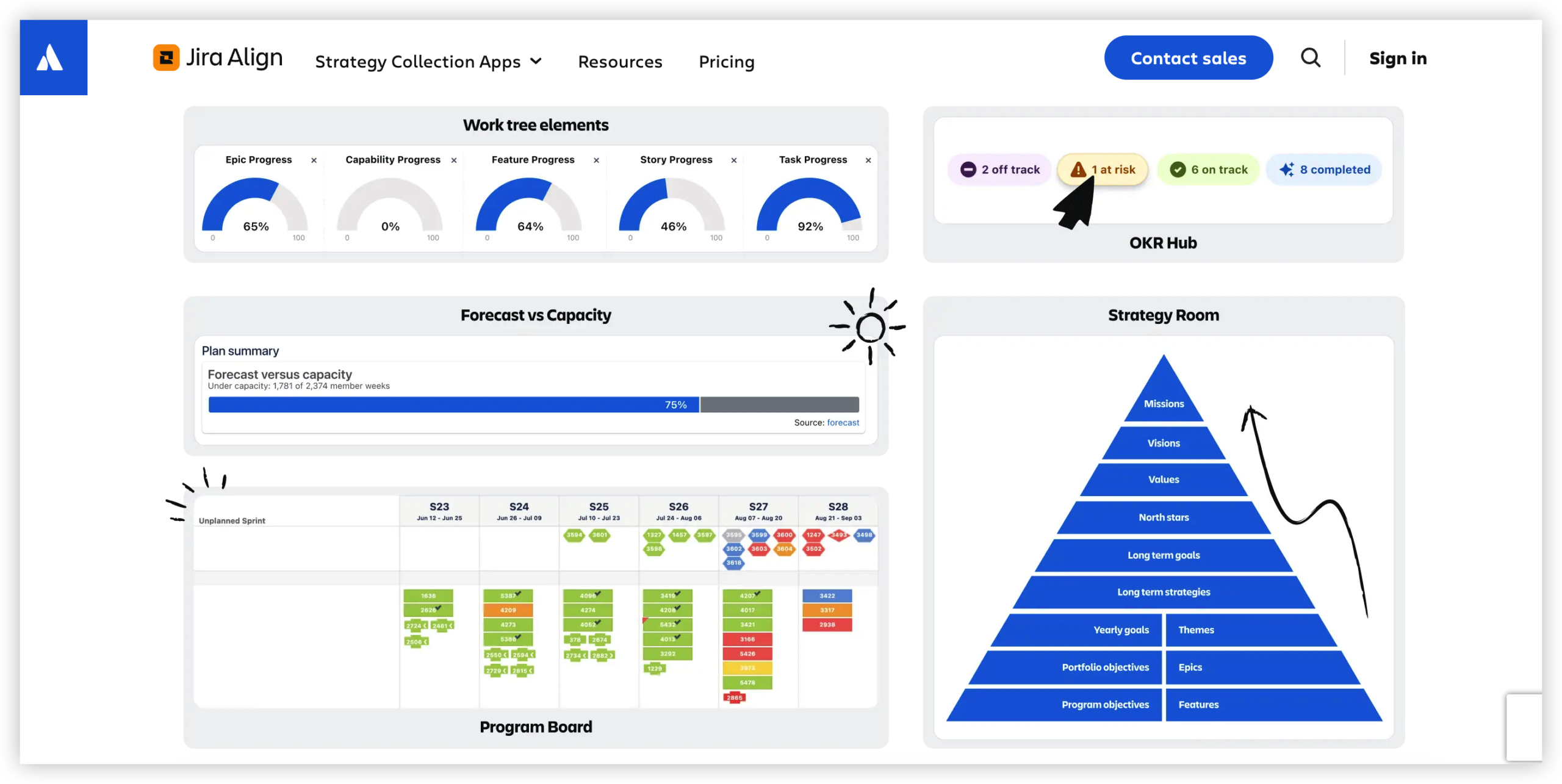
What the Integration Should Accomplish
A useful connection should remove repeated work without hiding important context. It should help people find the latest status, understand ownership, and act through the right channel.
Consider a portfolio leader who reviews Jira Align every Friday. If the same leader receives a Teams summary showing overdue milestones, the review becomes more focused. The connection does not replace Jira Align planning. It places a timely signal where the leader already works.
| Business need | Useful Microsoft 365 connection |
|---|
| Team notifications | Microsoft Teams and Power Automate |
| Executive reporting | Power BI with approved Jira Align data access |
| Central authentication | Microsoft Entra ID |
| Meeting coordination | Outlook and Teams calendar workflows |
| Knowledge sharing | SharePoint or Teams pages with controlled links |
| Workflow automation | Power Automate, webhooks, or an approved integration platform |
Here's why: every connection introduces another place where status can drift. Decide which platform remains authoritative for each field before building automation.
Separate system ownership from communication
Jira Align should usually remain authoritative for portfolio structures, program planning, objectives, and delivery status. Teams should handle discussion and alerts. Power BI should present approved views for analysis.
For example, a Teams message can show that a feature is at risk. The underlying status should still be maintained in Jira Align, where the responsible team can update the delivery record.
Choose one-way or two-way synchronization
One-way synchronization is easier to govern. Jira Align can send milestone information to Power BI or Teams without allowing those services to change planning records.
Two-way synchronization may help when people need to update a status elsewhere. However, it creates conflict risks. If a team changes a status in Teams and another person changes it in Jira Align, you need clear resolution rules.
Key Microsoft Services to Connect
Microsoft Teams for collaboration and alerts
Teams is useful for event-driven communication. You can post milestone changes, risk alerts, approval reminders, or sprint summaries to a specific channel.
Keep messages concise. Include the item name, current state, owner, due date, impact, and a direct Jira Align link. Avoid posting every minor change, or important alerts will disappear in conversation noise.
A practical pattern is to create separate channels for portfolio leadership, program coordination, and delivery teams. Each channel should have a clear purpose and limited notification rules.
Power BI for portfolio reporting
Power BI can combine approved Jira Align information with organizational measures. Leaders might view milestone health, capacity trends, delivery progress, and risk movement in one report.
Define refresh timing before publishing the report. A daily refresh may suit executive planning. A near-real-time view may be necessary for operational control, but it can increase processing and governance demands.
Use consistent definitions for terms such as “at risk,” “late,” and “complete.” A report becomes confusing when Jira Align and Power BI calculate those terms differently.
Microsoft Entra ID for identity management
Microsoft Entra ID can support single sign-on and centralized access control. It may also help administrators manage role changes when people join, leave, or move between teams.
Map business roles carefully. A portfolio administrator may need broader rights than a viewer. Do not grant editing permissions simply because someone needs access to a report.
Power Automate for repeatable workflows
Power Automate can connect triggers, conditions, approvals, and notifications. A workflow might watch for a risk change, check the program, and notify the correct Teams channel.
Build exception handling into every flow. If Jira Align is temporarily unavailable, the process should record the failure and notify an administrator rather than silently losing the event.
Outlook and Teams calendar coordination
Calendar integration can help schedule planning reviews, steering meetings, and milestone discussions. A workflow might create a meeting when a major review date approaches.
Use this carefully. Automatic meeting creation can produce clutter when dates change frequently. A better approach may be a reminder for the coordinator to confirm the meeting first.
Integration Methods and Technical Design
You have several ways to create the connection. The right choice depends on event volume, security requirements, technical skills, and how much control you need over transformations.
APIs for structured exchanges
APIs work well when you need predictable access to planning information. A service can request selected Jira Align records, transform fields, and send them to an approved Microsoft service.
Use narrowly scoped permissions. Request only the fields and actions required for the workflow. This reduces exposure and makes troubleshooting easier.
Webhooks for event notifications
Webhooks can notify another service when a relevant event occurs. They suit alerts such as status changes, new risks, or milestone updates.
Webhooks should not be treated as guaranteed delivery without safeguards. Add retries, event identifiers, logging, and duplicate protection.
Power Automate for low-code workflows
Power Automate can suit teams that need manageable workflows without building a large custom service. It can route alerts, request approvals, and trigger Teams messages.
Complex transformations may require custom connectors or an integration platform. Before choosing low-code automation, check connector limits, licensing, execution limits, and administrative controls.
Integration platforms for larger environments
An enterprise integration platform may help when many programs, services, and business rules are involved. It can centralize monitoring, transformation, retries, and credential management.
The trade-off is additional administration. You need owners who can maintain mappings, review logs, and respond when an endpoint changes.
Let me explain: technical complexity usually comes from exceptions rather than the first successful connection. Design for missing owners, changed dates, duplicate events, rejected permissions, and temporary outages.
Security, Governance, and Testing
Enterprise integration needs more than a working demonstration. You should know who can access each service, which actions automation can perform, and how administrators investigate failures.
Protect credentials and permissions
Store secrets in an approved credential service. Avoid placing tokens in scripts, chat messages, or shared notes. Rotate credentials on a defined schedule.
Use separate identities for testing and production. This prevents an experiment from changing live planning information.
Control sensitive information
Review which Jira Align fields appear in Teams and Power BI. Risk descriptions, customer details, personnel information, or commercial plans may need tighter access.
Keep broad summaries in general channels. Send sensitive details only to restricted groups with a business reason for access.
Test realistic failure cases
Do not test only the successful path. Try expired credentials, missing owners, invalid dates, duplicate notifications, unavailable services, and revoked access.
For example, remove a program owner during testing. The workflow should route the issue to a fallback administrator instead of creating an unassigned alert.
Keep an audit trail
Record when a workflow ran, what event triggered it, whether the action succeeded, and what error occurred. Retain enough history for troubleshooting and governance reviews.
Monitoring should answer three questions quickly: what failed, who owns the fix, and whether any action was missed.
Common Implementation Challenges
Challenge: inconsistent field values
One platform may use “In progress,” while another uses “Active.” This creates confusing reports and unreliable conditions.
Solution: create a controlled mapping. Define allowed values, identify the responsible owner, and review changes before applying them to production workflows.
Challenge: notification overload
Sending every update to Teams may seem helpful at first. After a week, people may mute the channel and miss urgent information.
Solution: notify people about meaningful changes. Group low-priority updates into scheduled summaries and reserve instant alerts for risks, approvals, and major milestones.
Challenge: unclear ownership
An integration can run correctly while nobody owns its maintenance. Problems then remain unresolved until a report exposes missing information.
Solution: assign a business owner and a technical owner. The business owner defines value and rules. The technical owner manages credentials, monitoring, and repairs.
Challenge: stale reporting
A Power BI report may look polished while showing yesterday’s status. Leaders can make poor decisions when refresh timing is unclear.
Solution: display the last refresh time and define the expected refresh interval. Add a warning when the report exceeds that interval.
Challenge: uncontrolled two-way changes
When several services can edit the same status, conflicting updates become difficult to explain.
Solution: designate one authoritative system for each field. Allow other services to request changes or display status unless two-way editing has a strong business case.
Natural Workflow Solution: ONES.com

Value Proposition
ONES.com combines project management and knowledge management in one platform, with ONES Project for delivery work and ONES Wiki for shared knowledge. It can help teams reduce scattered planning and collaboration workflows.
ONES Project is a Jira alternative with Jira-compatible workflows, while ONES Wiki is a Confluence alternative. They are sold separately and can support organizations that need on-premise or air-gapped deployment options.
Core Capabilities
- Scattered project tracking → ONES Project centralizes initiatives, tasks, sprints, and progress → teams gain one consistent place for delivery coordination.
- Complex Jira-style workflows → Jira-compatible workflows, custom workflows, and custom fields → teams can model approval and delivery stages without rebuilding every process.
- Limited reporting visibility → built-in reporting and dashboards → leaders can review progress, risks, and workload with less manual consolidation.
- Repeated administrative work → automation rules → routine status changes, reminders, and transitions can follow defined conditions.
- Disconnected project knowledge → ONES Wiki → teams can connect planning context with working guidance and internal knowledge.
- Restricted deployment requirements → cloud, on-premise, private cloud, and air-gapped deployments → organizations can select an environment that fits their security model.
- Uneven cloud and self-hosted capabilities → full feature parity between cloud and self-hosted versions → deployment choice does not require giving up core functionality.
- Small-team adoption barriers → free access for up to 30 seats → a smaller team can evaluate the workflow before expanding.
Application Scenarios
A regulated engineering team may use an air-gapped ONES Project deployment for sprint planning, custom approvals, and delivery reporting. Teams can keep planning within the restricted environment while following internal access rules.
A product organization moving beyond Jira may use ONES Project for backlog management, sprint execution, and automation. ONES Wiki can separately support product guidance and team knowledge.
An enterprise with multiple deployment needs may use private cloud or on-premise options for selected groups. Administrators can align the environment with security and operational requirements.
FAQs
Is Microsoft 360 the same as Microsoft 365?
Microsoft’s enterprise productivity suite is commonly called Microsoft 365. Some people casually say Microsoft 360, but the official product name is usually Microsoft 365. Before planning an integration, confirm the exact Microsoft services in your licensing agreement. The connection may involve Teams, Power BI, Microsoft Entra ID, Outlook, SharePoint, or Power Automate, and each service can have separate permissions and limits.
Can Jira Align connect directly to Microsoft Teams?
It may be possible through APIs, webhooks, Power Automate, or an approved integration service. The best method depends on the event you want to send and the controls your organization requires. A simple milestone alert may need less infrastructure than a two-way workflow. Start with one Teams channel and a limited event set before expanding.
Should Jira Align or Microsoft 365 remain the authoritative system?
Jira Align should generally own portfolio planning, program structures, objectives, and delivery status. Microsoft 365 services usually support communication, reporting, identity, and scheduling. Your organization may choose differently, but each field needs one clear owner. Without that rule, two-way automation can create conflicting values and unclear accountability.
How can I prevent too many Teams notifications?
Define notification priorities before creating automation. Send instant alerts for major risks, approval needs, and milestone changes. Combine routine updates into a daily or weekly summary. Include a direct link to the relevant Jira Align record, so people can investigate without searching through multiple channels.
What should I test before production deployment?
Test successful updates and realistic failures. Check expired credentials, missing owners, invalid values, duplicate events, unavailable services, revoked permissions, and delayed refreshes. Confirm that messages reach the right people and that sensitive information does not appear in broad channels. Keep a test record showing the expected result for each scenario.
Conclusion
Connecting Jira Align with Microsoft 365 Enterprise works best when you begin with a specific business outcome. A milestone alert, executive report, or identity workflow is easier to govern than an attempt to connect every service immediately.
Define ownership, map the information flow, select the right integration method, and test failure cases before expanding. Keep Jira Align responsible for planning where appropriate, while Microsoft 365 supports communication, reporting, identity, and coordination.
The best part? A careful rollout can reduce duplicate updates without creating another layer of confusion. Start small, monitor the connection, and improve it as your teams learn what information they actually need.