Connecting Jira to Confluence: A Step-by-Step Setup Guide
Need Jira issues and project docs in sync? Learn connecting Jira to Confluence with this step-by-step setup guide. Read now to get started.
Jira and Confluence can work together, connecting project issues with the plans, decisions, and technical details your team needs. But the setup can feel confusing when menus differ between Cloud and self-hosted editions, or when a link opens for one teammate but not another.
That friction slows handoffs. A developer may need to search several spaces for a feature brief, while a project lead updates an issue without seeing the latest decision. But here's the truth: you usually need to connect the products, confirm access, and choose a clear way to link work.
This guide walks you through connecting Jira to Confluence step by step. You’ll learn how to set up Cloud or Data Center, link issues and pages, check permissions, and troubleshoot common problems. You’ll also see how to keep the connection useful after the initial setup.
How to Connect Jira and Confluence
The setup depends on your editions. Jira Cloud and Confluence Cloud often connect through Atlassian’s product-linking options, while self-hosted editions commonly use Application Links. In either case, confirm that you have administrator access and that teammates can access both products.
-
Identify your Jira and Confluence editions. Check whether each product is Cloud or self-hosted, such as Data Center. If your organization uses different deployment types, review Atlassian’s current compatibility guidance before connecting them.
-
Confirm administrator access. You may need Jira and Confluence site or product administrator permissions. Ask an administrator to handle the connection if the relevant settings are unavailable to you.
-
Connect Cloud products through Atlassian administration. In Atlassian administration, review your organization’s connected products and available product-linking settings. Select Jira and Confluence, then follow the prompts to establish the connection.
-
Connect self-hosted products with Application Links. In Jira, open the administration area and locate Application Links, usually under the applications settings. Enter the Confluence base URL and follow the prompts to create the link.
-
Complete the authentication setup. Follow the authentication options shown for your product versions. For self-hosted editions, the connection may require an OAuth configuration. Confirm the selected permissions and authentication settings with your administrator.
-
Test the connection with a real page and issue. Open a Confluence page and paste a Jira issue URL, or add a Jira issue link to a Confluence page. Check whether the preview or issue details appear as expected.
-
Check access as a regular teammate. Ask someone without administrator permissions to test the link. They should be able to open the issue or page only if they have permission in the destination product.
Menus and labels can change between product versions, so use the settings available in your edition. The essential check is straightforward: the products connect, links resolve, and the intended people have access.
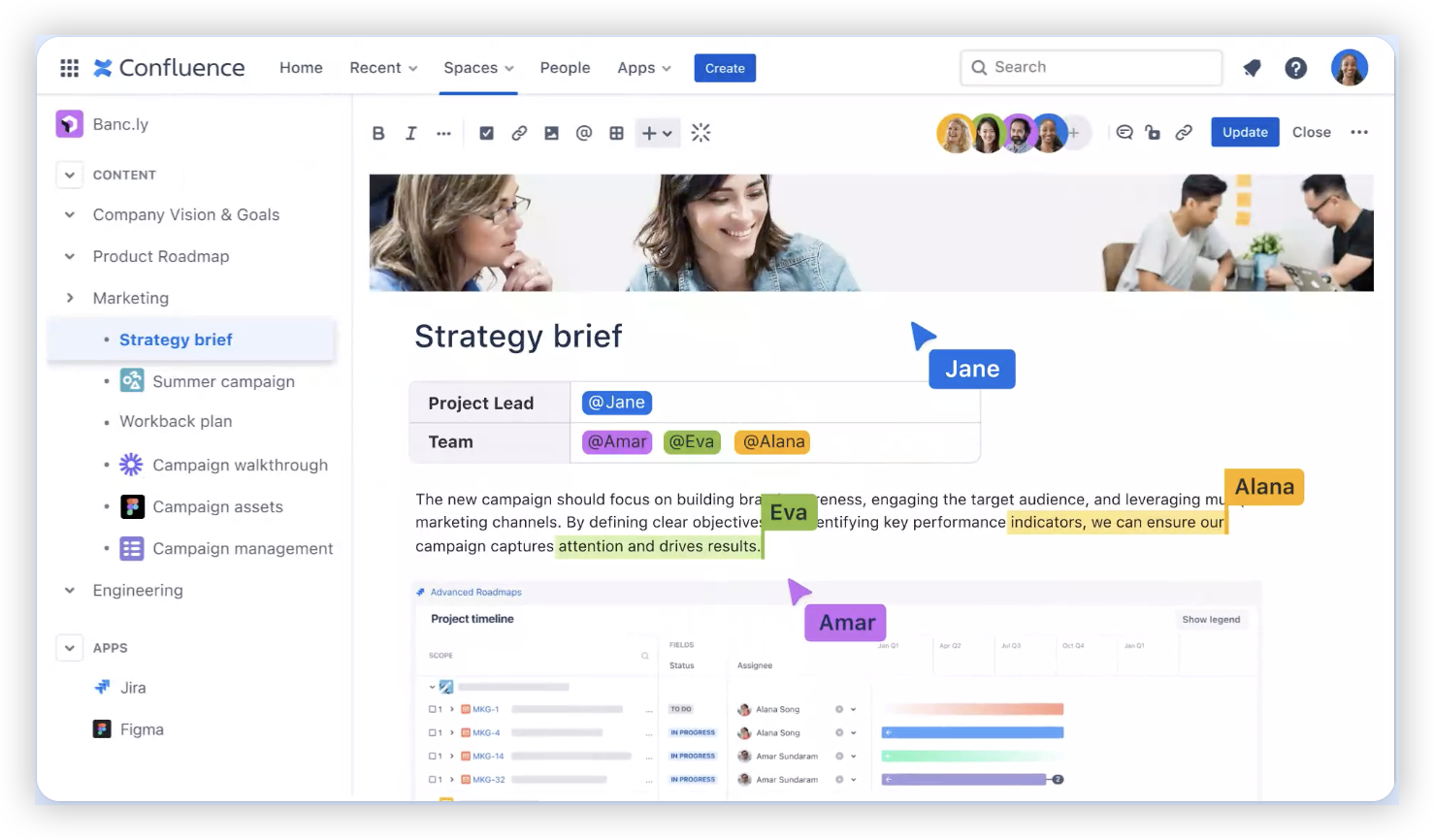
Choose the Right Linking Method for Your Setup
Connecting products makes collaboration features possible, but it doesn’t automatically organize every team’s work. You still need to decide how Jira issues and Confluence pages should relate to each other.
Connect Cloud products
For Jira Cloud and Confluence Cloud, start with the connected-product options available in Atlassian administration. Products in the same organization may already have useful cross-product features enabled, depending on your configuration.
If you can paste a Jira URL into a Confluence page and see a useful link or preview, that may be enough for your workflow. If linking features are missing, have an administrator review product connections, access settings, and app configuration.
Connect self-hosted products
For self-hosted Jira and Confluence, Application Links are a common way to establish a relationship between the products. Add the other product’s base URL, then complete the authentication process displayed in your version.
For example, an administrator might connect jira.example.com with confluence.example.com. Use the actual URLs teammates access, not an internal address that their browsers cannot reach.
Use links even when advanced integration is unnecessary
A direct URL can be enough when a team only needs to move between an issue and a page. For instance, a Jira issue can include a link to its feature brief, while the brief links back to the issue.
More advanced integration can provide richer previews or additional product features. Start with the simplest approach that supports your work, then expand it if teammates need deeper connections.
Link Jira Issues and Confluence Pages Clearly
After the products are connected, make the relationship between each issue and page easy to understand. A vague link titled “Details” may be hard to recognize when a project has dozens of pages.
Add a Confluence page to a Jira issue
Open the Jira issue and add the relevant Confluence URL in a description, comment, or link field. Use a clear label such as “Feature brief” or “Release checklist” so teammates know what they’ll find.
For example, a Jira story for a payment screen could link to a Confluence page describing the acceptance criteria. The developer can move directly from the task to the agreed requirements.
Add a Jira issue to a Confluence page
Paste the Jira issue URL into the relevant Confluence page. Depending on your product version and settings, the URL may appear as a basic link, a smart link, or a richer issue display.
On a release page, you might connect each feature heading to its Jira epic or task. This gives reviewers a quick route from the release overview to the work being tracked.
Use the Jira Issues macro when a list is more helpful
Some Confluence editions include a Jira Issues macro that displays selected Jira work on a page. You can use it to show issues for a sprint, project, or release, where the feature is available.
For example, a sprint review page could display the issues completed during the sprint. Check the available filters and permissions before relying on the display for a team-wide report.

Set Permissions and Keep the Connection Reliable
A working connection does not grant everyone access to every page or issue. Jira and Confluence permissions still control what each person can view, edit, or manage.
Check access in both products
If someone can open a Confluence page but not its linked Jira issue, review their Jira project permissions. If the issue is available but the page is blocked, check Confluence space and page restrictions.
Test with an ordinary team account, not just an administrator account. Administrators often have broader access, so their successful test may not reflect a teammate’s experience.
Use stable product addresses
Links can stop working after a product address changes. If your organization updates a domain or moves a self-hosted installation, review the configured base URLs and existing cross-product links.
For example, a link using an old internal hostname may work on the company network but fail for remote teammates. Use the address your intended readers can reach.
Review authentication and security settings
Authentication choices affect how the products communicate. Have an administrator review the permissions granted during setup and follow your organization’s security requirements.
When an integration stops working after a security change, check the application link status, authentication settings, and product logs. Avoid weakening access controls just to make a test link work.
Common Ways Teams Use the Connection
The most useful setup reflects real work rather than adding links everywhere. Pick a few recurring workflows, then make the relevant pages and issues easy to find.
Feature planning
A product manager can keep feature context on a Confluence page and link it to Jira epics and stories. Developers can check the decisions behind a task without searching through unrelated project pages.
Sprint reviews
A team can create a Confluence review page with links to completed Jira issues. If the Jira Issues macro is available, the page may also display a filtered issue list.
Release coordination
A release page can summarize key changes and link to implementation tasks, testing issues, and release work. Reviewers get an overview, while the Jira issues remain the place to track delivery status.
Incident follow-up
After an incident, a Confluence page can capture the timeline and follow-up decisions. Jira issues can track each corrective action, giving the team clear paths between the investigation and the work.
A Connected Work Alternative: ONES.com
Value proposition: ONES.com brings project management and knowledge management together in one platform, with ONES Project for project work and ONES Wiki for knowledge pages. The products are sold separately, so you can choose the part that fits your team.

If you’re connecting Jira and Confluence because project tracking and team knowledge feel scattered, ONES.com offers another way to organize those activities. ONES Project is a Jira alternative, while ONES Wiki is a Confluence alternative.
Core capabilities
-
Separate workspaces create extra handoffs. ONES.com combines project and knowledge management in one platform, helping teams move between planning and related team knowledge.
-
Teams need familiar issue workflows. ONES Project supports Jira-compatible workflows, so teams can organize work using a familiar project-tracking approach.
-
Built-in reports take effort to maintain. ONES Project includes built-in reporting, giving teams a way to review project progress without relying on separate reporting add-ons.
-
Different projects need different processes. Custom workflows and fields let teams adapt how work is tracked, which can reduce workarounds for specialized project requirements.
-
Sprint planning needs a clear home. Sprint management supports teams that plan and track work in iterative development cycles.
-
Repeated manual actions slow project work. Automation can handle selected routine steps, helping teams spend less time repeating the same administrative actions.
-
Too many add-ons can complicate maintenance. Native feature parity between cloud and self-hosted versions can reduce reliance on plugins for supported capabilities.
-
Some teams need control over deployment. ONES.com offers Cloud, On-Premise, Private Cloud, and Air-gapped deployments, with full feature parity between cloud and self-hosted versions.
ONES.com offers a free plan for up to 30 seats. Teams can evaluate the project and knowledge workflows that match their needs, while keeping in mind that ONES Project and ONES Wiki are sold separately.
Application scenarios
Software team: A development team can use ONES Project for sprint work and ONES Wiki for feature notes. The team can assess whether combining those workflows meets its needs before changing its current setup.
Restricted network: An organization with strict deployment requirements can evaluate an On-Premise, Private Cloud, or Air-gapped option. This can help the team manage project and knowledge workflows within its chosen environment.
Common Challenges and Practical Fixes
A link opens, but the page or issue is inaccessible
Problem: The product connection works, but a teammate sees an access error. Fix: Check permissions in the product they are trying to open, including project roles, space access, and page restrictions.
Issue details do not appear in Confluence
Problem: A Jira URL appears as plain text instead of a richer display. Fix: Confirm the product connection and version support, then check whether the link is formatted correctly and the viewer has Jira access.
The link works for some teammates but not others
Problem: The link may use an internal address, or teammates may have different product permissions. Fix: Test the link with a regular account and use a product URL that the intended team can reach.
The integration stops after a configuration change
Problem: A domain, authentication, or security update may disrupt the connection. Fix: Have an administrator review the Application Link or Cloud product connection, base URLs, and authentication status.
FAQs
Do Jira and Confluence connect automatically?
Some Jira Cloud and Confluence Cloud setups already have cross-product features available, especially when both products belong to the same Atlassian organization. Your organization’s configuration may differ. Check product connections and test a Jira issue link in Confluence. For self-hosted installations, an administrator may need to create an Application Link and configure authentication.
Can I link Jira issues to Confluence pages without an app?
You can often add a direct URL to an issue or page without installing an extra app. Rich previews and other integration features depend on your product editions, permissions, and configuration. Start with direct links if they meet your needs, then check your edition’s supported features before adding anything.
Why can’t a teammate see a Jira issue in Confluence?
The teammate may not have permission to view the Jira project or issue. A product connection does not replace each product’s access controls. Check the issue’s project permissions and test with the teammate’s account. Also confirm they can reach the Jira address used in the link.
What is an Application Link?
An Application Link is a way to connect supported Atlassian products, commonly used with self-hosted installations. An administrator enters the other product’s address and completes the authentication setup. The exact labels and options depend on the product version, so follow the settings shown in your environment.
Can I connect Jira Cloud to self-hosted Confluence?
Whether this combination is supported depends on the product editions, versions, and integration features you need. Check Atlassian’s current compatibility guidance and your organization’s security requirements before configuring it. If the products support your intended setup, test access with a regular teammate after the connection is complete.
Conclusion
Connecting Jira and Confluence starts with identifying your editions, establishing the product connection, and testing access with a regular team account. Then link issues and pages with clear labels that match how your team plans, builds, reviews, or supports work.
If a connection fails, check permissions, product addresses, and authentication before changing security settings. A small test with one real issue and one relevant page can reveal problems before the whole team relies on the setup.
When project tracking and knowledge work need a different arrangement, ONES.com is another option to evaluate. Choose the setup that helps your team find context quickly and keep follow-up work clear.