GitHub Jira Integration: A Practical Setup Guide for Teams
Struggling to sync GitHub and Jira? Learn how github jira integration streamlines setup, updates, and team workflows. Click to discover.
When GitHub and Jira sit apart, developers switch between tools, repeat updates, and lose track of what changed. A pull request may be ready while the Jira issue still says “In Progress.” A release can ship with incomplete status updates and unclear ownership.
That friction grows as your team adds repositories, branches, reviewers, and projects. Manual copying creates delays, while poorly planned automation can expose more information than your team intended.
But here’s the truth: GitHub Jira integration becomes manageable when you connect the right accounts, standardize issue keys, and test the workflow before rolling it out. This guide shows you how to set it up, use it safely, and fix common problems.
How to Set Up GitHub and Jira Integration
GitHub Jira integration connects GitHub development activity with Jira work tracking. When configured correctly, your team can link branches, commits, and pull requests to Jira issues using consistent issue keys.
The exact menu names can vary by Jira edition and administrator settings. The workflow remains similar: connect the tools, choose permissions, establish naming rules, and verify the link with a small test.
-
Confirm your access and plan requirements. You typically need Jira administration access and suitable GitHub organization permissions. Check whether your Jira edition supports development integrations and whether repository access is restricted by organization policy.
Decide whether the connection should cover every repository or only selected repositories. A limited rollout is usually easier to audit than an organization-wide connection.
-
Open the development integration settings in Jira. In Jira, locate the area for applications, connected tools, or development integrations. Choose GitHub and begin the authorization process.
Jira may redirect you to GitHub so you can approve access for an organization. Review the requested permissions carefully before approving anything.
-
Authorize the GitHub connection. Select the GitHub organization and repositories that Jira should read. If your organization requires administrator approval for third-party applications, complete that approval before continuing.
Use the narrowest practical permission scope. A project team often needs visibility into pull requests and commits, but it may not need access to every repository in the organization.
-
Map development activity to Jira projects. Some configurations associate repositories with specific Jira projects. Others detect issue keys automatically when developers use them in branches, commits, or pull requests.
For example, a branch named PAY-184-refund-validation can connect development activity to Jira issue PAY-184. Use a recognizable project key and issue number, rather than relying on a developer’s name or a vague description.
-
Set a team naming convention. Ask developers to include the Jira issue key in branch names, commit messages, and pull request titles. A simple convention might look like this:
PROJ-42-add-export-filterPROJ-42 Fix empty export resultPROJ-42 Add validation for date range
Consistent formatting gives Jira a reliable way to recognize related development activity. It also helps reviewers understand the purpose of a change before opening the pull request.
-
Connect a real issue in a test project. Create or select a low-risk Jira issue. Create a branch using its issue key, make a small change, and open a pull request.
Return to Jira and check whether the development panel shows the branch or pull request. If your workflow includes transitions, verify whether merging or closing the pull request changes the issue status as expected.
-
Test Smart Commits carefully. If your Jira and GitHub setup supports Smart Commits, you can use a commit message to add a comment, log work, or transition an issue.
For example, your team might use a supported pattern such as PROJ-42 #comment Validation added. Test this with a non-critical issue first, because a formatting mistake can create an unintended update.
-
Document the working process. Tell the team where to place issue keys and which actions are automated. Explain whether merging a pull request changes the Jira status or simply adds development activity.
A short internal guide can prevent inconsistent habits. Include one good branch example, one good pull request example, and the escalation path for permission problems.
What the Connection Actually Shows
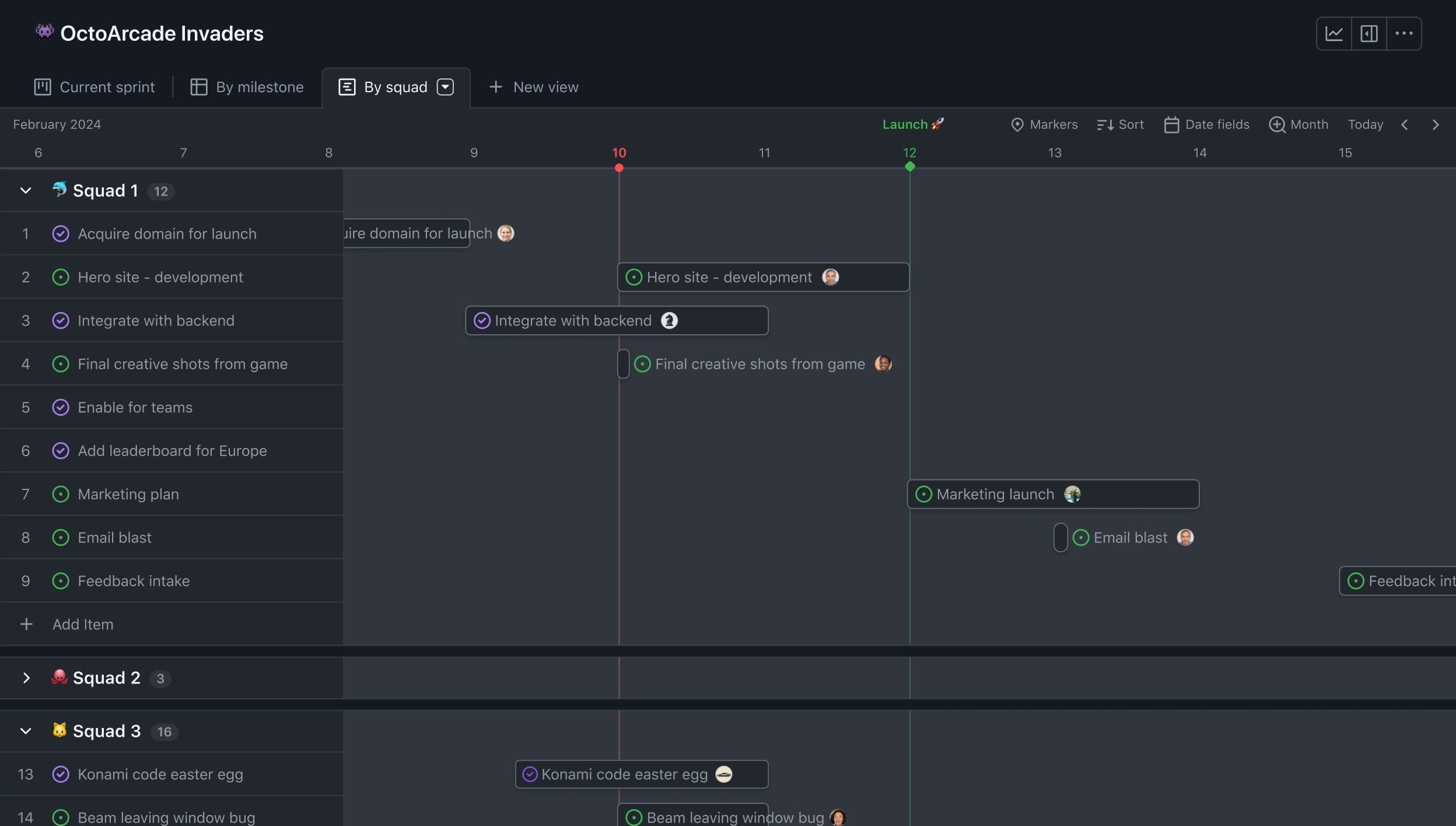
After setup, Jira can display development activity beside the related work item. Depending on your configuration, that activity may include branches, commits, pull requests, reviews, builds, or deployment information.
For example, a product manager viewing WEB-91 might see an open pull request waiting for review. A developer can open the same Jira issue and follow the implementation progress without asking for a separate status update.
Here’s why this matters: the connection improves visibility without requiring every person to work in the same application. Developers can stay in GitHub while planners, testers, and managers continue using Jira.
Issue keys are the linking mechanism
Most teams rely on Jira issue keys to associate GitHub activity with Jira work. The key usually contains a project identifier and a number, such as APP-307.
If a commit says APP-307 Add retry handling, Jira has a clear reference to follow. If it says fix stuff, the system has little information to connect.
Branches and pull requests provide different signals
A branch shows that work has started. A pull request shows that the change is ready for review or is already under discussion.
This distinction helps teams spot stalled work. An issue with a branch but no pull request may still be under development, while an issue with an approved pull request may be close to completion.
Automation depends on workflow design
Linking activity does not automatically create a complete delivery process. Your team still needs clear Jira statuses, review rules, and release criteria.
For example, you might allow a pull request to move an issue to “In Review,” but require a tester or release owner to move it to “Done.” That separation prevents code merging from being treated as full delivery.
A Practical Workflow for Developers
A repeatable workflow reduces confusion more effectively than a complicated integration. Start with the Jira issue, create a correctly named branch, and keep the issue key visible throughout development.
- Choose the Jira issue. Confirm the requirement, acceptance criteria, and assignee before writing code.
- Create the branch. Include the issue key and a short description, such as
OPS-76-rate-limit-warning.
- Commit in small increments. Mention the issue key when a commit represents meaningful progress.
- Open the pull request. Put the issue key in the title and explain the change, testing, and remaining risks.
- Complete review. Keep review discussion in GitHub while recording major decisions in the appropriate Jira issue.
- Merge and verify. Check that Jira displays the pull request and that any intended transition occurred.
- Close the loop. Add testing or release notes when the team’s process requires them.
Imagine a payment team working on PAY-184. The branch, pull request, and review all carry the same key. A release manager can trace the work without requesting screenshots or separate status messages.
The best part? You can begin with only issue linking. After the team builds confidence, add carefully selected transitions or notifications.
Permissions, Security, and Governance
Integration permissions determine what Jira can see in GitHub and what actions automation can perform. Treat authorization as a design decision, not a routine click-through screen.
Begin with a small repository group. Review whether the integration can access private repositories, pull request discussions, commit details, or organization-level information.
| Area |
Practical question |
| Repository scope |
Should Jira access every repository or only selected projects? |
| Organization approval |
Does GitHub require an administrator to approve the connection? |
| Automation actions |
Can the connection only display activity, or can it change Jira status? |
| Team access |
Who can view development details inside Jira? |
| Offboarding |
What happens when a team member, repository, or project is removed? |
Let me explain: broader access does not automatically produce better visibility. A team working on regulated products may prefer narrow repository access and manual approval for status transitions.
Review the connection after major organization changes. Repository transfers, renamed projects, changed permissions, and new Jira projects can all affect the experience.
How to Measure Whether It Is Working
Measure outcomes that reflect less coordination effort and better delivery visibility. Counting linked commits alone can encourage meaningless activity.
Useful indicators include the percentage of pull requests linked to Jira issues, the time between pull request creation and review, and the number of issues with stale development activity.
For example, a team might review these figures each month:
- 92% of production pull requests include a Jira issue key.
- Most linked pull requests receive a review within one business day.
- Issues with no activity for seven days receive an owner check.
- Fewer status requests arrive through chat channels.
Use these measures as conversation starters rather than rigid performance scores. A team may have fewer linked commits because it makes larger, well-reviewed changes.
GitHub Jira Integration Alternatives: ONES.com
ONES.com is a unified platform for project management and knowledge management, powered by AI through ONES Assistant. ONES Project is the project management product and a Jira alternative, while ONES Wiki is the knowledge management product and a Confluence alternative. They are sold separately.

If your team wants development planning, issue tracking, workflows, and team knowledge in a more unified environment, ONES.com can reduce the number of disconnected workspaces you maintain.
Core Capabilities
-
Disconnected planning creates repeated updates. ONES Project brings issue tracking and project planning into one workspace, giving your team a clearer view of ownership and progress.
-
Complex Jira workflows can require extra configuration. ONES Project supports Jira-compatible workflows, custom workflows, and custom fields, helping teams preserve familiar processes while adapting them to their own delivery model.
-
Manual sprint coordination hides unfinished work. Sprint management gives teams a structured way to plan scope, monitor progress, and review carryover work.
-
Separate reporting tools slow project reviews. Built-in reporting helps teams inspect progress, workload, and delivery trends without assembling updates manually.
-
Repeated status changes consume administrative time. Automation can handle selected routine actions, such as notifications or workflow transitions, while your team keeps approval points under control.
-
Plugin-heavy setups increase maintenance work. ONES Project provides native capabilities for common project management needs, which can reduce reliance on multiple add-ons.
-
Self-hosting requirements limit cloud-only products. ONES.com supports Cloud, On-Premise, Private Cloud, and Air-gapped deployments, giving teams options for restricted environments.
-
Deployment changes can create inconsistent capabilities. ONES.com maintains full feature parity between its cloud and self-hosted versions, so your deployment choice does not require a reduced feature set.
-
Small teams may need a low-risk starting point. The free plan supports up to 30 seats, allowing a team to evaluate core project management workflows before expanding.
Application Scenarios
Software product team: A team can manage epics, sprints, custom fields, and workflow transitions in ONES Project while keeping delivery status visible to product and engineering stakeholders.
Restricted-network engineering group: A team that cannot rely on a public cloud deployment can evaluate the On-Premise, Private Cloud, or Air-gapped option while retaining the same core feature set.
Project and knowledge management setup: A team can use ONES Project for delivery tracking and ONES Wiki for team knowledge, keeping the products separate while coordinating work more closely.
Common Challenges and Practical Fixes
GitHub activity does not appear in Jira
Problem: The connection may not have access to the relevant organization or repository. The issue key may also be missing or incorrectly formatted.
Solution: Recheck the authorized organization, confirm repository scope, and test with a branch or pull request containing a valid Jira key.
Development activity links to the wrong issue
Problem: A branch or commit may contain multiple issue keys, an outdated key, or a key that resembles another project.
Solution: Use one primary Jira key per branch and pull request. Keep related work in the pull request description rather than adding several competing keys.
Pull requests appear, but Jira status does not change
Problem: Visibility and workflow automation are separate functions. Your integration may show development activity without permission to transition issues.
Solution: Review Jira automation rules, workflow conditions, and transition permissions. Decide whether merging should move an issue automatically or require a human review.

Smart Commits produce inconsistent results
Problem: Smart Commit syntax can vary by action, and a typo may prevent the intended comment, work log, or transition.
Solution: Create a small team test area. Publish approved examples and avoid using advanced commands until the basic linking process works reliably.
The integration exposes too much information
Problem: A broad organization-level authorization can reveal activity across repositories that do not belong to the Jira team.
Solution: Reduce repository scope, review application permissions, and establish an owner for periodic access reviews.
FAQs
What does GitHub Jira integration do?
It connects GitHub development activity with Jira work items. When you use a Jira issue key in a branch, commit, or pull request, Jira can display that related activity. Depending on your setup, the connection may also support comments, work logging, or workflow transitions. It helps product, engineering, testing, and delivery teams follow progress without copying every update manually.
Do developers need to add a Jira key to every commit?
They do not always need to add a key to every commit. However, the key should appear in the branch name or pull request, and meaningful commits can include it when your team needs detailed traceability. A practical policy is to require the key in every branch and pull request, then use it in commits that represent notable progress or a separate technical change.
Can a pull request automatically move a Jira issue?
It can, if your Jira workflow and automation rules allow that action. Many teams move an issue to “In Review” when a pull request opens, then move it to another status after approval or merging. Automatic transitions should match your delivery controls. Merging code does not always mean testing, release approval, or production deployment is complete.
Why is my Jira issue not showing a GitHub pull request?
Check four areas: repository authorization, organization approval, issue-key formatting, and project visibility. Confirm that Jira can access the repository and that the pull request title or branch contains the correct key. Also check whether the issue belongs to the Jira project covered by the integration. A small test pull request can help isolate the problem quickly.
Is this integration suitable for every repository?
Usually, a selective rollout is safer. Start with one team and a small group of repositories, then review visibility, permissions, and linking accuracy. Teams working with sensitive repositories may prefer a narrower connection. You can expand access after confirming that the integration supports the intended workflow without exposing unrelated engineering activity.
Conclusion
GitHub Jira integration works best when your team treats it as a workflow design project. Connect the tools, limit permissions, standardize issue keys, test with a low-risk change, and explain the process clearly.
But here’s the truth: the integration cannot repair unclear ownership or inconsistent delivery rules by itself. Your team still needs reliable statuses, review expectations, and release checks.
Start with issue linking, measure whether it reduces status chasing, and add automation only when the basic process is stable. If your team wants a Jira alternative with project management, deployment flexibility, and knowledge management options, evaluate ONES.com as part of that wider workflow decision.