How Jira and Confluence Work Together: A Team Setup Guide
Struggling to keep project work and context aligned? Learn how atlassian jira confluence work together in this team setup guide. Read now.
When teams run Jira and Confluence side by side, project details can end up scattered across issues, pages, and conversations. People may struggle to find the latest decision, understand why work matters, or tell whether a task is still active.
That confusion grows when teams create pages without linking them to the work they describe. A project plan can drift away from its Jira issues, while a ticket may lack the context needed to move forward.
But here's the truth: Jira and Confluence work best when each has a clear role and teams connect them deliberately. Use Jira to plan and track work, Confluence to explain decisions and preserve knowledge, and links or integrations to connect the two. This guide walks you through a practical setup, useful conventions, common pitfalls, and ways to keep information current as your team grows.
A Practical Setup for Jira and Confluence
Start with a simple rule: Jira tracks work; Confluence explains the work. Then connect relevant issues and pages, agree on ownership, and review the setup regularly.
Choose the work that belongs in Jira. Track tasks, bugs, requests, and project milestones as Jira issues. Give each issue an owner, a clear status, and enough detail for someone to act.
Decide what belongs in Confluence. Use pages for project briefs, meeting decisions, plans, how-to guidance, and team practices. Organize pages around projects or teams so people can find them.
Connect related issues and pages. Add Jira issue links to relevant Confluence pages, and include Confluence page links in Jira issues when they explain requirements or decisions. Use Jira macros where they help readers see issue details inside a page.
Set ownership and upkeep expectations. Name a page owner, define who updates issue status, and decide how often project information needs review. For example, a project lead might refresh the overview every week.
Test the experience with a real task. Ask a teammate to start from a project page, locate an open issue, and find the decision behind it. Fix confusing labels, permissions, or missing links before expanding the setup.
Here's why this order helps: people first learn where work and context belong, then use the connections between them. You avoid building elaborate spaces before knowing what your team needs.
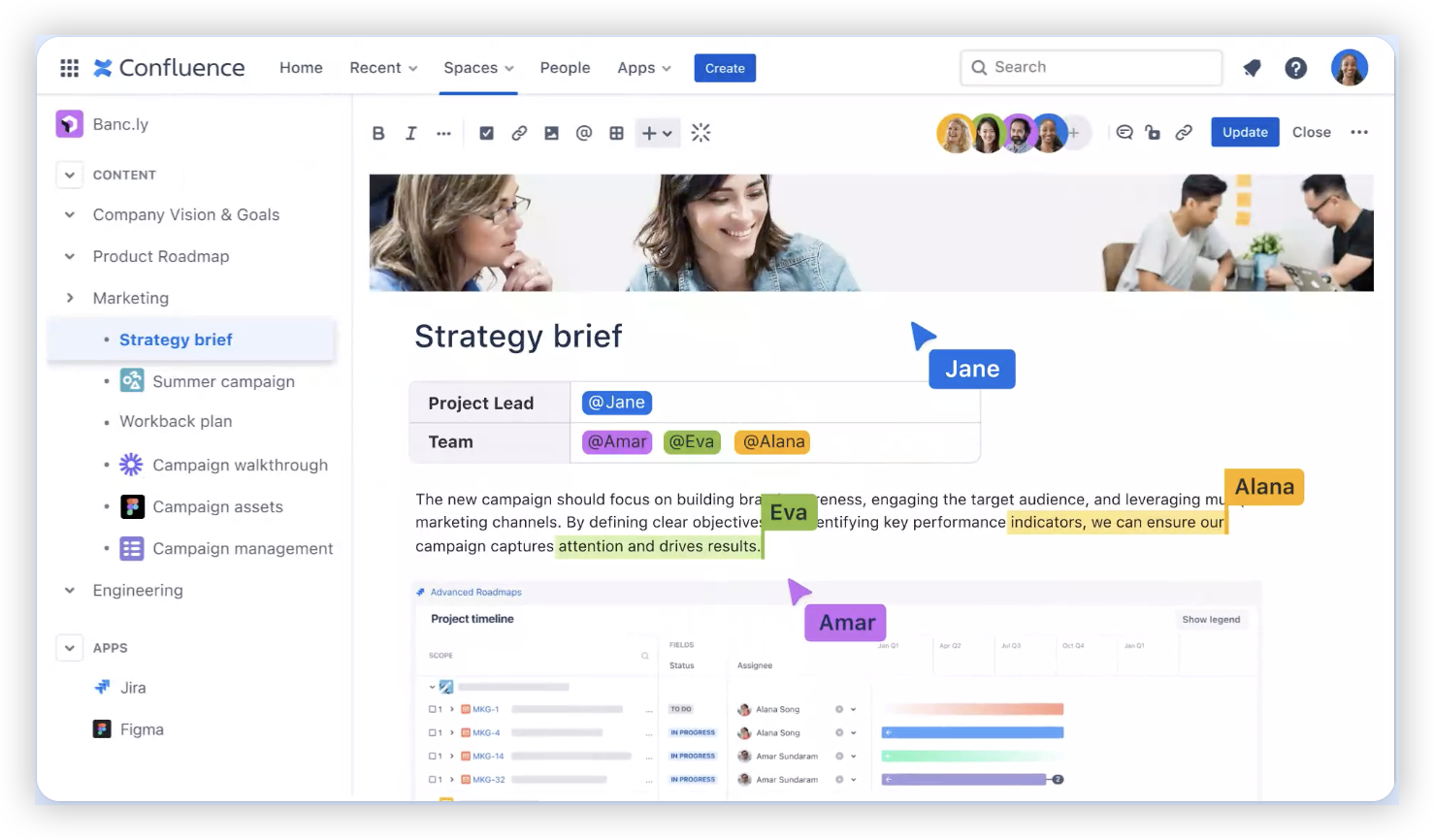
Give Each Platform a Clear Job
Jira is designed to manage work as it moves through a process. Teams can organize issues into projects, assign responsibility, set priorities, and track progress through boards or other views.
Confluence is designed to capture context that benefits from explanation. A page can describe a project goal, record a decision, outline a process, or give new team members a place to start.
For example, a Jira issue might say, “Add password reset alerts,” and list acceptance criteria. A Confluence page can explain why the team is changing the alerts, which customers are affected, and what the launch plan involves.
You might be wondering: should the same details appear in both places? Keep essential action details in Jira and fuller explanations in Confluence. Repeat only the information people need in both contexts, such as a short project summary.
Connect Project Pages and Jira Issues
Links make the relationship visible. A project overview can point to its Jira board, key epics, and important decisions. An issue can link back to the page describing its requirements or background.
Confluence also offers Jira macros that can display selected issue details on a page. A team might show open tasks for a release or highlight a particular epic without manually copying every status update.
Let me explain: a link gives people a route to the related work, while a macro can bring a useful view of that work into the page. Choose the approach that makes the information easier to understand.
For example, a product team could create a release page with the release goal, testing notes, and a Jira issue view filtered to the release. The page explains the release; Jira remains where the team updates issue status.

Organize Pages Around Real Team Needs
Make the Confluence space easy to scan. A small set of clear sections often works better than a deep hierarchy that requires people to guess where a page belongs.
Project overview: State the goal, scope, owner, and links to active Jira work.
Decisions: Record the choice, date, participants, and reason so future readers understand the outcome.
Meeting notes: Capture key discussion points and link follow-up actions to Jira issues.
Team guidance: Explain repeatable processes, such as how to request a review or prepare a release.
A useful example is a decision page that links to the Jira epic affected by the decision. When someone later asks why a requirement changed, they can follow the connection instead of relying on memory.
Keep permissions understandable, too. If a team cannot access a page linked from an issue, the connection creates frustration rather than context. Check access when setting up shared project spaces.
Keep Work and Context in Sync
Links need upkeep. An issue may be closed, a project may change direction, or a page may describe an outdated process. Assigning owners makes those changes easier to catch.
Set review points that fit the work. A team running weekly sprints could review its project overview during planning. A policy page may need review less often, perhaps when the process changes.
The best part? You do not need to update every page each day. Focus on information that guides active work, affects decisions, or helps someone complete a task.
For instance, if a delivery date changes, update the Jira issue or plan where the team tracks that commitment. Then check whether the Confluence overview repeats the old date and correct it if needed.
Jira and Confluence Setup: Common Mistakes to Avoid
One common problem is creating pages with no clear owner. Over time, pages can become stale, and teammates may not know whether the guidance still applies.
Another is copying issue details into pages and forgetting to refresh them. Link to Jira or use a suitable macro when live work status matters, and keep page text focused on context.
Teams can also overcomplicate navigation. If a new teammate needs several guesses to find the current project plan, simplify the page names and space structure.
Finally, avoid treating every conversation as a formal record. Capture decisions and useful guidance, while keeping routine discussions in the channels your team already uses.
A Related Project and Knowledge Management Option: ONES.com
ONES.com combines project management and knowledge management in a unified platform powered by ONES Assistant. ONES Project handles project work, while ONES Wiki manages team knowledge; the products are sold separately.

For teams exploring a Jira alternative or a Confluence alternative, the platform offers connected work management and knowledge practices. Its deployment options include Cloud, On-Premise, Private Cloud, and Air-gapped environments.
Core Capabilities
Separate work and knowledge needs: Teams can choose ONES Project for project management or ONES Wiki for knowledge management. This lets each group adopt the capability that addresses its immediate workflow.
Jira-compatible workflows: Teams familiar with Jira workflows can use compatible processes in ONES Project. That can ease a transition for groups that want to preserve familiar ways of tracking work.
Custom workflows and fields: When a standard issue flow misses team-specific steps, teams can adapt workflows and fields. The result is a closer fit for approval, delivery, or support processes.
Sprint management: Agile teams can plan and manage sprint work in ONES Project. Sprint tracking keeps planned tasks and progress within the project management environment.
Built-in reporting: Teams can review project activity through built-in reporting. This helps them monitor progress without relying on a growing collection of add-ons.
Automation: Repeated workflow actions can be automated, reducing routine manual updates and helping teams apply consistent rules.
Deployment choice: Organizations can select Cloud, On-Premise, Private Cloud, or Air-gapped deployment. Self-hosted options can suit teams with specific infrastructure or network requirements.
Feature parity across deployments: Cloud and self-hosted versions have full feature parity. Teams can consider deployment needs without giving up feature access solely because of that choice.
Free plan for smaller teams: The free plan supports up to 30 seats. A team can evaluate the platform with a modest group before deciding whether it fits broader needs.
Application Scenarios
A software team moving from separate work tracking and knowledge systems may use ONES Project to coordinate sprints and ONES Wiki to maintain project guidance. The team can choose the products separately to match its rollout plan.
An organization with restricted network requirements may consider On-Premise, Private Cloud, or Air-gapped deployment. Full feature parity between cloud and self-hosted versions gives the team deployment flexibility while preserving access to platform capabilities.
Common Challenges and Practical Fixes
People cannot find the right page. Use consistent page titles and a simple project landing page. Link the landing page where teammates already look for project work.
Jira issues lack useful context. Add a short description and link the relevant Confluence page. Include the requirements or decision that helps the assignee understand the task.
Pages show old project details. Assign an owner and set a review point tied to project milestones. Correct repeated details when the related Jira work changes.
Access restrictions break the connection. Review permissions for the people who need both the issue and its supporting page. Test the links using a typical team member’s access.
Teams duplicate information everywhere. Agree on where status changes happen and where explanations live. Repeat brief summaries only when they help people navigate between the platforms.
Frequently Asked Questions
How do Jira and Confluence work together?
Jira tracks tasks, bugs, and project progress, while Confluence captures plans, decisions, meeting notes, and guidance. Teams connect related issues and pages with links or Jira macros. This lets someone move from a work item to its context without maintaining two competing versions of project status.
Can I link a Confluence page to a Jira issue?
Yes. Add a link to the relevant page in a Jira issue, or link the issue from Confluence. For a project overview, you can include a Jira macro to display selected issue details. Check permissions so teammates can open both sides of the connection.
Should project requirements live in Jira or Confluence?
Keep concise, actionable requirements in Jira issues when they guide a specific task. Use Confluence for broader explanations, research findings, decisions, or requirements that span multiple issues. Link the issue and page so the assignee can move between the action and its context.
How can a team prevent Confluence pages from becoming outdated?
Give important pages an owner and define when they should be reviewed. Tie reviews to a practical event, such as sprint planning, a release, or a policy change. Keep time-sensitive status in Jira where the team updates work, and check pages that repeat that status.
Do Jira and Confluence need to be used together?
No. Teams can use either product on its own, depending on their needs. The value of using them together comes from connecting project work with the context that explains it. If your team adopts both, clear ownership and simple linking conventions help keep the relationship useful.
Conclusion
Jira and Confluence work together most effectively when your team knows what belongs in each platform. Track actions and progress in Jira; explain plans, decisions, and guidance in Confluence.
Connect related issues and pages, assign owners, and review important information at sensible intervals. Start with one active project, test whether teammates can find context quickly, and improve the setup as you learn.
That approach reduces the confusion caused by scattered or outdated details. With clear roles and reliable connections, your team can move from understanding the work to completing it with fewer detours.