How Jira Works: A Step-by-Step Guide to Projects and Issues
How does Jira work? Learn how projects, issues, workflows, and boards track work from start to finish. Click to discover.
Jira can feel confusing when a project contains boards, issues, workflows, and fields that all seem connected. If you are new to it, even a simple task can raise questions: where should you create it, who moves it forward, and how do you know when it is finished? Those questions can slow a team down and make project activity hard to follow. But here's the truth: Jira organizes work around projects and issues, then uses workflows and boards to show how that work progresses. Once you understand those pieces and how they fit together, you can create a project, track tasks, and spot blockers with much less guesswork. Here’s how the process works.
How Jira Works in a Project, Step by Step
Jira gives a team a shared place to plan and track work. A project groups related issues, each issue describes a piece of work, and a workflow shows its progress.
-

1. Create or join a project
A Jira project is a workspace for related work. A software team might create one for a product, while a marketing team could use one for a campaign.
Projects can have their own issue types, workflows, permissions, and boards. Your project settings determine which features and choices are available to you.
-
2. Choose issue types that describe the work
An issue is an individual work item tracked in Jira. Common types include tasks, bugs, stories, and epics.
A bug might describe a checkout error. A story could represent a new account setting, while an epic can group several related stories.
-
3. Add useful details to each issue
When you create an issue, you can add a summary, description, assignee, due date, priority, and other fields. These details help teammates understand what needs attention.
For example, a bug report could include the error, the steps that reproduce it, and the person responsible for investigating it. Clear details make handoffs easier.
-
4. Place work on a board or backlog
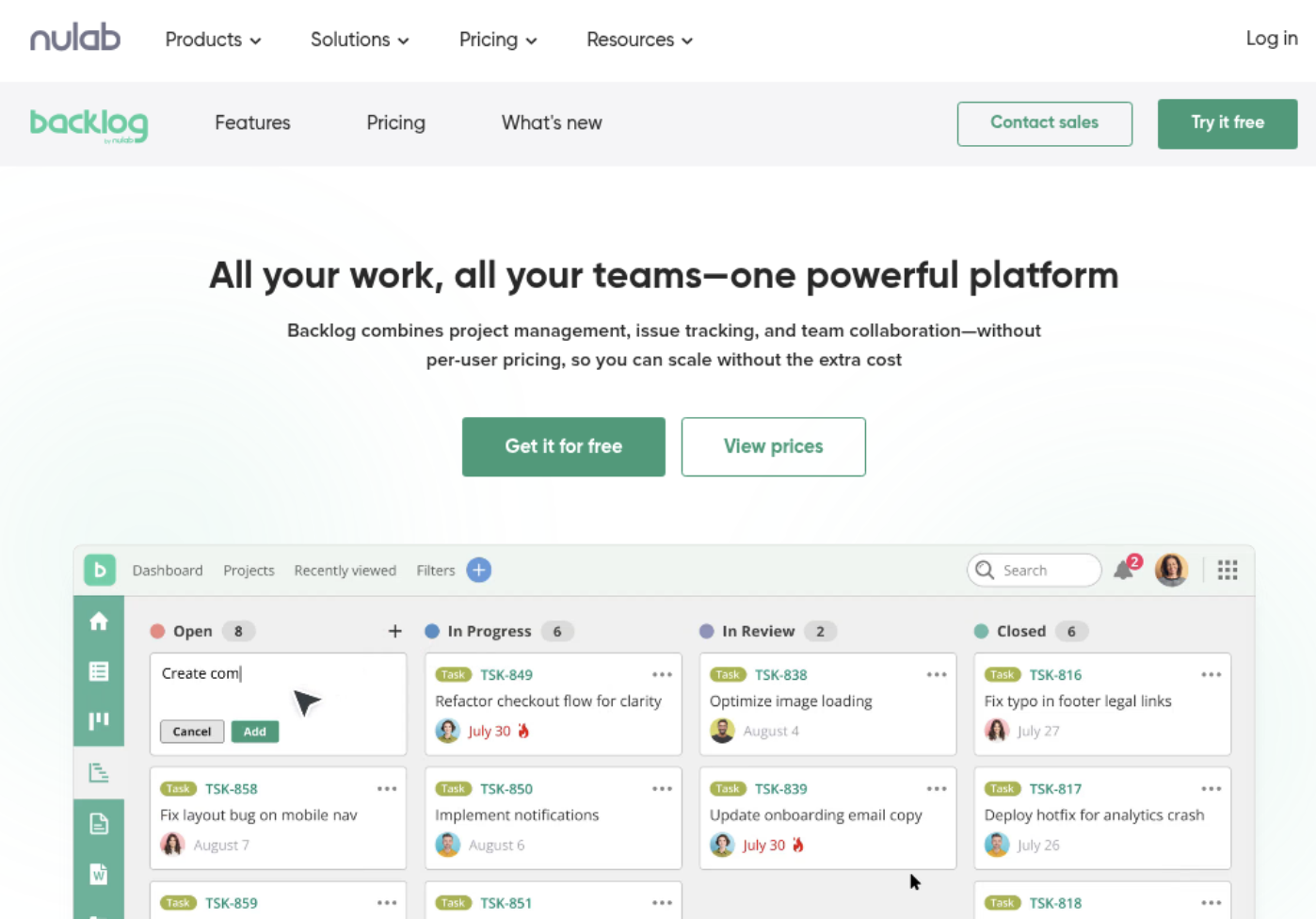
A board displays issues as cards arranged in columns, such as To Do, In Progress, and Done. A backlog is a prioritized list of work that a team may plan for upcoming sprints.
Teams often use a Kanban board to manage continuous work. Scrum teams commonly use a backlog and sprint board to plan work in short cycles.
-
5. Move issues through the workflow
A workflow defines the statuses an issue can pass through and the transitions that move it forward. A simple workflow might go from To Do to In Progress to Done.
When you change an issue’s status, Jira updates its position on the board. Some workflows also require a review or approval before an issue can advance.
-
6. Collaborate and keep work current
Team members can comment on issues, mention colleagues, set priorities, and update fields. Jira can also show activity so teammates can follow changes and discussions.
If a task is blocked, you can record the reason in its description or comments and flag it for attention. That gives the team a clearer view than relying on a separate status conversation.
-
7. Review progress and adjust
Boards, reports, and dashboards help teams understand what is moving, what is delayed, and what has been completed. A sprint report, for example, can help a Scrum team review planned and finished work.
Use what you learn to refine priorities, balance assignments, or improve the workflow. Jira works best when the team keeps issue details and statuses reasonably current.
How Projects, Issues, Boards, and Workflows Fit Together
Think of a Jira project as a work area, an issue as a specific task, and a workflow as the route that task follows. A board is the visual view that helps you see where issues are along that route.
For example, a product launch project could contain an epic called “Prepare the launch.” That epic might include issues for writing release notes, checking the signup flow, and preparing customer support.
Each issue has its own owner and status, while the board displays the team’s combined progress. Here’s why: a project can contain many individual tasks, but the board helps you understand the overall flow without opening every issue.
What Happens When You Create and Update an Issue?
Creating an issue adds a trackable work item to a project. The fields you fill in help Jira organize it and help teammates decide what to do next.
Suppose you report that a mobile checkout button does not respond. You could create a bug, describe the problem, assign it to a developer, and set its priority. A teammate can then add a comment or change its status as work progresses.
Issue changes may affect more than the issue itself. If the workflow moves the bug to In Progress, its board card may move too. If a report groups work by status, the updated issue may also change the totals shown there.
How Jira Supports Scrum and Kanban
Jira supports different ways of organizing work. Scrum teams typically plan a set of issues into a sprint, work through them over a defined period, and review the outcome.
A Scrum team might select several prioritized stories from its backlog for a two-week sprint. During that sprint, members update each issue as it moves through development, review, and completion.
Kanban teams usually manage work as a continuing flow rather than a series of fixed sprints. A support team, for instance, can move incoming requests across a board and limit how many are in progress at once.
The best choice depends on how your team handles work. You might be wondering: do you have predictable planning cycles, or does new work arrive continuously? That answer can help you choose a useful starting setup.
What Jira Reports and Automation Can Tell You
Jira reports turn issue activity into views that can help with planning and review. Teams may use charts to track sprint progress, see how work moves through stages, or identify issues that remain open.
Automation can handle routine actions when a chosen condition is met. For example, a rule might assign a newly created issue to a team queue when it has a particular label.
Let me explain: automation is most useful when the rule reflects a stable team habit. Start with a small, easy-to-check rule, then confirm it works as expected before expanding it.
Jira Workflows: Common Setup Choices
A workflow should reflect the real steps required to finish work. A small team may need only To Do, In Progress, and Done, while a team with formal review may add a Review status.
Too many statuses can make a board difficult to scan. For example, separating every minor handoff into its own column may create more status changes without helping anyone make better decisions.
Start with the fewest stages that make work understandable. Add a status when it reveals a meaningful handoff, approval, or blocker, rather than simply reflecting an individual preference.
Project Management and Knowledge Management with ONES.com
ONES.com brings project management and knowledge management into one platform. ONES Project provides project tracking, while ONES Wiki supports team knowledge management; the products are sold separately.

For a team comparing Jira with another project management option, ONES Project is a Jira alternative with Jira-compatible workflows. It also offers self-hosted deployments for organizations that need control over where the platform runs.
Core capabilities
- Work tracking: When tasks are scattered across different views, ONES Project brings issues and project activity into a managed workspace, helping teams follow ownership and progress.
- Workflow configuration: When a team needs Jira-compatible processes, custom workflows let you reflect its stages and transitions, so work follows familiar paths.
- Custom fields: When standard issue details do not capture what a team needs, custom fields add relevant context, helping people review and sort work more effectively.
- Sprint management: When a team plans work in iterations, sprint management supports planning and progress tracking, keeping selected issues visible through the cycle.
- Built-in reporting: When progress is difficult to assess, built-in reports provide project views without requiring a separate reporting add-on for every need.
- Automation: When routine actions take time, automation can handle configured steps, helping reduce repeated manual updates.
- Knowledge management: When project guidance needs a home, ONES Wiki provides a knowledge management option alongside ONES Project, making related work and team guidance easier to connect.
- Deployment choice: When hosting requirements differ, ONES.com offers Cloud, On-Premise, Private Cloud, and Air-gapped deployments. Its cloud and self-hosted versions have full feature parity.
Application scenarios
A software team that already understands Jira-style workflows could configure ONES Project to track bugs, stories, and sprints. Jira-compatible workflows can help preserve familiar ways of working, while built-in reporting and automation may reduce reliance on plugins.
An organization with strict network requirements could evaluate an On-Premise, Private Cloud, or Air-gapped deployment. A team that wants to connect project tracking with team knowledge can consider ONES Wiki separately from ONES Project.
ONES.com offers a free plan for up to 30 seats. You can compare its deployment choices and capabilities with your team’s workflow and infrastructure needs before deciding whether it fits.
Common Challenges When Using Jira
- Issues lack enough detail. A title such as “Fix checkout” leaves teammates guessing. Add the observed behavior, steps to reproduce it, and the expected result so the assignee can begin with useful context.
- Boards become difficult to scan. Too many columns or status options can obscure the work. Review which stages help your team make decisions, then simplify the board where possible.
- Work gets stuck without explanation. An issue may remain In Progress because of a dependency or review delay. Record the blocker and identify who can help resolve it.
- Reports do not match team expectations. Reports depend on issue fields and status updates being used consistently. Agree on what statuses mean, then keep them current during the project.
- Automation behaves unexpectedly. A rule can affect more issues than intended if its conditions are broad. Test it on a limited case and review the result before using it widely.
FAQs About How Jira Works
What is the difference between a Jira project and an issue?
A Jira project groups related work and provides a place to manage its issues. An issue is one specific work item within that project, such as a bug, task, story, or epic. A project may contain many issues, and each issue can have its own assignee, status, priority, and discussion. For example, a campaign project could contain separate issues for writing copy and reviewing a landing page.
Can a Jira issue belong to a board?
A board displays issues that match its configuration, such as a selected project or filter. An issue does not become the board itself; the board is a view of work. That distinction helps explain why an issue can appear on a board when it meets the board’s criteria. If you expected an issue to appear but cannot see it, check the board’s filter and the issue’s status.
What is the difference between a Jira workflow and a board?
A workflow defines the statuses and transitions available to an issue, such as moving from To Do to In Progress. A board displays issues in columns, often using those statuses. The workflow describes how work can progress, while the board helps you see that progress. A team can use a board to spot issues awaiting review without changing the underlying workflow.
Does Jira only work for software teams?
No. Software teams often use Jira for bugs, stories, and sprints, but other teams can track work too. A marketing group might manage campaign tasks, while a support team could organize requests. The project’s issue types, fields, and workflow should match the work. A team may need to adjust its setup so the terminology and statuses make sense to its members.
How can a new team get started with Jira?
Start with one project, a small set of issue types, and a straightforward workflow. Create a few real tasks, assign owners, and use a board to see how work moves. Once the team understands that setup, gather feedback about missing fields or unclear statuses. Adding complexity gradually makes it easier to see which changes solve an actual problem.
Conclusion
Jira organizes team work through projects, issues, workflows, and boards. Create issues with clear details, move them through meaningful statuses, and use boards and reports to understand progress.
If the setup feels complicated, start with a small workflow and a few well-defined issue types. Then adjust the project as your team discovers what helps it plan, collaborate, and finish work. With those foundations in place, Jira becomes easier to navigate and its progress views become more useful.