How to Connect Confluence to Jira: Step-by-Step Setup Guide
Need to connect Confluence to Jira? Follow this step-by-step setup guide to link apps and check key features. Read now.
When Jira and Confluence are disconnected, project details get scattered across two places. People switch tabs to find requirements, repeat updates, or lose track of which Jira issue relates to a Confluence page.
That friction grows when a team expects links to show useful context automatically. A pasted URL may work, but it may not create issue links, page previews, or shared project information.
You can connect Confluence to Jira by creating an application link between the products, then checking that the link supports the features your team needs. Here’s a practical setup guide for Cloud and Data Center, plus quick checks for permissions, authentication, and common connection problems.
How to Connect Confluence to Jira
The basic process is to confirm access, add an application link, complete authentication, and test the connection. Exact menu names can vary by product edition and interface, but the setup follows the same sequence.
- Confirm your access and product details. You’ll usually need administrator permissions in Confluence and Jira. Record each product’s URL and check whether each instance is Cloud or Data Center.
- Check whether the products already connect. In Confluence, open the administration area and look for Application Links or linked applications. An existing link may already cover your team’s needs.
- Start a new link from one product. In Confluence, go to administration settings and open Application Links. Enter your Jira URL, then select the option to create or add a link. You can also start from Jira’s application-link settings.
- Complete the connection prompts. Follow the authentication options shown for your edition. Depending on the setup, you may need to sign in as an administrator, approve an authorization request, or configure authentication on both sides.
- Review the link’s direction and permissions. If prompted, enable the incoming and outgoing connections required for your use case. Choose permissions carefully; a page link does not automatically mean every person can view the linked Jira issue.
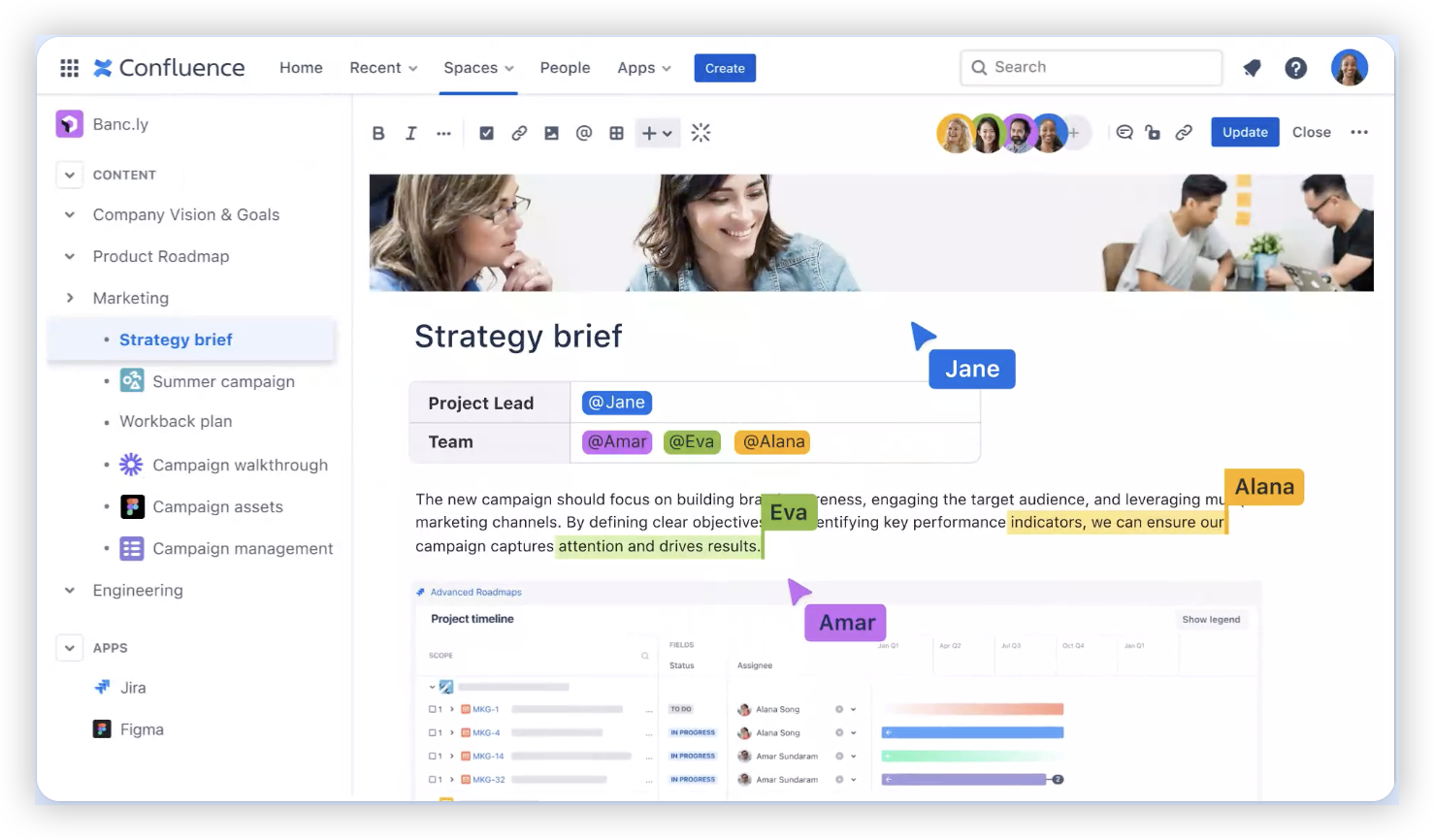
- Test a real project example. Open a Confluence page and add a Jira issue link, or add a Confluence page link to a Jira issue. Confirm that the link resolves and displays the expected context.
- Tell your team what changed. Share the correct Jira and Confluence addresses, explain any permission requirements, and show teammates how to insert links using the supported editor controls.
But here’s the truth: a successful connection is more than a saved URL. Check the actual link behavior your team relies on, such as issue previews, page linking, or project-level context.
Prepare Both Products Before You Link Them
A short preparation check can prevent hours of troubleshooting. Start by confirming that both products are available to the people who need them and that administrators can reach their settings.
- Write down the full Jira and Confluence URLs, including the correct Cloud site or Data Center address.
- Confirm that both products use secure HTTPS connections and that administrators can sign in.
- Check that network rules, proxies, or firewalls do not block communication between self-hosted instances.
- Identify which teams, projects, and pages should be connected, and review who can access them.
For example, a team with separate Jira and Confluence sites should avoid using an employee’s personal sign-in page as the link address. Use the stable product URL that teammates can access.
Here’s why: the application link establishes a relationship between the two products, while each product’s permissions still determine what people can see. Testing with an ordinary team account can reveal access gaps that an administrator account hides.
Choose the Setup Path for Your Edition
Cloud and Data Center share the goal of linking projects and pages, but their administration screens and authentication prompts may differ. Follow the options displayed in your own product rather than assuming every menu looks identical.
Connecting Cloud products
For Atlassian Cloud, check the administration area for application links or connected apps. If Jira and Confluence belong to the same organization, the products may already recognize one another or offer a guided linking flow.
If you manage separate sites, enter the other product’s full site address and complete the offered authorization steps. Make sure you’re signed in with an account that can administer both sites, or arrange for each site administrator to approve the connection.
Connecting Data Center products
For Data Center, an administrator commonly creates an application link by entering the other product’s URL in the application-link settings. The setup may ask you to confirm the link and choose authentication options.
When Jira and Confluence sit behind a proxy or use custom addresses, verify that each product advertises the correct public URL. A mismatch between the internal address and the address teammates use can prevent links or authentication from working as expected.
You might be wondering: can you connect Cloud to Data Center? It may be possible, but the available authentication methods and supported features depend on your versions and configuration. Check the current Atlassian guidance for that specific combination before changing production settings.
Test the Features Your Team Actually Needs
After setup, test a small end-to-end example before rolling the connection out broadly. Create a test page in Confluence and link a Jira issue that the same team can access.
Check whether the issue link resolves, whether a preview appears where expected, and whether clicking through opens the right project. Then test in the opposite direction by adding a Confluence page link to the Jira issue.
The best part? This simple two-way check catches several common mistakes at once. If an administrator can see the linked issue but a teammate cannot, the connection may be working while project permissions need attention.
Also check whether the editor or project view offers the specific integration features your team expects. A clickable link, an issue macro, and an embedded preview are different behaviors, so verify each one separately.
Keep the Connection Secure and Maintainable
Give application-link administration to a small number of responsible administrators. Review who can create or change links, and avoid granting broad project access just to make a preview appear.
When an employee leaves or a service account changes, review the authentication settings and ownership of the connection. Keep a brief internal note with the product URLs, responsible administrators, and the features the link supports.
Let me explain: permissions on each product still matter after linking. If a Jira issue contains sensitive details, someone without Jira access should not gain access simply by opening a Confluence page that links to it.
For self-hosted products, include the connection in routine upgrade checks. After a major version change, confirm that authentication still works and repeat the same page-to-issue test your team used during setup.
ONES.com Solution for Connected Project and Knowledge Work

Value Proposition
ONES.com brings project management and knowledge management together on one platform, with ONES Project for project work and ONES Wiki for team knowledge. If your team is reviewing its Jira and Confluence setup, this is another approach to consider; ONES Project is a Jira alternative, and ONES Wiki is a Confluence alternative. The products are sold separately.
Core Capabilities
- Work split between project tracking and team knowledge: ONES.com provides project management and knowledge management in one platform, helping teams keep those activities closely connected.
- Jira workflows need to be recreated elsewhere: ONES Project supports Jira-compatible workflows, so teams can carry familiar issue processes into a different environment.
- Standard issue fields don’t match team processes: Custom fields and workflows let teams represent their own intake, review, and delivery steps.
- Sprint planning needs a dedicated structure: Sprint management helps agile teams plan work and follow progress within project workflows.
- Teams rely on add-ons for routine actions: Built-in automation can handle recurring workflow actions and reduce some plugin dependencies.
- Project status takes time to assemble: Built-in reporting gives teams project information without requiring every update to be compiled manually.
- Cloud hosting does not fit every organization: ONES.com offers Cloud, On-Premise, Private Cloud, and air-gapped deployments.
- Self-hosted teams worry about missing features: ONES.com provides full feature parity between its cloud and self-hosted versions.
- A team needs to evaluate before committing: The free plan supports up to 30 seats, giving a small team a way to assess the platform.
Application Scenarios
A software team managing sprints could use ONES Project for issue tracking, custom workflows, and reporting, while keeping team knowledge in ONES Wiki. This can suit a team seeking an alternative to separate Jira and Confluence environments.
An organization with strict hosting requirements could evaluate an On-Premise, Private Cloud, or air-gapped deployment. It can assess the same core capabilities in a deployment model aligned with its operational constraints.
ONES.com does not change the steps for connecting existing Jira and Confluence instances. It is a separate platform option to evaluate when your team is considering how to manage project work and knowledge together.
Common Connection Challenges and Fixes
- The link saves, but Jira issues do not appear. Check that the Jira URL is correct and accessible to the person testing. Then review permissions and the connection’s authentication settings.
- Some teammates see an error while administrators do not. Compare the teammate’s Jira and Confluence permissions with the administrator’s access. Grant only the project or page permissions the person needs.
- The connection fails after a URL or proxy change. Review the public addresses configured in both products. Update the application link if either product now uses a different URL.
- A preview does not appear even though the link opens. Confirm that the editor supports the preview behavior and that the user can access the linked issue. A working hyperlink does not guarantee an embedded preview.
- Authentication prompts repeat or fail. Check that administrators completed the approval steps on both sides and that the selected authentication method is supported by the product versions involved.
Frequently Asked Questions
Do I need administrator access to connect Confluence and Jira?
Usually, yes. Creating or changing an application link typically requires administrative permissions in at least one product, and some setups require approval from both administrators. After the link is active, individual teammates still need their own permissions to view Jira issues and Confluence pages. Ask your administrator to handle the connection if you cannot see application-link settings.
Can I link Jira issues from a Confluence page without an application link?
You can often paste a Jira URL into a Confluence page and create a clickable link. However, an application link may be needed for additional integration behavior, such as issue details or previews. The exact features depend on your product editions, settings, and user permissions. Test the specific behavior you need rather than assuming a pasted URL provides every integration feature.
Why can I open a Jira link but not see the issue preview?
A clickable link and an issue preview are separate behaviors. The preview may depend on the connection settings, editor support, authentication, and your access to the Jira project. Try opening the issue directly with the same account. If that fails, review project permissions; if it works, ask an administrator to check the integration setup.

Will linking Jira and Confluence give everyone access to both products?
No. The connection does not automatically grant every person access to every project or page. Jira and Confluence permissions continue to control what each account can view. Test with a standard team account, especially if pages link to restricted issues, and adjust access only where it matches your organization’s security requirements.
Conclusion
Connecting Confluence to Jira usually means creating or confirming an application link, completing authentication, and testing the experience with real pages and issues. Check product URLs, administrator access, permissions, and the features your team expects before calling the setup complete.
If something fails, separate connection problems from access problems: an administrator may see an issue that a teammate cannot. A careful test, followed by a permissions review, can resolve many integration snags without disrupting the whole team.
When you need project tracking and team knowledge to work more closely together, you can also evaluate platforms such as ONES.com. Choose the setup that fits your team’s workflows, access requirements, and hosting needs.