How to Connect Jira and Confluence: A Step-by-Step Guide
Want project context in one place? Learn how to connect Jira and Confluence, link issues to useful pages, and choose the right setup. Read now.
When Jira and Confluence sit apart, project decisions can get lost between issue tracking and team knowledge. People switch tabs, repeat updates, and wonder which page explains the latest change.
That friction grows when a page is hard to find or a teammate cannot open a linked issue. Work slows down, and important context gets separated from the task it should support.
You can connect the two Atlassian products and link issues with relevant Confluence pages. The right setup depends on whether you use cloud or self-managed editions, but the basic process is straightforward.
But here's the truth: a successful connection is more than making two apps recognize each other. You also need the right permissions and useful links. Here's how to set it up and check that it works.
How to Connect Jira and Confluence
First, confirm which Jira and Confluence editions you have, then establish the product connection and test an issue-to-page link. For products on the same Atlassian Cloud site, linking features may already be available.
Check your product editions and site. Sign in to Jira and Confluence, then note whether each runs in Atlassian Cloud or on a self-managed environment. If both are cloud products, check whether they belong to the same Atlassian site.
Confirm administrator access. You may need a Jira administrator or Confluence administrator to configure a connection, especially for separate cloud sites or self-managed installations. Ask an administrator to confirm the setup before changing settings.
Connect the products if needed. For Jira and Confluence Cloud on the same site, try linking an issue and a page first. For separate sites or self-managed editions, an administrator can review the available app-linking options in each product and complete the authorization process.
Check user access. Make sure people who need the connection can access the relevant Jira projects and Confluence spaces. A working product connection does not grant access to every issue or page.
Link a test issue and page. Open a Jira issue and add a link to its related Confluence page, or insert the Jira issue into a Confluence page. Use a test item that you can safely edit.
Verify both directions. Open the Jira issue from Confluence, then open the linked page from Jira if the interface offers that action. Check that titles, previews, and access behave as expected for a regular teammate.
Let me explain: the connection enables the products to work together, while individual links bring project context into the places people need it. You may need both parts for a smooth workflow.
Choose the Right Connection Path
The setup varies by deployment. Jira Cloud and Confluence Cloud on the same Atlassian site often provide linking features without a separate manual connection. Try a test link before assuming setup is complete.
Separate cloud sites can require an administrator to configure a connection between them. Self-managed Jira and Confluence installations commonly use application links, which administrators set up and authorize. Menu names and available options can vary by product version.
Here's why: a cloud product and a self-managed product do not always use the same connection flow. For example, a team using Jira Cloud with Confluence Data Center should ask its administrators to verify supported connection options before inviting everyone to rely on cross-product links.
Make sure you know which site URL belongs to each product. A clear record of the Jira and Confluence addresses helps administrators avoid connecting the wrong environments, such as a test site and a live site.
Link Jira Issues and Confluence Pages
Once the connection is available, link specific issues to the pages that explain their requirements, decisions, or release steps. A useful link gives someone enough context to continue without searching through unrelated pages.
Add a Confluence page to a Jira issue
Open the Jira issue and look for its link or related-content action. Select the option to add a Confluence page, if available, then search for the page or paste its address. The exact label can differ across Jira versions.
For example, link a product requirement page to the Jira epic that tracks its delivery. A teammate opening the epic can then find the explanation without searching the entire Confluence space.
Show Jira work in Confluence
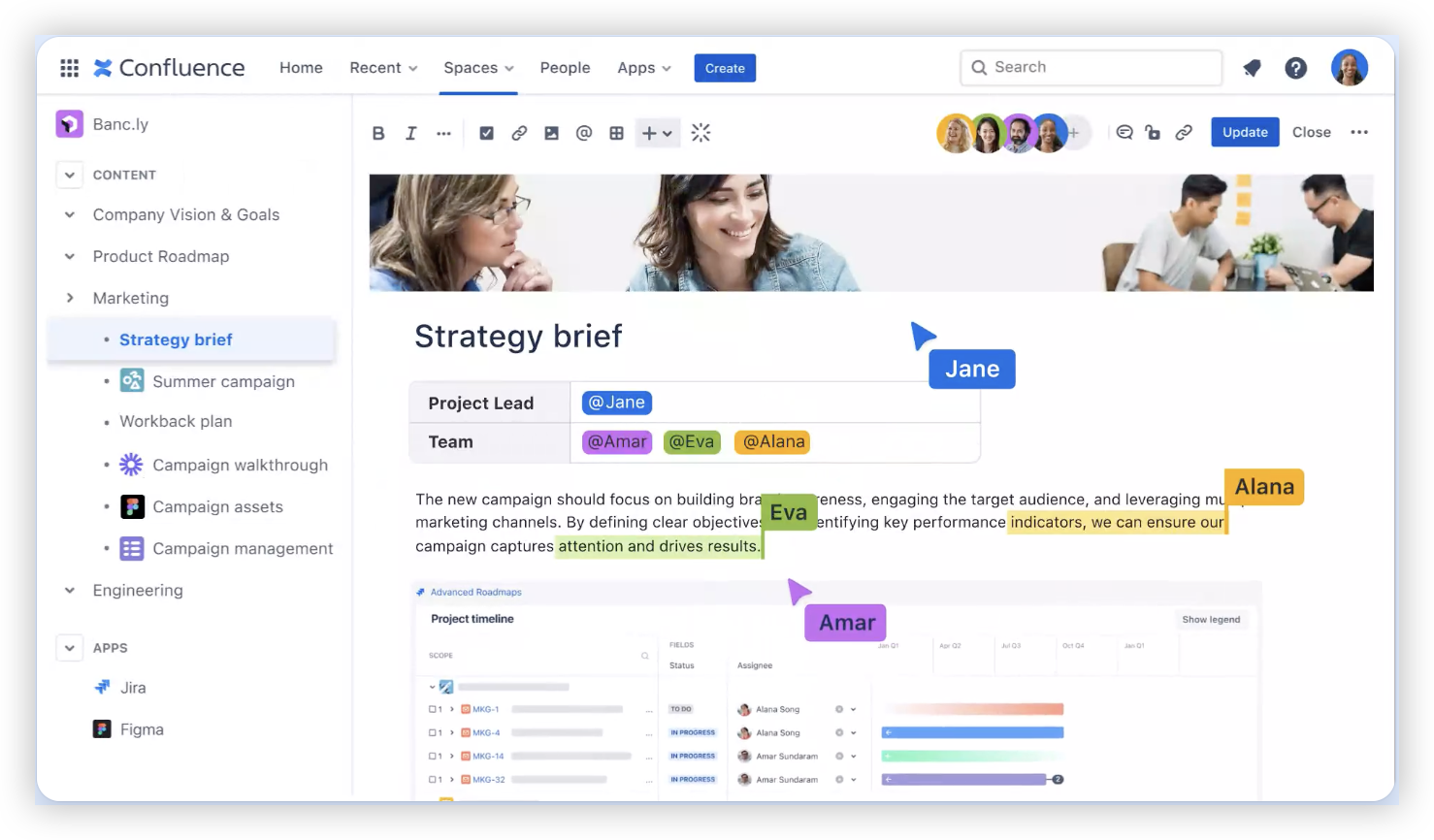
In Confluence, add a Jira work-items macro or paste a Jira issue address into the page. Depending on your edition, the address may turn into a smart link with a preview or an embedded issue view.
A sprint planning page could show a Jira filter or a handful of related issues. That gives the team a single place to review the agenda and the work being discussed.
Use links that stay useful
Choose a page with a clear title and a purpose that matches the Jira work. A link called “Release checklist” is more helpful than a general team landing page when the issue concerns release readiness.
The best part? You do not need to link every issue to every page. Connect the items that add context, such as a design decision, incident review, acceptance criteria, or launch plan.
Test the Connection Before Rolling It Out
Test with an ordinary team account, not only an administrator account. Administrators may see pages or issues that other people cannot access, making a restricted link look fully functional.
Try a realistic workflow: open a Jira issue, follow its Confluence link, and return to Jira. Then open a Confluence page and check whether its Jira preview shows the correct issue and status.
For example, ask a teammate with project access to open a linked requirements page. If the page is private to another group, adjust its permissions or link a page the project team can access.
Also test edits and updates. Change a Jira issue status, refresh its Confluence view, and confirm the information appears as expected. This simple check can reveal stale previews or permission gaps before the connection becomes part of daily work.
Make Cross-Product Links Easier to Maintain
Agree on a few linking habits before teams create pages and issues at scale. Pick clear page titles, decide when a Jira issue should link to a Confluence page, and name someone responsible for reviewing important references.
For example, a team might link each major Jira epic to its requirements page and release checklist. Smaller tasks can link to the epic rather than repeat the same page links across dozens of issues.
Use a stable page for information that changes over time, such as a team process or release checklist. If a page moves or is replaced, update the Jira link and tell affected teammates where to find the current guidance.
Keep permissions aligned with the work. A project team should not depend on a page that only its author can open. Reviewing access during project kickoff can prevent that problem later.
Resolve Common Connection Problems
If Jira cannot find a Confluence page, check that the products are connected and that your account can access the page. Then confirm you selected the correct Confluence site or space.
If a page opens for an administrator but not a teammate, review the page and space permissions. The connection itself does not override access rules. Grant only the access needed for the work.
If a Jira preview does not appear in Confluence, verify the issue address and try refreshing the page. Some display options depend on the product edition, configuration, or permissions in place.
You might be wondering: what if the link works in one direction but not the other? Check the product connection, account access, and link format on both sides. Test with another issue and page to see whether the problem affects one item or the whole setup.
ONES.com Solution for Connected Project Work

Value Proposition
ONES.com combines project management and knowledge management in one platform, with ONES Project for project work and ONES Wiki for team knowledge. The products are sold separately, so you can choose the capability that fits your needs.
Core Capabilities
Context split across products: ONES Project and ONES Wiki are part of one platform, helping teams connect project work with relevant knowledge.
Jira migration or alternative needs: ONES Project is a Jira alternative with Jira-compatible workflows, helping teams carry familiar ways of working into a different environment.
Knowledge scattered across spaces: ONES Wiki provides a knowledge base as a Confluence alternative, giving teams a place to organize and share team guidance.
Workflows do not match team processes: Custom workflows and fields let teams represent their own stages and details, making project tracking more specific to their work.
Sprint work needs clearer tracking: Sprint management supports planning and tracking iterative delivery, helping teams review work in a familiar cycle.
Repeated actions take time: Automation handles defined workflow actions, reducing routine manual steps for project teams.
Progress is difficult to review: Built-in reporting helps teams view project activity and status without relying on a collection of extra plugins.
Deployment requirements vary: Choose Cloud, On-Premise, Private Cloud, or Air-gapped deployment. The platform provides full feature parity between cloud and self-hosted versions.
ONES.com includes a free option for up to 30 seats. ONES Assistant powers its AI capabilities, while project management and knowledge management remain distinct products that can be purchased separately.
Application Scenarios
A team replacing separate project and knowledge tools: A team can use ONES Project for issue tracking and ONES Wiki for project guidance. Linking project activity with relevant knowledge can reduce the need to search across disconnected spaces.
An organization with restricted deployment needs: A team that cannot use a public cloud environment can evaluate On-Premise, Private Cloud, or Air-gapped deployment. Full feature parity across cloud and self-hosted versions helps maintain consistent capabilities.
Common Challenges When Connecting Project and Knowledge Work
People cannot open a linked page. This usually points to page or space permissions. Check access for the people doing the work, then adjust the permissions or choose a page they can open.
Teams link too many unrelated pages. Excessive links can make issues harder to scan. Link only pages that explain a decision, requirement, process, or next step.
A connection works for administrators only. Admin accounts can have broader access than regular accounts. Test with a teammate who has typical project permissions and review any access differences.
Links point to an old page or environment. Review links during project handoffs and page updates. Confirm that a link uses the intended site and current page before sharing it widely.
FAQs About Connecting Jira and Confluence
Do Jira and Confluence connect automatically?
They may already offer linking features when both cloud products belong to the same Atlassian site. Separate sites and self-managed installations can require an administrator to configure a connection. Check your product editions and try a simple issue-to-page link first. If the link is unavailable, ask an administrator to review the connection settings and confirm that both products are using the intended environment.
Can I link a Confluence page to a Jira issue?
Yes. You can add a Confluence page link to a Jira issue when the connection and your permissions allow it. You can also show Jira issues on a Confluence page using a Jira work-items macro or a smart link. For example, a release checklist can link to the Jira epic tracking the release, while an issue can point back to its requirements page.
Why can I see a linked page but my teammate cannot?
The page may have permissions that grant access to you but not your teammate. A product connection does not automatically give every Jira or Confluence user access to every item. Ask a space or site administrator to review the page’s access settings. Test again with the teammate’s account after making any necessary change.
Can I connect Jira Cloud to Confluence Data Center?
Cross-deployment connections can depend on product versions, configuration, and the connection options supported by your environment. Ask administrators for both products to confirm compatibility and set up the connection. They should test access with regular team accounts before relying on links in active project work. Do not assume that steps for two cloud products will match a cloud-to-self-managed setup.
Conclusion
Connecting Jira and Confluence helps keep project tasks close to the knowledge that explains them. Start by checking your deployment, confirm the connection and permissions, then test a real issue-to-page workflow.
Keep links specific and accessible, and review them when project pages change. That prevents the frustration of missing context from returning as your team adds more work.
If separate products create unnecessary friction, consider whether a unified project and knowledge platform fits your workflow. The right setup should help you find the next useful detail without adding extra steps.