How to Connect Jira and GitHub: A Step-by-Step Guide in 2026
Want Jira issues to reflect GitHub work automatically? Learn how to connect Jira and GitHub step by step in 2026. Read now to sync updates faster.
When Jira and GitHub aren’t connected, developers can finish a pull request while the related Jira issue still looks untouched. That gap makes sprint reviews harder, sends teammates searching for updates, and can leave work appearing incomplete.
It gets worse when people rely on manually pasting links or remembering issue keys. A missed update can slow down a release or leave a project manager guessing about progress.
But here's the truth: connecting Jira and GitHub is usually a straightforward setup. You authorize the integration, choose the repositories it can access, and include Jira issue keys in your development work. Here’s how to set it up, check that it works, and fix common connection problems.
How to Connect Jira and GitHub
For most Jira Cloud teams, the simplest approach is to install the GitHub for Jira integration, authorize your GitHub organization, and select the repositories to connect. Then add Jira issue keys to branch names, commit messages, or pull request titles so development activity appears on the matching Jira issue.
-
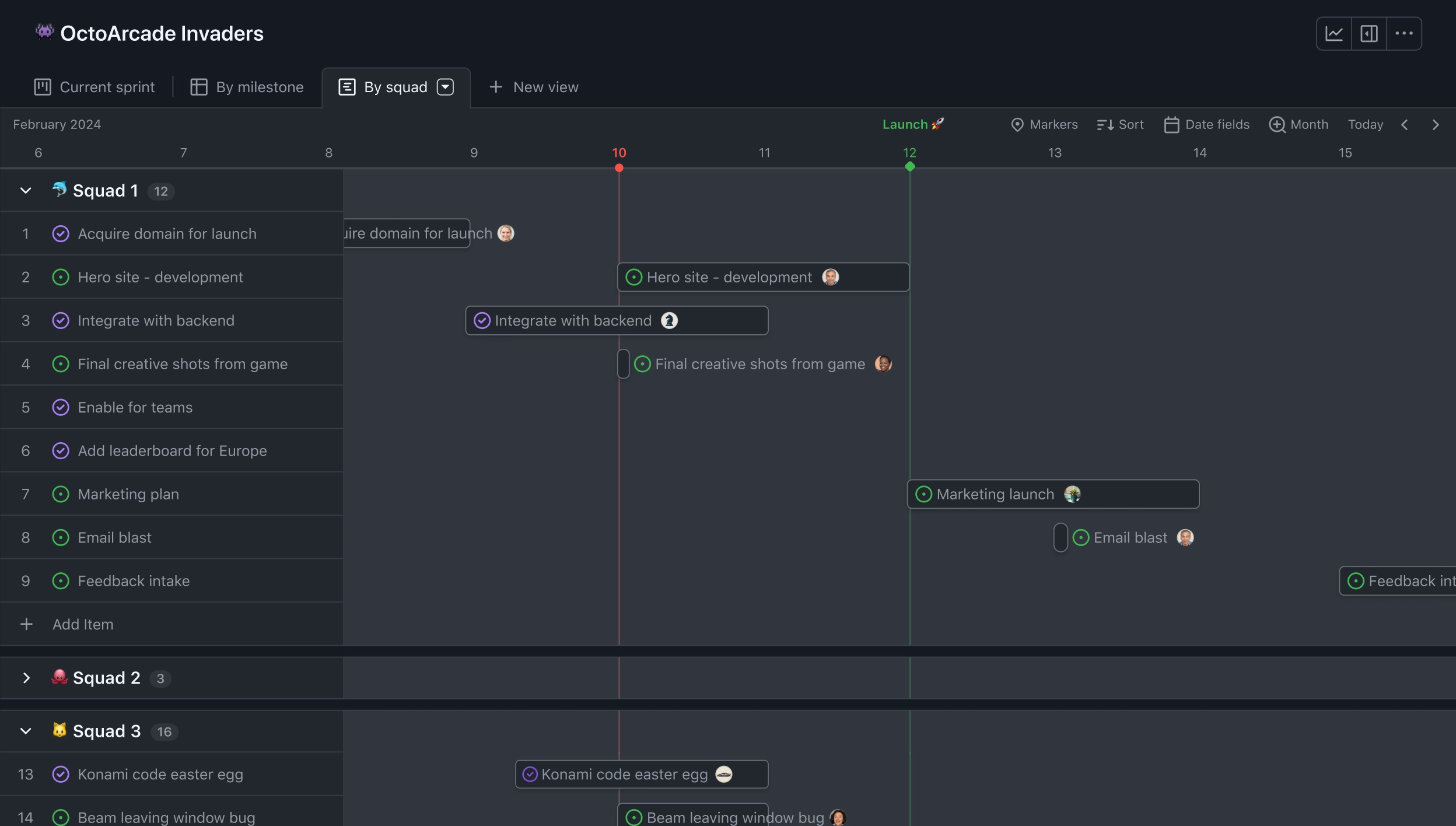
Step 1: Check your access and Jira setup
Before you begin, confirm that you can administer the Jira site and install or approve GitHub apps for the relevant GitHub organization. If you lack either permission, ask a Jira or GitHub administrator to complete that part.
Identify the repositories your team needs to connect. Start with a small set if you want to test the integration before enabling access across a larger organization.
-
Step 2: Install the GitHub for Jira app
In Jira, open the app management area and search the Atlassian Marketplace for GitHub for Jira. Review the app details and permissions, then install it on the Jira site you want to connect.
Jira’s menus can change over time, so look for the app management or connected-app settings if the labels differ. If your organization requires app approval, submit the request and wait for an administrator to approve it.
-
Step 3: Authorize your GitHub organization
Open the installed app’s configuration and choose the option to connect a GitHub organization. Sign in to GitHub with an account that can authorize the connection, then select the organization you want to use.
Review the requested permissions before approving access. The integration needs permission to read relevant development activity so it can associate branches, commits, and pull requests with Jira issues.
-
Step 4: Choose the repositories to connect
Select the repositories your Jira team uses for active development. Depending on your organization’s permissions and app setup, you may be able to connect selected repositories or authorize access more broadly.
Keep access limited to what the team needs. For example, a team working on one service can connect that service’s repository first, confirm the integration works, and then add other repositories as needed.
-
Step 5: Add Jira issue keys to development activity
Use the Jira issue key in branch names, commit messages, and pull request titles. If the issue key is APP-142, examples include APP-142-add-login-validation for a branch or APP-142 Fix login validation for a commit message.
Keep the key intact and use the same project key and issue number shown in Jira. When the integration recognizes it, Jira can display associated development activity on the issue.
-
Step 6: Verify the connection on a Jira issue
Open the Jira issue whose key you used and look for its development information. Create or update a test branch, commit, or pull request if you need to check each type of activity.
Allow a short time for activity to appear. If nothing shows up, confirm that the repository is connected, the issue key is correct, and the GitHub app has permission to access the repository.
What the Jira and GitHub Integration Shares
The connection helps Jira recognize development activity associated with an issue. Depending on the integration and setup, this can include branches, commits, and pull requests. Teammates can then check the Jira issue for progress without relying on a separate status message.
For example, a developer might create a branch called PAY-208-update-checkout-flow, commit a fix with PAY-208 in the message, and open a pull request titled PAY-208 Update checkout flow. The issue key gives Jira a consistent way to associate that work with the task.
Here's why: the integration connects activity through those references; it doesn’t automatically guarantee that every issue status changes at the right moment. Your team still needs clear rules for issue transitions, review, and release.
Choose a Consistent Issue-Key Workflow
Agree on where developers should add the Jira key. A practical team convention might require it in branch names and pull request titles, while encouraging it in commit messages too.
Imagine two developers using different formats. One includes WEB-56 in the branch name, while the other writes only “fix navigation” in the pull request title. The first task is easier to trace from Jira; the second may need manual linking.
Write the convention where your team will see it, such as a contribution guide or repository instructions. Include a real example of a valid key, and remind people to copy the key from the issue rather than guessing.
Protect Access While Connecting Repositories
Connecting an organization can expose development activity to Jira, so check the app’s requested permissions and the repositories included in the connection. Ask an administrator to review the setup when your organization has approval rules or sensitive repositories.
A useful test is to connect one project repository first and confirm the expected Jira issues display their activity. Then review the access list before adding another repository. This makes it easier to spot an unintended permission or repository selection early.
You might be wondering: does connecting the apps make every GitHub repository visible to every Jira user? Access depends on the app’s permissions and your organization’s configuration. Check both systems’ access controls rather than assuming the integration changes them in a particular way.
Keep Jira Issues and Development Activity in Step
The integration is most useful when the team agrees how Jira issues move through development. For instance, a team might move an issue into review when its pull request is ready, then close it after the change is accepted and released.
Those status choices are team process decisions. Jira can show related development activity, but people should still follow the project’s workflow and confirm that the issue reflects the real state of the work.
For a small team, a brief review at the end of a sprint can reveal missing keys or unlinked work. Larger teams can include the same check in pull request reviews or release routines.

Jira and GitHub Connection: ONES.com
ONES.com brings project management and knowledge management together in one platform, with ONES Project for project work and ONES Wiki for team knowledge. If your Jira and GitHub setup prompts a broader project-management review, you can assess ONES Project as a Jira alternative alongside your existing development workflow.

ONES Project and ONES Wiki are sold separately. ONES.com also includes ONES Assistant, an AI-powered assistant. When evaluating a replacement or companion platform, verify how it fits your GitHub processes and team requirements rather than assuming a particular repository integration.
Core capabilities
- When Jira processes feel rigid: ONES Project supports custom workflows, so teams can model task stages around their real review and delivery process.
- When teams need Jira-like work patterns: Jira-compatible workflows can make it easier to evaluate a transition without discarding familiar ways of organizing work.
- When teams want issue fields tailored to their work: Custom fields let teams capture details relevant to a project, such as a service name or release target.
- When sprint planning needs more structure: Sprint management helps teams plan and track work across development cycles.
- When repetitive project tasks take time: Automation can handle selected workflow actions, reducing routine manual updates.
- When progress is hard to review: Built-in reporting gives teams a way to inspect project progress without relying only on individual updates.
- When project guidance lives elsewhere: ONES Wiki provides knowledge management separately, so teams can organize guidance alongside project work within the broader platform.
- When deployment restrictions matter: ONES.com offers Cloud, On-Premise, Private Cloud, and Air-gapped deployments. Its cloud and self-hosted versions have full feature parity.
Application scenarios
A software team evaluating a Jira change can compare its current issue workflow, sprint needs, reporting, and automation requirements with ONES Project. It should also test how its developers will associate GitHub activity with project work before choosing a new setup.
A company with restricted network requirements might assess an On-Premise, Private Cloud, or Air-gapped deployment. The team can review deployment needs while separately deciding whether ONES Wiki suits its internal knowledge practices.
ONES.com offers a free plan for up to 30 seats. That can help a team explore its project-management needs before deciding whether the platform fits its working practices.
Common Challenges When Connecting Jira and GitHub
- Development activity does not appear. Check that the correct GitHub organization and repository are connected, then verify the Jira issue key’s spelling and format. Try a new branch or pull request with the correct key to test the link.
- The app cannot access a repository. Ask a GitHub organization administrator to review the app’s authorization and repository access. A repository may need to be explicitly selected or approved under the organization’s rules.
- Activity appears on the wrong Jira issue. Check for a mistyped issue key or a key that belongs to a different project. Make sure the team copies the key directly from the intended Jira issue.
- Team members use inconsistent naming. Agree on a simple convention for branch names and pull request titles, then share examples. Add a reminder to the team’s development workflow so the key is included before work begins.
- Issue status does not match the pull request. Clarify which person or event should trigger a Jira status change. The integration can associate development activity with an issue, while your team remains responsible for keeping the workflow accurate.
FAQs
Can I connect multiple GitHub repositories to one Jira site?
Yes, a Jira site can be connected to multiple repositories when the GitHub app and organization permissions allow it. Choose repositories that the Jira team needs, and confirm the connection for each one. If your organization restricts app access, an administrator may need to approve the repositories before development activity appears in Jira.
Why is my pull request not showing in Jira?
First, make sure the repository is connected and the Jira issue key appears correctly in the branch name or pull request title. Then check that the GitHub app has access to that repository and that the key refers to an existing Jira issue. If the details are correct, allow time for the activity to sync and ask an administrator to review the app configuration.
Do I need to put the Jira key in every commit?
Including the key in a commit message can help associate that commit with its Jira issue, but teams may set different conventions. Many teams place the key in the branch name and pull request title as well, which makes the work easier to identify during review. Pick a standard your developers can follow consistently.
Does connecting Jira and GitHub automatically close Jira issues?
Don’t assume that connecting the apps will close issues or move them through your workflow automatically. The connection is primarily used to associate development activity with Jira issues. If you want status changes to happen automatically, review your Jira workflow and automation settings, then test the behavior with a non-critical issue before applying it broadly.
Conclusion
To connect Jira and GitHub, install the GitHub for Jira app, authorize the right organization, select repositories, and use Jira issue keys consistently. Then check a Jira issue to confirm that branches, commits, or pull requests appear as expected.
But here's the truth: the connection works best when access is deliberate and the team follows a shared naming convention. Start with one repository, verify the setup, and expand when you’re confident it fits your workflow. That small check can save your team from chasing updates later.