How to Connect Jira to Confluence: A Step-by-Step Guide for Teams
Need Jira and Confluence connected? Learn how to make jira connect to confluence, link issues and pages, and streamline team handoffs. Read now.
Jira can track the work while Confluence holds the decisions and project details, but disconnected tools make it easy to lose the thread. Your team may discuss a change on a Confluence page, then overlook the related Jira issue—or open an issue without the context needed to act.
That friction leads to repeated explanations, stale links, and slower handoffs. But here's the truth: connecting the products is usually straightforward once you confirm your setup, permissions, and linking method. I’ll walk you through the connection, show how to link issues and pages, and explain how to check that the right people can see them.
How to connect Jira and Confluence step by step
Start by checking whether the products are already linked. Then connect the instances if needed, add useful issue and page links, and test access with a teammate.
-
Confirm your Jira and Confluence setup. Write down each product’s web address and identify whether you use Cloud, Data Center, or another supported deployment. You’ll need administrator access for some connection settings. If you don’t have it, ask your Jira or Confluence administrator to complete those steps.
For Cloud, check whether both products belong to the same Atlassian site. They may already recognize one another. For separate sites or self-managed deployments, you may need an application link.
-
Check for an existing connection. In Jira or Confluence, look for application links or connected applications in the administration settings. Navigation labels can vary by product version and deployment.
If Jira recognizes your Confluence site, test a page link before creating anything new. If it doesn’t, continue to the application-link setup supported by your deployment.
-
Create an application link when your setup requires one. Open the application links settings in the product administration area and enter the other product’s base URL. For example, a Jira administrator can enter the Confluence address to start linking the instances.
Follow the prompts to establish authentication. Choose the secure authentication method recommended for your Jira and Confluence versions. Avoid enabling broad access simply to make the connection work.
-
Complete the connection on the other side if prompted. Some setups require an administrator to confirm the link in both Jira and Confluence. Keep both product addresses handy, and check that the displayed application names match the intended instances.
If the setup wizard returns an error, check that the address is correct and reachable. For self-managed deployments, network rules and certificates may also affect the connection.
-
Link a Jira issue with a Confluence page. Open the issue and use its linking option if your Jira version provides one. You can also add the Confluence page URL to an issue field, comment, or description where teammates will find it.
In Confluence, add the Jira issue to a page using the Jira macro or a supported Smart Link. For example, a release-planning page can show the Jira issues assigned to a particular version.
-
Test the result with a teammate. Open the issue and page using an account with ordinary project access. Confirm that the link opens the correct location and that the teammate can view the content.
Try a second example, such as a bug issue linked to a troubleshooting page. This helps reveal permission differences that a single administrator account may hide.
What the Jira–Confluence connection enables
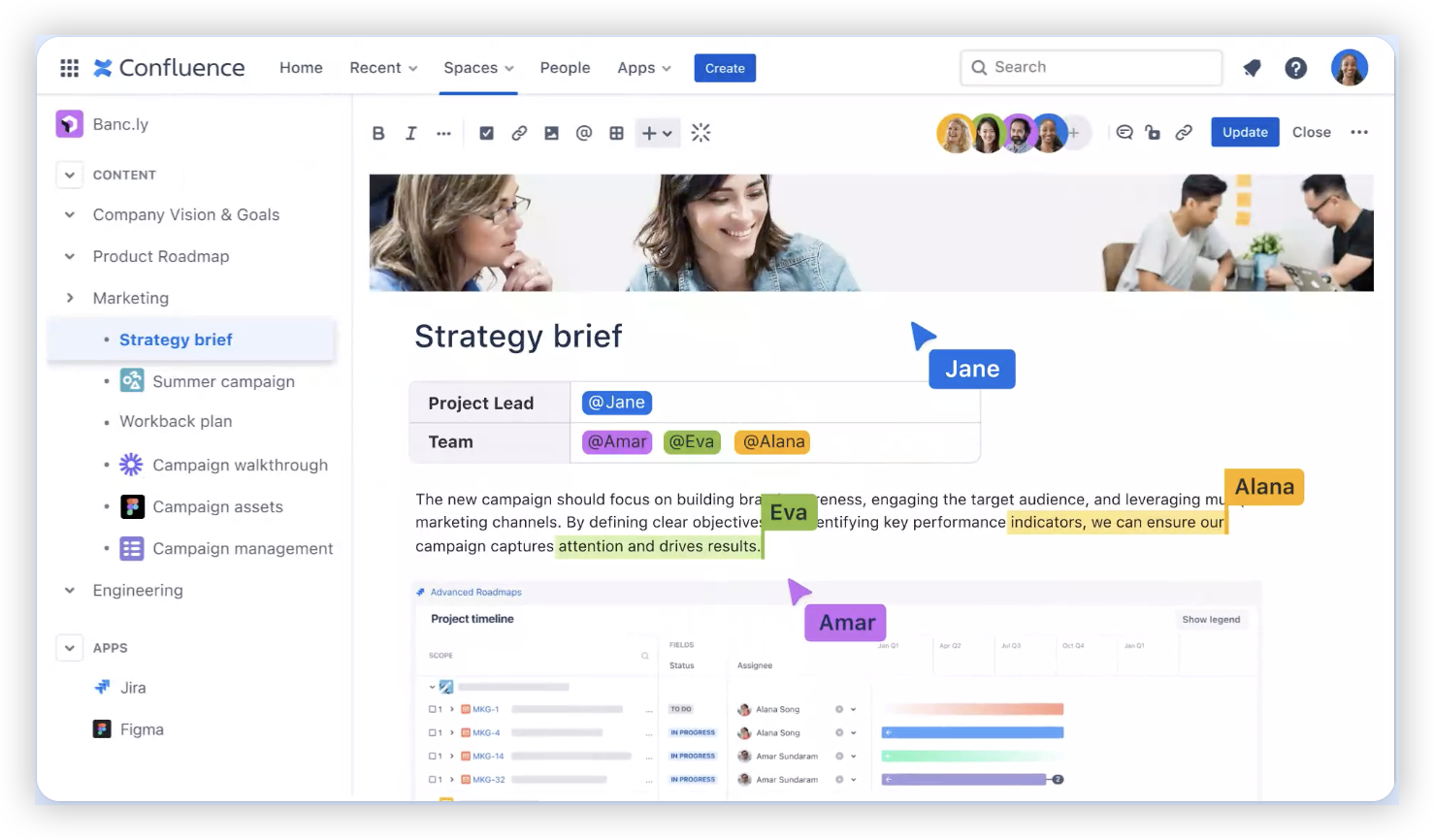
The connection helps teams move between tracked work and the context that explains it. Jira issues can point to Confluence pages, while Confluence pages can display Jira issues or issue lists.
For example, a product team might link a Jira feature issue to a Confluence requirements page. The page can then include the issue’s status, giving readers a quick way to check progress without hunting through project boards.
Here's why: linking makes context easier to find, but it doesn’t automatically make every page visible to every Jira project member. Access still depends on permissions in each product.
Link Jira issues from Confluence pages
In Confluence, open the page where you want Jira work to appear. Insert a Jira macro or paste a Jira issue URL and choose the Smart Link display that fits the page.
A single issue link works well in a decision record. For a sprint review, a Jira macro that shows several issues can make the page more useful, provided the selected project and filters are clear.
Let me explain: an embedded issue view can save a reader a trip to Jira, while a simple link keeps a page lighter. Choose the format based on how much status information the page needs.
Link Confluence context from Jira
On a Jira issue, use the available page-linking feature or add the Confluence URL in a visible field or comment. Add a short label so teammates know why the page matters, such as “API design decisions” or “Customer impact review.”
Suppose an issue covers a login error. Linking the investigation page gives the developer the reproduction steps and findings alongside the tracked work. A bare URL may technically work, but a clear label helps people choose the right page.
Some Jira versions display linked Confluence pages in a dedicated area. If yours doesn’t, a consistently used field or comment convention can still make those links easy to locate.
Check permissions and link visibility
Application links connect the products; they don’t replace each product’s access controls. A teammate may see a Jira issue but receive a permission message when opening its Confluence page.
Check the page’s viewing restrictions, the Jira project’s access rules, and any group membership requirements. For example, a project contractor may have access to the issue but not an internal planning page.
You might be wondering: should you make the page public to avoid access problems? Usually, no. Grant access to the people who need it, then test the link with an account that reflects their actual permissions.
Verify and maintain the integration
Test a real workflow after connecting the products. Create or choose one Jira issue, link its related Confluence page, and confirm that the issue and page display correctly for the intended team.
Recheck the connection after a site migration, domain change, authentication update, or permission overhaul. A link that worked before a move may point to an old address or require a new authorization step.
The best part? A short quarterly review can catch broken links before they disrupt a release. Ask project owners to remove obsolete references and update pages when issue ownership or project structure changes.
Jira and Confluence solution: ONES.com
If your team is deciding whether to connect Jira and Confluence or simplify its work environment, ONES.com is another option to evaluate. It combines project management and knowledge management in one platform, with ONES Project for project management and ONES Wiki for knowledge management. They are sold separately.

ONES Project is a Jira alternative, and ONES Wiki is a Confluence alternative. They aren’t a connector that links Jira to Confluence, so consider them when you’re reviewing your tool setup rather than trying to establish this integration.
Core capabilities
- Too many separate work and knowledge spaces: ONES.com brings project management and knowledge management into one platform. Teams can keep project work and team knowledge within the same overall environment.
- Teams need familiar issue workflows: ONES Project supports Jira-compatible workflows. Teams can adapt existing ways of tracking work instead of rebuilding every process from scratch.
- Fixed workflows don’t match the team’s process: Custom workflows and fields let teams reflect their own review stages and issue details. That can make work easier to track without relying on extra plugins.
- Sprint planning needs stronger support: Sprint management helps teams organize planned work and follow progress through a development cycle.
- Repeated manual actions slow the team: Automation can handle selected routine actions. That frees people to focus on review, problem-solving, and delivery.
- Project status takes too long to assemble: Built-in reporting gives teams a way to review progress without relying on a collection of separate reporting plugins.
- Hosting requirements limit platform choices: ONES.com supports Cloud, On-Premise, Private Cloud, and Air-gapped deployments. Full feature parity between Cloud and self-hosted versions gives teams deployment flexibility.
- Adoption needs a low-risk starting point: The free plan supports up to 30 seats, giving a team room to evaluate the platform with a small group.
Application scenarios
A software team with scattered issue tracking and project knowledge could assess ONES Project and ONES Wiki as alternatives to its current Jira and Confluence setup. It can compare workflows, reporting, and knowledge needs before deciding whether a change makes sense.
A company with restricted network requirements could evaluate an On-Premise, Private Cloud, or Air-gapped deployment. The available hosting choices may suit teams that need project and knowledge management under specific infrastructure constraints.
ONES.com is powered by ONES Assistant. If you’re considering a move, compare the products against your team’s permissions, deployment needs, workflows, and plugin requirements before making a decision.
Common challenges and how to solve them
The link is created, but the page won’t open
Problem: A teammate can open the Jira issue but receives an access message on the Confluence page. Solution: Review the page restrictions and the teammate’s Confluence permissions. Grant the required access to the right people instead of removing protections across the site.
The application link fails during setup
Problem: The products cannot complete the connection or the setup wizard returns an error. Solution: Verify each product’s base URL, confirm the instances can reach one another, and check the authentication method. For self-managed environments, ask an administrator to review network and certificate settings.
Teams can’t tell which page is relevant
Problem: Jira contains several links with little explanation. Solution: Add a short, descriptive label and agree on where related pages belong. “Release test plan” is clearer than an unexplained URL in an issue comment.
Links point to outdated pages after a change
Problem: A project move or page reorganization leaves references pointing to old locations. Solution: Review important links after migrations and update them as part of the change. Project owners can also remove references that no longer support active work.
Frequently asked questions
Do Jira and Confluence connect automatically?
They may already recognize one another when they belong to the same Atlassian site, but this depends on your setup. Check for an existing application link or connected-app setting before creating a new one. Separate sites and self-managed deployments may need additional administrator configuration. Even when the products are connected, page and issue permissions still control what each teammate can view.
Can I connect Jira Cloud to Confluence Data Center?
It depends on the versions, network configuration, and authentication options supported by your deployments. Check the current Atlassian guidance for both products, then have an administrator confirm that the instances can communicate securely. A successful link also needs appropriate permissions on each side. Test with a regular team account before relying on the connection for project work.
How do I show Jira issues on a Confluence page?
Insert a Jira macro on the Confluence page or paste an issue URL and select a supported Smart Link display. A single issue can provide context on a requirements page, while a filtered issue list may suit a sprint review. Make sure readers have Jira access, and check that the displayed issues are relevant to the page’s purpose.
Why can some teammates see a link but not open it?
Seeing a link doesn’t guarantee access to its destination. Jira and Confluence manage permissions separately, so a person may be able to view an issue but lack permission to view the linked page. Check the page restrictions and the person’s Confluence access. Test again with that person’s account after making an appropriate permission change.
Conclusion
Connecting Jira and Confluence helps your team bring tracked work together with the context behind it. Check your deployment and existing links, create an application link if needed, then connect relevant issues and pages.
Before relying on the setup, test links with a teammate who has ordinary project access. That small check can reveal permission problems, broken addresses, or unclear labels early. With useful links and a quick maintenance routine, your team can spend less time searching and more time moving work forward.