How to Connect Jira to Confluence: A Step-by-Step Guide
Need help with jira connect to confluence? Follow this step-by-step guide to link issues and project pages while avoiding setup snags. Read now to get started.
Jira tracks issues and delivery work, while Confluence gives teams a place to organize project knowledge. Connecting them lets you move between related Jira issues and Confluence pages without hunting through separate spaces. Yet setup can feel confusing when your products use different hosting options, permissions, or admin settings.
A rushed connection can also leave teammates unable to see linked pages, or create links that point to the wrong site. The good news is that the setup is usually straightforward once you identify your deployment and decide what you want to link. Here’s a practical guide to connecting Jira and Confluence, checking access, and keeping those connections useful as your project grows.
How to Connect Jira and Confluence
In most cases, you connect Jira and Confluence by placing them on the same Atlassian Cloud site or linking their applications in a self-managed environment. Then you create links between Jira issues and Confluence pages and confirm that teammates can open both sides.
Check how each product is hosted. Confirm whether Jira and Confluence run in Atlassian Cloud or on self-managed infrastructure. The setup differs, so check both products before changing settings.
Confirm that you have administrator access. Cloud site and product administration may require different permissions. For self-managed installations, you may need an administrator for both applications.
For Cloud, check that both products belong to the same site. Sign in to your Atlassian site and confirm that Jira and Confluence are available there. If they belong to different sites, ask an administrator about your organization’s supported linking options.
For self-managed products, create an application link. In the administration area, look for application links or linked applications. Add the other product’s URL, then follow the prompts to establish authentication. Menu names can vary by product version.
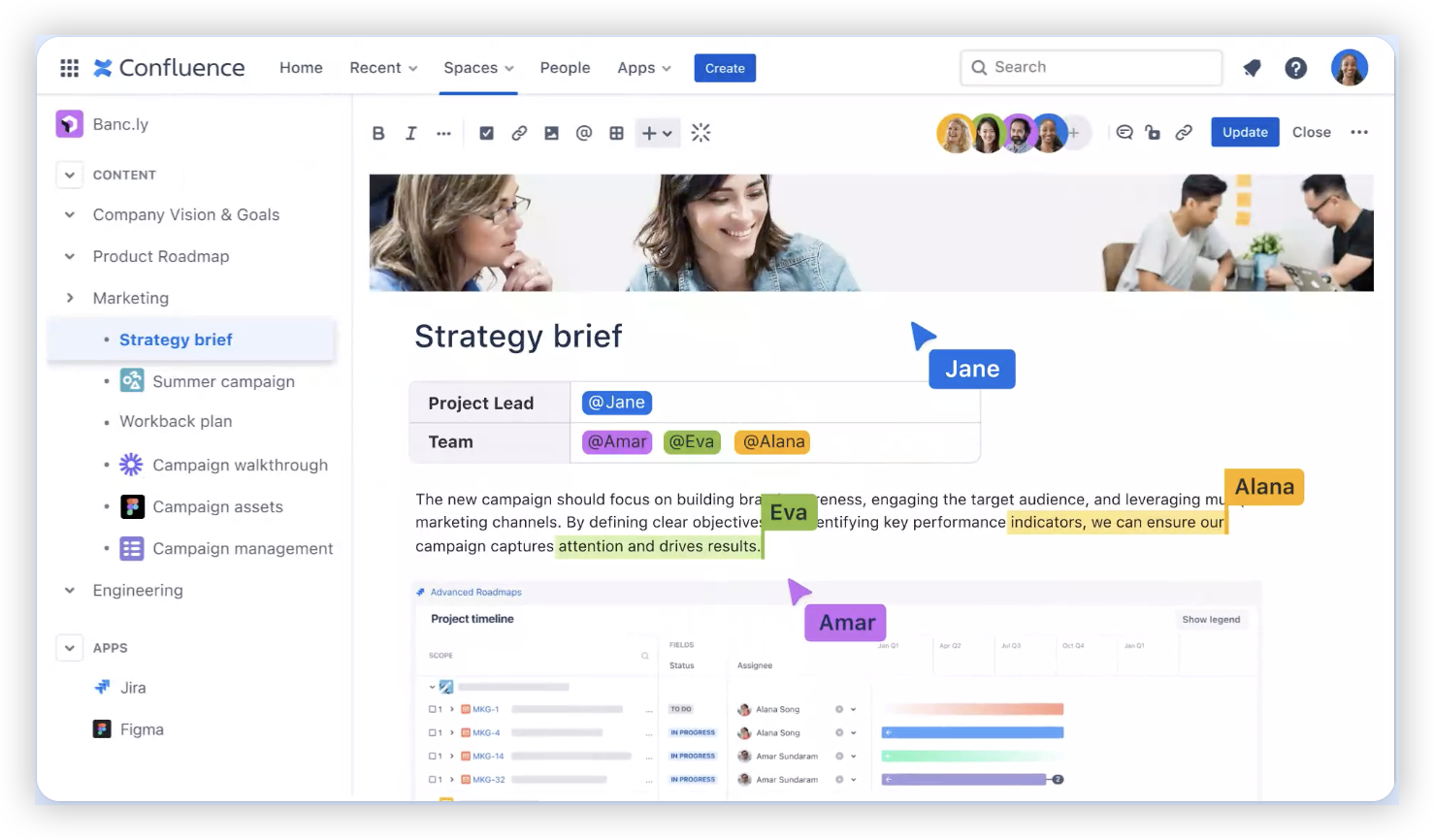
Create a practical link between a page and an issue. In Confluence, add a Jira issue link or Jira issues macro to a relevant page. In Jira, add a link to the related Confluence page in the issue description or a comment.
Test access as a teammate would. Open each link using an account with typical project permissions. Check that it reaches the intended issue or page and that the person can view it.
But here's the truth: a connection between products does not automatically grant access to every project or space. Each product still applies its own permissions.
Choose the Right Setup for Your Hosting Type
Atlassian Cloud and self-managed installations have different administration paths. With Cloud, first confirm that both products are available from the same site. Product navigation can make switching easy, while permissions still control what each person can see.
With self-managed Jira and Confluence, an application link typically connects the two installations. For example, an administrator might link a Jira address on the company network to the matching Confluence address. Authentication settings matter, especially when the products use different security policies.
Here's why: a link can appear to work for an administrator and fail for a teammate with fewer privileges. Test the connection with a regular team account before announcing it as ready.
Link Issues and Pages Where They Help
Choose links that give people useful context at the moment they need it. A release checklist in Confluence might link to the Jira issue tracking its final approval. A Jira issue can point to a design decision page that explains why a feature changed.
For a broad project overview, a Jira issues macro can show a filtered set of issues inside a Confluence page. For a single task, a direct issue link may be clearer. Keep the page focused: a short list of relevant issues is easier to scan than a crowded project-wide view.
The best part? You can connect information without copying the same details into both products. Keep the working status in Jira and the longer project explanation in Confluence, then link between them.
Check Permissions and Security Before Sharing
Jira project permissions and Confluence space permissions are managed separately. Someone may be able to open an issue but receive an access request when they follow its linked page. The reverse can happen too.
For example, if a project team includes a contractor, check whether the contractor should see both the issue and the related page. Review access before linking sensitive planning information in a broadly visible Jira issue.
Let me explain: a visible link is not proof that its destination is visible to everyone. Test important connections with the same access level your intended audience has, and ask administrators to review any restricted areas.
Verify the Connection and Fix Common Link Problems
After setup, test links in both directions. Open a Jira issue and follow its Confluence link, then open the Confluence page and check its Jira reference. Confirm that each link reaches the correct workspace and that the destination loads for the expected people.
If a link fails, check the product URL, authentication settings, and destination permissions first. A changed site address can leave an old link pointing nowhere. If the connection works for administrators only, review access settings in both products.
You might be wondering: how often should you check? Revisit the links when teams reorganize projects, change access rules, or move pages. A quick review after those changes can prevent broken paths from lingering.
A Unified Project and Knowledge Management Option: ONES.com
When your goal is to keep project work and team knowledge connected, ONES.com offers a unified platform for project management and knowledge management. ONES Project handles project management as a Jira alternative, while ONES Wiki provides knowledge management as a Confluence alternative; the products are sold separately.

That distinction matters: ONES.com is an alternative to consider when choosing a platform setup. This guide does not suggest that ONES Project directly connects Jira to Confluence.
Value Proposition
ONES.com brings project planning and team knowledge into one platform, with ONES Assistant providing AI-powered assistance. Teams can choose Cloud, On-Premise, Private Cloud, or air-gapped deployment, with full feature parity between cloud and self-hosted versions.
Core Capabilities
Issue tracking feels disconnected from team knowledge: ONES Project and ONES Wiki sit within the unified platform, helping teams keep project work and knowledge management close together.
A Jira workflow is difficult to replace: Jira-compatible workflows in ONES Project help teams retain familiar ways of organizing work.
Standard issue fields do not fit the process: Custom workflows and fields let teams shape project tracking around their requirements.
Sprint work needs clearer structure: Sprint management supports planning and tracking work across development cycles.
Teams spend time repeating routine actions: Automation can handle defined workflow actions and reduce manual follow-up.
Project status takes too long to assemble: Built-in reporting helps teams review progress without relying on extra reporting add-ons.
Teams need on-premise or restricted-network deployment: On-Premise, Private Cloud, and air-gapped options support different hosting requirements.
Separate tools create extra administration: A unified platform can reduce the need to manage multiple products and plugins for project and knowledge workflows.
Application Scenarios
A software team that already plans work in sprints could use ONES Project to manage issues and reporting, while keeping team knowledge in ONES Wiki. This can suit teams evaluating a Jira and Confluence alternative within one platform.
An organization with restricted network requirements may consider the self-hosted deployment options. A department that needs custom approval steps could configure workflows and fields to reflect its review process, then use built-in reporting to follow progress.
Common Challenges and Practical Solutions
A teammate sees a link but cannot open it. Check permissions in the product where the destination lives. Grant access only when appropriate, then test again with a typical team account.
The link opens the wrong site or page. Confirm the destination URL and update outdated links. If a site address changed, review both the application link and any manually added page links.
The administrator cannot find the same settings shown in a guide. Check whether the products use Cloud or self-managed hosting, then look for the corresponding administration area. Labels can differ across versions.
Pages and issues contain duplicate details. Decide which product owns each piece of information. Keep issue status in Jira and explanatory project knowledge in Confluence, then link between them.
FAQs
Do Jira and Confluence connect automatically?
They may be available together through the same Atlassian Cloud site, but access and linking still depend on your setup. Self-managed installations commonly need an application link configured by an administrator. In either case, check that the products can reach each other and that teammates have permission to open the linked issues and pages.
Can I connect Jira and Confluence if they are hosted separately?
Possibly, but the method depends on the hosting arrangement, product versions, network access, and authentication settings. Self-managed installations may use application links, while Cloud setups depend on the sites and products involved. Ask your administrator to confirm which connections are supported before changing security or network settings.
Why can I open a Jira issue but not its Confluence page?
Jira and Confluence permissions are separate. Your account may have access to the Jira project but not the Confluence space containing the page. Ask the space administrator to review your access. If the page should be visible to your team, check its space and page restrictions rather than assuming the integration is broken.
What is the simplest way to link a Jira issue from Confluence?
Open the Confluence page where the reference belongs and add a Jira issue link or Jira issues macro, following the options available in your version. Use a direct issue link for one task. For a group of related work items, a filtered macro can make the page more useful, provided its results are clear to readers.
Conclusion
Connecting Jira and Confluence starts with identifying your hosting type, confirming administrator access, and setting up the appropriate product link. Then connect the pages and issues that give your team useful context, and test access with a typical teammate account.
When links fail, check permissions and addresses before rebuilding the connection. Keep issue tracking and project knowledge in their natural homes, then link them where people need the context. That simple approach makes Jira and Confluence easier to navigate as your projects change.