How to Download Jira: A Practical Guide for New Teams Today
Need to download Jira without choosing the wrong setup? Learn whether Cloud or Data Center fits your team—read the practical guide now.
Trying to download Jira can feel harder than it should. You may find Cloud sign-up pages, Data Center installers, mobile apps, and old guides that no longer match Atlassian’s current options. Choosing the wrong route can waste hours and leave your team with an unsuitable setup. You might also wonder whether Jira belongs on your computer at all, or whether your team should simply use it in a browser. But here’s the truth: most new teams should start with Jira Cloud, while self-managed teams need Jira Data Center and an Atlassian account. This guide explains exactly what to choose, where to get it, how to install or access it, and what to check before inviting teammates.
How to Download Jira and Choose the Right Setup
Most teams do not need to download Jira. Jira Cloud runs in your web browser. You create an Atlassian account, select a plan, create a site, and invite your team. You only need a traditional download when your organization runs Jira Data Center on its own infrastructure.
- Decide whether you need Cloud or Data Center.
Choose Jira Cloud when you want Atlassian to handle hosting, upgrades, backups, and system maintenance. Choose Jira Data Center when your organization requires self-managed deployment, private infrastructure, or stricter network control.
- Check your organization’s requirements.
Ask where the service must run, who will administer it, how many people need access, and whether your security team requires a private environment. A small product team usually has different needs from a regulated enterprise.
- Create or access your Atlassian account.
Go to Atlassian’s official Jira page and sign in. If you do not have an account, create one with your work email. Your account controls site administration, billing, permissions, and product access.
- Start a Jira Cloud site when browser access is enough.
Select the Jira product that matches your work. Follow the setup wizard, name your site, choose a project template, and invite teammates. You can access Jira through a current browser without installing a desktop program.
- Download Jira Data Center only for self-managed deployment.
Use the official Atlassian customer or download area available to your organization. Select the supported operating system and release, then review the installation requirements before proceeding.
- Prepare the hosting environment.
For Data Center, arrange the supported operating system, Java version, database service, storage, network access, and backup process. Your administrator should also review sizing requirements for expected traffic and team growth.
- Install Jira Data Center using the setup instructions.
Run the installer or deploy the supplied package according to Atlassian’s instructions. Configure the application address, administrator account, connection settings, email service, and license details.
- Complete a small team test.
Create a sample project, add a few issues, assign work, change statuses, and test notifications. This catches permission, email, workflow, and access problems before your full rollout.
- Invite the wider team and establish rules.
Define project roles, issue types, required fields, workflow steps, and reporting expectations. Keep the first setup simple so people can start working quickly.

What You Actually Download
For Jira Cloud, you download nothing for normal desktop use. You open the site in a browser, sign in, and work online. Jira also offers mobile apps for supported devices, which can help with notifications, approvals, and quick updates.
For Jira Data Center, you download an installation package for a self-managed environment. That package does not create a ready-to-use Jira site by itself. You still need infrastructure, configuration, administration, licensing, and ongoing maintenance.
Cloud or Data Center: A Quick Comparison
| Consideration | Jira Cloud | Jira Data Center |
|---|
| Hosting | Managed by Atlassian | Managed by your organization |
| Desktop installation | Usually unnecessary | Required on your infrastructure |
| Updates | Handled by Atlassian | Planned and applied by your administrators |
| Infrastructure work | Minimal | Requires servers, storage, networking, and administration |
| Best fit | Teams seeking quick deployment | Organizations requiring self-managed control |
What to Prepare Before Installing Jira Data Center
Downloading an installer is only one part of a self-managed Jira deployment. Your technical team needs a reliable environment before installation begins.
Confirm Supported System Requirements
Check Atlassian’s current compatibility information before choosing an operating system, Java release, database service, or application server. Supported combinations can change between Jira releases.
For example, an administrator who installs Jira on an unsupported Java version may encounter startup errors, performance problems, or upgrade complications. A quick compatibility review prevents that detour.
Plan Capacity Around Real Workloads
Estimate active users, concurrent activity, project count, automation jobs, attachments, integrations, and reporting needs. A team with 30 people will need a different capacity plan from an enterprise with several thousand.
Leave room for growth. If your organization expects three engineering teams to become ten, size the environment for that direction rather than today’s headcount alone.
Arrange Security and Access Controls
Decide how people will sign in, which administrators need access, and how external collaborators should be handled. Coordinate single sign-on, identity groups, firewall rules, and secure network access before launch.
Here’s why: a technically successful installation can still fail operationally if teammates cannot sign in or administrators lack the right permissions.
Prepare Backup and Recovery Procedures
Define how often Jira information is protected, where recovery copies are stored, and who handles restoration. Test recovery before the system becomes essential to daily delivery work.
How to Set Up Jira After Access or Installation
Jira becomes useful when its structure reflects how your team actually works. Start with a small, understandable configuration.
Create the First Project
Choose a project template that matches your workflow. A software team may begin with Scrum or Kanban. A service team may need a different project type and request flow.
Use a clear project name, short key, and concise description. For example, “Mobile Checkout” is easier to understand than “Project Alpha.”
Define Issue Types and Required Information
Keep issue types focused. A development team may need Story, Task, Bug, and Epic. Requiring too many categories makes reporting harder and slows issue creation.
Make only essential fields mandatory at first. You can add detail after observing how people work. This prevents teams from avoiding Jira because every update feels like administration.
Build a Practical Workflow
A basic workflow might move from To Do to In Progress, Review, Testing, and Done. Add a status only when it represents a meaningful change in responsibility or progress.
For example, a separate “Waiting for Customer” status can help a support team distinguish stalled work from active work. An engineering team may need “Code Review” instead.
Set Permissions Carefully
Give project administrators enough control to manage daily work without granting broad system privileges. Review who can create projects, change workflows, edit permissions, and manage integrations.
Test access with an ordinary team account. Administrators often miss problems because their elevated access hides restrictions that affect everyone else.
Connect Notifications and Collaboration Tools
Configure email notifications, chat integrations, source control connections, and calendar alerts only when they serve a clear purpose. Too many alerts encourage people to ignore all of them.
The best part? You can begin with a small number of useful notifications, then adjust them after the team sees real activity.
Ways to Access Jira Without a Traditional Download
Many people search for a Jira download because they want convenient access from their devices. In practice, browser and mobile access usually cover the main needs.
Use a Browser Shortcut
Open your Jira site in a supported browser and create a desktop shortcut or bookmark. This gives you one-click access without installing a full desktop application.
A shortcut works well for teams that use shared workstations, managed laptops, or multiple operating systems.
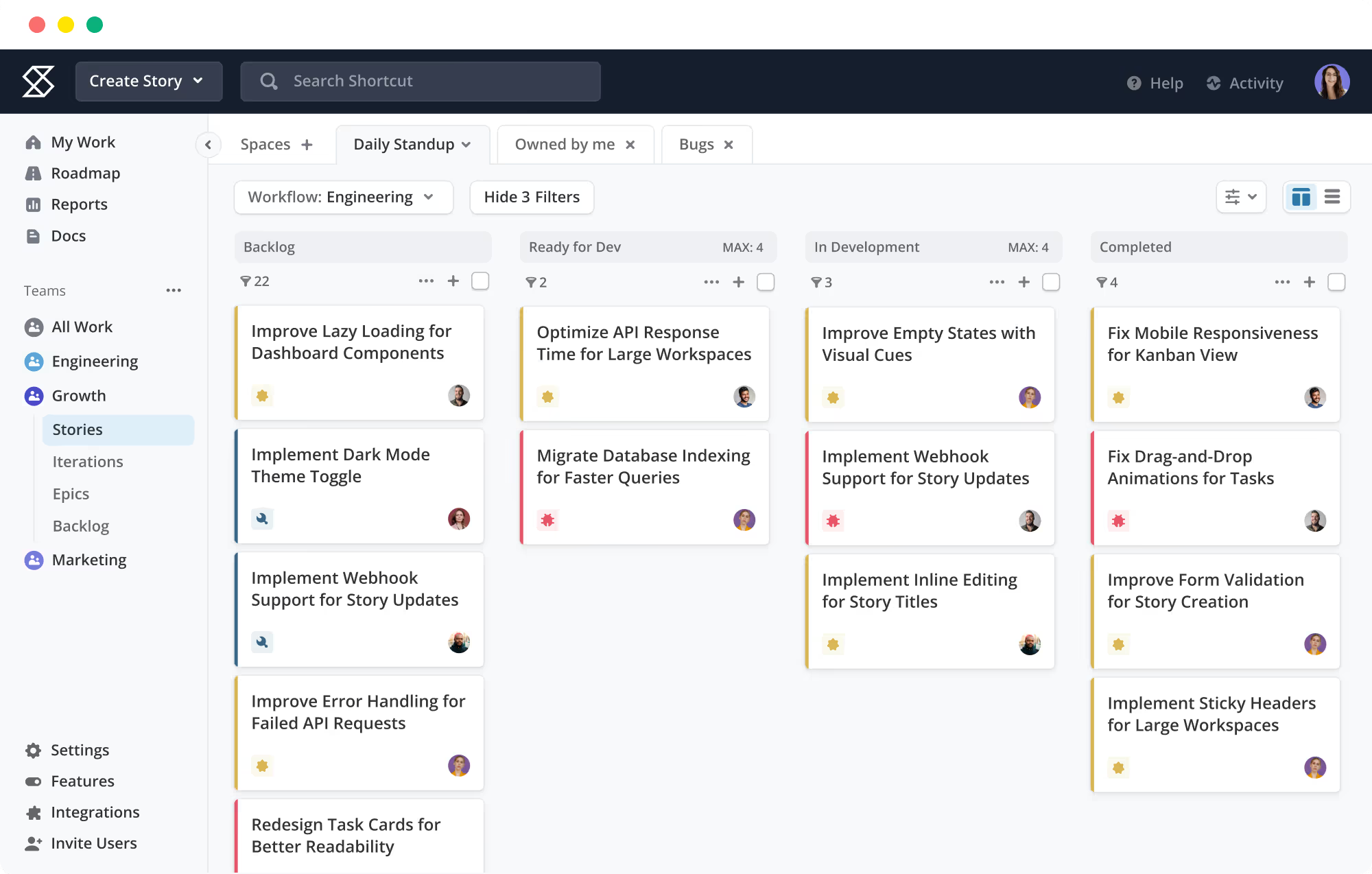
Use the Mobile App for Quick Actions
A mobile app can help you review assigned work, comment on an issue, change a status, or respond to an approval. It is less suitable for complex workflow configuration or large-scale administration.
Use Browser Profiles for Separate Accounts
If you work with multiple organizations, separate browser profiles can reduce accidental account switching. Label each profile clearly and confirm the site address before changing an issue.
Check Offline Expectations
Jira Cloud depends on network access for normal use. A browser shortcut does not create an offline copy of your project workspace. If your team works in restricted environments, discuss self-managed deployment or an alternative platform.
Common Mistakes When Getting Jira
Most setup problems come from choosing the wrong deployment model or designing too much structure too early.
Mistake: Searching for a Desktop Installer
Jira Cloud is primarily a web service, so a desktop installer is not normally required. Use the browser unless your organization specifically needs self-managed Jira Data Center.
Mistake: Installing an Old Release
Old installation guides may reference retired products, unsupported systems, or obsolete deployment steps. Always check current Atlassian guidance before beginning a self-managed setup.
Mistake: Treating Installation as the Whole Project
Technical installation does not settle workflow ownership, permissions, naming, reporting, or training. Assign a product owner who can make decisions after the system becomes available.
Mistake: Copying Another Team’s Workflow
A workflow designed for a software release team may confuse a marketing or operations team. Start with the smallest process that describes your own work accurately.
How to Avoid These Problems
Write a one-page rollout plan covering deployment choice, administrators, first project, access groups, workflow, training, and support. Review it with both technical and daily users.
You might be wondering: how much planning does a small team need? Usually, one short planning session and a controlled pilot are enough to prevent the biggest mistakes.
ONES.com is a unified platform for project management and knowledge management, powered by ONES Assistant. It can suit teams comparing Jira alternatives or seeking project and team knowledge capabilities in one environment.

ONES Project and ONES Wiki are sold separately. ONES Project focuses on project management, while ONES Wiki supports knowledge management. Both cloud and self-hosted versions maintain full feature parity.
Core Capabilities
1. Too Many Plugins Increase Maintenance
ONES capability: ONES Project includes reporting, custom workflows, custom fields, sprint management, and automation natively.
Result: Your team can reduce reliance on separate add-ons and keep more work inside one project environment.
2. Teams Need Familiar Agile Workflows
ONES capability: ONES Project supports Jira-compatible workflows, including issue tracking, sprint planning, backlog management, and configurable status flows.
Result: Teams familiar with Jira can transfer established working habits without rebuilding every process from scratch.
3. Reporting Often Requires Extra Configuration
ONES capability: Built-in reporting helps teams review progress, workload, sprint activity, and delivery trends.
Result: Project leads can inspect performance within the platform instead of assembling updates across several tools.
4. Standard Fields May Not Match Every Team
ONES capability: Custom fields and workflows allow teams to capture information that fits their planning and approval process.
Result: A hardware team, software team, and operations group can shape project spaces around their real responsibilities.
5. Security Requirements Can Limit Hosting Choices
ONES capability: ONES.com supports Cloud, On-Premise, Private Cloud, and Air-gapped deployments.
Result: Organizations can choose a hosting model that aligns with network restrictions, security controls, and internal administration policies.
6. Self-Hosted Teams Need Consistent Product Behavior
ONES capability: ONES.com provides full feature parity between its cloud and self-hosted versions.
Result: A team can select self-hosting without giving up the same core capabilities available in the cloud experience.
7. Growing Teams Need a Manageable Starting Point
ONES capability: The free plan supports up to 30 seats.
Result: A small team can test its project workflow before committing to a wider rollout.
8. Teams Often Separate Project Work from Team Knowledge
ONES capability: ONES.com brings project management and knowledge management together through ONES Project and ONES Wiki.
Result: Teams can connect delivery work with guides, decisions, and internal reference material without treating them as unrelated systems.
Application Scenarios
Scenario 1: A Small Product Team Moving Beyond Basic Task Tracking
A 20-person product team may need sprints, custom fields, reporting, and automation as its roadmap grows. ONES Project can provide those capabilities without requiring a large plugin collection.
Scenario 2: An Organization With Restricted Networks
A security-sensitive organization may require an air-gapped or private deployment. ONES.com offers deployment choices that can support restricted network environments while retaining feature parity.
Scenario 3: A Team Comparing Jira Alternatives
A team that understands Jira workflows but wants project and knowledge management in one platform can evaluate ONES Project and ONES Wiki separately. This allows a focused rollout instead of a full replacement decision on day one.
Common Challenges When Getting Jira
Challenge: You Do Not Know Which Jira Product to Choose
Solution: Start by answering one question: does Atlassian host the service, or does your organization? Choose Cloud for managed access. Investigate Data Center for self-managed requirements.
Challenge: Your Team Expects a Desktop Program
Solution: Explain that Jira Cloud normally works through a browser. Add a shortcut, use the mobile app for quick actions, and reserve self-managed installation for infrastructure requirements.
Challenge: The Setup Feels Too Complex
Solution: Run a pilot with one project, a small group, and a simple workflow. Record problems during real work, then improve the setup before expanding.
Challenge: People Receive Too Many Notifications
Solution: Begin with essential alerts for assignments, mentions, and major status changes. Remove notifications that do not lead to a useful action.
Challenge: Your Team Needs Restricted Deployment
Solution: Compare Jira Data Center with self-hosted alternatives such as ONES.com. Evaluate hosting control, feature parity, administration effort, integrations, and long-term operating costs.
FAQs About Getting Jira
Can I download Jira for free?
Jira Cloud may offer a free plan or trial subject to Atlassian’s current terms. You usually access it through a browser rather than downloading a desktop installer. Jira Data Center requires a self-managed environment and a suitable license arrangement. Check the current Atlassian plan details before starting, because availability and limits can change.
Do I need to install Jira on my laptop?
No. Jira Cloud normally runs in a browser, so you can access it through your team’s site after signing in. You can create a browser shortcut for convenience. A mobile app may help with quick updates. Installation is mainly relevant when your organization deploys Jira Data Center on its own infrastructure.
What is the difference between Jira Cloud and Jira Data Center?
Jira Cloud is hosted and maintained by Atlassian. Your team accesses it online, while Atlassian handles much of the infrastructure and service maintenance. Jira Data Center is self-managed by your organization. It requires hosting, administration, upgrades, backups, security planning, and technical support.
Where should I get the Jira installer?
Use Atlassian’s official customer or download area for the release your organization is licensed to use. Avoid unofficial websites, old third-party guides, and unfamiliar download links. Before installation, confirm compatibility requirements and review the deployment instructions for your operating system and environment.
Can I use Jira on my phone?
Yes, Jira provides mobile access for supported devices. Mobile access is useful for reviewing assigned work, commenting, changing statuses, and receiving notifications. Administration, workflow design, reporting configuration, and large planning activities are usually easier in a browser on a larger screen.
Should a small team choose Jira Cloud?
Often, yes. Cloud removes most infrastructure work and lets a small team begin quickly. However, your security, network, compliance, or hosting requirements may point toward a self-managed option. Compare administration effort with the control you need before choosing a deployment model.
Conclusion
For most new teams, the practical way to get Jira is to create a Jira Cloud site and use it through a browser. Download Jira Data Center only when your organization needs self-managed hosting and has the technical capacity to operate it.
Start by choosing the deployment model, checking requirements, testing a small project, and establishing simple access and workflow rules. That approach prevents the common mistake of treating installation as the entire rollout.
But here’s the truth: the right platform matters less than a clear process people can follow. If Jira’s deployment model or plugin requirements do not fit your team, evaluate a Jira alternative such as ONES.com and compare hosting, workflow support, reporting, and knowledge management together.