How to Find and Restore Deleted Tasks in Jira: A Quick Guide
Can't find a Jira task? Learn how to find jira deleted tasks and check admin audit records and backups for recovery. Read now to learn more.
A deleted Jira task usually cannot be restored through a built-in trash or undo button. First, check whether the issue was deleted or simply moved, hidden by a filter, or restricted by permissions. If it was deleted, an administrator can look for an audit record and check whether a suitable backup exists.
That distinction matters because Jira issue searches generally stop returning a task after deletion. Waiting or trying more filters will not bring a permanently deleted issue back, and recreating it may leave comments, attachments, or links behind.
But here's the truth: recovery depends on your Jira edition, your backup setup, and how much time has passed. Here's why: restoring a backup can affect more than one issue. The steps below help you confirm what happened, choose a safe recovery route, and reduce the chance of losing important work again.
How to find and restore a deleted Jira task
Start by checking whether the task is actually deleted. If it is, use the audit trail and your administrator’s backup process to assess recovery options. Follow these steps in order:
- Search for the task in Jira. Try its issue key, such as
APP-248, and a distinctive phrase from its summary. Clear filters and check the expected project, since a changed project, permissions, or a saved filter can hide an existing issue.
- Check whether the task moved or became inaccessible. Ask a project administrator to check project permissions and issue security. If the task was moved, search the destination project or ask an administrator to check its activity.
- Look for an audit record. A Jira administrator can review available audit logs for an issue deletion event. The record may show the issue key, time, or account involved, depending on the Jira edition and logging settings.
- Ask an administrator to check backups. Confirm whether a backup from before deletion exists and which recovery options apply to your Jira Cloud or Data Center environment. A full-site or instance restore can affect current work, so agree on a recovery plan before proceeding.
- Restore or recreate the task, then verify it. If the backup process can recover the issue, have an administrator follow the relevant recovery procedure. If it cannot, recreate the task and add the details you can confirm. Check ownership, status, links, attachments, and comments.
Jira does not generally offer a simple, user-facing trash bin for restoring deleted issues. The exact options vary by deployment and backup configuration, so confirm the procedure with your Jira administrator before making changes.

How to tell whether a task was deleted
An empty search result does not prove deletion. The task may be in another project, hidden by a filter, or unavailable because your account lacks access. Try the issue key first, then search by a phrase from the summary with filters cleared.
For example, suppose a teammate reports that APP-248 disappeared. If the issue key returns nothing for you, ask a project administrator to search and check the issue’s project and permissions. If the administrator also cannot find it, an audit-log check can help confirm whether deletion occurred.
Let me explain: a missing task and a deleted task require different fixes. Adjusting access or finding the right project may restore visibility immediately. A deleted issue usually needs an administrator-led recovery or recreation plan.
What Jira audit logs can tell you
Audit logs can help establish whether an issue was deleted, when an event occurred, and which account performed the action. The details available depend on your Jira edition, permissions, and logging settings. An administrator may need to review the relevant project or site logs.
For a practical check, provide the administrator with the issue key, project name, and an approximate deletion date. A narrower time window can make the search faster. If the log shows a deletion event, record the details your team needs for the recovery decision.
An audit record helps explain what happened; it does not itself restore the issue. Keep that distinction clear when you report the incident, so the team can move quickly to backup checks or controlled recreation.
Jira Cloud and Data Center recovery options
Jira Cloud and Jira Data Center can have different backup and restore procedures. In either case, the key question is whether a suitable backup exists from before deletion and whether an administrator can recover the task without disrupting current work.
Cloud recovery may involve site-level backup and restore procedures. Data Center recovery may involve restoring an instance backup in a controlled environment. These approaches can affect more than one issue, so administrators should review the current Atlassian guidance for their deployment and assess the impact before acting.
The safest approach is often to test recovery in a separate environment first. For example, an administrator may restore a backup to a staging instance, locate the task, and assess which details can be transferred. This helps avoid replacing recent production changes during an urgent recovery.
When recreating the task is the practical choice
If no suitable backup exists, or a broad restore would create too much risk, recreating the issue may be the most workable option. Gather the task’s summary, description, assignee, priority, status, and due date from teammates or related project activity.
Then rebuild important relationships. Re-add parent and child links, connect related issues, and attach any available supporting material. Ask teammates to confirm key decisions or comments that cannot be recovered, especially when the task affects a sprint or release.
For example, if a deleted task tracked a bug fix due before release, create a replacement and link it to the relevant release issue. Note that it is a recreated task and record what could not be recovered. That gives the team a clearer history going forward.
Reducing the risk of losing Jira tasks
Prevention starts with clear deletion permissions and a recovery plan. Limit deletion access to people who need it, and explain when closing or archiving a task is a better choice. A completed issue often remains useful for future decisions and project history.
Agree on who checks backups, who approves a restore, and how recovery will be tested. For example, a project team can document an administrator contact and a regular backup review schedule in its internal process. A short plan is more useful during an incident than searching for owners at the last minute.
The best part? A simple confirmation step can prevent accidental loss. Before deleting a task, check its issue key and project, then confirm that the team intends to remove it rather than close or move it.
A project management alternative: ONES.com
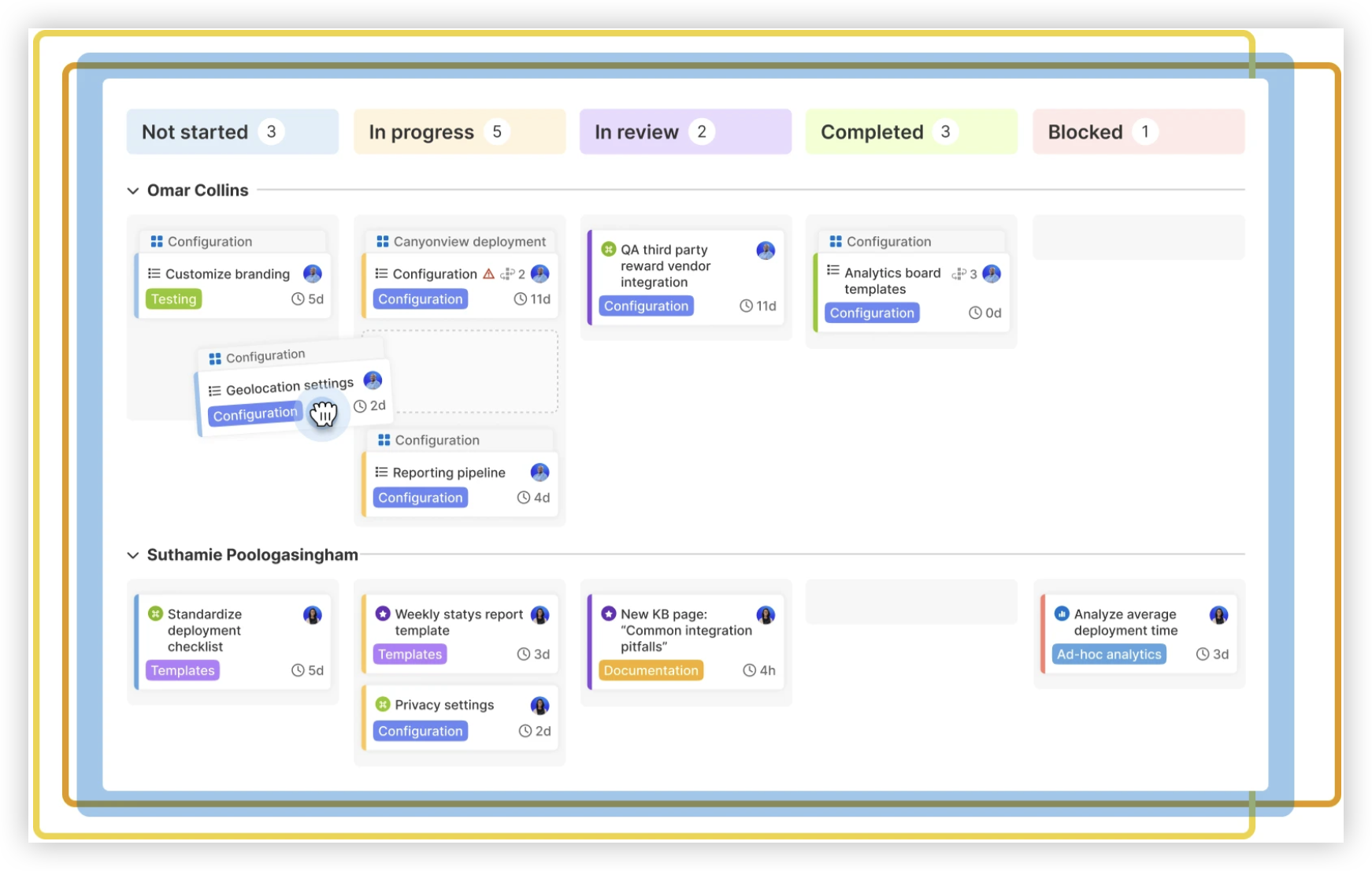
ONES.com brings project management and knowledge management together in one platform, with AI support through ONES Assistant. ONES Project is its project management product and a Jira alternative; ONES Wiki is its knowledge management product and a Confluence alternative. They are sold separately.

If your team is reviewing its project workflow after a deletion incident, ONES Project offers Jira-compatible workflows, custom fields, sprint management, automation, and built-in reporting. It can help teams manage work and project knowledge in a consistent environment, while the recovery steps above still apply to issues deleted in Jira.
Core capabilities
- Scattered project work: ONES Project provides project management features in one platform, helping teams keep task work organized.
- Familiar Jira processes: Jira-compatible workflows help teams carry established work patterns into a Jira alternative.
- Rigid task fields: Custom fields let teams capture information that fits their process, improving task clarity.
- Hard-to-coordinate sprints: Sprint management helps teams plan and track work within an iteration.
- Repetitive task handling: Automation can handle configured workflow actions, reducing manual follow-up.
- Limited project visibility: Built-in reporting gives teams a view of progress without relying on a collection of add-ons.
- Plugin-heavy setups: Native capabilities can reduce plugin dependence for common project workflows.
- Deployment constraints: Cloud, On-Premise, Private Cloud, and Air-gapped deployments give teams options for their environment. ONES.com states that its cloud and self-hosted versions have full feature parity.
Application scenarios
A software team moving from Jira can map its existing issue types, workflows, and sprint practices to ONES Project. The team can test the new process with a project before expanding it, while confirming that essential integrations and reporting needs are covered.
A team working in a restricted environment may evaluate an On-Premise, Private Cloud, or Air-gapped deployment. If it also needs a knowledge management product, it can consider ONES Wiki separately from ONES Project.
ONES.com offers a free plan for up to 30 seats. Compare the deployment requirements, workflows, and recovery procedures with your team’s needs before choosing a platform.
Common challenges when recovering deleted issues
The task is missing, but the cause is unclear
Challenge: A search returns no result, and the team assumes the issue was deleted. Response: Check filters, project location, permissions, and the issue key before asking an administrator to investigate deletion.
The audit log has limited detail
Challenge: The log does not show enough information to identify the task or confirm the event. Response: Share the approximate date, project, and any known issue key with an administrator. Check whether the relevant audit events were available and retained.
A backup restore could disrupt current work
Challenge: A backup may contain the deleted issue but also replace newer changes if restored broadly. Response: Ask an administrator to assess the scope and test the restore in a separate environment before changing the active site or instance.
Recreation leaves gaps in the task history
Challenge: A recreated issue may not include its original comments, attachments, or links. Response: Gather what the team can confirm, rebuild relationships, and note which details remain unavailable. This gives future readers a clear account of the replacement task.
FAQs about deleted Jira tasks
Can I restore a deleted Jira task myself?
Usually, an administrator needs to investigate and handle recovery. Jira generally does not provide a simple trash area where you can restore a deleted issue. Your options depend on your Jira edition, available backups, and the recovery process your administrator can use. If the task is only hidden by permissions or filters, an administrator may be able to restore access without recovering a deleted issue.
Does Jira have a trash bin for deleted issues?
Jira generally does not offer a user-facing trash bin for restoring deleted issues. A task that no longer appears in search may have been deleted, moved, or hidden by access settings. Check the issue key, project, filters, and permissions first. If an administrator confirms deletion, ask about audit logs and backups rather than expecting a direct undo option.
Can an audit log restore a deleted task?
No. An audit log can help an administrator confirm an event and identify details such as its timing or the account involved, when that information is available. It does not bring the issue back. Recovery usually requires an appropriate backup procedure, or the team may need to recreate the task if no safe recovery path exists.
Will restoring a Jira backup recover only one issue?
Do not assume a backup restore will affect only one issue. The scope depends on the backup and recovery method, and a broader restore may affect newer work. Ask your administrator to assess the options and test the process in a separate environment where possible. Confirm the impact before approving any restore to the active Jira site or instance.
Conclusion
If a Jira task disappears, first confirm whether it was deleted or simply hidden, moved, or restricted. An administrator can check available audit logs and backups, then choose between a controlled recovery and careful recreation.
But here's the truth: there may be no direct way to restore a deleted issue. Check the cause quickly, protect current work before attempting a restore, and make deletion permissions and backup responsibilities clear. A short recovery plan can help your team respond with less confusion the next time a task goes missing.