How to Integrate Jira With Confluence: A Step-by-Step Guide
Want Jira issues and project knowledge connected? Learn how to integrate Jira with Confluence, link pages, and keep updates clear. Read now to get started.
Jira and Confluence can work together so your team can connect issues with the pages that explain them. You can link a page to a Jira issue, show issue details on a Confluence page, and help people move between project work and supporting knowledge.
When the connection is unclear, teams waste time searching, repeat updates, or rely on stale page links. Permissions and product versions can make setup feel more complicated than it needs to be.
But here's the truth: you can start with a few reliable links, then expand the workflow as your team needs. This guide walks you through setup, explains what to check for Cloud and self-managed environments, and covers common fixes. You’ll also see how to keep the connection useful without creating unnecessary maintenance.
How to integrate Jira with Confluence
For many teams, the quickest start is to connect a Jira issue and a Confluence page using a link or Smart Link. Administrators can also check the product connection, while teams can add Jira issue details to pages and connect a knowledge space to Jira Service Management.
-
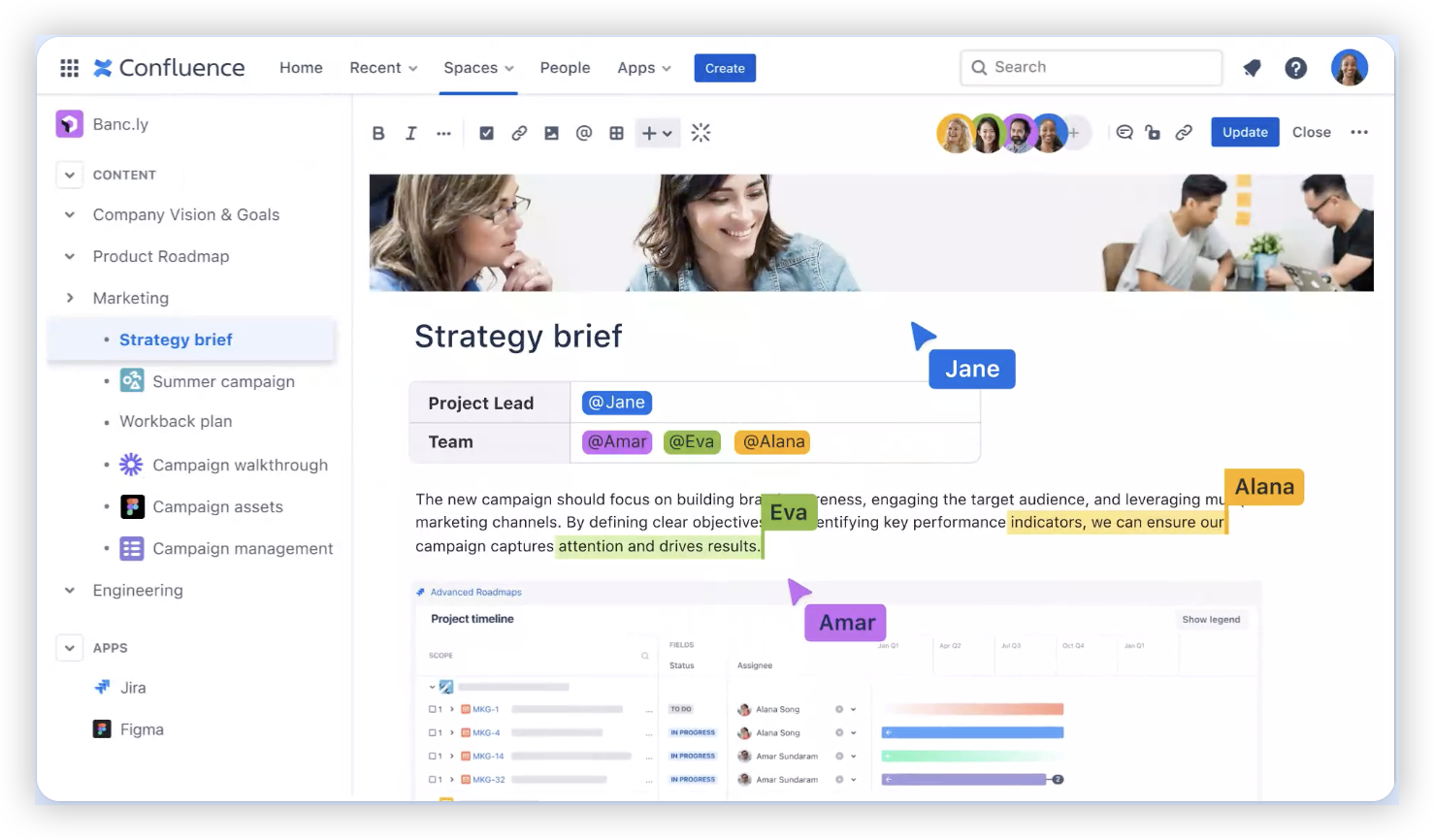
Check your products, permissions, and setup
Confirm that your team has access to both Jira and Confluence. Ask a Jira or Confluence administrator to check whether the products are on the same Atlassian site or connected through an application link.
Cloud and self-managed setups can have different menus and connection methods. Note which deployment you use, and make sure the person setting up the connection has the required administrative permissions.
-
Connect the products if an administrator needs to do so
In a self-managed environment, an administrator can open Jira’s application links settings and add the Confluence URL. Follow the authorization prompts to establish the connection, then confirm that the link appears as active.
For Cloud, check the products and app connections in the Atlassian administration area. Menu names can change, so use the current administration settings for your site. If both products already appear under the same site, the connection may already be available.
-
Link a Confluence page to a Jira issue
Open the relevant Jira issue and add the Confluence page URL to its description or a comment. In Confluence, paste the Jira issue URL onto the page. Cloud may display the link as a Smart Link, with options for a simple link, a card, or an embedded view.
For example, link an issue called “Update checkout flow” to a page that explains the acceptance criteria. A developer can open the page from the issue, while a product manager can see the related issue from the page.
-
Show Jira issues on a Confluence page
On a Confluence page, insert the Jira issues macro if it is available in your setup. Search for issues or enter a Jira query to display relevant work. You can show a list for a project, sprint, release, or selected issue set.
Keep the results focused. A team sprint page, for instance, might show only unresolved issues assigned to the current sprint, rather than every issue in the project.
-
Connect a knowledge space to Jira Service Management
If you use Jira Service Management, open the service project’s settings and look for its knowledge base options. Choose the relevant Confluence space, then check that the intended agents and customers can view the pages they need.
This connection can help agents find guidance while handling requests. Customer access depends on your product configuration and page permissions, so test the experience with an account that reflects your audience.
-

Test the connection with everyday accounts
Open a linked issue and page as a regular team member. Check that the links resolve, the issue details load, and the person has permission to see the page or issue.
Ask someone outside the project team to test any customer-facing knowledge flow. A connection can be technically active while its content remains inaccessible to the intended audience.
What the Jira and Confluence connection lets you do
The integration connects project work with the pages that explain decisions, requirements, and processes. A Jira issue can point to a Confluence page, and a Confluence page can display Jira issues through a macro or link.
Here's why: each product has a different job. Jira tracks work and progress, while Confluence organizes team knowledge. Linking them gives people a route between a task and the context behind it.
For example, a release page can show open bugs from Jira alongside rollout notes in Confluence. A team member can scan the release status, then open an issue to review its owner and current progress.
Cloud and self-managed setups have different connection details
Atlassian Cloud products may share a site and offer Smart Links that turn pasted URLs into previews. Your administrator should still confirm product access, app permissions, and any site-level connection settings.
Self-managed Jira and Confluence instances often use application links between product URLs. An administrator may need to review authentication, certificates, network access, and firewall rules before the products can communicate.
Let me explain: the goal is the same, but the administration path depends on your deployment. If a link opens in one direction but not the other, check access for both products rather than assuming the integration itself is broken.
Build useful workflows around linked work and knowledge
Start with a repeatable use case. A product team might link each Jira feature issue to a requirements page, then use a Confluence release page to show the issues planned for that release.
Use clear page titles and focused Jira queries. A page called “Mobile release checklist” is easier to recognize than “Project notes,” and a query limited to the release keeps the page readable.
The best part? You can improve the workflow gradually. Begin with issue-to-page links, then add a Jira macro when a team needs a live view of related work. Review the setup after a few weeks to remove stale links and clarify page ownership.
Keep access, ownership, and page content in sync
Jira and Confluence permissions are managed separately, so access to an issue does not automatically grant access to every related page. Check permissions on both sides when teams, contractors, or customers need to follow links.
Assign an owner to important pages, such as onboarding instructions or release procedures. That person can review the content when the process changes and remove links that point to retired issues.
You might be wondering: how often should you review these connections? Check high-impact pages during each release or process change. For a small team, a short monthly review can catch broken links before they become a recurring frustration.
ONES.com: an option for connected project work and team knowledge
ONES.com brings project management and knowledge management together in one platform. ONES Project handles project management, while ONES Wiki supports team knowledge; the products are sold separately.

Core capabilities
- Pain: Teams switch between separate project and knowledge systems. ONES capability: ONES.com provides project and knowledge management within one platform. Result: Teams can organize work and related knowledge in a connected environment.
- Pain: A Jira-based process depends on many add-ons. ONES capability: ONES Project supports Jira-compatible workflows, custom workflows and fields, sprint management, automation, and built-in reporting. Result: Teams can configure common project processes with fewer plugins.
- Pain: Teams need a Jira alternative that supports established ways of working. ONES capability: ONES Project offers Jira-compatible workflows. Result: Teams can adapt familiar processes rather than redesigning every workflow from scratch.
- Pain: Confluence pages and project work live in separate tools. ONES capability: ONES Wiki provides knowledge management alongside the ONES Project offering. Result: Teams can plan how project information and knowledge fit together on one platform.
- Pain: A team needs a Confluence alternative for organized team knowledge. ONES capability: ONES Wiki is the platform’s knowledge base product. Result: Teams can evaluate a separate knowledge management option without treating it as a project management feature.
- Pain: An organization has specific hosting or network requirements. ONES capability: ONES.com supports Cloud, On-Premise, Private Cloud, and Air-gapped deployments. Result: Teams can select a deployment that fits their environment.
- Pain: Self-hosted teams worry about losing functionality. ONES capability: The self-hosted version has feature parity with the Cloud version. Result: Deployment choice does not require giving up feature availability.
- Pain: A team wants to evaluate the platform before committing across a larger group. ONES capability: The free plan supports up to 30 seats. Result: A smaller group can assess how the platform fits its workflow.
Application scenarios
A software team moving away from Jira and Confluence could assess ONES Project and ONES Wiki separately, then decide whether the combined platform fits its project and knowledge needs. The products remain separately sold, so teams can evaluate the relevant parts of their workflow.
An organization with restricted networks could compare the On-Premise, Private Cloud, and Air-gapped deployment options. A team standardizing project processes could also test custom workflows, fields, sprint management, and reporting with a limited group before expanding.
Common challenges and practical fixes
- A link opens, but the page or issue is inaccessible. Check permissions in both Jira and Confluence. Test with the affected person’s account, then grant the narrowest access that supports the task.
- A Jira macro shows no results. Confirm the query is valid, the viewer can see the matching issues, and the Jira connection is active. Try a single known issue to separate query problems from access problems.
- A Cloud link shows only a plain URL. Check the pasted address, product availability, and Smart Link options. The display may depend on the product version, permissions, or page editor.
- A self-managed connection fails after a server change. Ask an administrator to review the application link, URLs, certificates, authentication, and network access. A changed address or certificate can interrupt an existing connection.
- Linked pages contain old or irrelevant work. Review page ownership and Jira query scope. Update the page when a release or process changes, and remove links that no longer help readers.
Frequently asked questions
Do Jira and Confluence connect automatically?
They may already be connected when both products are available under the same Atlassian Cloud site, but you should verify access and product links with an administrator. Self-managed environments commonly need an application link between the Jira and Confluence instances. Even when the products are connected, team members still need appropriate permissions to view linked issues and pages.
Can I link a Jira issue to a Confluence page?
Yes. Add the Confluence page URL to a Jira issue’s description or comment, then paste the Jira issue URL into the Confluence page. Depending on your products and editor, a URL may appear as a Smart Link or a standard link. Test both directions with a regular team account to confirm that the links open correctly.
How do I display Jira issues on a Confluence page?
Use the Jira issues macro when it is available in your Confluence setup. You can select issues or use a query to show relevant work, such as open items for a particular release. Check that readers have permission to view the results. If the page is intended for a wider audience, avoid showing issues that contain information they should not access.
Can Jira Service Management use a Confluence knowledge base?
Yes. A Jira Service Management project can connect to a Confluence space through its knowledge base settings. After connecting it, review the space and page permissions for agents and customers. Test the experience with an account that matches the intended audience, since a connected space does not by itself make every page visible to every person.
What should I check if the integration stops working?
Start by identifying whether the problem affects one person, one page, or the whole connection. Check product availability, user permissions, URLs, and any recent administrative changes. In a self-managed setup, an administrator should also review application links, network access, and certificates. Testing one known issue and one known page can help narrow down the cause.
Conclusion
Connecting Jira with Confluence helps your team move between tracked work and the knowledge that explains it. Start by confirming product access, link a real issue and page, and test the experience with the people who will use it.
Then build on what works. Focused Jira views, clear page ownership, and regular permission checks can prevent broken or confusing links. When the connection is planned around a real workflow, it becomes easier to find context without adding unnecessary maintenance.