How to Link Confluence Pages to Jira: 5 Steps That Work
Need to connect Confluence guidance to Jira work? Follow 5 steps to create a Confluence link to Jira that teams can use. Read now.
When Jira work and Confluence guidance live in separate places, people can lose time hunting for the right issue or page. A pasted URL may also appear as an awkward link, point to a restricted page, or give teammates too little context to know why it matters.
That friction can lead to missed requirements, repeated questions, and Jira tickets that move ahead without useful background. The fix is straightforward: choose the right link type, add it where people need it, and check that the intended audience can open it.
Here are five practical steps for creating a clear Confluence link to Jira, plus ways to link back, troubleshoot access, and keep the relationship useful as work changes.
How to Link a Confluence Page to a Jira Issue in 5 Steps
To connect a Confluence page with a Jira issue, add the issue to the page using its URL or Jira issue macro. Then check how the link displays and confirm that readers have permission to open it.
Decide what the link should help people do. Link a Jira issue when readers need to check status, ownership, or next steps. Link a Confluence page when the issue needs background, requirements, or a decision record.
Copy the Jira issue URL. Open the relevant issue in Jira and copy its address. Check the issue key, such as APP-248, so you do not accidentally link a similar ticket.
Add the issue to your Confluence page. In the page editor, paste the Jira URL where it belongs. In many Confluence editors, you can also type /Jira and choose a Jira issue option to search for or insert an issue.
Choose a useful display style. Depending on the editor and available settings, the link may appear inline, as a card, or as an embedded issue view. Use a compact link in a sentence; use a larger display when status details matter on the page.
Check the result and add context. Publish or preview the page, open the link, and confirm that the correct Jira issue appears. Add a short explanation such as “Track the API rollout in APP-248” so readers know why the link is there.
Confluence and Jira interfaces can vary by product version and configuration. If a menu or slash command differs, use the editor’s insert options or paste the issue URL directly.
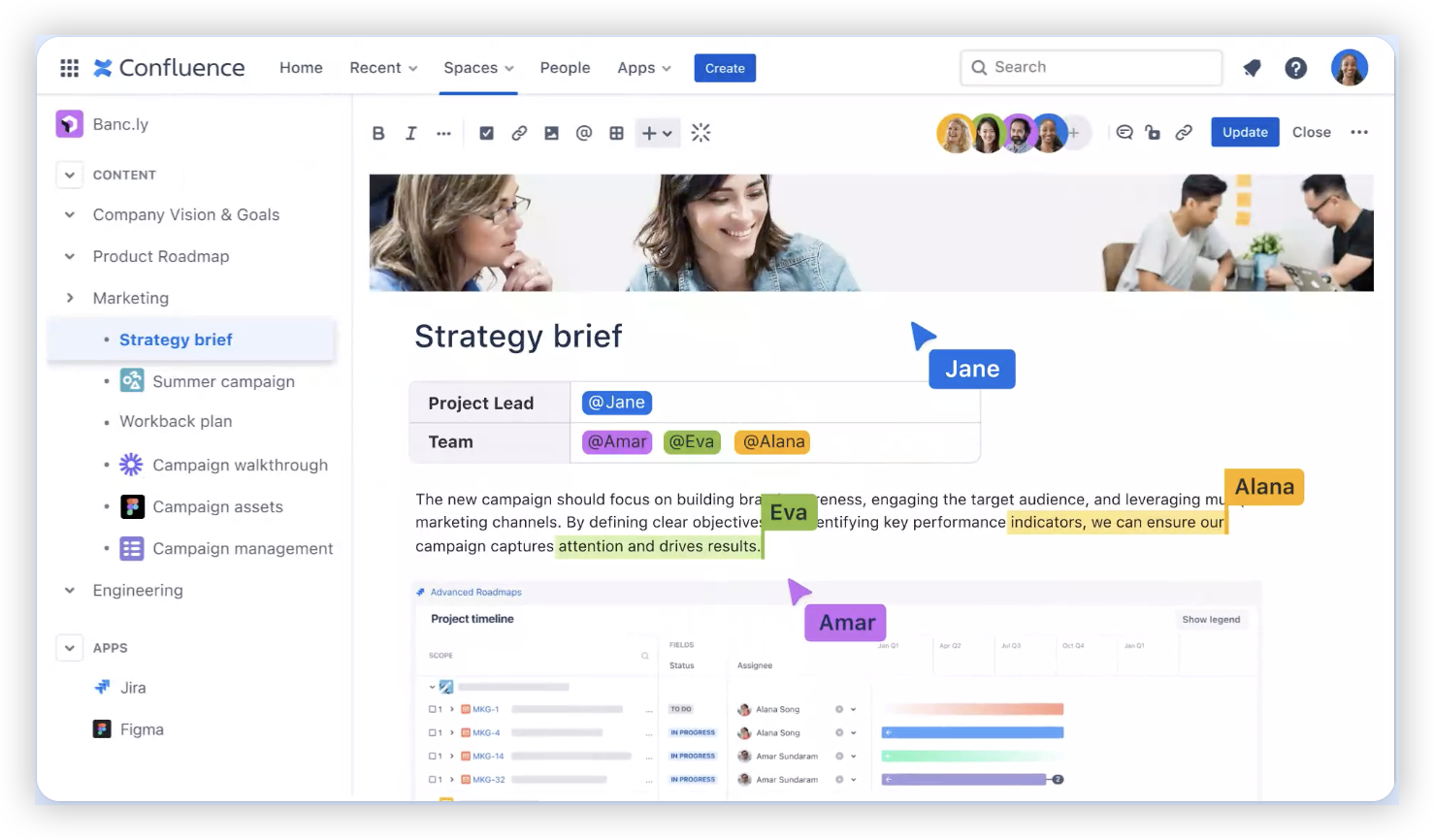
Choose the Right Kind of Connection
A simple URL is often enough when someone needs to open one Jira issue. A Jira issue macro or smart link can show more context on the Confluence page, which helps when readers need to scan status without leaving their current task.
For example, a release checklist might include an inline link to each ticket. A project overview page may benefit from a Jira issue display that shows the key and current status. The first keeps the page compact; the second makes active work easier to review.
Think about the reader’s next action. If they need to perform work in Jira, send them to the issue. If they need to understand why that work exists, give them a Confluence page with the relevant requirements or decision history.
Make the Link Easy to Understand
A bare URL gives readers little reason to click. Add a label or a short sentence that explains what they will find, especially when a page contains several related issues.
Compare “APP-248” with “Review the API timeout fix in APP-248.” The second version identifies the issue’s purpose, so a teammate can choose the right link without opening several tickets.
Keep the page’s structure in mind, too. Group related Jira issues under headings such as “Open risks” or “Release tasks,” and remove links that no longer support the page’s purpose.
Link Back to Confluence from Jira
A useful connection often works in both directions. Add the Confluence page URL to a Jira issue description, comment, or another suitable field so someone reviewing the ticket can find its background.
For instance, a Jira issue for a checkout change can point to the Confluence page describing the acceptance criteria. The page can then link back to the issue for implementation status. Together, the links connect the “why” with the “what is happening now.”
Use a field that fits your team’s workflow. Put stable context, such as requirements, in the issue description. Use a comment when the page is relevant to a particular update or decision.
Check Access and Keep Links Current
A link can be correct and still fail for a teammate who lacks access. Test the page and issue with an account that reflects your intended audience, particularly when projects or Confluence spaces have different permissions.
For example, a project lead may be able to open a restricted design page while a contractor cannot. If the page supports shared work, review its access settings before relying on it as the only place to explain a Jira task.
Review important links when a project changes direction, an issue is closed, or a page is reorganized. A short cleanup during a release review can prevent outdated links from sending people toward work that has already moved.
ONES.com Solution for Connected Project and Knowledge Work
Value proposition: ONES.com brings project management and knowledge management into one platform, with ONES Project for project management and ONES Wiki for knowledge management. The products are sold separately, giving teams options for organizing project work and team knowledge.

If your team is rethinking how Jira work and Confluence knowledge fit together, ONES.com offers a Jira alternative through ONES Project and a Confluence alternative through ONES Wiki. The platform can support teams looking to reduce reliance on plugins, while offering self-hosted deployment options.
Core Capabilities
Scattered project tracking: ONES Project provides Jira-compatible workflows, sprint management, and automation, helping teams organize work and track delivery in one project environment.
Separate places for team knowledge: ONES Wiki provides knowledge management capabilities, giving teams a dedicated place for guidance, project context, and shared team knowledge.
Changing approval or delivery processes: Custom workflows and fields let teams shape how work moves through their process, reducing the need to bend every team’s work around a fixed template.
Limited visibility into progress: Built-in reporting helps teams review project activity and progress without relying only on manual status updates.
Plugin-heavy setups: Core project management capabilities, including sprints, automation, and reporting, can help reduce dependence on extra plugins for common workflows.
Deployment constraints: ONES.com supports Cloud, On-Premise, Private Cloud, and Air-gapped deployments, so teams can choose an environment that fits their operational requirements.
Different feature expectations across environments: The cloud and self-hosted versions have full feature parity, allowing teams to select deployment without giving up feature availability.
Trying the platform with a small group: The free plan supports up to 30 seats, giving a team a way to evaluate its workflows before a broader rollout.
Application Scenarios
A product team standardizing project delivery: A team can use ONES Project to manage sprints, custom fields, and recurring automation while keeping project work in a Jira alternative. It can assess ONES Wiki separately for team knowledge management.
A team with restricted hosting requirements: An organization that needs a self-hosted environment can consider On-Premise, Private Cloud, or Air-gapped deployment options. Full feature parity across cloud and self-hosted versions helps keep capability decisions separate from hosting choices.
Common Challenges When Connecting Confluence and Jira
The link opens the wrong issue. Similar issue keys can be easy to mix up. Confirm the key and issue summary after inserting the link, then test it from the published page.
A teammate sees an access error. The Jira project or Confluence space may have restricted permissions. Check access for the people who need the link, and avoid making a restricted page the only explanation for a shared task.
The page becomes crowded with issue details. Too many embedded issue views can distract from the page’s main purpose. Use a simple link for secondary tasks and reserve larger displays for issues readers need to monitor.
Links become outdated after work changes. A ticket may be replaced, closed, or moved. Review key connections during project or release check-ins, and update the page when the work it describes changes.
Frequently Asked Questions
Can I link a Jira issue directly from a Confluence page?
Yes. In the Confluence editor, paste the Jira issue URL where you want the link to appear. Depending on your editor and configuration, you may also be able to use a Jira issue option or slash command to find and insert the issue. Preview the page and check that the link points to the correct issue.
How do I show Jira issue details in Confluence?
Use the available Jira issue macro or smart link display options in your Confluence editor. The exact choices can vary, but you may be able to show a compact link, a card, or more issue information. Choose the smallest display that gives readers what they need, so the page stays easy to scan.
Can I link a Confluence page back to a Jira issue?
Yes. Add the Confluence page URL to a suitable Jira issue field, description, or comment. Use the description for stable background, such as requirements or a decision page. A comment can work well when the page relates to a specific update. Confirm that Jira readers can access the Confluence page.
Why can’t someone open my Confluence-to-Jira link?
The link may point to a restricted Jira project or Confluence space, or the person may be signed into an account without the required access. Check that the URL is correct, then review permissions on both sides of the connection. Testing with an account that matches the intended audience can reveal access gaps before a wider rollout.
Conclusion
A reliable Confluence-to-Jira connection starts with a correct issue URL, a display that suits the page, and a quick permission check. Add context so readers understand why the link matters, then link back from Jira when the issue needs background.
Small checks can prevent a lot of searching and confusion. When your team needs a broader way to manage project work and shared knowledge, ONES.com offers ONES Project and ONES Wiki as separately sold parts of its unified platform.