How to Link Confluence Pages to Jira Issues: 6 Quick Steps
Need a Confluence link for Jira issues? Connect pages and tasks in 6 quick steps. Click to discover how.
When project decisions live in Confluence and tasks live in Jira, the connection between them can be easy to miss. A useful page may explain a feature, while the Jira issue tracking that work sits several clicks away.
That gap creates extra searching, repeated explanations, and uncertainty about which page supports a task. It becomes especially frustrating when a team needs to check requirements during a sprint or review why a decision changed.
You can link a Confluence page to a Jira issue in six quick steps. I’ll show you how to add the connection, make it easy to recognize, and check that your teammates can open both sides.
How to link Confluence pages to Jira issues in 6 steps
The quickest approach is to copy the Jira issue link into a Confluence page, then confirm that the page and issue are accessible to the people who need them. Interface labels vary by product version, but these steps work for common Confluence and Jira workflows.
-
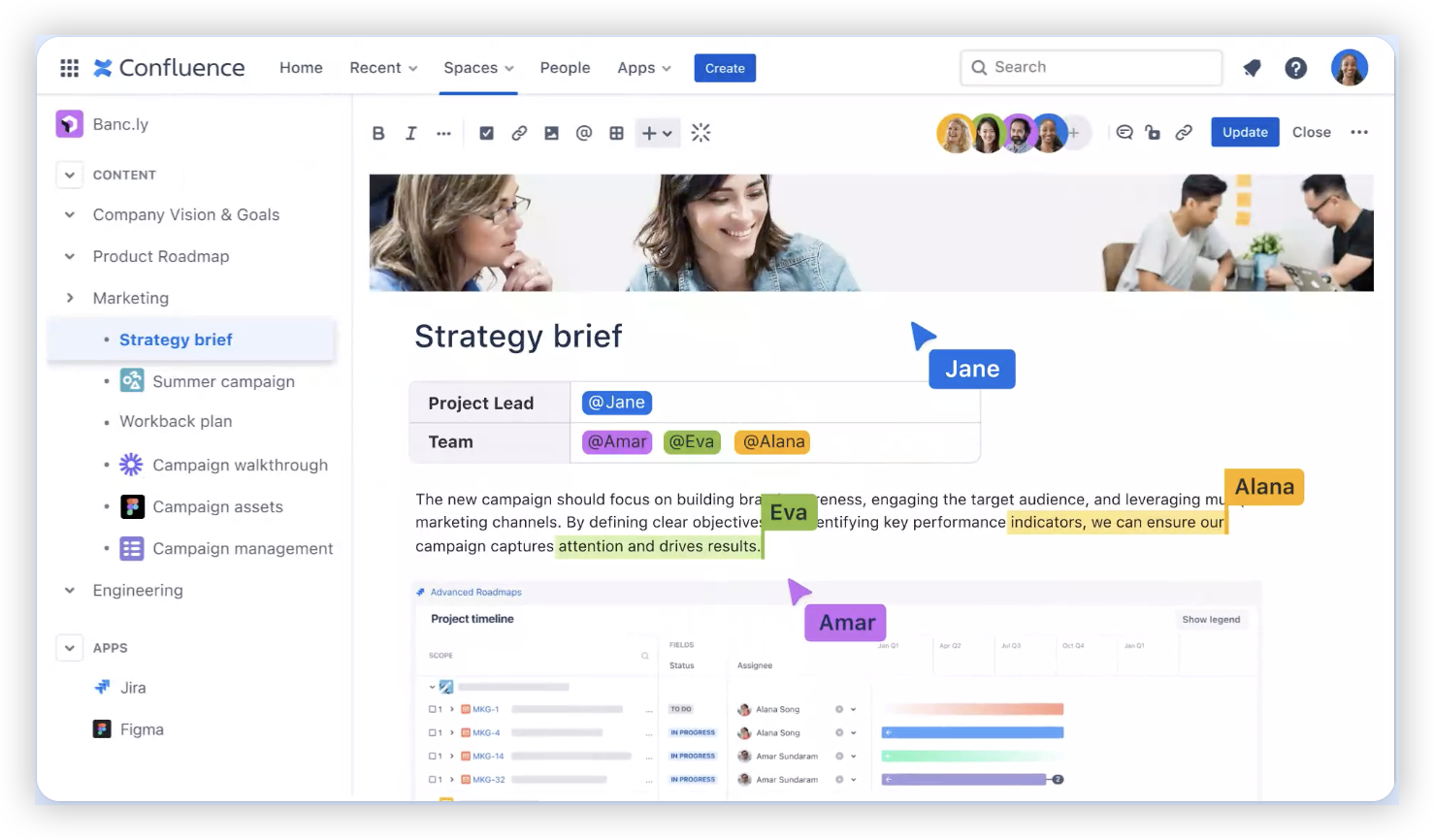
Step 1: Choose the Jira issue and Confluence page
Start with the Jira issue that needs context, such as a feature request, bug, or sprint task. Then choose the Confluence page that explains the relevant requirement, design, meeting decision, or troubleshooting process.
Check that the page genuinely supports the issue. A specific design decision is more useful than a link to a broad team landing page.
-
Step 2: Copy the Jira issue link
Open the Jira issue and copy its web address from your browser. You can also use the issue’s link or share control if your Jira version provides one.
For instance, an issue key such as APP-248 identifies the task, while its URL opens the complete issue. Keep the issue key handy so you can recognize the right task as you work.
-
Step 3: Edit the Confluence page
Open the chosen Confluence page and select its edit control. Place your cursor where the Jira connection will help readers, such as beside the requirement or under a heading called “Related Jira work.”
Adding the link near the relevant explanation gives teammates useful context without making them hunt through the whole page.
-
Step 4: Add the Jira issue link
Paste the Jira issue URL into the page. Confluence may recognize it as a smart link and show a compact issue preview, depending on your setup.
If pasting does not create the display you want, use the editor’s link or Jira-related insertion option and enter the issue URL or key. Choose a clear display, such as the issue key with its summary.
-
Step 5: Add a short explanation and publish
Write a few words explaining why the issue relates to the page. For example, “Implementation task for the approval flow described above” tells readers what to expect before they open Jira.
Publish or update the Confluence page, then confirm the link appears where you placed it. A useful label makes the connection easier to understand when several issues appear on one page.
-
Step 6: Check the link and access
Open the linked Jira issue from the published page. Confirm it points to the correct task and that the people who need the connection have permission to view it.
If your team also wants the page visible from Jira, add the Confluence page link to the issue as well. The exact Jira controls differ across versions, so look for an option to add a link or associate a Confluence page.
Choose the right connection for the work
A link is most useful when it connects a specific task to the context needed to complete it. A page about a release decision could link to the Jira issue implementing that decision, while a troubleshooting page might point to a bug and its follow-up task.
Here's why: a broad page can contain many topics, but a precise link reduces the steps between a task and its explanation. If one page covers several features, link the relevant Jira issues beside the matching sections.
For example, a page describing three checkout improvements could include a separate Jira issue link under each improvement. That gives a developer or reviewer a clear path from a requirement to the work tracking it.
Make the relationship clear in both places
Connecting a Confluence page to Jira gives readers one route to the related work. Adding the page to the Jira issue gives readers another route back to the reasoning or instructions behind the task.
You might be wondering: do you always need links in both places? No. Add both when people regularly start from either product, such as a developer opening an issue or a product manager reviewing a planning page.
Use a short explanation near each link. “Design decision for APP-248” is more informative than “Related page,” especially when an issue has several linked pages.
Keep links useful as projects change
Links can remain technically valid while becoming less helpful. A task may be closed, a page may be replaced, or a team may move its explanation to a new location.
During sprint reviews or release checks, scan key pages for links that point to completed or superseded work. Update the connection when a new Jira issue takes over, and add a brief note if the older issue still matters for history.
The best part? A small maintenance habit prevents people from relying on outdated instructions. Teams can review the most important page-to-issue relationships whenever they update requirements or close major work.
Give teams a consistent linking pattern
A simple convention helps teammates add links in predictable places. For instance, a team might put implementation issues beneath each requirement and add the relevant Confluence page in Jira’s link area.
Agree on labels that describe the relationship, such as “design detail,” “acceptance criteria,” or “release procedure.” This makes a link easier to interpret than a bare URL and helps distinguish reference material from active work.
Let me explain: consistency matters most when several people update a page over time. A shared pattern means a teammate can find the related issue without guessing where someone else placed it.
A connected project and knowledge workflow with ONES.com
ONES.com brings project management and knowledge management together in one platform powered by ONES Assistant. ONES Project handles project management as a Jira alternative, while ONES Wiki provides knowledge management as a Confluence alternative. They are sold separately, so teams can choose the product that fits their needs.

If your team is reviewing how it connects project work with knowledge, consider whether a shared platform would make those relationships easier to maintain. The aim is a practical workflow: tasks remain trackable, and useful explanations stay close to the work.
Core capabilities for connected work
- Issue tracking feels disconnected from team knowledge: ONES Project supports project management alongside ONES Wiki’s knowledge management capabilities. The products provide a route to manage work and team knowledge within the ONES.com platform.
- Teams need familiar Jira-style workflows: ONES Project supports Jira-compatible workflows. Teams can carry familiar patterns into project management without requiring every process to start from scratch.
- Default issue fields do not match the team’s work: Custom workflows and fields let teams shape how work is tracked. As a result, teams can capture details that matter to their process.
- Sprint planning needs dedicated support: Sprint management helps teams organize and track planned work. This keeps sprint activity connected to day-to-day project execution.
- Routine actions take repeated manual effort: Automation can handle supported repetitive workflow actions. Teams can reduce recurring steps and keep attention on decisions that need human judgment.
- Progress is difficult to review: Built-in reporting helps teams examine project status. That gives team leads a clearer way to discuss progress and identify work needing attention.
- Extensions create extra administration: Native capabilities across workflows, fields, sprint management, automation, and reporting can reduce reliance on plugins for supported needs.
- Hosting requirements vary across teams: ONES.com offers Cloud, On-Premise, Private Cloud, and Air-gapped deployments. The cloud and self-hosted versions have full feature parity.
Where teams might apply the platform
Product planning: A product team could organize feature work in ONES Project and maintain product guidance in ONES Wiki. Keeping each area of work clearly organized can make related planning details easier to find.
Restricted environments: An organization with specific hosting requirements could evaluate an On-Premise, Private Cloud, or Air-gapped deployment. Teams can consider those options while retaining feature parity with the cloud version.
Smaller teams evaluating a workflow: ONES.com’s free offering supports up to 30 seats. A team can explore whether the platform suits its project and knowledge workflows before deciding how to proceed.
Common challenges when linking Confluence and Jira
The link opens the wrong Jira issue
Problem: A copied address or issue key points to a similar task. Solution: Check the issue key and summary after adding the link, then open it from the published Confluence page.

Teammates cannot open the linked page or issue
Problem: A link may work for you but fail for someone without the same permissions. Solution: Confirm access with the relevant project or page administrator, and test the connection using an account with the expected team permissions.
The page contains many unexplained links
Problem: Several issue keys make a page harder to scan when their purpose is unclear. Solution: Add a short label that explains each link, such as “bug fix for the login timeout” or “task implementing the new approval step.”
A page or issue has been replaced
Problem: Old links may lead readers to work that no longer reflects the current plan. Solution: Review key connections during project or page updates. Replace outdated links and leave a brief note when the earlier work remains useful for context.
FAQs about connecting Confluence pages and Jira issues
Can I link a Confluence page from a Jira issue?
Yes. Add the Confluence page address to the Jira issue using the link or page-association options available in your Jira version. If your team needs readers to move in both directions, also add the Jira issue link to the Confluence page. Check permissions on both sides so teammates can open the linked content.
Can I link a Jira issue from a Confluence page?
Yes. Edit the Confluence page, paste the Jira issue URL, and select a useful smart-link display if Confluence offers one. You can also use an editor option for adding a link or Jira item. Publish the page and open the link to verify that it points to the intended issue.
Why can’t a teammate see my Jira issue link?
The teammate may not have permission to view the Jira project or the specific issue. The Confluence page may also have separate access restrictions. Ask the relevant administrators to check both permissions, then have the teammate test the link again. A visible link does not automatically grant access to its destination.
Should I link one page to several Jira issues?
Yes, when each issue relates to the page. Place links near the relevant requirements or sections and label them clearly. If one page covers unrelated work, consider connecting each issue to the specific page that explains it. That keeps the relationship clear and helps readers avoid opening tasks that do not match their needs.
Conclusion
Linking a Confluence page to a Jira issue takes six steps: choose the related page and task, copy the issue link, add it in Confluence, explain the connection, publish, and check access.
But here's the truth: a working link is only useful when people understand where it leads and can open it. Clear labels, relevant placement, and occasional reviews help keep project context connected to active work.
Start with one page and one issue your team regularly needs together. That small improvement can make the next handoff, sprint review, or implementation check easier to follow.