How to Link Jira to GitHub: A Step-by-Step Guide for Teams
Want to link Jira to GitHub without confusing handoffs? Follow this step-by-step team guide. Read now to streamline your workflow.
When Jira and GitHub sit apart, developers can lose time connecting a pull request to the work it should complete. A ticket may look unfinished after the code is merged, while reviewers struggle to find the reason behind a change. These small gaps can cause duplicated effort, slow handoffs, and confusing status updates. But here's the truth: linking Jira to GitHub is usually straightforward once you choose the right integration, authorize access, and agree on how your team will reference Jira issues. I’ll walk you through the setup, show how to link branches and pull requests to work items, and explain how to check that everything works. You’ll also learn what to review when links fail, so the integration supports your workflow instead of adding another point of friction.
How to link Jira to GitHub
The basic process is to connect GitHub to Jira, grant the requested permissions, and include Jira issue keys in your development activity. For example, a branch named PROJ-214-fix-login-timeout can connect work on that branch to Jira issue PROJ-214.
Here’s why: the issue key gives the integration a consistent reference. When it appears in a branch name, commit message, or pull request title, Jira can associate that activity with the relevant work item.
- Check your access. Confirm that you can manage apps or integrations in Jira and install or authorize apps for the relevant GitHub organization. If you lack either permission, ask a Jira or GitHub administrator to help.
- Choose the integration method. For Jira Cloud, look for the GitHub integration available through Jira’s app and integration settings or the GitHub Marketplace. For Jira Data Center, check compatibility with your installed Jira version before installing an app.
- Connect the right accounts and repositories. Follow the integration’s authorization prompts. Select the GitHub organization and repositories your team needs, then confirm the Jira site or project connection.
- Agree on issue-key conventions. Ask developers to include the Jira key in branch names and commit messages. For example, use
PROJ-214-fix-login-timeout for a branch and PROJ-214 Handle expired session for a commit.
- Create a test pull request. Use a low-risk issue, create a branch, make a commit, and open a pull request with the key in its title or description. Check whether Jira displays the development activity on that issue.
- Confirm the workflow and visibility. Check that the right team members can see linked branches, commits, and pull requests. Review any automation rules before relying on them to transition issues.
The exact labels and screens can change between Jira editions and integration options. If you do not see a GitHub setting, check your Jira version, app permissions, and administrator policies before trying another connection.
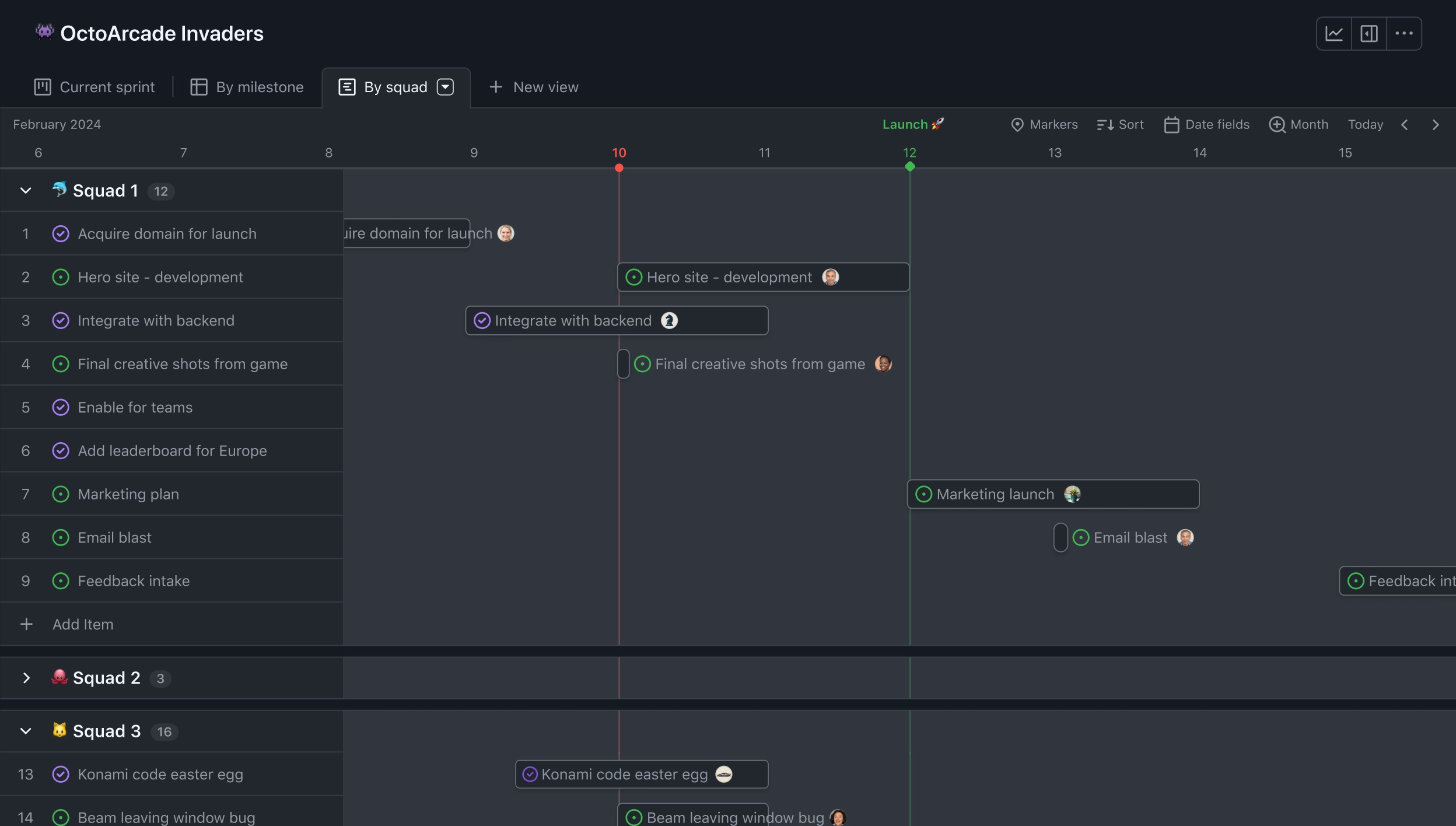
Choose an integration that fits your Jira setup
Start by identifying whether your team uses Jira Cloud or Jira Data Center. The available integration options, installation steps, and compatibility requirements can differ, so verify the details for your environment before authorizing an app.
You might be wondering: should you connect every repository at once? Usually, it is safer to begin with the repositories used by one project team. A small pilot makes it easier to check permissions and naming conventions without exposing unrelated development activity.
For example, a team working on the customer portal might connect only its portal repositories to the Jira project. Once the test confirms that branches and pull requests appear in the right places, the team can decide whether to connect other repositories.

Use Jira issue keys to link development activity
Issue keys create the practical link between a Jira work item and GitHub activity. Put the key in a place your chosen integration recognizes, such as a branch name, commit message, or pull request title.
A developer working on PROJ-214 could create a branch called PROJ-214-fix-login-timeout. They can then use the same key in commit messages and the pull request title, making the relationship easier to spot throughout review.
Be consistent about the key’s format and placement. If one developer writes PROJ-214 and another uses a shortened or mistyped version, the integration may not associate both activities with the intended Jira issue.
Set permissions before connecting repositories
Connecting an integration may require access to an entire GitHub organization or selected repositories. Review the requested permissions with your administrator, and grant only the access needed for the team’s workflow.
For instance, a team may need Jira to display development activity from a private repository. That does not automatically mean every Jira project member should have access to the repository itself. Keep GitHub repository permissions and Jira issue permissions under separate review.
Here's the practical test: ask who can install the app, which repositories it can see, and which Jira users can view the linked activity. Answering those questions before rollout can prevent unexpected visibility and access problems.
Test the connection with a real team workflow
A successful authorization screen does not prove the complete workflow works. Run a small test that follows the same steps developers will use during regular work.
For example, create a test issue, add its key to a new branch, make a commit, and open a pull request. Check whether the activity appears on the Jira issue and whether the information is visible to the people who need it.
The best part? A short pilot can reveal unclear team habits early. If pull requests are linked but commits are missing, your integration may recognize different key locations, or developers may need a clearer naming rule.

Keep linked work clear as the team grows
Once the connection works, make the issue-key convention part of your team’s normal development practice. Add a short example to the team’s workflow guide and include the key when creating branches or pull requests.
Decide how linked activity should affect Jira status. Some teams prefer to transition issues manually after review, while others use automation for selected events. Test any rule carefully; a pull request opening does not always mean the work is complete.
Review the connection when your team adds repositories, changes Jira projects, or updates its access policies. A quick check after a major change can catch missing activity before developers start relying on the integration.
ONES.com brings project management and knowledge management together in one platform, with ONES Project for project management and ONES Wiki for knowledge management. Teams evaluating their Jira setup can consider it as a Jira alternative when they want flexible workflows, integrated reporting, and deployment choices.

ONES Project is sold separately from ONES Wiki. ONES.com offers a free plan for up to 30 seats and four deployment options: Cloud, On-Premise, Private Cloud, and Air-gapped. Its cloud and self-hosted versions have feature parity, which can matter to teams with strict hosting requirements.
Core capabilities for project teams
- Fragmented work tracking: Jira-compatible workflows in ONES Project let teams organize tasks in a familiar way, helping reduce disruption during evaluation.
- Limited visibility into delivery: Built-in reporting gives teams a clearer view of project progress without relying on a patchwork of reporting add-ons.
- Rigid process steps: Custom workflows let teams shape issue transitions around their approval or delivery process, so work follows a more suitable path.
- Fields that do not fit team needs: Custom fields help capture details relevant to a project, making work items more useful to the people handling them.
- Unclear sprint planning: Sprint management supports teams that plan and track iterative work, helping keep sprint activity connected to project execution.
- Repetitive status changes: Automation can handle selected routine actions, reducing manual updates when teams define clear rules.
- Too many separate knowledge spaces: ONES Wiki offers knowledge management alongside the project management option, giving teams a way to organize project knowledge within the broader platform.
- Hosting restrictions: Cloud, On-Premise, Private Cloud, and Air-gapped deployments give teams options for their operating requirements, with feature parity across cloud and self-hosted versions.
Where teams may apply it
A software team reviewing its Jira configuration could use ONES Project to compare workflow flexibility, reporting, sprint management, and automation. The team can assess whether those capabilities meet its needs while reviewing which integrations are required for its GitHub workflow.
A company with restricted network requirements could evaluate a self-hosted ONES.com deployment. It can assess project management and knowledge management needs together, while checking integration compatibility and repository access requirements before making a change.
ONES.com’s product details do not establish a specific GitHub connection for your environment. If GitHub linking is essential, verify the required integration and compatibility directly before choosing a platform. That check helps you compare project management capabilities without assuming the development workflow will transfer automatically.
Common challenges and practical fixes
GitHub activity does not appear in Jira
Check whether the integration is connected to the correct Jira site, GitHub organization, and repository. Then confirm that the activity includes a valid Jira issue key in a location the integration recognizes.
The issue key is present, but Jira does not link the work
Compare the key with the actual Jira issue. A typo, missing project prefix, or incomplete key can prevent the integration from finding the intended work item. Try a new test branch with the full key, such as PROJ-214.
Some developers can see activity, while others cannot
Review both Jira issue access and GitHub repository permissions. The connection can display activity without granting a person permission to view private repository content. Ask an administrator to check each access layer separately.
An automated status change happens too early
Inspect the rule that changes Jira issue status and identify which GitHub event triggers it. A pull request opening or a commit appearing may be too early for your team’s completion criteria. Adjust the rule or keep that transition manual.
FAQs
Can I link Jira issues to GitHub pull requests?
Yes, when your integration recognizes the Jira issue key in a pull request title or description. Include the full key, such as PROJ-214, and verify that the pull request appears in the Jira issue’s development activity. The exact behavior depends on your Jira edition, integration, and configuration, so test with a low-risk issue first.
Where should I put the Jira issue key?
Use the issue key in branch names, commit messages, and pull request titles when your integration supports those locations. For example, a branch might be PROJ-214-fix-login-timeout. Ask your administrator or check the integration’s configuration to confirm which activity types it recognizes. Consistent use of the full key makes links easier to create and verify.
Do I need an administrator to connect Jira and GitHub?
Often, yes. Connecting the services may require permission to install a Jira app, authorize access to a GitHub organization, or select repositories. If you cannot find the integration settings or approve the requested access, contact your Jira or GitHub administrator. They can also confirm whether your organization permits the integration.
Can Jira automatically close an issue when a pull request merges?
That depends on the integration and any automation rules your team configures. A team may choose to transition an issue after a merge, but review whether merging always means the work is complete. For example, a pull request might merge to a staging branch while a separate release step remains. Test status rules with your actual workflow before applying them broadly.
Conclusion
Linking Jira to GitHub comes down to connecting the right accounts, granting appropriate access, and using Jira issue keys consistently. Test a branch, commit, and pull request before asking the whole team to depend on the connection.
When links are missing or confusing, check permissions, repository selection, key formatting, and automation rules. That small review can prevent work from disappearing between planning and development. If you are also assessing your project management setup, compare the workflow and hosting requirements carefully, then verify that any platform supports the GitHub connection your team needs.