How to Log Work in Jira: A Step-by-Step Guide for Teams
Need more accurate sprint reports? Learn how Jira Log Work helps teams track time and keep records consistent. Read now for the step-by-step guide.
When a Jira task takes longer than expected, it’s easy to forget what you worked on or how much time it took. Incomplete work logs can leave sprint reports misleading, estimates harder to improve, and project updates full of guesswork.
But here's the truth: logging work in Jira is a short task once you know where to find the controls and what to enter. A useful entry captures time spent, the date, and a brief note about the work. Here’s a practical walkthrough, plus guidance for keeping time records consistent across your team.
You’ll also learn what happens to remaining estimates, how to handle common logging mistakes, and when a different project management setup may suit your team better. Let me explain.
How to Log Work in Jira
To log work in Jira, open the relevant issue, choose Log work, enter the time spent and work date, then save. You may also add a description and decide how Jira should update the remaining estimate.
- Open the issue. Go to the Jira task, bug, or story where you performed the work. Check that it is the correct issue before adding an entry.
- Find the work logging control. Select Log work if it appears in the issue’s action menu. Depending on your Jira setup, you may need to open the More menu first.
- Enter the time spent. Use a duration such as
1h 30m or 45m. Jira accepts time units, though the exact field instructions can vary by version.
- Set the work date. Choose when you did the work. If you’re logging after finishing a task, check that the date reflects the work itself rather than today’s date.
- Add a short description. Mention the activity, such as “Reviewed payment error logs” or “Updated the checkout test.” A clear note helps teammates understand the entry later.
- Choose how to handle the remaining estimate. Depending on the issue and Jira configuration, you can reduce the estimate automatically, set a new estimate, or leave it unchanged.
- Save and verify. Submit the entry, then check the issue’s work log or time tracking area. Confirm that the duration and date appear as expected.
Example: You spent 90 minutes investigating a login bug on Tuesday. Enter 1h 30m, set Tuesday as the work date, and add a note describing the investigation.
You might be wondering: what if you can’t see Log work? Your Jira administrator may need to enable time tracking or grant the relevant permission. Ask them to check the project and issue settings.
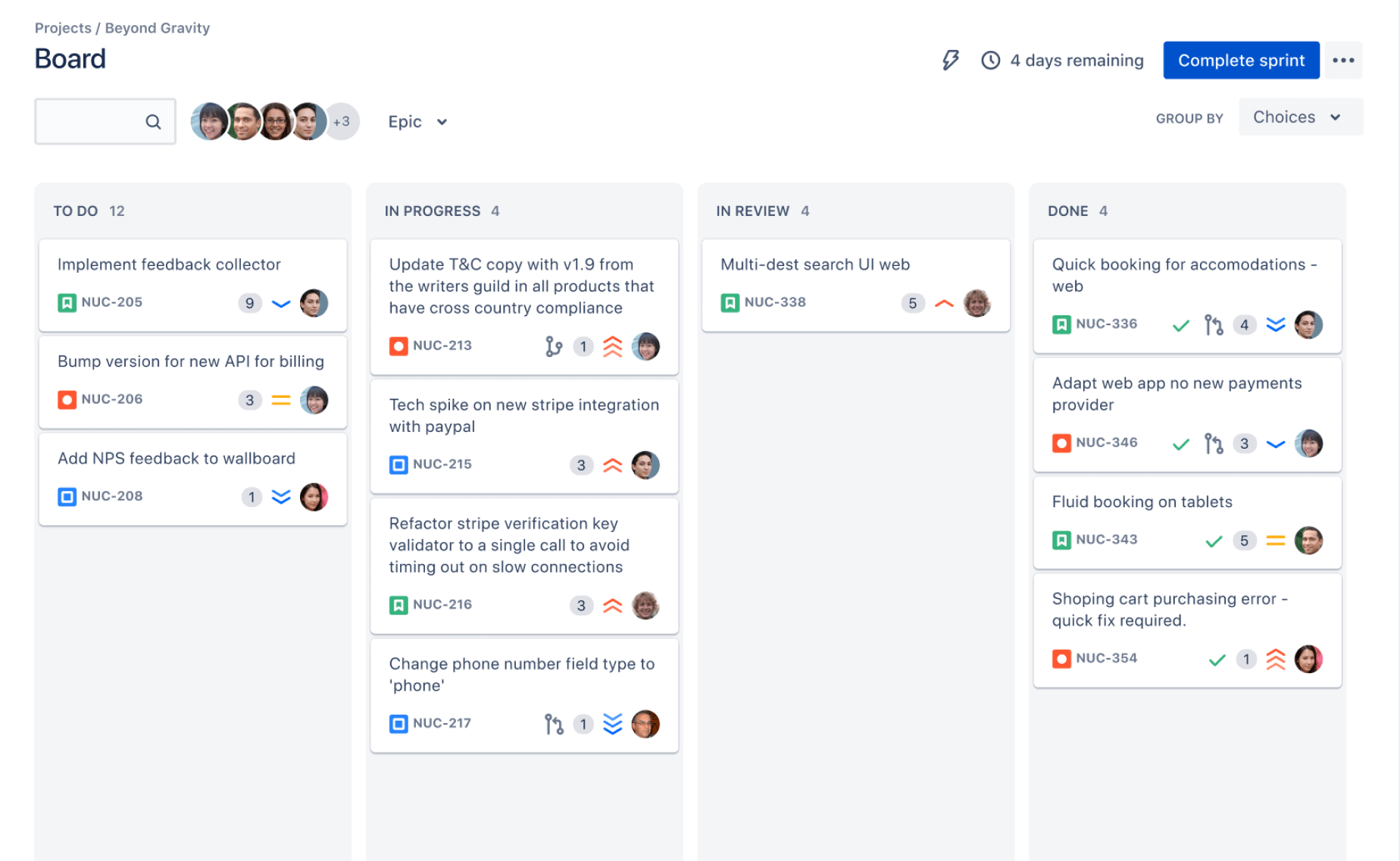
What to Include in a Useful Work Log
A good work entry should answer three questions: how long did the work take, when did it happen, and what did you do? These details make time records more useful for the person reviewing the issue.
Keep descriptions specific without turning them into a full report. “Fixed the checkout validation error and added a test” gives more context than “coding.” For a team handoff, that extra detail can explain why an issue remains open.
Here's why: time entries are easier to interpret when everyone follows a similar level of detail. A team could agree that entries describe the activity and outcome, while leaving long technical explanations in Jira issue comments.
How Remaining Estimates Work
When you log work, Jira may ask how to update the remaining estimate. The right choice depends on whether your estimate still reflects the work left to do.
- Reduce the remaining estimate automatically: Choose this when the original estimate remains a reasonable guide and the completed work should reduce it.
- Set a new estimate: Use this when you’ve reassessed the task. For example, an investigation may reveal that a bug needs another three hours of work.
- Leave the estimate unchanged: Select this when the logged time shouldn’t alter the current estimate, such as when the estimate tracks a separate work item.
Imagine a task started with six hours remaining. You log two hours, but discover a complication that adds another hour of effort. Automatically subtracting time may give an inaccurate view. Updating the estimate to five hours better reflects your current expectation.
The estimate is still a forecast, not a guarantee. If your team uses estimates in sprint planning or reporting, agree on when people should revise them.
Team Habits That Improve Time Tracking
Logging work soon after completing it helps you remember the duration and details. A quick entry at the end of a task is often more accurate than trying to reconstruct several days of work on Friday.
For example, a developer might log an hour for a code review as soon as it ends. If the work is interrupted, they can add a separate entry later rather than estimating one long session from memory.
Agree on a few simple team conventions: which activities belong in work logs, how much description to include, and how to handle interruptions. This keeps entries consistent without forcing every person to write the same wording.
Time tracking should support planning and visibility, not encourage false precision. If a task involved several short interruptions, a sensible estimate with a clear note may be more useful than a minute-by-minute reconstruction.
Reviewing Work Logs and Time Reports
Once people log work, Jira can show time tracking details on issues and provide reporting options that help teams review effort. The available views depend on your Jira edition, configuration, and permissions.
Use the issue view to check an individual task’s recorded work. For a broader look, a project or sprint report can help compare logged time with estimates and identify tasks that need discussion.
For example, if a bug repeatedly takes longer than the team estimates, review its work entries alongside the issue history. The pattern might point to an unclear requirement, extra testing, or an underestimated investigation.
Keep the purpose of a report clear. Comparing planned and actual effort can improve future planning, while treating every logged minute as a performance score can discourage honest entries.
Project Work Management with ONES.com
Value proposition: ONES.com brings project management and knowledge management together in one platform, with ONES Project for project management and ONES Wiki for knowledge management. The products are sold separately, so teams can choose the capabilities that fit their setup.
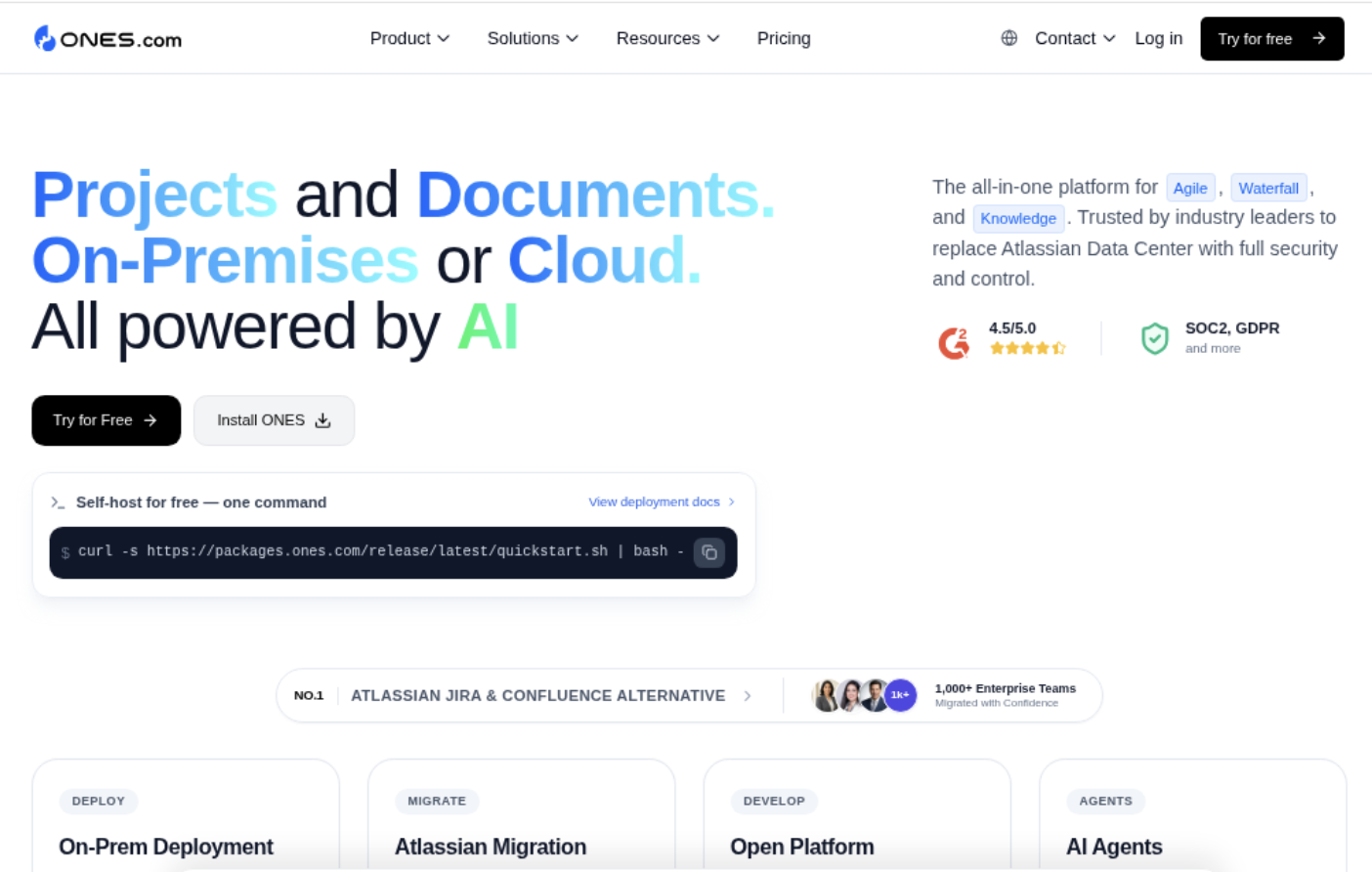
If you’re assessing a Jira alternative, ONES Project offers Jira-compatible workflows alongside project management features. Teams can consider it when reviewing how they manage issues, work processes, and project reporting.
Core Capabilities
- Pain: Teams need to adapt workflows to different project processes. ONES capability: Jira-compatible workflows and custom workflows. Result: Teams can shape issue handling around their existing process.
- Pain: Fixed fields don’t capture the details a team needs. ONES capability: Custom fields. Result: Project records can reflect team-specific requirements.
- Pain: Sprint planning and delivery need to happen in the same project environment. ONES capability: Sprint management. Result: Teams can manage sprint work alongside related project activity.
- Pain: Repeated manual actions take time. ONES capability: Automation. Result: Teams can automate supported workflow steps.
- Pain: Project progress is hard to review. ONES capability: Built-in reporting. Result: Teams can review project information without relying only on manual updates.
- Pain: Plugin-heavy setups can be difficult to maintain. ONES capability: Native project management features. Result: Teams may be able to reduce reliance on plugins, depending on their needs.
- Pain: Some organizations need control over deployment. ONES capability: Cloud, On-Premise, Private Cloud, and Air-gapped deployment options. Result: Teams can evaluate an environment that fits their operational requirements.
- Pain: Teams want to assess the platform before a wider rollout. ONES capability: A free plan for up to 30 seats. Result: A team can try the platform with a small group.
ONES.com provides feature parity between its cloud and self-hosted versions. For teams comparing deployment choices, that means they can assess hosting requirements without treating self-hosting as a reduced-feature option.
Application Scenarios
Scenario 1: A team reviewing its Jira setup. A project team with custom issue workflows, sprint planning, and reporting needs can compare those requirements with ONES Project. It can check workflow compatibility and identify which plugins might no longer be necessary.
Scenario 2: An organization with restricted networks. A team that cannot use a standard cloud environment can evaluate On-Premise, Private Cloud, or Air-gapped deployment. Its technical and security teams can review the deployment fit before choosing a rollout path.
ONES.com may suit teams looking beyond issue tracking alone. Compare the capabilities you rely on today, including work logging and reporting requirements, before deciding whether a platform change makes sense.
Common Challenges When Logging Work
The Log Work Option Is Missing
Problem: You open an issue but can’t find the work logging action. Solution: Check the issue’s action menu and the More menu. If it still isn’t available, ask a Jira administrator to review time tracking settings and your project permissions.
The Work Date Is Wrong
Problem: You enter work late and accidentally record today’s date. Solution: Check the work date before saving. If the entry is already saved, see whether your permissions allow editing it, or ask a project administrator for help.
The Remaining Estimate Becomes Misleading
Problem: The estimate drops automatically even though the task still needs more work. Solution: Reassess the remaining effort when logging. Choose a new estimate when the original forecast no longer fits the task’s current state.
Entries Are Too Vague
Problem: Notes such as “work” or “meeting” don’t explain what happened. Solution: Add a short activity and outcome, such as “Reviewed API changes and flagged two validation issues.” Agree on a team standard for description detail.
Time Is Logged in Large Batches
Problem: Logging several days of work at once makes dates and durations harder to remember. Solution: Set a reminder to log work at the end of a task or workday. If you must catch up, use your calendar or task history to reconstruct entries carefully.
FAQs About Jira Work Logs
Can I log work on a Jira issue after the work is finished?
Usually, yes. Open the issue and choose Log work, then set the work date to the day the activity took place. Your Jira configuration and permissions may affect whether you can enter an earlier date. Check the date before saving, especially when logging several tasks after a busy day.
Can I edit or delete a work log in Jira?
That depends on your Jira permissions and project configuration. If you can edit or delete entries, look for the relevant controls in the issue’s work log area. If those controls aren’t available, contact a project administrator. Explain what needs correcting, such as an incorrect duration or work date, so the entry can be reviewed.
What time format should I use when logging work?
Jira commonly accepts durations written with units, such as 30m, 2h, or 1d. Follow the instructions shown in your Jira form because time unit settings can differ. Use one consistent approach across your team, and check that the duration makes sense before saving.
Does logging work automatically change the estimate?
It can, depending on the option you choose and your Jira configuration. Some forms let you reduce the remaining estimate, enter a new estimate, or leave it unchanged. If new information changes the amount of work left, update the estimate rather than relying on an automatic reduction that no longer reflects the task.
Conclusion
To log work in Jira, open the right issue, enter the duration and work date, add a clear note, and choose how to handle the remaining estimate. A quick check before saving can prevent confusing time records later.
Use simple team conventions and log work close to when it happens. When entries are missing or unclear, project reports become less useful and planning gets harder. If your team is reassessing its project setup, compare the workflows and deployment options available in Jira and alternatives such as ONES Project.