How to Set Up the GitHub for Jira App: A Step-by-Step Guide
Not seeing GitHub activity in Jira? Set up the github for jira app to connect repositories, commits, and pull requests to issues. Read now to get started.
If GitHub activity is not appearing in Jira, it can be hard to tell whether your team’s work is actually connected to the right issues. A missed repository permission or issue key can leave branches, commits, and pull requests disconnected from the project where you need to track them.
The GitHub for Jira app links development activity with Jira issues, giving you a clearer view of work without manually copying every update. But here's the truth: installing the app is only part of the setup. You also need to connect the right GitHub organization, grant repository access, and use Jira issue keys consistently. This guide walks you through those steps, shows you how to test the connection, and explains what to check if activity still does not appear.
How to set up the GitHub for Jira app
To connect GitHub and Jira, install the app in Jira, authorize the correct GitHub organization, select repositories, and test the connection with an issue key such as PROJ-123.
- Check your access. Make sure you can manage apps in Jira and install or approve GitHub Apps for the organization you plan to connect. If either task requires an administrator, ask that person to join the setup.
- Find the app in Jira. Open Jira and go to Apps or Manage apps. Search the Atlassian Marketplace for GitHub for Jira, then choose the option to install it.
- Open the app configuration. When installation finishes, go to the app’s settings or configuration page. Choose the option to connect a GitHub organization.
- Authorize GitHub. Sign in to GitHub if prompted, then select the organization you want to connect. Review the requested permissions and approve the GitHub App installation if you have the required access.
- Choose repositories. Select the repositories Jira should be able to access. If you want activity from several repositories, verify that each one is included. An organization connection alone does not necessarily mean every repository is available to the app.
- Return to Jira and confirm the connection. Follow any prompts to finish setup. Check the app’s configuration page for the connected organization and repository access. If the page asks you to complete an authorization step, do that before testing.
- Run a simple test. In an accessible repository, create a branch or commit that includes a real Jira issue key, such as PROJ-123. Open that Jira issue and look for the linked development activity.
Here's why the test matters: it checks more than whether the app is installed. It also checks the organization, repository permissions, and issue-key matching in one practical example.
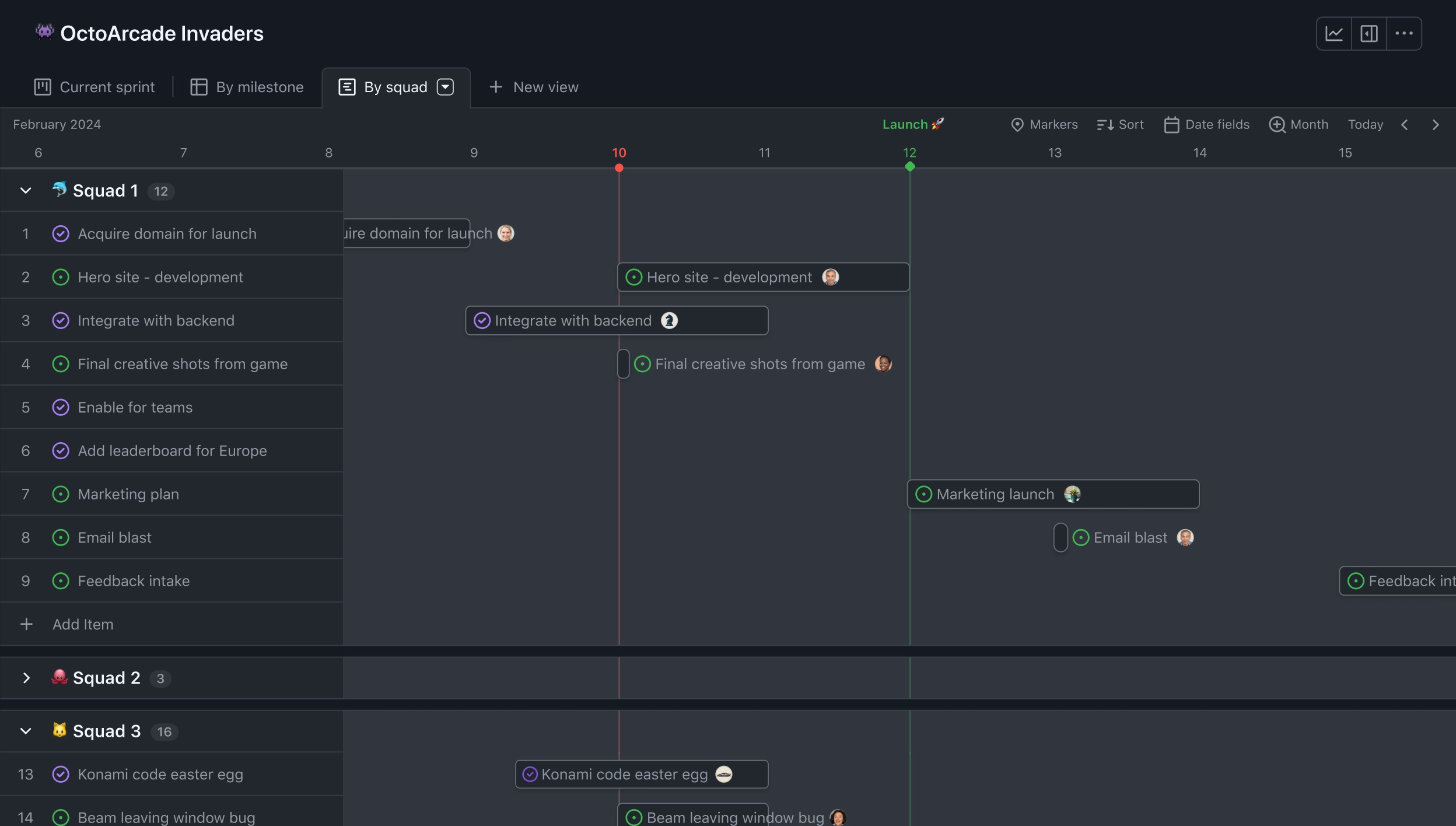
What the integration connects
The GitHub for Jira app brings development activity into Jira issues. When a branch, commit, or pull request refers to a recognizable Jira issue key, Jira can associate that activity with the issue.
For example, a branch named feature/PROJ-123-checkout-fix gives Jira a key to match. A commit message or pull request that includes PROJ-123 can also help link related work. The issue key tells the integration which Jira issue belongs with that activity.
Let me explain what this does not mean: the app is not a replacement for GitHub, and it does not move your code into Jira. It gives your team a view of relevant development activity alongside the Jira issue, so you can follow progress without switching between screens for every update.
Prepare your Jira and GitHub access
Before installing, check that the Jira site and GitHub organization you intend to connect are the right ones. This is especially useful if your company has separate environments for testing and live work.
Confirm that you know the Jira project key used by your team. A project called “Project Atlas” might use the key ATL, making its issue keys look like ATL-48. Use the key shown on an actual Jira issue rather than guessing from the project name.
You might be wondering: do you need to grant access to every repository? No. Select the repositories the team needs for Jira issue linking. For instance, a team working on one service can start with that repository and add others when its workflow requires them.
Also check who can approve GitHub Apps for the organization. If you cannot complete the authorization yourself, arrange for an organization administrator to approve it during setup. This avoids a half-finished connection that looks installed in Jira but cannot access the intended repositories.
Verify that Jira is linking activity
After setup, use a test issue that your team can safely update. Add its exact key to a new branch name, commit message, or pull request, then allow a short period for the activity to appear in Jira.
Open the Jira issue and check its development details. You should be able to see relevant linked activity, such as the branch or pull request. If the issue does not show an update immediately, refresh it after a few minutes and confirm that your test activity was created in a connected repository.
The best part? You can use this test to narrow down problems. If activity appears for one repository but not another, repository access is a likely place to investigate. If it does not appear anywhere, check the organization connection and the issue key first.
Once you have confirmed the connection, tell teammates how to include issue keys in their branch names, commit messages, or pull requests. A consistent pattern such as PROJ-123-short-description makes it easier to connect work to the right Jira issue.

Common setup problems and how to fix them
- The app is installed, but no activity appears. Check whether the GitHub organization is connected and the repository containing the activity is selected. Then confirm that the activity includes a valid Jira issue key.
- The wrong GitHub organization is connected. Return to the app configuration and review the connected organization. If you have several organizations, ensure the selected one owns the repository where the team works.
- A repository is missing from the setup. Ask a GitHub organization administrator to review the GitHub App’s repository access. Add the repository if the app is limited to selected repositories.
- The issue key does not match. Compare the key in the branch, commit, or pull request with the key displayed on the Jira issue. For example, PROJ-123 will not match an unrelated issue such as PROJ-132.
- Authorization is blocked. Contact the person who manages GitHub organization apps or Jira apps. They may need to approve the installation or grant your account permission to complete the setup.
When troubleshooting, change one thing at a time. Confirm the organization first, then repository access, and finally the issue key. That order helps you identify the cause without repeating the whole installation.
ONES.com is a unified platform for project management and knowledge management, powered by ONES Assistant. ONES Project is a Jira alternative for project management, while ONES Wiki provides knowledge management as a Confluence alternative. They are sold separately.

ONES.com is not the GitHub for Jira app, and it does not serve as a direct replacement for that integration. It may be worth considering if you are reviewing a broader Jira workflow or want project and knowledge management options beyond Jira.
Core capabilities
- Issue workflows feel difficult to adapt → ONES Project supports custom workflows and fields → Result: teams can shape issue stages and details around their own process.
- Teams rely on extra plugins for common project needs → ONES Project includes built-in reporting and sprint management → Result: teams can handle these activities with fewer add-ons.
- Repeated task updates consume time → Automation supports routine workflow actions → Result: teams can reduce manual steps in recurring processes.
- Jira users need a familiar transition path → ONES Project offers Jira-compatible workflows → Result: teams can preserve familiar patterns while evaluating a Jira alternative.
- Deployment requirements limit platform choices → ONES.com offers Cloud, On-Premise, Private Cloud, and Air-gapped deployments → Result: organizations can evaluate an environment that fits their operating requirements.
- Self-hosted deployments raise feature concerns → ONES.com provides full feature parity between cloud and self-hosted versions → Result: teams can assess deployment options without giving up feature access.
- Project knowledge is managed separately → ONES Wiki provides a knowledge management product alongside ONES Project → Result: teams can choose a connected platform direction while keeping the products’ separate roles clear.
- A team needs time to evaluate the platform → The free plan supports up to 30 seats → Result: a small team can try the platform before making a broader decision.
Application scenarios
A software team that wants to keep its current Jira and GitHub connection can follow the setup steps above. If the same team is separately reviewing its project management environment, it can assess ONES Project’s workflows, reporting, and deployment options without assuming the GitHub app connection carries over.
An organization with strict deployment requirements can compare Cloud, On-Premise, Private Cloud, and Air-gapped options. A team that also wants a knowledge management product can assess ONES Wiki separately from ONES Project and decide whether both fit its needs.
Common challenges when connecting GitHub and Jira
Different teams use different issue-key habits
Problem: Some developers include Jira keys in branch names, while others omit them or use inconsistent formats. Jira then has less context for matching activity to issues.
Solution: Agree on a simple team convention, such as starting branch names and commit messages with the issue key. Share a real example, like PROJ-123-fix-login, so everyone knows what to use.
Repository access changes over time
Problem: A repository may be added after the initial installation or moved to another organization. The app might not have access to it under the current configuration.
Solution: When a repository moves or joins the workflow, review the GitHub App installation and its repository permissions. Then test a new issue-linked branch or pull request from that repository.
Teams expect Jira to show every coding detail
Problem: Developers and project managers may expect the Jira issue to contain the full work history from GitHub. The integration is intended to connect relevant development activity, not replace GitHub’s own project and code views.
Solution: Agree on which updates belong in Jira and which remain in GitHub. Use Jira to follow issue progress, and use GitHub for detailed review and collaboration around code.
Administrators are unavailable during setup
Problem: A team member may be able to install the Jira app but lack permission to approve its GitHub organization access. Setup can stall at the authorization step.
Solution: Identify the Jira and GitHub administrators before installation. Share the organization and repositories the team needs, then arrange for the required approvals at the right point in the process.
Frequently asked questions
Does GitHub for Jira work with every Jira setup?
The setup described here covers the GitHub for Jira app installed through Jira’s app marketplace and connected to a GitHub organization. Your available options can depend on your Jira environment, account permissions, and organization policies. Check your Jira app settings and GitHub organization controls before starting, especially if your team uses a self-managed or restricted environment.
What should I include in a branch name to link it to Jira?
Include the Jira issue key exactly as it appears in Jira. For example, a branch named PROJ-123-update-checkout clearly contains the key PROJ-123. A commit message or pull request can also include the issue key. Ask your team to follow one consistent pattern, so issue references are easy to recognize.
Why is a GitHub pull request missing from its Jira issue?
First, confirm that the pull request belongs to a repository the GitHub App can access. Then check that its title, description, branch, or related activity includes the correct Jira issue key. If both checks pass, confirm that the app is connected to the expected GitHub organization and that authorization is complete.
Can I connect only selected GitHub repositories?
Yes, the GitHub App can be given access to selected repositories when the organization’s installation settings allow that choice. This can be a practical starting point if only one team or service needs Jira linking. If a repository is missing later, ask an organization administrator to review and update the app’s repository access.
Conclusion
Setting up the GitHub for Jira app takes a few deliberate steps: install it in Jira, connect the correct GitHub organization, grant access to the repositories your team needs, and test the link with a real Jira issue key.
If activity does not appear, check the organization, repository permissions, and issue key before reinstalling. A short team convention for issue keys can prevent many linking problems and make development progress easier to follow in Jira.
When your team’s needs extend beyond connecting GitHub activity, you can separately assess whether ONES Project or ONES Wiki fits a broader project or knowledge management review. Start with the connection you need today, then evaluate wider workflow changes with clear expectations.