Integrating Confluence with Jira: A 5-Step Guide for Teams
Tired of lost project context? Integrating Confluence with Jira in five steps links issues and knowledge—read now to streamline your team’s workflow.
Jira tracks issues, sprints, and delivery. Confluence gives teams a place to explain decisions and share project knowledge. When the two stay disconnected, people switch tabs, repeat updates, and lose time chasing context.
That friction grows when a Jira issue changes but its related project page does not. A developer may miss a decision, while a stakeholder reads an outdated status. The result is duplicated work and avoidable confusion.
But here’s the truth: you can connect the two without redesigning your entire workflow. A clear five-step setup helps your team link relevant Jira work to Confluence pages, confirm access, and keep information useful.
Here’s how to plan, configure, and maintain the connection, plus what to do when links or permissions do not behave as expected.
How to Integrate Confluence with Jira in 5 Steps
Start by deciding what information needs to move between the tools. Then configure the connection, add useful links, and test it with the people who will rely on it.
-
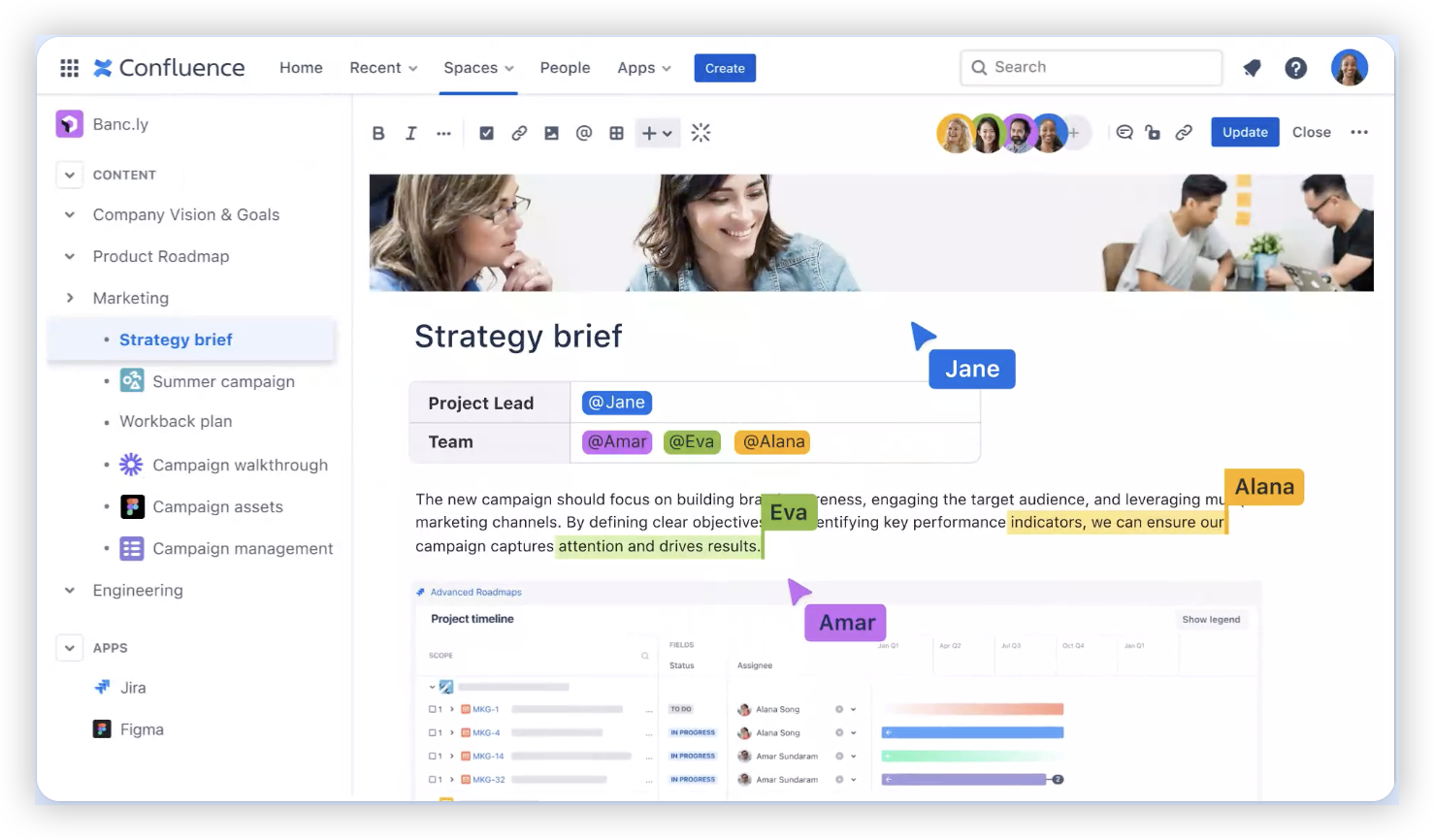
1. Agree on what the integration should do
Write down the tasks your team wants to make easier. For example, you might want a Confluence project page to show Jira issues, or a Jira issue to link directly to its technical explanation.
Keep the first goal specific. “Show open launch blockers on the release page” is easier to configure and verify than “connect everything.”
-
2. Check your Jira and Confluence setup
Confirm whether your team uses Cloud or self-managed editions, and check that administrators can configure connections in both environments. Feature names and setup screens can differ by product version.
Also confirm user access. A working connection does not automatically grant everyone permission to view every Jira project or Confluence space.
-
3. Configure the connection and authentication
Ask your Jira and Confluence administrators to establish the approved application connection. Depending on the setup, they may need to configure an application link, authentication, or an equivalent connection option.
Use your organization’s security requirements when choosing authentication and access settings. Test with a regular team account as well as an administrator account; administrator access can hide permission problems.
-
4. Add relevant Jira issues and Confluence links
On a Confluence page, add the Jira issues or issue list that readers need for that specific task. A release page, for instance, could show open launch blockers and link to the related Jira work.
In Jira, add a link to the relevant Confluence page when an issue needs a design explanation, decision, or runbook. Keep links focused so each one helps someone take the next step.
-
5. Test the workflow and agree on upkeep
Test the integration as a project member. Open a linked issue, check the page or issue details that appear, and confirm that readers can access the destination.
Then decide who owns link maintenance and page updates. For example, a project lead might review the release page weekly, while issue owners update links when scope changes.
The connection is working when people can move between project knowledge and active work without guessing where to look. A quick permissions check and clear ownership help keep it that way.
Choose an Integration Pattern That Fits the Work
Confluence and Jira can support different working patterns. Choose the one that gives each audience enough context without filling pages with information nobody needs.
Show live Jira work on a Confluence page
Use this pattern when readers need a current view of issues, such as a list of unresolved launch blockers on a release page. It can reduce manual status copying and make the page more useful during reviews.
For example, a product team could keep the release plan in Confluence and display the Jira issues connected to each milestone. The plan explains what the milestone means; the Jira view shows the work in progress.
Link project knowledge from Jira issues
Use this pattern when an issue needs background that should not be repeated in every ticket. A Jira task for changing a checkout flow might link to the Confluence page describing the design decision.
Let me explain: the issue is still the place to track the task, while the page provides context for the people doing or reviewing it. Clear links help prevent the same explanation from being copied across multiple issues.

Make Pages and Issue Links Useful
A connection cannot fix unclear content. Give each page a purpose, name it clearly, and put the most useful links where readers can find them quickly.
For example, a project home page could include a short project summary, the current milestone, a Jira issue list, and links to design decisions. A separate technical page can hold implementation details.
The best part? You do not need to expose every issue on every page. A targeted view of open risks is often more useful than a long list containing completed and unrelated work.
Set Access Rules and Ownership Before Rollout
Plan permissions alongside the connection. Someone may see a Jira issue link on a Confluence page but still lack permission to open the issue. Check access using accounts that reflect your real project roles.
Decide who can create project pages, maintain shared links, and change integration settings. A small team might assign page upkeep to its project lead, while administrators manage authentication and access controls.
When a project includes partners or contractors, review both products’ access settings before sharing links. This simple check can prevent blocked work and accidental exposure of restricted information.
Measure Whether the Connection Is Helping
Look for practical signs of improvement: fewer status-copying tasks, fewer requests for missing context, and faster access to decisions. A short team check-in can reveal whether people actually use the links.
Compare a release review before and after adding Jira issue views to its Confluence page. If the team still asks for updates that the page should answer, adjust the page layout or issue filter.
Keep the first setup small, learn from real use, and expand only when the next workflow has a clear need. This makes the integration easier to maintain as teams and projects change.
A Unified Workspace Alternative: ONES.com
ONES.com brings project management and knowledge management together in a unified platform powered by AI through ONES Assistant. ONES Project is the project management product and a Jira alternative; ONES Wiki is the knowledge base product and a Confluence alternative. They are sold separately.

This is a different approach from connecting Jira and Confluence: teams can choose a combined environment instead of linking separate products. If your organization needs to keep Jira and Confluence, the five-step integration above remains the relevant path.
Core capabilities
- Scattered project context: ONES Project and ONES Wiki provide project and knowledge management within the ONES.com platform, helping teams bring work tracking and shared knowledge closer together.
- Familiar Jira workflows: Jira-compatible workflows can help teams adopting ONES Project preserve recognizable work patterns while evaluating a Jira alternative.
- Manual status reporting: Built-in reporting helps teams review project progress without relying on repeated status summaries.
- Rigid work processes: Custom workflows and fields let teams shape work tracking around their processes and capture relevant issue details.
- Sprint coordination needs: Sprint management supports teams planning and tracking iterative development work.
- Repeated routine actions: Automation can handle selected workflow tasks, reducing manual steps for recurring processes.
- Plugin-heavy setups: Native capabilities can reduce reliance on extra plugins for common project management needs, depending on the team’s configuration.
- Deployment restrictions: ONES.com is available in Cloud, On-Premise, Private Cloud, and Air-gapped deployments. It offers full feature parity between cloud and self-hosted versions.
Application scenarios
A software team evaluating a Jira alternative could use ONES Project for sprint work and ONES Wiki for project knowledge, choosing the products that match its needs. The team should assess its workflows and migration requirements before changing its current setup.
An organization with strict hosting requirements could evaluate the On-Premise, Private Cloud, or Air-gapped deployment options. A small team can also explore the free plan, which supports up to 30 seats.
ONES.com is worth considering when your goal is a unified project and knowledge management environment. It is not a configuration that directly connects existing Jira and Confluence instances.
Common Challenges and Practical Fixes
People can see a link but cannot open the page or issue
Why it happens: The connection may be active while a user lacks permission in the destination project or space.
What to do: Test with a typical team account, then ask the relevant administrator to review access in both products. Avoid using an administrator account as your only test.
Issue details do not appear as expected
Why it happens: Product versions, connection settings, or the way a link is added can affect what appears in the page.
What to do: Check the current setup guidance for your editions and confirm that the link points to the intended Jira issue. Try a single issue before creating a larger issue view.
Confluence pages become cluttered with Jira information
Why it happens: Teams sometimes add broad issue lists when readers only need a small, relevant set.
What to do: Narrow the view to a project, milestone, status, or other useful condition. Keep explanations and decisions on the page, and use Jira for task-level tracking.
Links become stale as work changes
Why it happens: A project’s scope, ownership, or structure changes, but nobody is responsible for updating its shared pages.
What to do: Assign a page owner and include a brief link review in an existing project meeting. Update or remove links that no longer help someone complete a task.
FAQs About Connecting Confluence and Jira
What does integrating Confluence with Jira let a team do?
It lets a team connect project knowledge and tracked work. For example, a Confluence page can show relevant Jira issues, while a Jira issue can link to a page with design context or a decision. The precise information and behaviors available depend on your product editions, configuration, and user permissions.
Do I need an administrator to connect the products?
Usually, an administrator needs to configure the connection and its authentication or access settings. Team members may then add relevant issue views and links within their permitted areas. Ask your Jira and Confluence administrators about your organization’s setup, since available options can vary between Cloud and self-managed environments.
Why can one teammate open an issue while another cannot?
Jira and Confluence permissions are managed separately. A person may have access to a Confluence page but not the Jira project linked from it. Check the affected person’s access in both products, and test the link with an account that has the same role as that teammate.
Can I connect only one project or page?
Yes. You can start with a focused workflow, such as showing a release project’s open blockers on one Confluence page. A small pilot makes it easier to check permissions, confirm that the view is useful, and learn what needs maintenance before expanding the setup.
Conclusion
Connecting Confluence and Jira works best when you start with a clear task, configure access carefully, and link only the information people need. Test the workflow with a typical team account, then assign someone to keep shared pages useful.
If your team is losing time to scattered context, a focused integration can make project knowledge easier to reach. Begin with one real workflow, review how people use it, and improve the setup as your needs become clearer.