Issue Collector in Jira: A 7-Step Setup Guide for Teams
Need an easier way to collect website feedback? Set up an issue collector in Jira with this 7-step guide. Read now to get started.
When a team needs feedback from a public website, asking people to email a Jira administrator creates delays. Requests arrive in different formats, key details get missed, and someone must manually turn each message into work.
That friction can leave bugs unnoticed and make it hard to see which requests deserve attention. A form that asks too many questions can also discourage people from reporting issues at all.
Jira’s Issue Collector gives you a way to gather feedback through a form embedded on a website. In this guide, I’ll walk you through a seven-step setup, explain how to test and maintain it, and show you how to avoid common collection problems.
How to Set Up an Issue Collector in Jira
An Issue Collector lets people submit feedback through a form on a website, with each submission creating an issue in a Jira project. Set it up by preparing the project, configuring the form, adding the embed code, and testing the full journey.
-

1. Choose the project that should receive submissions
Start with the Jira project where the team will triage and resolve incoming requests. Consider who will review submissions, which issues they should create, and how the team will prioritize them.
For example, a product team might send website bug reports to its product project, while a support team routes feedback to a dedicated support project. Keeping submissions together makes ownership easier to understand.
-
2. Check project permissions and issue types
Confirm that you can administer the project and manage its Issue Collector settings. You may need a Jira administrator if the relevant project settings are unavailable.
Choose an issue type that matches the work people will report, such as Bug or Task. Check that the selected type is available in the project and that its required fields can be completed by the form.
-
3. Create the collector and define its purpose
Open the project settings and find Issue Collectors. Select the option to create a collector, then give it a name that explains where it will appear or what it gathers.
A clear name such as “Product Site Feedback” is easier to manage than “Collector 1.” Add a short description for administrators so they can identify the intended audience and destination later.
-
4. Choose the fields people will see
Pick the fields that help the team act on a submission. A concise form might ask for a summary, description, and contact detail, while Jira can handle internal fields during triage.
Every extra required field adds effort. If a report needs a browser version, for example, make that field optional unless the team truly cannot investigate without it.
-
5. Set the trigger and adjust the appearance
Choose how visitors open the form. Depending on the available settings, you can use a button or configure a trigger that opens the form in response to a chosen interaction.
Adjust the label, placement, and appearance to fit the website. A button marked “Report a problem” gives visitors a clearer cue than a generic “Feedback” label when the form is mainly for bug reports.
-
6. Generate the embed code and add it to your website
Save the collector settings and copy the generated JavaScript snippet. Ask the person responsible for the website to add it to the relevant page or pages.
Place the collector where visitors are likely to need it, such as a help page or product interface. Avoid adding it to every page before you know whether the placement is useful.
-
7. Test a real submission and confirm the Jira issue
Open the website as a visitor and submit a test report. Check that the form opens, the fields are understandable, and the confirmation message appears after submission.
Then review the resulting Jira issue. Verify its project, issue type, description, and reporter details, and confirm the right team can see and triage it.
But here's the truth: copying the code is only one part of setup. The collector is ready when a visitor can submit a clear report and the right team can act on it.
Prepare the Form for Useful Reports
The best form collects enough detail to start investigating without asking visitors to complete a long questionnaire. Think about the first questions a teammate would ask after reading a vague report.
For a website bug, a useful description might ask what the visitor expected and what happened instead. You could also invite them to include the page they were using, while keeping sensitive personal details out of the form.
Here's why: a short, focused form tends to reduce incomplete submissions. If the team repeatedly needs one missing detail, add a field or a clear prompt for it, then review whether that change improves reports.
Place the Collector Where People Need It
A collector placed beside a relevant task is easier to find than one hidden in a general contact area. For example, a “Report a problem” button on a checkout page gives customers a direct route to flag a broken step.
Placement should match the purpose of the form. A bug-reporting collector belongs near the product experience; a general feedback collector may fit better on a help or feedback page.
The best part? You can begin with one page and observe how people use it. If visitors submit unrelated requests, refine the button label or move the collector to a more suitable location.
Protect Visitors and Keep Triage Manageable
Because a website collector may be available to people who do not use Jira, tell visitors what information to include and what to leave out. Avoid asking for passwords, payment details, or other sensitive information.
Decide who reviews new issues and how often. A daily triage check can catch urgent reports sooner than an inbox nobody owns, while a named team queue helps prevent submissions from going unnoticed.
Let me explain: a collector gathers reports, but it does not decide priority for you. A simple triage routine—check impact, confirm ownership, then assign a next step—turns incoming feedback into manageable work.
Test, Monitor, and Improve the Setup
Retest the form after website changes, Jira project changes, or edits to the collector. A button that worked on a staging page may not behave as expected after a page redesign.
Review recent submissions for repeated confusion. If visitors often leave the description blank, revise the prompt with a concrete example, such as “Tell us what you clicked and what happened.”
You might be wondering: how do you know whether the setup is working? Look for clear, actionable reports, fewer requests for basic clarification, and a reliable handoff to the team responsible for resolution.
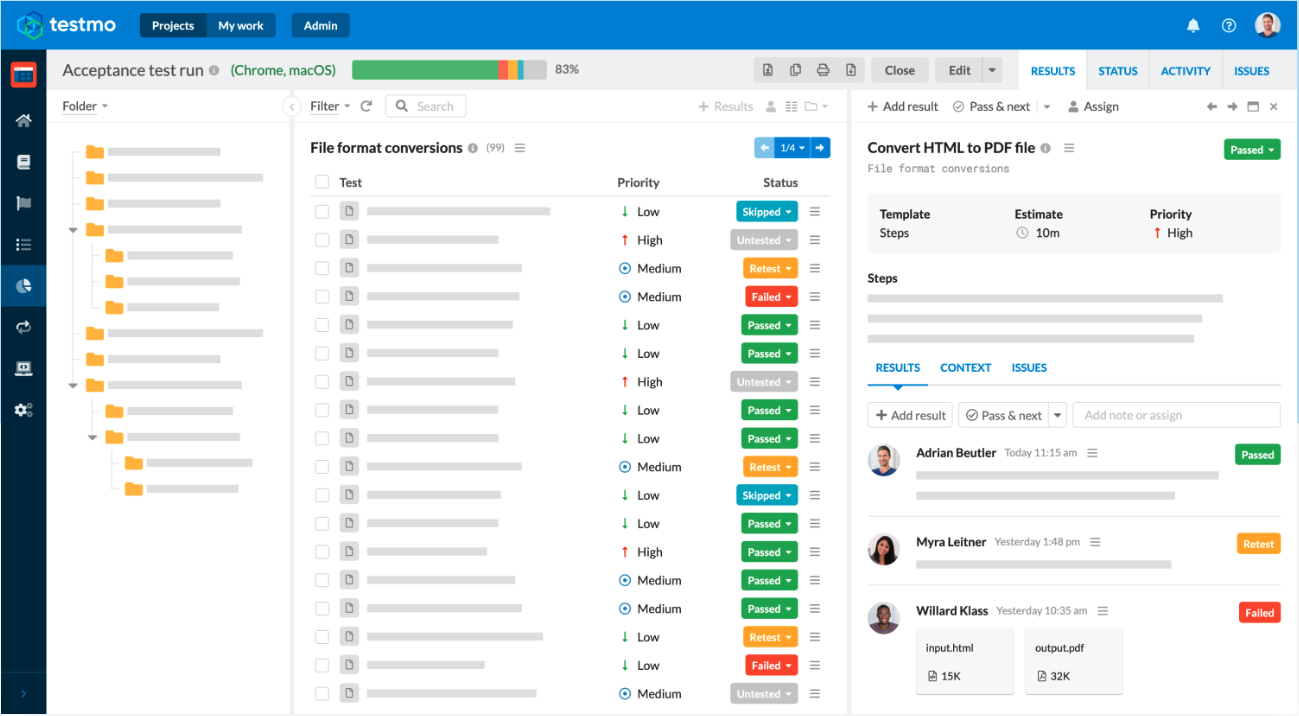
Issue Collection Workflows with ONES.com
ONES.com is a unified platform for project management and knowledge management. ONES Project is its project management product and a Jira alternative; ONES Wiki provides knowledge management as a Confluence alternative. They are sold separately.

ONES.com is not Jira’s Issue Collector, so it should not be treated as a replacement for Jira’s embedded website form. If your main need is to gather external website feedback, configure the Jira collector. If the harder problem begins after reports arrive, ONES Project may be relevant to the project workflow that follows.
Capabilities that can help after intake
- Work scattered across plugins → ONES Project includes Jira-compatible workflows and built-in reporting, helping teams manage more work within one project platform.
- Inflexible issue tracking → Custom workflows and fields let teams reflect their review and delivery process, so submissions can move through appropriate stages.
- Unclear sprint commitments → Sprint management helps teams plan and track work, giving accepted reports a place in a delivery cycle.
- Repeated manual handoffs → Automation can reduce repetitive workflow actions, helping teams spend less time moving routine work along.
- Disconnected project knowledge → ONES Wiki provides a separate knowledge management option, allowing teams to maintain guidance alongside their project work.
- Infrastructure constraints → ONES.com offers Cloud, On-Premise, Private Cloud, and Air-gapped deployments, supporting different hosting requirements.
- Concerns about deployment trade-offs → The self-hosted version has full feature parity with cloud, so deployment choice does not require giving up product features.
- Need to start with a small group → The free plan supports up to 30 seats, giving a team room to evaluate the platform with a limited rollout.
Where it may fit
Product feedback triage: A team can continue gathering website reports through Jira’s Issue Collector, then evaluate whether its issue review, sprint planning, and reporting workflow would benefit from ONES Project.
Restricted hosting environment: A team with on-premise or air-gapped requirements can assess ONES.com deployment options for project management. It should separately confirm that its external feedback collection approach meets its security and access requirements.
ONES.com may suit teams looking for project and knowledge management capabilities with deployment flexibility. It does not remove the need to choose and maintain an appropriate external feedback channel.
Common Issue Collector Challenges
- The collector does not appear on the website. Check that the embed code is present on the intended page and that recent website changes have not removed or altered it. Test the page in a browser after each adjustment.
- Visitors submit vague reports. Tighten the field prompts and provide a short example. Ask only for details that help investigation, such as the action attempted and the result.
- The form feels too long. Remove fields that the team can add during triage. Keep only essential questions required to route or understand a report.
- Issues reach the wrong team. Review the project destination, issue type, and triage ownership. Make sure the chosen project has a clear person or queue responsible for new submissions.
- Submissions include sensitive details. Add a visible instruction not to share passwords or payment information. Limit access to reports appropriately and follow your organization’s privacy practices.
Frequently Asked Questions
What does Jira’s Issue Collector do?
Jira’s Issue Collector lets a team place a feedback form on a website. A visitor can submit a report through the form, and Jira creates an issue in the configured project. The team can then review, prioritize, assign, and resolve that issue using its existing Jira workflow.
Can people submit a Jira issue without a Jira account?
The collector is designed to collect feedback through a website form, including from visitors who do not work in Jira. However, access and behavior can depend on your Jira setup and project configuration. Test the form as an external visitor, and confirm the resulting issue has the reporter details and visibility your team expects.
Can I customize the Issue Collector form?
You can configure aspects such as the fields displayed, form appearance, and how visitors open it. The exact options depend on the Jira environment and settings available to your project. Keep the form focused: ask for details that help the team investigate, and avoid making optional context a barrier to submission.
How can I test whether the collector works?
Open the page where the collector is embedded and submit a test report as a visitor. Confirm that the form opens and provides a clear completion message. Then inspect the created Jira issue for the correct project, issue type, description, and reporter details. Repeat the test after significant website or project configuration changes.
What should I do if the collector is missing from project settings?
Check whether you have permission to administer the project and whether your Jira setup offers Issue Collector settings for that project. Ask a Jira administrator to verify access and availability if you cannot find the setting. Project types and product configurations can differ, so confirm the options in your own Jira environment.
Conclusion
A well-configured Jira Issue Collector gives website visitors a direct way to report problems and gives your team a consistent place to review them. Choose the receiving project, keep the form focused, embed it where people need it, and test the full submission path.
Then assign someone to review incoming issues and improve the form when reports lack useful detail. That small operating routine can prevent feedback from becoming an unattended queue. If project coordination after intake is the bigger challenge, evaluate a workflow platform such as ONES Project separately from the collection form itself.