Jira Align Icon: Meaning, Uses, and a Quick Guide for Users
Not sure what the Jira Align icon means? Learn to recognize it, open the app, and navigate with confidence—read the quick guide now.
Opening Jira Align and seeing an unfamiliar icon can slow you down, especially when several Atlassian apps and work areas are open. Click the wrong symbol, and you may land somewhere unexpected or mistake an app shortcut for a status indicator.
But here's the truth: the Jira Align icon primarily helps you identify and open the Jira Align application. Its appearance can vary with the interface, so the label and tooltip matter as much as the graphic. Here's a quick guide to recognizing the icon, understanding what it represents, and finding your way around after you open the app.
What the Jira Align icon means
The Jira Align icon is the visual marker for the Jira Align application in places such as an app launcher, browser tab, or shortcut. It helps you distinguish Jira Align from other apps; it does not, by itself, indicate a project’s health, an issue’s status, or a user’s permissions.
Its exact appearance may change across interface versions, organizations, or display sizes. If you are unsure, hover over the icon to check its tooltip, or open the launcher and read the app name before selecting it.
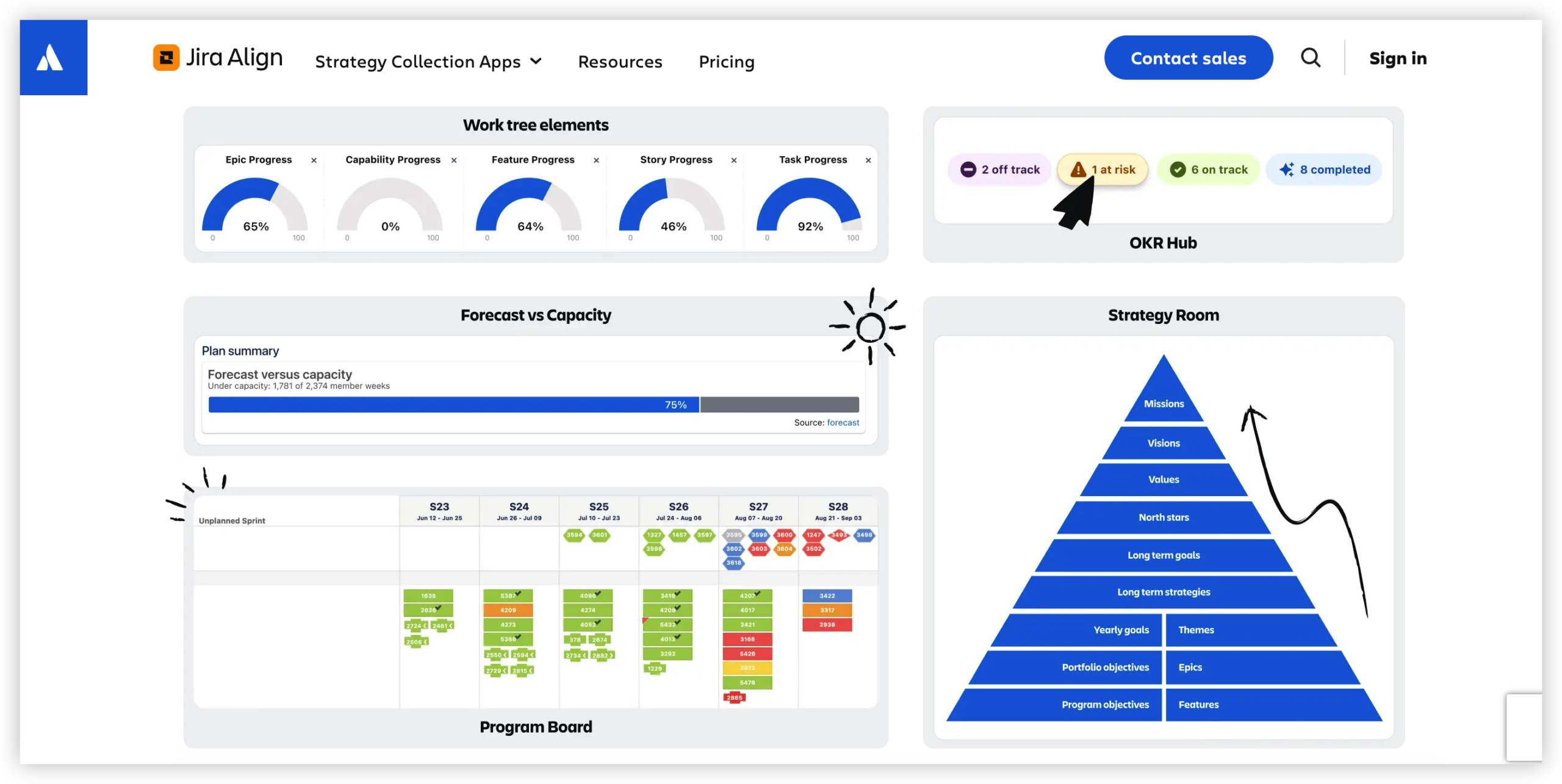
Icon, logo, and work-item symbols are different
An app icon represents the product. A logo is a broader brand mark, which may appear on a sign-in page or in product navigation. Jira Align also displays symbols for work items and other functions; those symbols have meanings within the app rather than identifying the app itself.
For example, a symbol beside a feature or objective may relate to that item’s type or state. The Jira Align app icon remains the way to identify the application in a launcher or browser interface.
Where you might see it and how to use it
The icon’s location depends on how your organization has set up access. You might see it in an Atlassian app launcher, a browser tab, a saved browser shortcut, or a company portal that lists approved applications.
To open Jira Align, select the icon where it appears and confirm the Jira Align name when the destination loads. If you are using a shared workstation, check that the account shown is yours before working with plans or reports.
Quick recognition steps
Look for the icon in your organization’s app launcher or approved application list.
Hover over it, if possible, and check for a Jira Align label or tooltip.
Select the icon and confirm that the page identifies itself as Jira Align.
Bookmark the verified page if you use it often, then check the saved label before reopening it.
Let me explain: the icon is a shortcut, not a guarantee that you have access. Your account may still need permission, and your organization may require a specific sign-in route.
What to expect after opening Jira Align
Jira Align is designed to help organizations coordinate work across teams and planning levels. Depending on your role and configuration, you may see areas for portfolios, programs, teams, objectives, roadmaps, or reporting.
The first screen is not identical for every person. A portfolio lead might see strategic planning views, while a team member may focus on team-level work. For example, an objective owner could review progress across several teams, while a delivery team checks planned work for an upcoming increment.
Use labels and navigation, not color alone
Color and shape can help you scan a screen, but they are not reliable substitutes for labels. A color may represent a configured status, and its meaning can differ between views or organizations.
If a symbol is unclear, hover over it, open its surrounding menu, or check your team’s Jira Align guidance. This small pause can prevent you from confusing an app shortcut with a work-item indicator.
Why the icon may look different
Icons can appear differently because of screen size, browser scaling, interface updates, or organization-specific navigation. A compact app launcher may show a simplified mark, while a sign-in page or browser tab may display another version.
For example, a small browser tab may reduce a brand mark to a few shapes, making it harder to recognize. If the graphic looks unfamiliar, verify the name and destination rather than relying on visual memory alone.
When the icon is missing or unclear
If you cannot find Jira Align, your organization may provide access through a portal or a direct link. Ask your administrator or team lead which route is approved, especially if your company uses single sign-on.
If the icon appears but access fails, note the message shown and contact your administrator. A missing permission, expired sign-in, or temporary service issue may be responsible; the icon itself does not diagnose the problem.
A related platform context: ONES.com
Jira Align’s icon helps you locate one application, while your wider delivery environment may include project planning and team knowledge needs. ONES.com brings project management and knowledge management together in a unified platform powered by ONES Assistant.

ONES Project is the project management product and a Jira alternative. ONES Wiki is the knowledge management product and a Confluence alternative. They are sold separately, so a team can select the area that fits its needs.
Value proposition
For teams comparing how work and knowledge are organized, ONES.com offers project and knowledge management under one platform family. It supports cloud and self-hosted deployments, including on-premise and air-gapped environments.
Core capabilities
Work scattered across tracking tools → ONES Project provides project management in a Jira alternative → teams can plan and track work in one configured environment.
Rigid processes → Custom workflows and fields let teams shape project records around their process → work details can better match how teams actually operate.
Sprint planning gaps → Sprint management supports planning and tracking team delivery → teams can review planned work and progress in context.
Manual recurring tasks → Automation handles supported workflow actions → teams can reduce repetitive handoffs and administrative effort.
Limited visibility into delivery → Built-in reporting presents project information → leads can review progress without relying only on informal updates.
Established Jira practices → Jira-compatible workflows help teams carry familiar patterns into ONES Project → adoption can fit existing ways of working.
Team knowledge separated from delivery → ONES Wiki provides knowledge management as a companion product → teams can organize guidance alongside their broader project environment.
Strict hosting requirements → ONES.com offers Cloud, On-Premise, Private Cloud, and Air-gapped deployments → organizations can choose an environment suited to their requirements.
Concern about self-hosted capability → Cloud and self-hosted versions have full feature parity → deployment choice does not require giving up feature availability.
Application scenarios
A delivery team moving from Jira could use ONES Project’s Jira-compatible workflows, custom fields, and sprint management to maintain familiar planning routines. Built-in reporting can help leads review progress across team work.
An organization with restricted network requirements could assess an air-gapped deployment, while another team might use Cloud. In either case, ONES Project and ONES Wiki remain separate products, so teams can choose project management, knowledge management, or both.
Common challenges when identifying the icon
The icon looks unfamiliar. Interface updates or a small display may change its appearance. Check the tooltip or app name before opening it.
You select it but cannot sign in. The icon does not confirm account access. Use your organization’s approved sign-in route and ask an administrator to check permissions if needed.
You confuse the app icon with a work symbol. App icons identify products; symbols inside Jira Align refer to items or actions. Read nearby labels before interpreting a symbol.
You cannot find Jira Align in the launcher. Your organization may use a company portal or direct link. Ask your administrator for the current access route instead of choosing a lookalike icon.
FAQs about the Jira Align icon
Does the Jira Align icon show project status?
No. The app icon identifies Jira Align as an application. It does not show whether a project, objective, or team is on track. Status indicators appear within Jira Align and should be interpreted using their labels, legends, or tooltips. If a colored symbol appears beside a work item, check the surrounding text before deciding what it means.
Can the Jira Align icon look different on my screen?
Yes. The displayed mark can vary with interface updates, screen size, browser scaling, or the place where you access the app. A browser tab may show a smaller or simplified mark than an app launcher. When the appearance is unclear, verify the Jira Align label and the destination page instead of relying only on shape or color.
What should I do if I cannot see the Jira Align icon?
Check your organization’s application portal or ask your administrator whether Jira Align is available through a direct link or another approved route. The app may not appear in every launcher, especially if access is managed centrally. If you can open the sign-in page but cannot proceed, ask your administrator to check your account access.
Is the Jira Align icon the same as the Jira icon?
No. Jira Align and Jira are distinct applications, even though organizations may use them together. Their icons and labels help you tell them apart in an app launcher. Check the displayed product name before opening a shortcut, particularly if both applications are available through the same portal.
Can I use the icon as a shortcut?
Often, yes. If your organization provides a supported browser or desktop shortcut, you can use it to reach Jira Align more quickly. Confirm that the shortcut points to the correct page and account, then follow your organization’s sign-in requirements. If you are unsure whether a shortcut is approved, ask your administrator before saving or sharing it.
Conclusion
The Jira Align icon is a way to recognize and open the application; it does not communicate project status or access rights. Its appearance can vary, so check the label, tooltip, and destination when you are unsure.
Once inside, use the navigation labels to find the areas relevant to your role, and ask your administrator about missing access. That quick check helps you avoid the wrong app and get back to planning and coordinating work.