Jira and Confluence Explained: How the Two Tools Work Together
What is Jira and Confluence, and how do they work together? Learn how Jira tracks work and Confluence organizes knowledge—read now.
Projects can stall when teams track tasks in one place and keep plans, decisions, and guides somewhere else. People ask the same questions, miss changes, or struggle to connect a task with the reason behind it.
Jira and Confluence are often used together to solve that problem, but their roles can feel confusing at first. Jira manages work; Confluence organizes the knowledge that helps people do that work. Using both without a clear handoff can add extra steps instead of removing them.
Here’s a practical explanation of what each tool does, how they connect, and when the pairing makes sense. You’ll also see a simple example workflow and a unified alternative to consider if you want project and knowledge management in one platform.
What Jira and Confluence Are—and How They Differ
Jira and Confluence are Atlassian tools that help teams manage project work and the knowledge around it: Jira tracks tasks and workflows, while Confluence organizes team pages and information. Together, they can connect the work people need to complete with the context that helps them complete it.
Jira is built for tracking work. Teams use issues to represent tasks, bugs, requests, or other pieces of work. An issue can include an owner, status, priority, due date, and discussion. Teams can arrange issues into workflows that reflect how their work moves forward.
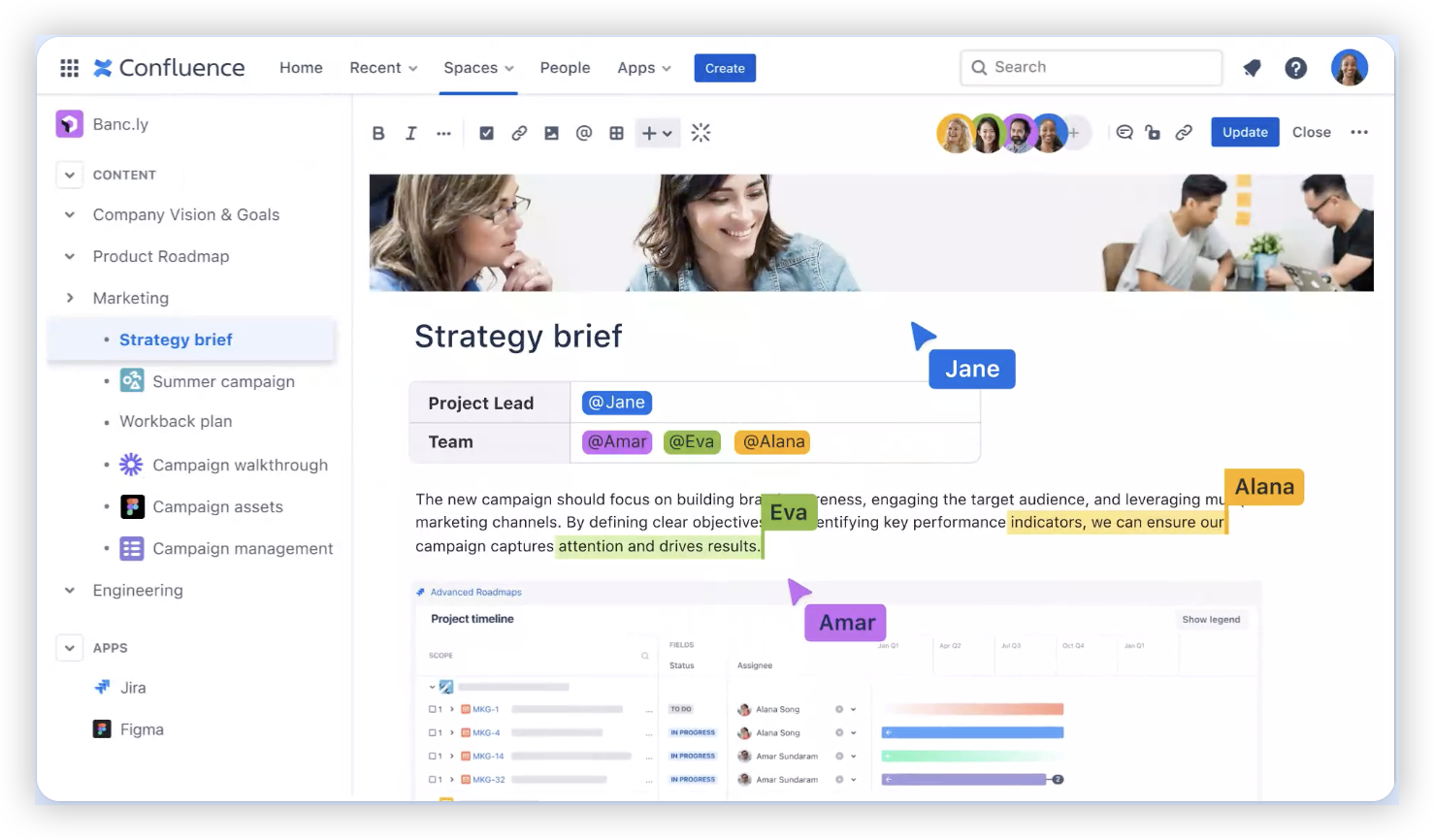
Confluence is built for shared knowledge. Teams create pages for plans, meeting notes, product requirements, technical guidance, and team processes. Pages can be organized into spaces so people can find related information.
Here’s why the distinction matters: Jira answers, “What needs to happen, and who owns it?” Confluence answers, “Why are we doing it, and what does the team need to know?”
How Jira and Confluence Work Together
The tools work together by linking project work to relevant team knowledge. A Jira issue can point to a Confluence page with requirements or implementation guidance, and a Confluence page can include Jira issue details.
For example, imagine a team preparing a mobile app release. The team tracks development tasks and defects in Jira, then keeps the release plan and testing guidance in Confluence. Links help people move between the plan and the work without searching from scratch.
But here's the truth: a connection between tools does not automatically create a useful workflow. Teams still need to agree on where information belongs, how pages are organized, and which Jira issues deserve a link.
A Practical Example: From Request to Release
A product manager records a feature request as a Jira issue and adds the goal, priority, and owner.
The team writes a Confluence page describing requirements, design decisions, and acceptance criteria.
The Jira issue links to that page, giving developers and testers quick access to the context.
Developers update Jira as the work progresses, while the team updates Confluence when a decision changes the plan.
During release preparation, the team reviews Jira status and follows links to the relevant testing and launch guidance.
This workflow keeps execution details close to the work and broader guidance in a shared knowledge area. It also makes ownership clearer: task updates go in Jira, while reusable explanations live in Confluence.
When Teams Use Each Tool
Jira is a strong fit when work needs clear ownership, status tracking, or a repeatable path through review and delivery. Software teams might track bugs and sprints, while operations teams could manage service requests or approval steps.
Confluence is useful when people need guidance they can revisit and improve over time. A team might keep onboarding instructions, meeting decisions, project plans, or technical explanations on its pages.
The best part? You do not need to create a page for every task. A short Jira issue may be enough for routine work, while a complex initiative may benefit from a detailed Confluence plan linked to several issues.
Quick Comparison
| Need | Jira | Confluence |
|---|
| Track ownership and progress | Primary role | Can provide context, but is not the main task tracker |
| Manage work through statuses | Use issues and workflows | Use pages to explain the process |
| Keep team guidance | Link to relevant guidance | Primary role for shared pages |
| Connect plans to execution | Link issues to related pages | Include Jira work details on pages |
Benefits and Trade-Offs of Using Both
When the roles are clear, Jira and Confluence can reduce repeated explanations. A developer can check the issue for ownership and status, then follow a link to the latest requirement or decision.
The pairing also gives teams room to adapt. Jira workflows can represent different kinds of work, while Confluence spaces can organize knowledge for projects, departments, or recurring processes.
Let me explain the trade-off: two tools can mean two places to maintain. If a deadline changes in a plan but not in the tracked work, people may see conflicting details. If pages multiply without clear ownership, useful guidance becomes harder to find.
A simple team agreement helps. Keep task status and ownership in Jira, put lasting explanations in Confluence, and link the two when context matters. Assign a page owner for important guidance and review it when the related work changes.
How to Set Up a Clear Jira–Confluence Workflow
You can start small instead of redesigning every team process at once. Pick one project, identify what belongs in each tool, and test the handoff with a real piece of work.
Choose the work to test. Select a project with enough coordination to benefit from shared context, such as a product launch or internal process update.
Define the role of each tool. Decide which details belong in Jira issues and which belong on Confluence pages. Keep task status and ownership with the issue.
Set a page structure. Create a consistent space or page pattern for requirements, decisions, and recurring guidance. Keep it simple enough for the team to maintain.
Agree on linking habits. Link an issue to a page when the page contains details needed to complete or review that work. Link back to related issues when readers need to see progress.
Review the workflow after use. Ask whether people found the context they needed and whether updates were made in the right place. Adjust the conventions before expanding to other teams.
You might be wondering: how much structure is enough? Start with a few useful rules, then add detail only when the team encounters a recurring problem. A short, practiced convention often works better than a lengthy process nobody follows.
A Unified Alternative for Project and Knowledge Management: ONES.com
ONES.com combines project management and knowledge management in one platform. ONES Project handles task tracking and project workflows, while ONES Wiki provides a shared knowledge base. The products are sold separately, so teams can choose the capabilities they need.

For teams comparing Atlassian products, ONES Project is a Jira alternative, and ONES Wiki is a Confluence alternative. The platform may suit teams that want related work and knowledge capabilities together, with deployment options that include cloud and self-hosted environments.
Core Capabilities
Work and knowledge feel disconnected: ONES.com brings project management and knowledge management into one platform, helping teams connect execution with team guidance.
Teams need familiar task tracking: ONES Project supports Jira-compatible workflows, so teams can shape work around familiar patterns.
Basic workflows do not fit every team: Custom workflows and fields let teams represent their own steps and work details.
Sprint planning needs a dedicated structure: Sprint management supports teams that organize work into planned development cycles.
Manual handoffs take time: Automation can handle configured routine actions, reducing repeated coordination work.
Progress is difficult to review: Built-in reporting gives teams a way to examine project status and work progress.
Extra plugins add operational overhead: Native capabilities can reduce reliance on plugins for supported project and knowledge workflows.
Hosting requirements vary: Teams can select Cloud, On-Premise, Private Cloud, or Air-gapped deployment, with feature parity between cloud and self-hosted versions.
Application Scenarios
A software team coordinating releases: The team can plan sprint work in ONES Project and keep technical guidance in ONES Wiki. This gives developers a connected place to manage tasks and consult shared knowledge.
An organization with restricted network requirements: A team that cannot use a public cloud service can consider an On-Premise, Private Cloud, or Air-gapped deployment while retaining feature parity with the cloud version.
ONES.com offers a free tier for up to 30 seats. Teams can evaluate whether its project and knowledge capabilities fit their workflow before deciding how to deploy and use the products.
Common Challenges and Practical Fixes
People Cannot Tell Where Information Belongs
Problem: Task details appear on a page, while status updates are scattered across comments and conversations. People lose time checking several places for the current picture.
Solution: Set a clear rule: Jira holds ownership and progress; Confluence holds reusable context and guidance. Link between them when someone needs both.
Pages Become Outdated
Problem: A project plan may no longer match the work after requirements or deadlines change.
Solution: Give important pages an owner and review them at project milestones. When a decision changes, update the page and link the relevant Jira issue so the change is visible.
Teams Create Too Many Links
Problem: Linking every issue to every page can create clutter. People may stop following links when many are irrelevant.
Solution: Link only when the relationship helps someone complete, review, or understand the work. Use a project overview page for broad context and issue-level links for specific requirements.
Different Teams Follow Different Habits
Problem: One group tracks decisions in pages, while another expects them in issue discussions. Cross-team work becomes harder to follow.
Solution: Agree on a small set of shared conventions for cross-team projects. Allow local flexibility where it does not affect ownership, progress visibility, or access to essential context.
FAQs
Can Jira work without Confluence?
Yes. A team can use Jira to track issues, workflows, ownership, and progress without using Confluence. Confluence becomes useful when the team needs shared plans, requirements, meeting notes, or guidance connected to that work. If Jira issues already contain enough context, a separate knowledge tool may not be necessary for every project.
Can Confluence work without Jira?
Yes. Teams can use Confluence to organize shared pages and knowledge without tracking work in Jira. It can support meeting notes, internal guidance, project plans, or team onboarding. Jira is helpful when people also need structured issue tracking, owners, statuses, or workflows. The right choice depends on how the team coordinates its work.
How do Jira and Confluence connect?
Teams can link Jira issues and Confluence pages so people can move between work and its context. A page can include Jira issue details, and an issue can link to a page with requirements or guidance. The exact workflow depends on how a team organizes its projects and permissions, so it helps to test the connection with a small project first.
Should teams keep project plans in Jira or Confluence?
Use Jira for actionable work that needs ownership, status, or workflow tracking. Use Confluence for broader plans, explanations, and decisions that people need to read or revisit. A project plan can live in Confluence and link to Jira issues for execution. This keeps the plan readable while giving the team a clear view of task progress.
Conclusion
Jira manages tracked work; Confluence organizes the knowledge that supports it. When teams define those roles and link related issues and pages, they can make project context easier to find and progress easier to follow.
The trouble starts when updates drift across both tools or teams have no shared habits. Start with one project, agree on where key details belong, and review the workflow after people use it. If you want project and knowledge management in one platform, ONES.com is another option to assess against your team’s needs.