Jira and Confluence Integration: A Step-by-Step Guide [2026]
Need to connect Jira and Confluence? Learn jira and confluence integration step by step to align work, context, and updates in 2026. Read now!
Jira tracks work, while Confluence explains the context behind that work. When the two tools sit apart, teams lose time searching for requirements, meeting notes, decisions, and delivery updates.
That gap creates more than inconvenience. Developers may build against an old requirement, product managers may repeat questions, and stakeholders may receive progress reports without enough context. Small disconnects can become missed handoffs and avoidable rework.
Jira and Confluence integration connects project work with the knowledge surrounding it. This guide shows you how to connect both tools, structure the relationship, link pages and issues, manage permissions, automate updates, and avoid common setup mistakes.
Jira and Confluence Integration: Step-by-Step Setup
The fastest approach is to connect the products, map each Jira project to the right Confluence space, create a clear page structure, and test the complete workflow with a real issue.
Here's why: integration only becomes useful when people know where work belongs and how to move between planning, delivery, and knowledge sharing.
-
Confirm your access and product setup.
Check that your account can manage the Jira project and the relevant Confluence space. You may also need administrative permission to connect products, configure automation, or adjust application access.
Confirm that both products belong to the same Atlassian organization or have an approved connection. Review user access before building links, because a person can see a Jira issue while lacking permission to open the linked Confluence page.
-
Choose the Jira project and Confluence space relationship.
A single product team often benefits from one primary space for planning context, decisions, specifications, and release knowledge. Larger programs may need a space for each product area or department.
For example, a mobile payments team could connect its PAY Jira project with a Mobile Payments Confluence space. This gives the team one predictable home for delivery work and supporting knowledge.
-
Connect the products.
In Jira, open the project settings and look for the area covering connected tools, project links, or application connections. Choose Confluence and follow the prompts to select the space.
Interface names can vary by plan and administration model. If you cannot find the option, ask an organization administrator to confirm product access and application links.
-
Create the core Confluence page structure.
Start with a small structure that people can understand immediately:
- Product home: purpose, owners, links, and current priorities.
- Requirements: product goals, acceptance criteria, and scope decisions.
- Meeting decisions: confirmed choices, owners, and follow-up actions.
- Release planning: release goals, risks, testing notes, and rollout details.
- Team handbook: working agreements, processes, and recurring guidance.
A compact structure usually performs better than a large collection of unlabeled pages. You can expand it when recurring needs become clear.
-
Link Jira issues to relevant Confluence pages.
Open a Jira issue and add the related Confluence page through the issue’s link, attachment, or connected-content controls. You can also paste a Confluence page URL into Jira when Smart Links are available.
Link the page that helps someone complete the work. A story about checkout validation might link to acceptance criteria, a design decision, and a testing approach.
-
Embed Jira work in Confluence.
In Confluence, insert a Jira issue, a filtered issue list, or a project view. Use filters that answer a specific question, such as “Which launch blockers remain?” or “What is planned for the next sprint?”
A release page could show unresolved critical issues, completed stories, and open risks. Readers get useful delivery context without leaving the page.
-
Set up templates and repeatable workflows.
Create templates for requirements, decision records, sprint reviews, incident reviews, and release updates. Add prompts that guide consistent writing, such as owner, status, decision date, affected areas, and next action.
In Jira, use consistent issue types, custom fields, labels, and workflow states. Consistency makes linked information easier to filter and maintain.
-
Configure notifications and automation carefully.
Use Jira automation, Confluence notifications, or approved integration rules to alert the right people when a priority changes, a milestone moves, or a decision needs review.
A useful rule might notify the release owner when a critical issue enters a blocked state. Avoid sending every activity update to an entire team, because excessive alerts quickly become background noise.
-
Test the complete journey.
Choose one real issue and follow it through planning, implementation, review, release, and closure. Check whether each person can open the linked page, understand the context, and find the next action.
Test both directions: Jira to Confluence and Confluence to Jira. Also test a person with limited permissions, because access mismatches often appear only after rollout.
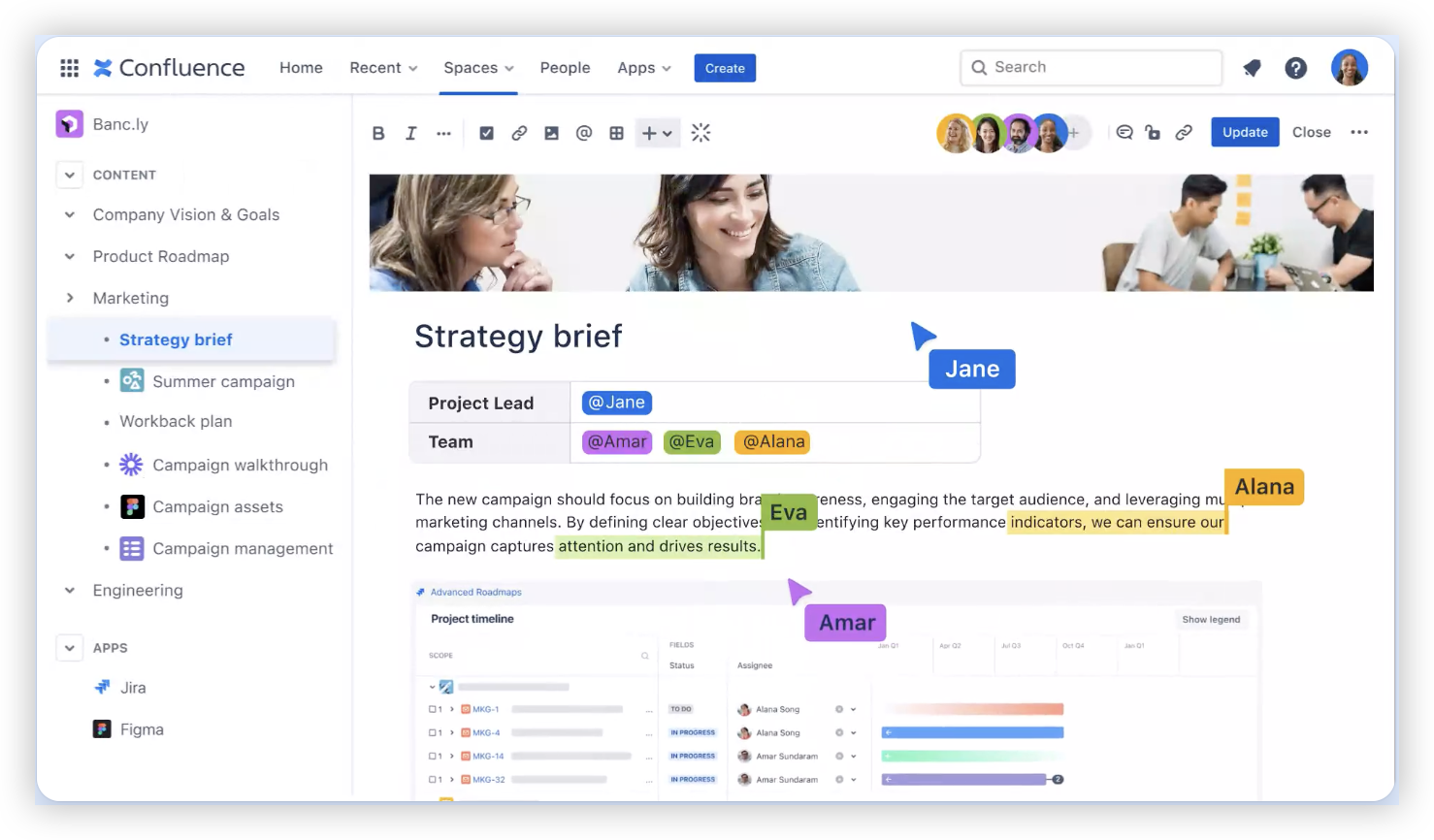
How Jira and Confluence Work Together
Jira is designed for planning and tracking work. Confluence is designed for collaborative knowledge, explanations, decisions, and team guidance. The integration connects a work item with the reasoning and materials that support it.
Consider a new two-factor authentication feature. Jira can track the epic, stories, bugs, sprint progress, and release status. Confluence can hold the product requirements, user journey, risk decisions, support guidance, and rollout plan.
The connection becomes valuable when each tool keeps its own purpose. Jira should answer “What work is happening, who owns it, and what is its status?” Confluence should answer “Why are we doing it, how should it work, and what did the team decide?”
You might be wondering: why not put everything in one tool? You can, but people usually find structured work tracking and long-form team knowledge easier to manage when each has a clear home.
Planning the Right Information Architecture
A successful setup begins with ownership. Decide who maintains product requirements, who approves decisions, who updates release pages, and who archives outdated guidance.
Use naming conventions that describe purpose rather than personal preference. “Checkout Requirements” is easier to recognize than “Notes for Q3,” especially after several quarters have passed.
Connect by product, team, or initiative
Connect a Jira project and Confluence space when the same group owns the work and the surrounding knowledge. A product team may need one relationship, while an enterprise program may require several carefully defined connections.
For example, a company-wide migration could use one Jira project for delivery tracking and separate Confluence spaces for architecture, operations, security, and training. Link only the pages that help people complete or understand the work.
Use page templates for recurring work
A requirement template might include business goal, user impact, acceptance criteria, open questions, dependencies, and approval status. A decision template might include the choice, alternatives considered, consequences, owner, and review date.
The template should guide judgment rather than replace it. Keep fields focused enough that a team can complete them during normal planning.
Define archival rules
Old pages and completed Jira work can make discovery harder. Add an owner and review date to pages that influence active delivery. Move outdated material into an archive area when it no longer supports current decisions.
For example, a release page could remain available for historical reference while the current product home highlights only active releases and approved guidance.
Linking Issues, Pages, and Delivery Context
Links work best when they explain a relationship. A Jira story may connect to a requirement page, a design decision, a test approach, and a release update. Each link should help someone answer a practical question.
Here's a simple example:
- Jira epic: Add passkey sign-in.
- Confluence requirement: User flows, supported devices, and acceptance criteria.
- Jira stories: Registration, sign-in, recovery, analytics, and support readiness.
- Confluence decision page: The selected recovery approach and its trade-offs.
- Release page: Rollout stages, monitoring signals, and rollback ownership.
Use labels and issue fields consistently. A release label such as release-2026-04 can help gather related pages, while a Jira fix version can group delivery work for reporting.
Smart Links can make pasted URLs easier to scan, but they do not replace meaningful titles. “Passkey recovery decision” tells a reader more than a long web address.
Use Jira filters inside Confluence
A Jira filter on a release page can show open blockers, unfinished stories, or recently completed work. Keep the filter narrow enough to answer one question.
For example, a launch page might display issues where the release equals “April Launch,” the status is unresolved, and the priority is high. A second view could show work completed during the latest sprint.
Use Confluence links inside Jira
Add links to requirements, designs, decision records, and operational guidance directly within the relevant Jira issues. Place the most important link near the top so contributors do not need to search through comments.
When an issue changes scope, update the linked page and add a short comment explaining the change. This keeps the decision trail understandable for people who join later.
Permissions, Notifications, and Governance
Integration does not automatically make every page visible to every Jira contributor. Jira permissions and Confluence permissions remain separate areas that require review.
Start with the minimum access needed for each role. Developers may need to edit technical requirements, stakeholders may need view access, and external partners may need a carefully limited area.
Prevent permission surprises
Test the experience with several roles before launch. Check a project administrator, a regular contributor, a stakeholder with view access, and a person outside the core team.
If a Jira issue links to a restricted page, the reader may see a title without the supporting details. Add a visible note when access requires a request, or place essential acceptance criteria where the delivery team can reach them.
Keep notifications useful
Notify people when an event requires action. A status change to “Blocked” may deserve an alert, while every comment on a planning page may not.
Set expectations for page watches, Jira subscriptions, team channels, and email. A short notification policy can prevent duplicate alerts across several tools.
Protect decision quality
Use page ownership, review dates, and approval markers for information that affects delivery. A decision without an owner can remain ambiguous long after the meeting ends.
For example, mark a security decision with its approver, date, affected release, and review trigger. If a requirement changes, the team can see who must reassess the decision.
Measuring Whether the Connection Helps
Integration should reduce search time and rework. You can evaluate that with practical indicators rather than relying on page counts or link totals.
| Area |
Useful indicator |
What it reveals |
| Discovery |
Time needed to find the current requirement |
Whether naming and navigation are clear |
| Handoffs |
Questions repeated during implementation |
Whether context reaches the delivery team |
| Change control |
Issues affected by late requirement changes |
Whether updates reach the right owners |
| Release readiness |
Open blockers linked to release pages |
Whether stakeholders can see delivery risk |
| Adoption |
Use of templates, links, and embedded views |
Whether the workflow fits daily habits |
The best part? You do not need a perfect measurement system on day one. Ask three people to complete a common task, such as finding the approved acceptance criteria for an open story. Record where they hesitate, then improve that path.
Common Mistakes to Avoid
Connecting everything without a purpose
Large numbers of links can create clutter. Link a Jira issue to the page that explains its scope, decision, risk, or completion criteria. Avoid adding links merely because a relationship exists.
Creating a page for every conversation
Teams often turn temporary discussion into permanent knowledge. Capture decisions, stable guidance, and reusable context. Leave short-lived coordination in the communication channel where the team already works.
Relying on one person to maintain the connection
If one project coordinator owns every page and link, the system may weaken during leave or team changes. Give each content area an owner and make updates part of planning and review routines.
Ignoring access testing
A link that works for an administrator may fail for a contributor. Test access with real roles before the workflow becomes important during a release or incident.
Using automation without guardrails
Automation can update fields, create pages, or send alerts. Poorly designed rules can create duplicate content and notification fatigue. Start with one measurable use case, test it, and add ownership for maintenance.
Jira and Confluence Integration Solution: ONES.com

Value Proposition
ONES.com combines project management and knowledge management in one unified platform, powered by ONES Assistant. ONES Project serves as a Jira alternative, while ONES Wiki serves as a Confluence alternative; they can also be sold separately.
For teams that want connected delivery work and shared knowledge with fewer plugins, ONES.com offers cloud and self-hosted deployment choices, including on-premise, private cloud, and air-gapped environments.
Core Capabilities
1. Scattered project context → Unified project and knowledge workspace → Fewer handoff gaps
When requirements, decisions, and delivery work live in separate places, contributors spend time checking several systems. ONES.com brings project management and knowledge management into one platform, so teams can connect planning activity with the context behind it.
2. Jira workflow migration concerns → Jira-compatible workflows → Easier transition for project teams
Teams familiar with Jira workflows may want comparable issue tracking, sprint management, and delivery controls. ONES Project supports Jira-compatible workflows while allowing teams to configure their own processes, fields, and statuses.
3. Plugin-heavy reporting → Built-in reporting → More consistent project visibility
When reporting depends on several extensions, teams may maintain different views of progress. Built-in reporting helps project leaders review workload, status, sprint progress, and delivery trends within the same working environment.
4. Rigid process design → Custom workflows and fields → Better alignment with team practices
Different teams need different approval paths, issue details, and ownership rules. Custom workflows and fields let teams represent product development, service delivery, compliance work, or internal operations more accurately.
5. Separate knowledge areas → ONES Wiki → Easier access to team guidance
When working knowledge is difficult to find, people repeat questions and recreate decisions. ONES Wiki provides a knowledge base area for requirements, team guidance, decisions, and reusable practices alongside project activity.
6. Restricted network requirements → Air-gapped and self-hosted deployment → More control over the operating environment
Some organizations cannot place project information in a public cloud environment. ONES.com supports Cloud, On-Premise, Private Cloud, and Air-gapped deployments, with feature parity between cloud and self-hosted versions.
7. Too many disconnected extensions → Native capabilities → Lower integration maintenance
Every extra plugin can add administration, compatibility checks, and training needs. Native reporting, automation, custom fields, sprint management, and knowledge capabilities can reduce the number of separate extensions a team must maintain.
8. Limited initial rollout budget → Free plan for up to 30 seats → A practical starting point
Small teams can begin with up to 30 seats on the free plan. That allows you to test workflows, page structures, reporting, and team adoption before planning a broader rollout.
Application Scenarios
Product development: A software team can plan epics and sprints in ONES Project while maintaining requirements, decisions, and release guidance in ONES Wiki. A product owner can review delivery status and supporting context in one connected environment.
Regulated operations: A team working in a restricted network can use an air-gapped deployment. It can manage approvals, maintain operational guidance, and control access without depending on a public cloud setup.
Jira and Confluence transition: A team seeking a Jira alternative and Confluence alternative can evaluate ONES Project and ONES Wiki separately or use them together through ONES.com. Existing process habits can inform workflow configuration during the transition.
Common Challenges and Practical Solutions
Challenge: The connection works, but people still search manually
Solution: Define a standard location for requirements, decisions, and release guidance. Add links to every major Jira epic and use a project home page that points to active areas.
Challenge: Linked pages are unavailable to some contributors
Solution: Review project roles, space permissions, page restrictions, and guest access together. Test the journey with regular contributor accounts before announcing the workflow.
Challenge: Pages become outdated after delivery changes
Solution: Add page owners and review dates. Include a short update step in sprint planning, backlog refinement, and release preparation when the related scope changes.
Challenge: Notifications overwhelm the team
Solution: Reserve alerts for events that require action. Use subscriptions for personal tracking, team notifications for shared risks, and automation only where the recipient and response are clear.
Challenge: Reporting does not match stakeholder questions
Solution: Build views around decisions stakeholders make. A release manager may need blockers and forecast risk, while an engineering lead may need workload, aging issues, and sprint progress.
FAQs
What does Jira and Confluence integration do?
It connects Jira work items with Confluence pages and spaces. You can link requirements, decisions, designs, and release guidance to issues, then show Jira issues or filtered project views inside Confluence. This gives contributors delivery status and supporting context without forcing them to search both products independently.
Do Jira and Confluence need to be connected to the same project?
They do not need identical project structures, but the relationship should be clear. A Jira project can connect with a primary Confluence space for its team or product area. Larger programs may use several spaces, provided each space has a defined purpose, owner, and access policy.
Can I link a Confluence page to a Jira issue?
Yes. You can add a Confluence page link through Jira’s connected-content or issue-link controls, or paste the page address when Smart Links are available. Use descriptive page titles and place important links where contributors can find them quickly.
Why can someone open a Jira issue but not its linked Confluence page?
Jira and Confluence permissions are managed separately. A person may have access to the project while lacking access to the space or page. Review space permissions, page restrictions, user groups, and guest settings, then test the link with the affected role.
Should every Jira issue have a Confluence page?
No. Create or link a page when the issue needs meaningful context, such as requirements, a major decision, research findings, operational guidance, or release planning. A small maintenance task may only need clear acceptance criteria inside Jira.
How can I keep the integration useful over time?
Assign page owners, use templates, review active links during delivery ceremonies, and archive outdated guidance. Track practical signals such as repeated questions, time spent finding requirements, and issues caused by unclear changes. Improve the workflow around those findings.
Conclusion
Jira and Confluence integration works when each tool has a clear role and every important relationship has an obvious path. Jira can track ownership, status, priority, and delivery progress. Confluence can preserve requirements, decisions, explanations, and reusable team knowledge.
Start with one project, one space, a small page structure, and a real delivery issue. Connect both directions, test permissions, add focused filters, and improve the workflow after observing how people use it.
But here's the truth: a link alone will not fix disconnected work. Clear ownership, useful templates, sensible notifications, and regular review turn the connection into a dependable working system.