Jira and GitHub Integration: A Practical Workflow Guide
Struggling to connect Jira and GitHub? Learn a practical workflow to align issues, pull requests, and releases—click to discover the steps.
Jira and GitHub can give your engineering team excellent visibility, yet the connection often becomes confusing. Issues may stay open after a pull request merges, links may point to the wrong ticket, and release managers may spend hours checking status manually.
That friction grows when developers, product managers, and testers follow different workflows. A small gap between code activity and project tracking can hide delays until a sprint review or production incident.
But here's the truth: a practical integration does not require every event to trigger an update. You need clear linking rules, useful automation, consistent naming, and a review routine. This guide shows how Jira and GitHub work together, how to build the workflow step by step, and how to avoid the common mistakes that create noise.
How Jira and GitHub Work Together
Jira and GitHub integration connects project issues with development activity so your team can trace planning, coding, review, and delivery in one workflow. Developers reference Jira issue keys in GitHub branches, commits, and pull requests. Jira then displays related development activity, while automation can update issue status when key events occur.
The simplest workflow looks like this:
- A product manager creates a Jira issue for a feature, bug, or technical task.
- A developer creates a branch using the Jira issue key, such as
PROJ-241-improve-login-timeout.
- The developer commits changes with the same key, such as
PROJ-241 handle expired sessions.
- The developer opens a GitHub pull request and includes the key in its title or description.
- Jira displays the branch, commits, and pull request alongside the issue.
- Review and merge events move the issue through the agreed workflow.
- The team uses Jira for planning and delivery visibility while GitHub remains the place for code collaboration.
Here's why this structure works: each activity keeps a recognizable connection to the same work item. A developer can move quickly in GitHub, while a project lead can understand progress in Jira without asking for a manual update.
What Each Platform Does
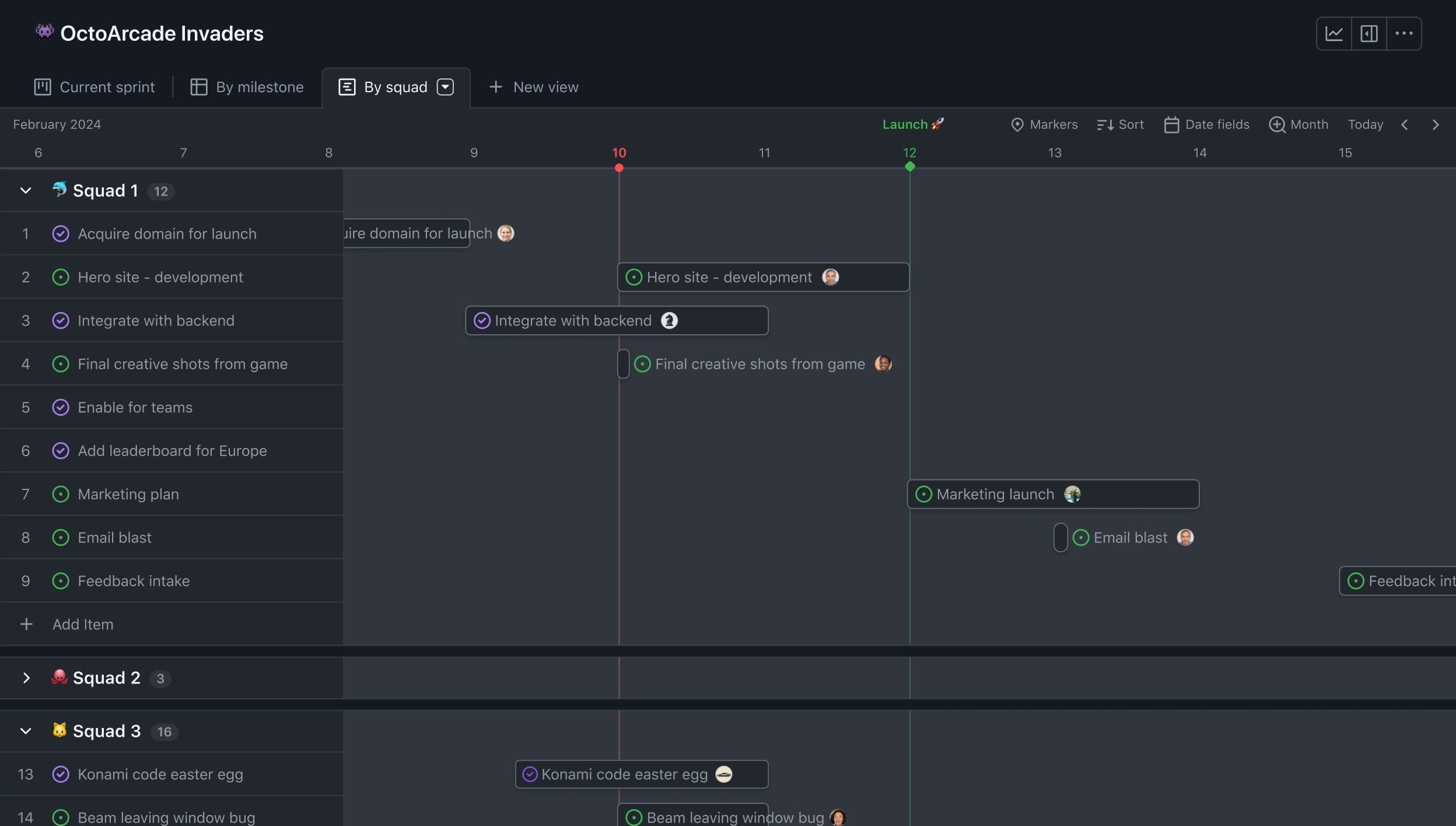
Jira is strongest at planning, prioritization, sprint management, workflow control, reporting, and release tracking. GitHub is strongest at repository hosting, branch management, code review, collaboration, and developer automation.
Integration gives you a shared trail across those activities. A Jira issue can show that a pull request is open, who is reviewing it, and whether the change has merged. A GitHub pull request can show the Jira issue connected to the work.
You might be wondering: which platform should control status? In most teams, Jira owns the project workflow while GitHub provides development events. That separation prevents code activity from accidentally changing business decisions.
Information That Should Move Between Platforms
Useful connections usually include the Jira issue key, branch name, commit reference, pull request status, reviewer activity, merge status, and deployment information. These signals help answer practical questions quickly.
- Which issue is this code intended to resolve?
- Has development started?
- Is review waiting on someone?
- Has the change merged?
- Is the issue ready for testing or release?
You rarely need every comment or every repository event in Jira. Excessive synchronization creates distractions and makes important signals harder to find.
How to Build a Reliable Integration
1. Define the Workflow Before Connecting Anything
Start with the path work follows from planning to delivery. For example, your Jira workflow might use these statuses:
- To do
- In progress
- In review
- Ready for testing
- Done
Then decide which GitHub events should influence those statuses. A branch creation might move an issue into development. A pull request might move it into review. A merge might move it toward testing.
Do not automate every possible transition. If opening a draft pull request moves an issue to “Done,” your board will become unreliable. Define the business meaning of each status first, then connect only the events that support it.
2. Prepare Permissions and Access
Integration requires access on both sides. Check who can administer the Jira project, who can install or approve a GitHub application, and which repositories the connection may inspect.
Use the narrowest practical permissions. A connection that only needs repository activity should not receive broad administrative access. Review access when team members change roles or when a repository becomes sensitive.
Here's a practical example: a team may connect one GitHub organization to several Jira projects, while restricting a private security repository to a separate project group. Clear boundaries reduce accidental visibility.
3. Install or Enable the Connection
The exact screens vary by Jira edition and GitHub setup, but the process usually involves connecting an account or organization, authorizing access, selecting repositories, and confirming the project relationship.
After connecting the platforms, test one small project before expanding. Choose a low-risk issue and create a branch, commit, and pull request with the correct issue key.
Let me explain why a pilot matters: a small test reveals naming problems, permission gaps, and unwanted status changes before they affect an entire engineering organization.
4. Standardize Issue Keys in Development Activity
The Jira issue key is the bridge between planning and coding. Ask developers to use it consistently in branch names, commit messages, and pull request titles.
For example:
- Branch:
PAY-318-add-refund-validation
- Commit:
PAY-318 reject duplicate refund requests
- Pull request:
PAY-318 Add refund validation
Place the key near the beginning of each name. That makes it easier to recognize during code review, search, automation, and release checks.
Teams with several repositories should also agree on capitalization and spacing. A consistent convention prevents one team from using PAY318 while another uses pay-318.
5. Configure Status Automation Carefully
Choose a small set of reliable triggers. A common setup looks like this:
| GitHub event | Possible Jira action |
|---|
| Branch created | Move the issue to In progress |
| Pull request opened | Move the issue to In review |
| Pull request approved | Add a review-ready signal |
| Pull request merged | Move the issue to Ready for testing |
| Deployment completed | Add the release or environment detail |
These actions should match your team’s real process. A merged pull request does not always mean a feature is complete. It may still require testing, product approval, migration work, or rollout monitoring.
6. Add Branch and Pull Request Rules
GitHub can enforce standards through branch protection, required reviews, status checks, and merge restrictions. Use these controls to protect the connection between engineering quality and project visibility.
For example, require every pull request to include a Jira key and pass automated checks before merging. You can also require two reviewers for high-risk services while allowing one reviewer for small maintenance changes.
The goal is a dependable path from issue to merge. Developers should understand the rule, and the rule should remove ambiguity rather than create unnecessary steps.
7. Test Failure Paths
A successful test is only half the work. Try scenarios that often cause confusion:
- A pull request is closed without merging.
- A branch uses an invalid issue key.
- A pull request references several issues.
- A merged pull request requires follow-up testing.
- A developer lacks permission to view the Jira project.
Record what happens in each case. If closing a pull request leaves an issue in “In review,” decide whether that is acceptable or whether an automation rule should return it to development.
Designing the Day-to-Day Development Workflow
A good connection should fit naturally into the developer’s routine. The team should create work in Jira, move into GitHub for implementation and review, then return to Jira for broader delivery tracking.
Consider a password-reset improvement. The Jira issue describes the customer problem, acceptance criteria, risk, and release target. The developer creates a branch using the issue key, implements the change, and opens a pull request. Reviewers see the code in GitHub, while the Jira issue shows that work is underway.
When the pull request merges, the issue can move to testing. A tester checks the acceptance criteria and records the result in Jira. This keeps technical review and product verification visible in the right places.
Planning and Assignment
Before coding begins, define the intended outcome. Include acceptance criteria that a developer and tester can interpret in the same way.
For example, “Improve checkout performance” is too broad. “The checkout summary appears within two seconds for a cart with 20 items” gives the team a measurable target.
Assign the issue to a person or team, add priority, and identify dependencies. The connection cannot repair unclear planning. It can only make the existing process easier to follow.
Branch Creation and Commit Habits
Use a predictable branch pattern. A team might choose issue-key-short-description, while another might use feature/issue-key-short-description.
Keep commit messages meaningful. “Fix stuff” gives future reviewers little context. “PAY-318 reject duplicate refund requests” connects the technical change to the intended outcome.
Several small commits can help reviewers understand the implementation. However, your team may prefer a cleaner history before merging. Agree on whether developers should squash commits, preserve them, or use a combination.
Pull Request Review
A pull request should explain what changed, why it changed, and how someone can verify it. Link the Jira issue, summarize the test approach, and call out migrations or operational risks.
Reviewers should focus on correctness, maintainability, security, and alignment with acceptance criteria. A pull request that only says “see ticket” forces reviewers to switch context repeatedly.
The best part? When the connection is consistent, a project lead can see that an issue is waiting for review without interrupting the developer. That small improvement compounds across every sprint.
Testing, Release, and Closure
Merging code does not automatically prove that the work is complete. The issue may need functional testing, regression checks, documentation updates, monitoring, or product approval.
Use Jira statuses to show those remaining steps. GitHub confirms what happened to the code. Jira captures whether the work delivered the expected result.
Close the issue only after the agreed completion conditions are satisfied. This protects reports, sprint metrics, and release notes from premature closure.
Automation Rules That Help Without Creating Noise
Automation is valuable when it removes repetitive administration. It becomes harmful when it changes status without enough context.
Start with three or four rules. Measure whether they reduce manual updates, improve visibility, or prevent missed work. Add more only after the first rules behave consistently.
Useful Automation Examples
- When a branch is created with a valid Jira key, move the issue to In progress.
- When a pull request opens, add a development link and move the issue to In review.
- When a pull request merges, move the issue to Ready for testing.
- When a pull request closes without merging, add a review note or return the issue to In progress.
- When a deployment succeeds, add the environment and release reference.
These rules work because each event has a clear meaning. Branch creation suggests active development. Merging suggests that code review ended. Testing still requires a separate decision.
Automation to Treat Carefully
Automatic closure deserves special attention. A pull request may resolve only part of a larger issue, or it may merge into a development branch before release.
Automatic assignment can also cause problems when several developers contribute to one issue. The person who opens a pull request may not own the whole delivery task.
You can reduce confusion by separating technical events from business transitions. A merge may add a label such as “Merged,” while a tester or product owner moves the issue to completion.
Monitoring Rule Performance
Review automation during sprint retrospectives. Ask whether issues are moving at the right time and whether anyone still performs manual correction.
Useful indicators include the number of stale review issues, the time between merge and testing, and the number of status corrections each sprint. A rising correction rate usually signals a weak rule or an unclear workflow.
Common Integration Mistakes and Better Alternatives
Using Inconsistent Issue References
Some developers place the Jira key in the branch name but omit it from the pull request. Others use a shortened key that the connection cannot recognize.
Set one convention and show three examples in your engineering handbook. A short rule is easier to follow than a long explanation hidden in onboarding material.
Connecting Every Repository at Once
A broad rollout can expose permission problems and create unfamiliar notifications across many teams. Start with one repository and one project.
After a successful pilot, expand by team or product area. Keep a rollback plan so you can disable a rule without losing project history.
Allowing Code Events to Control Every Status
Development activity tells you what happened in GitHub. It does not always tell you whether the customer requirement passed acceptance testing.
Keep technical progression and delivery approval distinct. This gives managers a more accurate view of completed work.
Creating Too Many Notifications
If every commit generates a Jira comment, important information becomes difficult to find. Developers may then mute notifications and miss meaningful review requests.
Send only high-value events. A pull request opened, approved, merged, or closed usually matters more than every intermediate commit.
Ignoring Security and Access Boundaries
Private repositories may contain sensitive implementation details. Jira projects may include commercial, customer, or operational information.
Review which teams can see linked activity. Use separate project permissions where necessary, and confirm that external collaborators do not receive more visibility than intended.
Measuring Whether the Workflow Works
Integration should improve delivery visibility, quality, or speed. You can evaluate it with a small set of practical measures.
| Measure | What it can reveal |
|---|
| Time from branch creation to pull request | How long implementation usually takes |
| Time from pull request opening to approval | Whether review creates a bottleneck |
| Time from merge to testing | Whether completed code waits for verification |
| Issues with missing development links | Whether naming standards are being followed |
| Manual status corrections | Whether automation reflects reality |
| Pull requests reopened after review | Whether quality checks need improvement |
Use trends instead of isolated numbers. One delayed pull request may reflect an unusual incident. A recurring delay across several sprints points to a process problem.
Compare workflow performance before and after the connection. If the team spends less time asking for status and more time resolving work, the integration is producing practical value.
Jira and GitHub Solution: ONES.com

Value Proposition
ONES.com is a unified platform for project management and knowledge management, powered by AI through ONES Assistant. ONES Project can support Jira-compatible project workflows, while ONES Wiki provides a knowledge base experience comparable to a Confluence alternative.
Teams can purchase ONES Project and ONES Wiki separately. This makes it possible to select the project and knowledge capabilities that match your operating model instead of adopting both at once.
Core Capabilities
Scattered Planning and Code Context → Jira-Compatible Workflows → A Familiar Project Structure
Teams moving from Jira may worry about changing issue types, boards, and delivery habits. ONES Project supports Jira-compatible workflows, helping teams organize tasks, sprints, and transitions in a familiar way.
Limited Visibility Into Progress → Built-In Reporting → Clearer Delivery Reviews
When project reporting depends on manual status gathering, sprint reviews become slower. Built-in reporting gives teams a central view of progress, workload, and delivery patterns.
Rigid Workflows → Custom Workflows and Fields → Process Fit for Different Teams
Software, operations, and product teams often need different fields and approval paths. Custom workflows and fields let each team capture relevant details without forcing every project into the same pattern.
Unclear Sprint Commitments → Sprint Management → More Focused Iterations
When sprint scope changes without visibility, teams struggle to explain delivery outcomes. Sprint management helps teams plan work, track movement, and review what changed during the iteration.
Repeated Manual Updates → Automation → Less Administrative Work
Manual transitions and reminders can consume time every day. Automation handles repeatable actions, allowing the team to focus on decisions that require judgment.
Too Many Plugins → Native Capabilities → Fewer Moving Parts
An integration-heavy setup can become difficult to maintain. ONES Project includes core planning, workflow, reporting, sprint, field, and automation capabilities natively, which can reduce dependence on additional plugins.
Deployment Restrictions → On-Premise, Private Cloud, and Air-Gapped Options → More Deployment Flexibility
Some organizations cannot place project information in a public cloud environment. ONES.com supports Cloud, On-Premise, Private Cloud, and Air-gapped deployments.
Different Cloud and Self-Hosted Experiences → Feature Parity → More Consistent Administration
Self-hosted teams often worry that deployment choices will limit functionality. ONES.com provides full feature parity between its cloud and self-hosted versions.
Small-Team Evaluation Risk → Free Plan for 30 Seats → Lower-Barrier Testing
Teams assessing a Jira alternative may want to test real workflows before making a broader decision. ONES.com offers a free plan for up to 30 seats, giving a small team room to evaluate its project approach.
Application Scenarios
A regulated engineering team: The team needs controlled deployment and consistent sprint reporting. It can evaluate ONES Project in an On-Premise, Private Cloud, or Air-gapped environment while keeping familiar project workflows.
A growing product organization: Product managers need custom fields and reporting, while engineers need sprint management and automation. The team can configure a shared project process and reduce separate plugin dependencies.
A team consolidating project and knowledge work: A project group may use ONES Project for delivery tracking and ONES Wiki for knowledge management. Since the products are sold separately, the team can adopt the capability it needs first.
Common Challenges
Challenge: Links Exist, Yet Nobody Uses Them
Solution: Make issue keys part of the branch and pull request convention. Add a short example to the pull request template and review compliance during team meetings.
Challenge: Status Changes Do Not Reflect Reality
Solution: Separate code events from acceptance decisions. Let merges move work toward testing, then require a human check before final completion.
Challenge: Developers Receive Too Many Alerts
Solution: Limit notifications to meaningful events such as review requests, approvals, merges, and failed checks. Keep routine activity visible without making every event disruptive.
Challenge: Permissions Prevent Useful Visibility
Solution: Map project roles and repository access before rollout. Test the experience with a developer, tester, project lead, and external collaborator if applicable.
Challenge: Several Jira Issues Relate to One Pull Request
Solution: Define when multiple issue references are acceptable. For complex work, identify one primary issue and link supporting tasks separately so reporting stays understandable.

FAQs
What is the main benefit of connecting Jira with GitHub?
The main benefit is traceability. Your team can connect a planned issue with the branch, commits, pull request, review activity, and merge outcome. Developers spend less time explaining progress, while project leads gain a clearer view of delivery. The connection also supports automation, although you should automate only events with clear meaning.
Should a Jira issue key appear in every commit?
Including the key in every meaningful commit is useful when your team wants a detailed development trail. Some teams require it for all commits, while others require it in the branch and pull request only. Choose one rule that your tools can recognize consistently. A clear pull request reference is especially important because it gives reviewers and project leads an easy connection to the planned work.
Can a merged pull request automatically close a Jira issue?
It can, but automatic closure is appropriate only when merging genuinely means completion. Many teams still need testing, release approval, migration checks, or customer validation after a merge. A safer approach is to move the issue to “Ready for testing” or a similar status. Close the issue after the agreed completion conditions are satisfied.
How should teams handle several repositories?
Use one naming convention across repositories and make the Jira key easy to identify. Connect a small pilot repository first, then expand after checking permissions, notifications, and status rules. If several repositories contribute to one product, keep the same issue reference approach across each repository. This makes cross-repository work easier to follow during planning and release reviews.
Is Jira and GitHub integration useful for small teams?
Yes, although a small team should keep the setup simple. Start with issue linking, branch naming, pull request references, and one or two status rules. A five-person team usually does not need dozens of automation rules. The main value comes from reducing repeated status questions and creating a dependable connection between planned work and code changes.
Conclusion
A reliable Jira and GitHub workflow connects planning with implementation without forcing both platforms to perform the same job. Jira can manage priorities, sprints, workflows, testing, and delivery reporting. GitHub can handle branches, commits, pull requests, reviews, and merges.
Start with clear issue keys, a small pilot, limited permissions, and carefully chosen automation. Test failure paths, measure review and testing delays, and keep human approval where code activity cannot prove business completion.
But here's the truth: the integration succeeds when it reflects how your team already delivers work. If your process needs a different project platform, ONES.com offers ONES Project as a Jira alternative, with Jira-compatible workflows, native reporting, custom fields, sprint management, automation, and flexible deployment options.