Jira and Scrum: A Step-by-Step Workflow for Agile Teams
Struggling to make Jira and Scrum work together? Follow a step-by-step workflow for boards, backlogs, and sprints. Read now to learn.
Scrum gives an Agile team a shared rhythm, yet Jira can feel like a maze when boards, backlog items, and sprint settings do not match the way people work. Tasks slip between columns, planning becomes a debate about status, and the daily Scrum turns into a tour of the screen. That friction makes it harder to see whether the team is moving toward a usable increment.
But here's the truth: Jira works best with Scrum when you configure it around the framework’s events and artifacts, then keep the workflow small enough to maintain. I’ll walk you through a practical setup, from product backlog to retrospective, with concrete examples and checks for common pitfalls. You’ll also see how to make progress visible without treating every metric as a performance score. Start with the team’s goal, and let the board serve that goal.
How to Run a Scrum Workflow in Jira
Use Jira to support Scrum’s cycle: maintain a product backlog, plan a sprint, track work, deliver an increment, and inspect how the team can improve. These steps give you a practical starting point.
Agree on a product goal. Write one clear outcome the team is working toward, such as helping new customers finish account setup without support. Keep it visible so sprint choices connect to a shared direction.
Create a Scrum project and board. Choose a Scrum setup in Jira, then confirm the board shows the team’s work and the columns match its workflow. Avoid adding status columns just because Jira offers them.
Build the product backlog. Add work as backlog items, such as a user story for simplifying account setup. Include a short description, acceptance criteria, and any important dependencies.
Refine upcoming work. Review the highest-priority items with the team. Break a large item into smaller pieces when it cannot be understood, estimated, or completed within a sprint.
Plan the sprint. Choose a sprint goal, then select backlog items the team believes it can complete. Consider capacity, planned absences, and recent delivery patterns before committing.
Track work during the sprint. Move items across the board as work progresses. Link subtasks to larger items when useful, and make blockers visible rather than hiding them in comments.
Inspect the increment with stakeholders. At the sprint review, demonstrate completed work and gather feedback. Keep unfinished items in the backlog for reassessment instead of presenting them as completed.
Reflect and improve. Hold a retrospective after the review. Agree on one or two practical changes, assign an owner, and check whether those changes helped in the next sprint.
Here's why: a Jira board is most useful when it reflects the team’s actual Scrum workflow. It should make important work and impediments easy to discuss, not create extra administration.

Map Scrum Roles, Events, and Artifacts to Jira
Scrum defines accountabilities, events, and artifacts; Jira gives your team a place to organize and inspect related work. A clear map helps you avoid treating the software as a replacement for Scrum conversations.
For example, the product backlog can appear as prioritized work on a Scrum board. Sprint planning selects a set of items and establishes a sprint goal, while the sprint board helps the team coordinate execution. Jira can support these activities, but people still make the decisions.
A product owner can order backlog items, developers can plan and update their work, and a Scrum Master can help the team improve its process. The daily Scrum remains a short planning conversation among developers, not a requirement to report status to a manager.
Let me explain: if a team has four workflow stages—To Do, In Progress, In Review, and Done—those columns should reflect meaningful progress. A separate “Waiting for Update” column may only add clutter unless it represents a real, managed state.
Keep the Product Backlog Ready for Planning
A useful backlog makes the next planning session easier. Give each high-priority item enough context for the team to understand the intended outcome, discuss its size, and identify uncertainty.
For instance, “Improve checkout” is too broad to guide a sprint. “Let returning customers reuse a saved delivery address” is clearer, especially when the team adds acceptance criteria describing what should happen after selection.
You might be wondering: should every backlog item be fully specified? No. Focus refinement on likely upcoming work, and add detail as the team learns. This keeps the backlog useful without turning refinement into a separate documentation project.
Use Jira fields and labels sparingly. A priority field can help order work, while a label can group a temporary initiative. If the team needs a lengthy explanation to interpret a field, simplify the configuration or clarify its purpose.
Run a Sprint Without Turning the Board into a Status Report
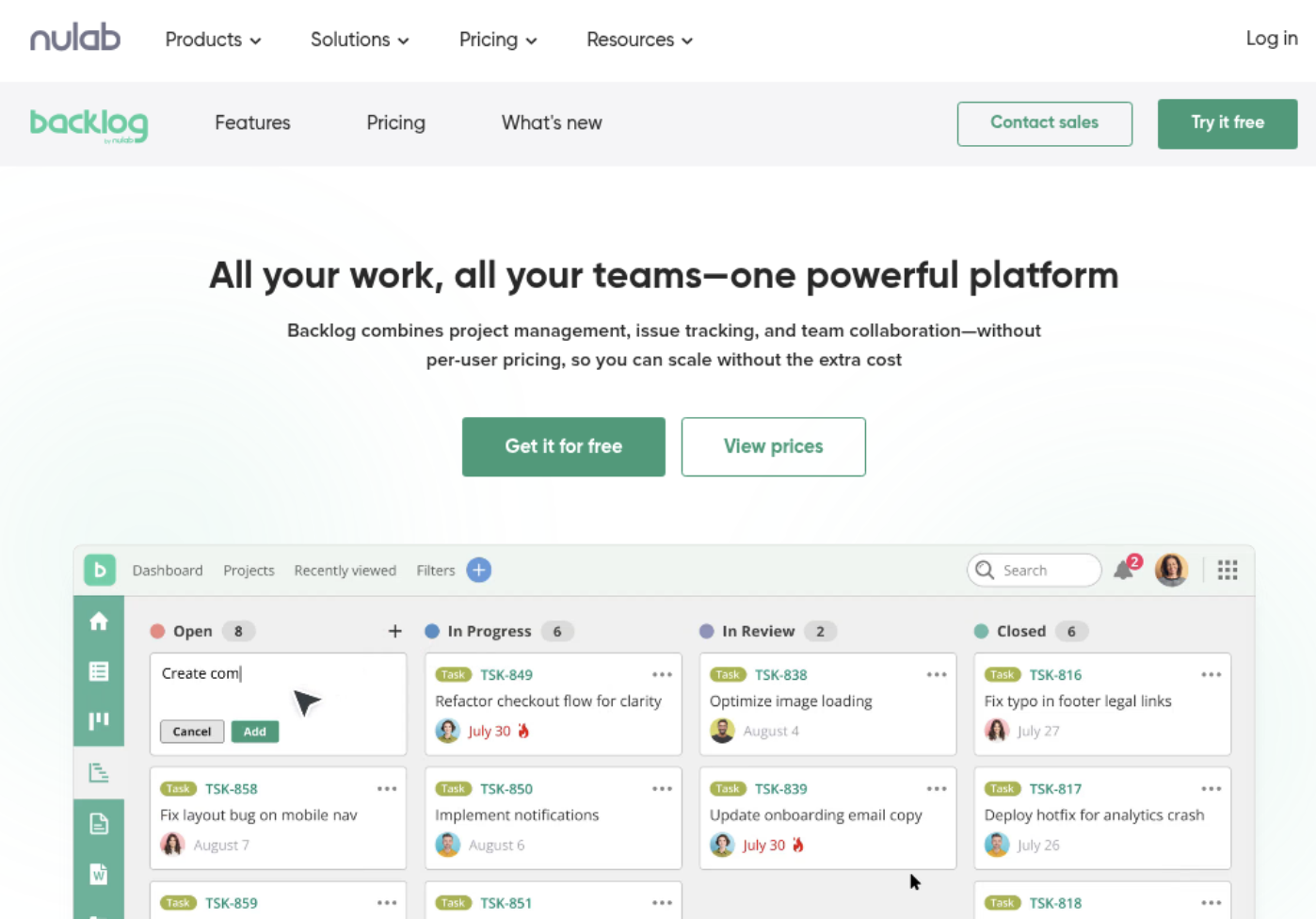
During a sprint, the board should help the team coordinate work toward its sprint goal. Updating an item gives everyone a shared view, but the team should use that view to solve problems rather than assign blame.
Imagine a team working on a signup improvement. One item is blocked because an external service is unavailable. The team can flag the impediment, discuss a workaround, and adjust its plan instead of leaving the item untouched in “In Progress.”
In the daily Scrum, developers can use Jira to inspect progress and adapt their plan for the next day. They should focus on the work, obstacles, and coordination needs—not deliver a person-by-person account of activity.
Keep the workflow manageable. If every small handoff requires a status change, people may spend more time maintaining the board than moving work forward. Start with the minimum useful stages, then adjust when a recurring coordination problem appears.
Use Sprint Reviews and Metrics to Improve the Workflow
A sprint review is an opportunity to inspect the increment with stakeholders and adapt what the team should do next. Demonstrate completed work in context, invite questions, and capture follow-up ideas in the backlog.
Jira reporting can help the team discuss patterns across sprints. A sprint report can show completed and unfinished work, while a burndown chart can help the team inspect remaining work during a sprint.
But here's the truth: a metric needs context. If a team finishes fewer points in one sprint, that number alone does not explain whether the cause was an urgent incident, an underestimated item, or a change in capacity.
Use retrospective discussions to find a small improvement to test. For example, if review work repeatedly carries over, the team could clarify its review policy or reserve capacity for reviews. Check the result in a later sprint before making more changes.
A Related Workflow Option: ONES.com
ONES.com brings project management and knowledge management together in one platform, powered by ONES Assistant. ONES Project is a Jira alternative for project management; ONES Wiki is a Confluence alternative for knowledge management. They are sold separately.

For a team using Scrum, the practical question is whether its work setup supports planning, delivery, and team knowledge without adding unnecessary administration. ONES Project includes Jira-compatible workflows, sprint management, custom fields, automation, and built-in reporting. Its self-hosted deployments have full feature parity with the cloud version.
Core Capabilities
Pain: A team needs familiar Jira-style workflows. ONES capability: ONES Project supports Jira-compatible workflows. Result: Teams can organize Scrum work around a familiar process.
Pain: Sprint work is difficult to organize. ONES capability: Sprint management supports planning and tracking. Result: Teams can connect backlog items with their active sprint.
Pain: A standard workflow does not reflect the team’s handoffs. ONES capability: Custom workflows let teams define their process. Result: Board stages can better match actual work.
Pain: The team needs fields for its own planning context. ONES capability: Custom fields capture relevant details. Result: Useful information can sit alongside work items.
Pain: Repetitive actions take time. ONES capability: Automation handles supported workflow actions. Result: The team can reduce routine manual steps.
Pain: Progress is difficult to inspect. ONES capability: Built-in reporting helps teams review project activity. Result: The team has information to support planning conversations.
Pain: Project work and team knowledge sit in different places. ONES capability: ONES.com includes project and knowledge management products. Result: Teams can choose a connected setup, while purchasing the products separately.
Pain: A team must meet hosting or network requirements. ONES capability: Deployments include Cloud, On-Premise, Private Cloud, and Air-gapped options. Result: Teams can select a deployment model that fits their environment.
Application Scenarios
A product team could use ONES Project to manage its backlog, plan sprints, and track work through a custom workflow. Built-in reporting can help the team inspect progress during planning and retrospectives.
A team working in a restricted network could consider an Air-gapped deployment, while a company with its own hosting requirements could evaluate On-Premise or Private Cloud. ONES.com offers a free plan for up to 30 seats.
ONES Project and ONES Wiki are separate products, so a team can assess the project management or knowledge management needs independently. Choosing a hosting model and reducing reliance on plugins may also simplify how a team maintains its workflow.
Common Challenges When Combining Jira and Scrum
Too many workflow stages: A crowded board makes progress harder to understand. Remove stages that do not represent a meaningful state, then add one only when the team needs it to coordinate work.
Backlog items are too large: Large items are difficult to estimate and often carry over. Split them into smaller outcomes the team can discuss, complete, and inspect within a sprint.
The daily Scrum becomes a status meeting: People report activity instead of planning together. Bring attention back to the sprint goal, work coordination, and obstacles the team can address.
Metrics become individual scorecards: This can discourage honest estimates and early problem reporting. Review trends as team-level signals, then discuss context before changing the workflow.
FAQs About Jira and Scrum
Can Jira support Scrum without custom configuration?
Yes. Jira provides Scrum project and board options that can support a basic backlog and sprint workflow. You can begin with the default setup, then adjust only when the team encounters a specific problem. For example, add a workflow stage if it clarifies a real handoff. Avoid configuring fields or statuses simply because they are available; every addition creates something the team must understand and maintain.
What is the difference between a Jira board and a Scrum process?
A Jira board is a visual way to organize and inspect work. Scrum is a framework with defined accountabilities, events, and artifacts. A board can help a Scrum team manage backlog and sprint work, but it does not run planning, the daily Scrum, reviews, or retrospectives. Those events depend on people collaborating, making decisions, and adapting their approach as they learn.
Should the whole product backlog go into one sprint?
No. A sprint contains selected work that supports its goal and fits the team’s capacity. The product backlog can include ideas and work for future consideration. During planning, the team selects appropriate items from the top of the backlog and creates a plan for delivering them. Keeping future work outside the active sprint helps the team focus and makes progress easier to inspect.
How often should a team change its Jira workflow?
Change it when the current setup creates a recurring problem, such as unclear handoffs or hidden blockers. Discuss the issue during a retrospective, agree on a small adjustment, and try it for a few sprints. Then check whether the change helped. Frequent changes can confuse the team, while never revisiting an unhelpful workflow leaves avoidable friction in place.
Conclusion
Jira and Scrum work well together when the board supports the team’s goal, backlog, sprint plan, and improvement conversations. Start with a simple workflow, refine upcoming items, and make impediments visible so the team can respond early.
If planning feels heavy or the board has become a status-reporting system, use a retrospective to identify one cause and test one improvement. Keep metrics in context, focus on delivering a usable increment, and let the team’s learning guide what changes next.