Jira Basics: A Beginner's Guide to Projects and Workflows
New to Jira and unsure where to start? Learn the basics of Jira projects, issues, and workflows—read now to manage work with confidence.
Jira can feel confusing when every screen has unfamiliar terms, statuses, and buttons. You may open a project expecting a simple task list, then wonder whether to create an issue, move a card, or change a workflow.
That uncertainty can make everyday work slower. A task may sit in the wrong status, teammates may miss who owns it, and a sprint board may show work that nobody planned to finish.
But here's the truth: Jira becomes easier when you understand a few building blocks. Projects organize work, issues track individual tasks, and workflows show how work moves. I’ll explain how those pieces fit together, how teams use boards, and what to check before changing settings. You’ll leave with a practical way to read a Jira project and take your first steps without getting lost in the menus.
What Are the Basics of Jira?
Jira basics are the core concepts behind organizing, tracking, and completing work in Jira: projects, issues, workflows, and boards. A project groups related work, an issue represents one piece of that work, and a workflow tracks its progress from start to finish.
For example, a product team might create a project for a new mobile app. Within it, the team can track a login bug, a design task, and a feature request as separate issues.
Here's why: Jira gives teams a shared view of responsibility and progress. An issue can show its owner, priority, deadline, status, and discussion, helping teammates understand what needs attention.

The Main Parts You’ll See
- Project: A space for a related body of work, such as a product, service, or team initiative.
- Issue: A trackable unit of work, such as a task, bug, story, or service request.
- Workflow: The statuses and transitions an issue follows as work progresses.
- Board: A visual view of issues, often arranged in columns that represent workflow stages.
- Backlog: A prioritized list of work that a team may plan for a future sprint or release.
- Dashboard: A configurable view of project information, reports, and activity.
The exact setup can vary by team. A software team may use sprints and story points, while a marketing team may track campaigns through review and approval stages.
How Jira Projects and Issues Fit Together
Think of a Jira project as a workspace for related work. Issues live inside that workspace, and each one carries details that help the team coordinate its next steps.
Issue types describe the kind of work being tracked. A story often represents a feature or user need, a bug records a problem, and a task covers other work. Teams may also use subtasks to break a larger issue into smaller actions.
What an Issue Usually Contains
Most issues have a summary and description, plus fields such as assignee, priority, status, and due date. Comments and activity history can help teammates follow decisions and progress.
For example, a bug issue might have the summary “Checkout page freezes after payment.” The description can explain how to reproduce the problem, while the assignee identifies who will investigate it.
You might be wondering: should every small action become an issue? Usually, create an issue when the work needs an owner, a status, or a record the team can return to. A quick conversation may not need one.
Choose a Clear Level of Detail
If an issue is too broad, nobody knows what “done” means. If it is too small, the board can become cluttered with tiny steps. Aim for a useful unit of work that one person or a small group can move forward.
For instance, “Improve the website” is difficult to assign and verify. “Add a confirmation message after newsletter signup” gives the assignee a more concrete outcome.
How Jira Workflows Track Progress
A workflow is the path an issue follows through a team’s process. It may include statuses such as To Do, In Progress, and Done, with transitions that move work between them.
Let me explain: a status tells you where an issue is now, while a transition describes how it moves to another status. A team member might move a task from To Do to In Progress when work begins.
Read the Workflow Before Changing Status
Some teams add review or testing stages. A feature might move from In Progress to Code Review, then to Testing, and finally to Done. This gives teammates more detail than a simple three-step workflow.
When you move an issue, check whether the next status matches the work that has actually happened. Marking something Done before testing is complete can make reports look better while hiding unfinished work.
Use Transitions to Keep Work Moving
A transition may require information before an issue can advance. For example, a team may ask for a resolution note before closing a bug. These rules help keep important details attached to the work.
The best part? You don’t need to understand every workflow setting to use Jira well. Start by learning the statuses your team uses and what each one means in practice.
Boards, Backlogs, and Sprints at a Glance
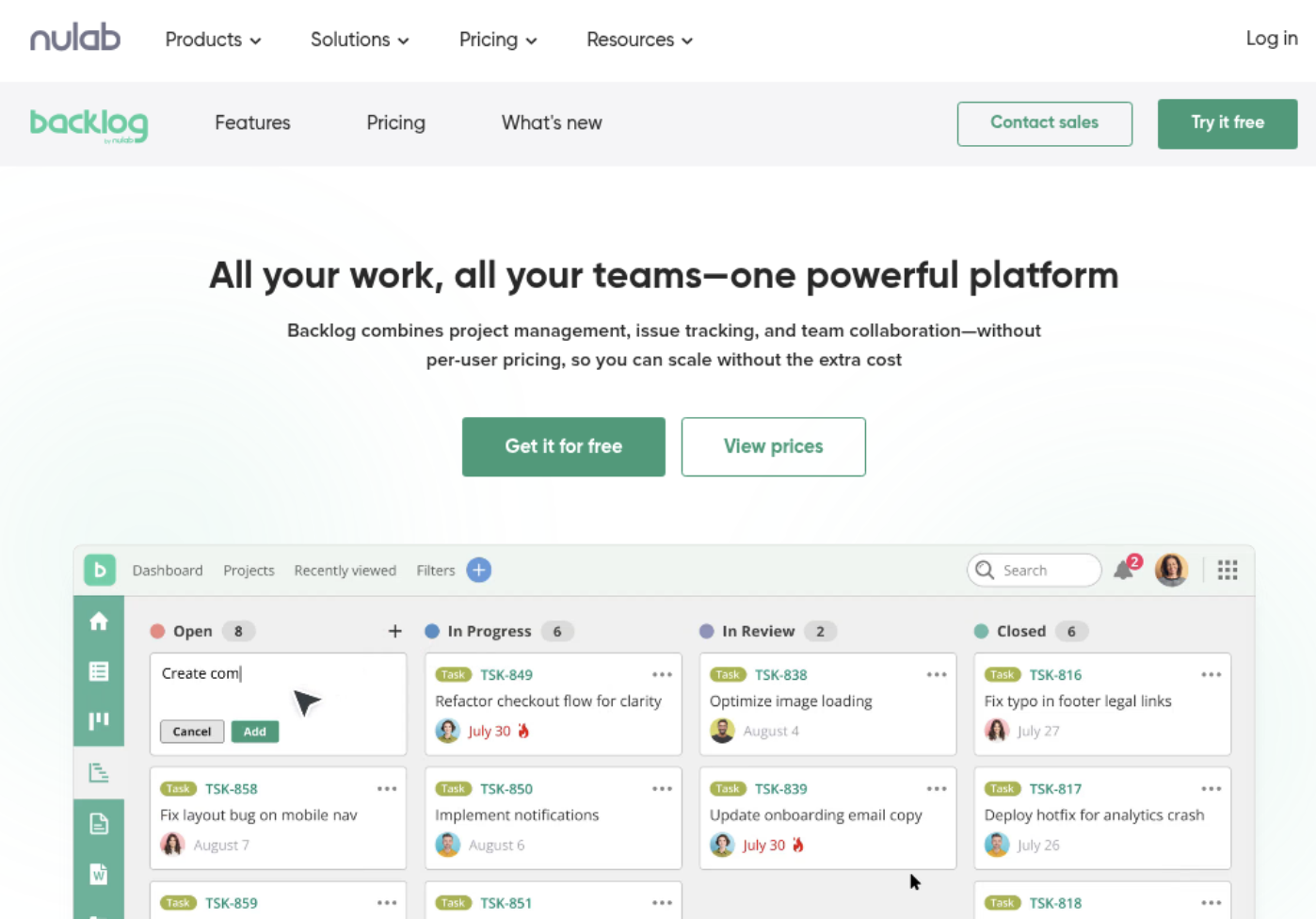
A board makes work easier to scan. In a Kanban-style setup, issues typically appear in columns that reflect workflow stages, so you can see what is waiting, underway, or complete.
A backlog is a prioritized queue of work. A team can review it, clarify upcoming issues, and decide what to tackle next. In Scrum, the team selects a group of backlog issues for a sprint, a planned period of work.
Example: Preparing a Two-Week Sprint
Imagine a team planning a two-week sprint. They review the backlog, confirm that each selected issue has a clear goal, and assign work based on capacity.
During the sprint, the board shows which issues are in progress or blocked. At the end, the team can review completed work and discuss what to improve before planning again.
Don’t Confuse the Board with the Work Itself
A board is a view of work, not a substitute for clear issue details or team communication. If a card says “Update API” but offers no context, moving it across columns won’t clarify what the team needs to do.
For a small project, a simple board may be enough. A team running several workstreams may need filters or additional board views to focus on a specific set of issues.
Practical Habits for Using Jira Well
Good Jira habits help your team trust what it sees. Clear titles, current statuses, and useful ownership details make a board more than a collection of cards.
- Write issue summaries that describe an outcome, such as “Add password reset confirmation.”
- Include enough context for a teammate to understand the task without guessing.
- Assign an issue when someone is responsible for its next action.
- Update statuses when work changes, rather than waiting until a meeting.
- Set priorities consistently so urgent work stands out for the right reason.
- Close completed issues and explain any work that remains unfinished.
Here’s a simple comparison: “Fix checkout” gives little direction, while “Prevent duplicate charges after a payment retry” identifies a specific problem. The second title helps the team discuss scope and verify the result.
Keep the setup as simple as your process allows. Adding statuses, fields, and rules can help when they solve a real coordination problem, but each extra requirement can make routine work harder.
Jira Basics Solution: ONES.com
ONES.com brings project management and knowledge management together in a unified platform, with ONES Project providing project management capabilities. ONES Project can be considered a Jira alternative for teams that want familiar issue workflows alongside deployment choices such as on-premise or air-gapped environments.

ONES Project and ONES Wiki are sold separately. ONES Project focuses on project management; ONES Wiki provides knowledge management as a Confluence alternative. You can evaluate the product that fits your needs rather than treating them as a required bundle.
Core Capabilities
- Need Jira-compatible workflows? ONES Project supports Jira-compatible workflows, helping teams carry familiar ways of organizing issues into a different project management environment.
- Need more than a basic task list? Custom workflows and fields let teams reflect their process, while keeping issue tracking in one workspace.
- Need sprint planning? Sprint management supports teams that plan work in iterations and want to follow progress across a sprint.
- Need reporting without assembling multiple add-ons? Built-in reporting gives teams project visibility within the platform, which can reduce reliance on plugins.
- Need routine actions to happen consistently? Automation can handle selected repeatable steps, helping teams spend less time on manual updates.
- Need deployment flexibility? Cloud, on-premise, private cloud, and air-gapped deployment options let organizations consider their infrastructure and security requirements.
- Need consistent features across hosting choices? The cloud and self-hosted versions have feature parity, so deployment choice does not require choosing a reduced feature set.
- Need to try it with a team? The free plan supports up to 30 seats, giving a small team room to evaluate its project management needs.
Application Scenarios
A software team moving from Jira may want to keep issue-based planning while reducing dependence on plugins. It can assess ONES Project’s workflows, fields, sprint management, and reporting against the team’s current process before deciding what to move.
An organization with restricted network requirements may prioritize self-hosting or air-gapped deployment. In that case, it can evaluate the available deployment options alongside its operational requirements, while checking that the platform supports the team’s needed workflows.
A team that manages project work and internal knowledge may also consider ONES Wiki alongside ONES Project. Since the products are sold separately, the team can select one product or use both where the separate functions make sense.
Common Challenges When You’re New to Jira
Issues Have Vague Titles
Problem: Titles such as “Update page” leave teammates guessing about the expected result. Solution: Name the change or outcome, then add the background and acceptance details in the issue description.
Statuses Don’t Match What’s Happening
Problem: A board may show work as complete even though review or testing remains. Solution: Agree on what each status means and move issues only when they meet that stage’s conditions.
The Board Is Hard to Scan
Problem: Too many columns or poorly prioritized issues can hide the work that needs attention. Solution: Review whether each column helps the team make a decision, and keep the backlog ordered around current priorities.
Too Much Work Is Started at Once
Problem: When many issues stay In Progress, people may have trouble finishing work or spotting blockers. Solution: Discuss capacity during planning and make blocked work visible, so teammates can focus on completing active tasks.
Jira Basics FAQs
What is Jira used for?
Jira is used to organize and track team work through projects and issues. Teams can record tasks, assign owners, follow status changes, and view progress on boards or reports. Software teams often use it for bugs, features, and sprint planning. Other teams can adapt projects to track work such as campaign requests, service tasks, or approvals.
What is the difference between a Jira project and an issue?
A project groups related work, while an issue represents one trackable task, problem, or request within that project. For example, a product launch project could contain separate issues for writing release notes, testing a signup flow, and preparing a customer announcement. Each issue can have its own owner, priority, status, and discussion.
What is a Jira workflow?
A Jira workflow defines the statuses an issue can pass through and the transitions that move it between them. A simple workflow might use To Do, In Progress, and Done. A team with review steps may include statuses such as Code Review or Testing. The workflow should reflect how the team actually completes work.
What is the difference between a Jira board and a backlog?
A board is a visual way to view and track issues, often arranged in columns that represent stages of work. A backlog is a prioritized list of work that a team may consider for future planning. In a sprint-based process, the team can select issues from the backlog and track the selected work on its board during the sprint.
Can non-software teams use Jira?
Yes. Jira can support work outside software development when a team configures projects, issue types, and workflows around its process. A marketing team, for example, might track campaign requests through planning, creation, review, and publication. The important step is choosing clear issue details and statuses that match the work instead of copying a software team’s setup.
Conclusion
Jira is easier to understand when you start with its core structure: projects group related work, issues represent individual tasks, workflows track progress, and boards make that progress visible.
But here's the truth: a polished setup cannot rescue unclear tasks or outdated statuses. Write specific issue summaries, assign clear ownership, and agree on what each workflow stage means. Those habits help your team see what needs attention and what is already complete.
If you are learning Jira, begin with one project and a small set of issue types and statuses. As your process becomes clearer, adjust the setup to support the work. Teams exploring a Jira alternative can also assess ONES Project against their workflow and deployment needs.