Jira Basics: A Step-by-Step Guide to Core Workflows in 2026
Not sure how Jira workflows work? Learn jira basics, key features, and how to move tasks from request to done. Read now to get started.
Jira can feel complicated when every screen introduces new terms, boards, statuses, and settings. You may only want to track a few tasks, yet the choices can make a simple project feel harder than it is.
That confusion can lead to unclear ownership, stalled work, and boards nobody trusts. A team might create tickets without deciding what “done” means, then struggle to tell what needs attention.
But here's the truth: Jira basics are straightforward once you understand the path from work request to completion. I’ll walk you through the core workflow, explain the key features, and show you how to build a board that supports the way your team works.
Jira basics: the core workflow at a glance
Jira helps teams plan, assign, track, and review work. Most teams follow a simple cycle: create a project or space, add work items, move them through statuses, and review progress on a board.
Jira’s labels can vary by product edition and interface. You may see “project” or “space,” and newer screens may call an issue a “work item.” The underlying purpose is similar: organize related work and track its progress.

1. Create a project or space
Start with a project or space for a team, product, service, or initiative. Choose a template that matches how the team plans work, such as Scrum or Kanban.
For example, a software team might create a Scrum project for a mobile app release. A support team could use a Kanban setup to track requests as they arrive.
2. Add and describe work items
Create work items for tasks the team needs to complete. Common types include tasks, bugs, and larger pieces of work such as epics or stories.
Give each item a clear title and enough detail to help someone act on it. “Fix checkout error on mobile” is easier to understand than “Checkout issue.”
3. Assign ownership and priority
Assign an owner so someone is responsible for moving the work forward. Add a priority, due date, labels, or other fields when they help the team make decisions.
For instance, a high-priority login bug may need an owner and a target date before the next release. Avoid adding fields that nobody uses.
4. Move work through a workflow
A workflow describes the statuses a work item passes through. A basic setup might use “To do,” “In progress,” and “Done.” Teams can add review or testing stages when those steps matter.
When someone starts a task, they move it to “In progress.” After the work is complete and checked, they move it to “Done.” Agree on what each status means before the board fills up.
5. Track progress on a board
A board shows work as cards in columns or another visual layout. Scrum teams often plan work in sprints, while Kanban teams manage a continuous flow.
On a Kanban board, a card might move from “To do” to “In progress” and then “Done.” A Scrum team may select work from a backlog into a time-limited sprint.
6. Review and improve
Use board views and reports to spot stalled items, heavy workloads, or changing priorities. A quick weekly review can help a team notice that several tasks are waiting for review.
Here's why: Jira becomes more useful when the team keeps its workflow current. A board with outdated statuses can create a misleading picture, even when the work itself is progressing.
Understand Jira’s main building blocks
Jira is easier to navigate when you know how its parts fit together. Think of a project or space as the home for related work, work items as individual pieces of that work, and a board as the view that helps you manage them.
Here's why: each part serves a different purpose. Confusing a board with a workflow, for example, can make it harder to decide where statuses should change.
Projects, spaces, and work items
A project or space groups work around a shared team or goal. Work items sit inside that area and carry details such as an owner, status, priority, and description.
A small marketing team could track a campaign in one project, with separate tasks for writing, design, review, and launch. Each item has its own owner and status.
Issue types and hierarchy
Work item types help distinguish between different kinds of work. A bug describes a problem, a task captures an activity, and a story often represents a user need in a software project.
Some teams use epics to group related stories or tasks into a larger goal. For example, an “Improve account security” epic might include work for password resets, login alerts, and multi-factor authentication.
Fields, labels, and components
Fields capture details that help a team manage work, such as priority, assignee, or due date. Labels offer a flexible way to categorize items, while components can group work by product area or service.
Let me explain: a team could label release-blocking tasks with “release-3.2” and use a component for “Payments.” Use each field consistently so people can filter and report on work reliably.
Boards and backlogs
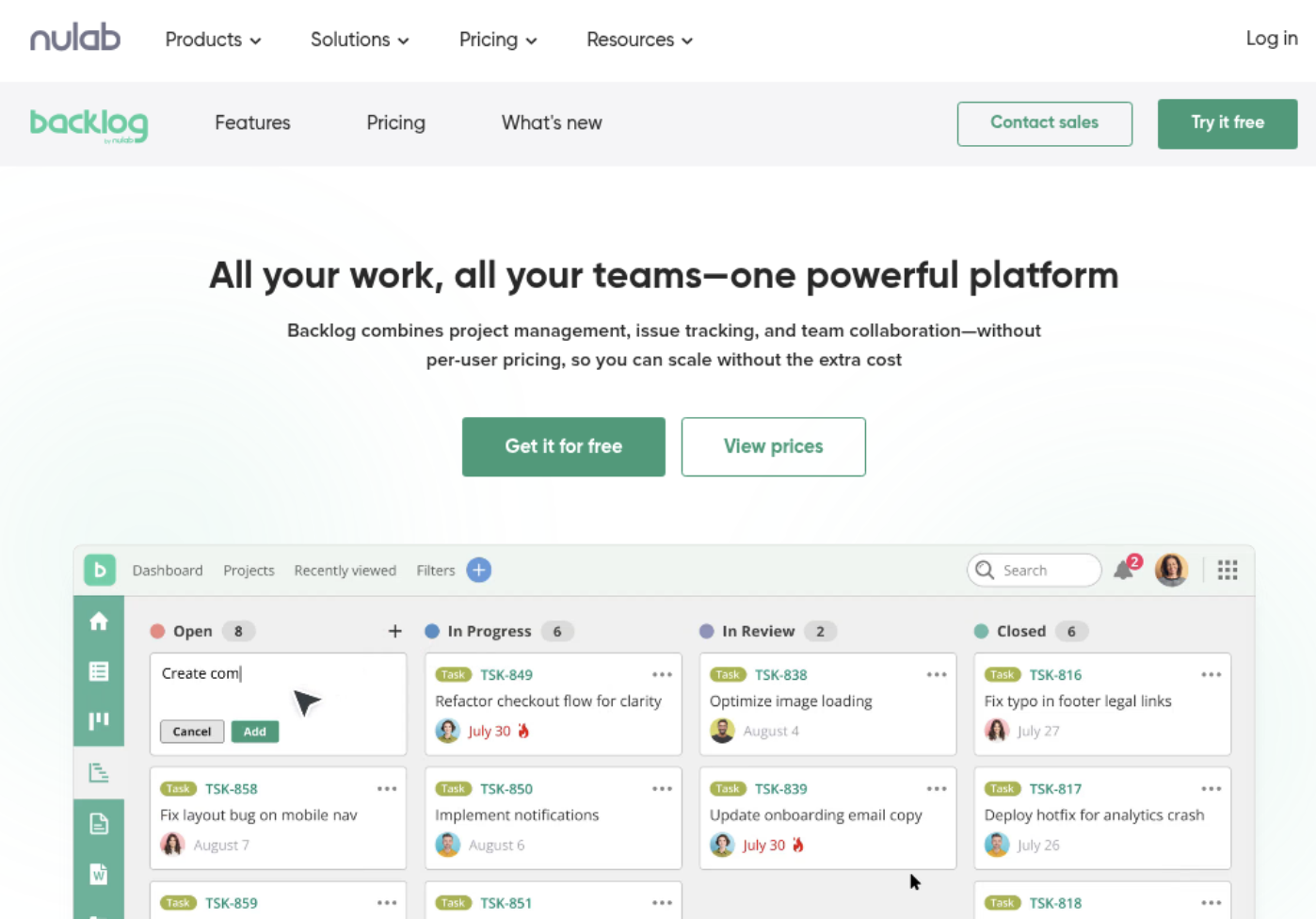
A board organizes work into a visual view, often with columns that reflect workflow statuses. A backlog gives Scrum teams a place to prioritize potential work before choosing items for a sprint.
For example, a team might keep ten candidate stories in its backlog, then select the top five for its next sprint. A Kanban team can focus on work already in progress instead.
Choose a workflow that matches your team
Your workflow should show the real stages work passes through, without adding steps that slow people down. Begin with the fewest statuses the team needs, then add a stage only when it clarifies ownership or progress.
A simple workflow might be “To do,” “In progress,” “In review,” and “Done.” That setup works when work needs a review before completion. A team with no separate review step may only need three statuses.
When Scrum is a good fit
Scrum works well when a team plans work in short, defined periods called sprints. The team chooses a set of work, focuses on it during the sprint, then reviews what was completed.
A product team could plan a two-week sprint for account settings improvements. The sprint board helps the team see what is still underway and which items have reached completion.
When Kanban is a good fit
Kanban suits teams that handle a steady stream of incoming work. Rather than planning fixed sprint commitments, people pull work through the board as capacity allows.
A customer support team might use columns for “New,” “In progress,” “Waiting,” and “Resolved.” A limit on active work can help the team finish existing requests before taking on too many more.
Keep status meanings clear
Agree on the conditions for moving work between statuses. For example, “In review” could mean a teammate has checked the work and left feedback, not simply that someone plans to review it later.
The best part? A short agreement can prevent a lot of confusion. Write down what “Done” means for the team, then revisit it when the workflow changes.
Set up a board people can actually use
A useful board answers three questions quickly: what needs doing, who owns it, and what is blocked? Start with those needs before customizing colors, labels, or extra views.
Here's a practical setup: use clear columns, keep card titles specific, and show only the fields people need during everyday work. If a team member must open every card to find its owner, the board may need a more visible assignee field.
Make work visible without adding clutter
Use a small number of columns that reflect meaningful steps. A board with ten nearly identical statuses can make progress harder to scan than a board with four clear stages.
For example, a content team could use “Ideas,” “Writing,” “Editing,” and “Published.” A separate “Waiting for approval” column may help if approvals regularly delay publication.
Use filters to focus attention
Filters help people focus on relevant work, such as items assigned to them or tasks with a certain priority. Jira Query Language, often called JQL, supports more specific searches when basic filters are not enough.
A beginner can start by filtering for work assigned to them and then add a status or priority condition. Save useful searches when the same view helps the team repeatedly.
Use automation carefully
Automation can handle routine actions, such as notifying a team channel when a high-priority bug is created. It can also assign or transition work under defined conditions.
Start with one repeated task that people often forget. Test the rule with a small group before expanding it, and make sure the team understands what the rule changes.
Track progress and keep Jira useful
Jira’s reporting and board views can help you understand work in progress, delivery patterns, and possible bottlenecks. Use them to guide conversations, not as a replacement for talking with the team.
A sprint report, for example, can help a Scrum team compare planned and completed work. A cumulative flow view can help a Kanban team see whether work is building up in one stage.
Check for stalled work
Look for items that remain in one status longer than expected. A task sitting in “In review” for several days may need a reviewer, clearer acceptance criteria, or a different workflow.
You might be wondering: should every task have a due date? Only add one when a real deadline matters. Too many artificial dates can make important deadlines harder to notice.
Keep work items current
Ask owners to update status when work changes, and close items that no longer matter. A short review at the end of a team meeting can help keep the board aligned with reality.
For example, if a bug is fixed but remains “In progress,” the board may make the team think it still needs attention. A quick status update prevents that mismatch.
Review the process, not just the numbers
Use trends to ask better questions. If work repeatedly waits for review, the team could adjust reviewer availability or clarify what qualifies as ready for review.
But here's the truth: a report does not explain every reason behind a delay. Pair the numbers with context from the people doing the work before changing priorities or expectations.
ONES.com solution for teams comparing Jira workflows
ONES.com is a unified project management and knowledge management platform powered by ONES Assistant. ONES Project handles project management, while ONES Wiki supports knowledge management; they are sold separately.

For teams seeking a Jira alternative, ONES Project offers Jira-compatible workflows, sprint management, custom workflows and fields, automation, and built-in reporting. Teams can choose Cloud, On-Premise, Private Cloud, or Air-gapped deployment, with feature parity between cloud and self-hosted versions.
Core capabilities
- Complex work tracking: Jira-compatible workflows in ONES Project help teams organize work through familiar stages, making it easier to manage day-to-day delivery.
- Sprint planning: Sprint management supports planning and tracking time-boxed work, helping teams see what they have committed to and what remains in progress.
- Workflows that need adjustment: Custom workflows let teams reflect their actual approval or delivery steps, so the board can fit the process instead of forcing unnecessary stages.
- Team-specific details: Custom fields capture details that matter to a team, helping people understand what work needs without relying on separate add-ons.
- Routine manual tasks: Automation can handle repeatable actions, helping reduce manual updates and keep common workflows moving.
- Limited progress visibility: Built-in reporting gives teams ways to review project activity and delivery, with fewer plugin dependencies for common reporting needs.
- Restricted hosting requirements: On-Premise, Private Cloud, and Air-gapped deployments support teams with specific hosting or network constraints.
- Separate project and knowledge needs: ONES Project supports project management, while ONES Wiki provides knowledge management. Teams can choose the products separately.
Application scenarios
A software team moving from Jira could recreate its sprint workflow, work types, custom fields, and reporting approach in ONES Project. Jira-compatible workflows can help make that transition familiar, while native capabilities may reduce reliance on plugins.
A team in a restricted network environment could evaluate an Air-gapped or self-hosted deployment. The available deployment choices let the team assess hosting needs alongside everyday project workflows.
A growing organization could use ONES Project for delivery tracking and add ONES Wiki if it also needs a knowledge management space. The 30-seat free offering provides a starting point for eligible teams evaluating the platform.
Common Jira challenges and practical fixes
Most Jira problems come from unclear team habits or overcomplicated setups. A few simple changes can make the workflow easier to follow without rebuilding everything.
Too many statuses
Problem: A board has numerous statuses with little difference between them, so people are unsure where work belongs.
Solution: Ask what decision each status represents. Combine stages that do not change ownership or action, and explain the remaining status meanings to the team.
Unclear work item descriptions
Problem: Titles such as “Fix this” or “Update page” do not tell the owner what needs attention.
Solution: Write titles that name the action and area, such as “Update pricing page links.” Add concise details and acceptance conditions when the task needs them.
Work stays blocked or unassigned
Problem: Items sit untouched because nobody owns the next action, or the team cannot see what is preventing progress.
Solution: Assign an owner and record the blocker in a visible field or comment. Review blocked items regularly and decide who can remove each obstacle.
Automation surprises the team
Problem: A rule changes an assignment or status unexpectedly, and people stop trusting the board.
Solution: Keep rules narrow, test them before wider use, and tell the team what each rule does. Review automation when the workflow changes.
Jira basics FAQs
What is Jira used for?
Jira helps teams plan and track work, assign responsibility, manage workflows, and review progress. Software teams often use it for bugs, stories, and sprints, while other teams use tasks and Kanban boards to manage ongoing work.
What is the difference between a Jira project and a board?
A project or space groups related work and its settings. A board provides a view of work, often arranged by workflow status. One project can support different board views, depending on how the team wants to organize and review its tasks.
Should a beginner start with Scrum or Kanban?
Choose Scrum if your team plans work in fixed-length sprints and reviews it at regular intervals. Choose Kanban if requests arrive continuously and the team manages them as capacity becomes available. A small team can begin with the simpler option that matches its actual routine.
What should a Jira work item include?
Start with a specific title, an owner when known, and a clear status. Add a description, priority, due date, or other fields when they help someone complete or prioritize the work. For a team task, a clear completion condition can prevent misunderstandings.
Do I need Jira automation as a beginner?
No. First make sure the team understands its workflow and updates work items consistently. Then consider automating a repeated action, such as notifying a channel about a high-priority issue. Test the rule and explain its effect before relying on it.
Conclusion
Jira basics come down to organizing related work, creating clear work items, assigning ownership, and moving tasks through a workflow the team understands. Boards and reports help you see progress, while a regular review keeps that view useful.
If Jira feels overwhelming, start with one project, a few statuses, and work items with clear titles. Add Scrum, Kanban, filters, or automation only when they solve a real need.
That simple approach turns Jira into a practical way to coordinate work instead of another process to manage. Keep the workflow clear, the board current, and the team focused on what needs attention next.