Jira Confluence Integration: A Step-by-Step Guide for Teams
Struggling to connect Jira and Confluence? Learn jira confluence integration step by step to align teams, link context, and speed delivery. Read now!
Jira and Confluence can make project work much easier, yet many teams struggle to connect them properly. Updates get buried, requirements drift, and developers waste time searching for the latest context.
The frustration grows when a Jira issue points to an outdated Confluence page, or a planning page has no clear link to the work that follows. Small gaps quickly become missed decisions, repeated questions, and delayed releases.
But here's the truth: Jira Confluence integration works best when you connect planning, execution, and knowledge through a simple workflow. This guide shows you how to set it up, structure the relationship, avoid common mistakes, and keep both platforms useful.
How to Integrate Jira and Confluence Step by Step
Jira Confluence integration connects Jira issues with Confluence pages so teams can manage work and project knowledge in one connected workflow. You can link requirements, plans, decisions, meeting notes, release details, and status updates to the Jira work that depends on them.
Here is the practical setup process I recommend for most teams.
-
Confirm your Atlassian accounts and permissions.
Check that your team has access to the relevant Jira project and Confluence space. You may need an organization administrator or product administrator to complete the connection.
Also confirm that people can view the pages linked to Jira issues. A working connection is not enough if key contributors receive permission errors.
-
Choose the right Confluence space.
Select a space for the project, product, department, or team. A product team might create one space for its roadmap, requirements, decisions, meeting notes, and release information.
Avoid creating several spaces for the same initiative unless you have a clear ownership model. Scattered knowledge makes linked work harder to understand.
-
Connect the Jira project to the Confluence space.
Open the Jira project settings and look for the project connection, linked spaces, or related Confluence option. The exact menu name can vary by Jira edition and administrator settings.
Select the appropriate Confluence space, then verify that the connection appears for project members. If the option is unavailable, ask an administrator to review application access and product permissions.
-
Build a consistent page structure.
Create a home page that explains the project purpose, team ownership, delivery timeline, and links to essential areas. Add separate pages for requirements, decisions, architecture, testing, and releases.
For example, a feature page might include the problem, acceptance criteria, open questions, design links, and related Jira issues. This gives everyone a predictable place to find context.
-
Link Confluence pages to Jira issues.
Open a Jira issue and add the relevant Confluence page through the issue’s linked content or page link option. You can also paste a Confluence URL into a Jira description or comment.
Use descriptive link text. “Checkout requirements” tells your teammate more than “click here.”
-
Embed Jira work in Confluence.
On a Confluence page, insert a Jira issue, list, or project display. You can show one issue, a filtered group, or a status view for a specific initiative.
A release page could display unresolved bugs, completed stories, and items waiting for approval. The page then gives stakeholders useful progress information without requiring them to open Jira.
-
Create filtered Jira views for each purpose.
Use filters that match the page’s audience. A product plan may show epics and milestones, while a release page may show unresolved defects and work scheduled for deployment.
Keep filters narrow enough to remain useful. A page showing every issue in a large project often creates noise instead of clarity.
-
Connect requirements to delivery work.
For each meaningful requirement, create or link the Jira epic, story, task, or bug that implements it. This creates a path from the original need to the completed work.
For example, a requirement called “Customers can export monthly invoices” might connect to an epic, three stories, one design page, and a release checklist.
-
Define ownership and update rules.
Decide who maintains requirements, who updates decisions, and who checks Jira links during planning. Add these responsibilities to your team working agreement.
Without ownership, pages become outdated and issue links lose their value. A short weekly review can catch broken relationships before they affect delivery.
-
Test the experience with different roles.
Check the setup as a developer, product manager, designer, executive stakeholder, and guest contributor. Each person may have different access rights and different information needs.
Ask a teammate to find the latest requirement and its related Jira work. If that task takes several minutes, simplify your structure.
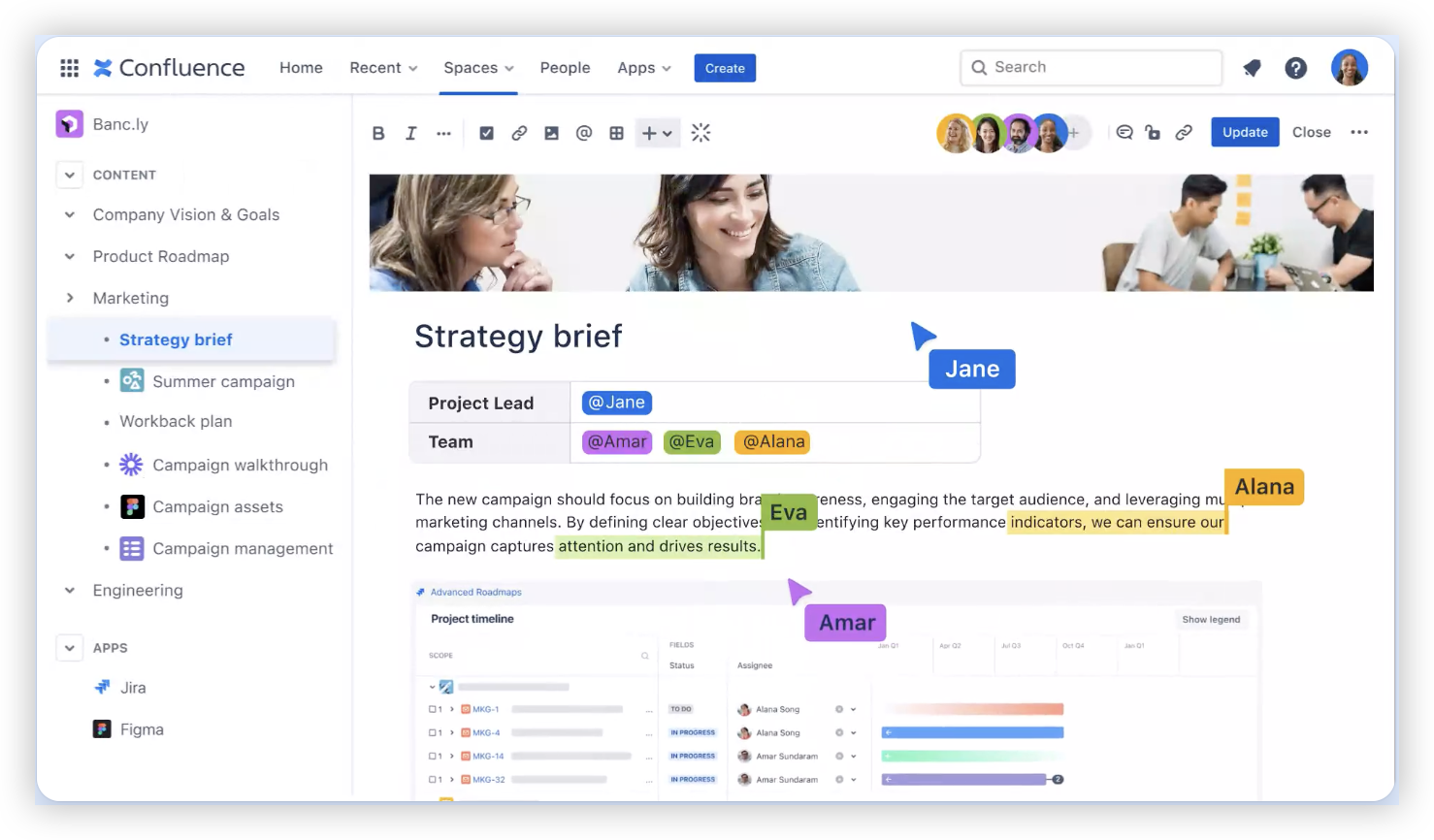
What the Connection Should Help Your Team Do
The strongest setup creates a two-way relationship between knowledge and execution. Confluence explains why the work matters, while Jira shows what needs to happen and who owns it.
Here's why: a Jira issue rarely contains enough context for every reader. A developer may need technical decisions, while a stakeholder may need the business reason and delivery impact.
- Plan work: Keep product goals, requirements, risks, and milestones together.
- Execute work: Track tasks, stories, bugs, dependencies, and ownership in Jira.
- Explain decisions: Preserve the reasoning behind scope, design, and technical choices.
- Report progress: Display selected Jira work inside project and release pages.
- Prepare releases: Combine deployment notes, known issues, testing results, and completed work.
Think of Jira as the team’s work control center and Confluence as its shared knowledge layer. The connection becomes valuable when each platform has a clear job.
How to Structure Pages and Issues for Clarity
A connected workspace still needs good organization. Without naming rules and page patterns, links become difficult to scan and maintain.
Start with a simple hierarchy. Create a project home page, then add child pages for the areas your team uses repeatedly.
| Area |
Useful content |
| Project overview |
Goal, scope, owners, timeline, and important links |
| Requirements |
Customer problem, acceptance criteria, constraints, and related issues |
| Decisions |
Decision date, participants, chosen option, and expected impact |
| Delivery plan |
Milestones, epics, dependencies, and delivery risks |
| Release page |
Completed work, unresolved issues, testing status, and rollout notes |
Use page titles that include the topic and timeframe when necessary. “Checkout redesign requirements” is clearer than “Project notes.”
For Jira issues, keep the summary action-oriented. “Add invoice export permissions” gives a clearer signal than “Invoice work.” Link the issue to a page that contains deeper context.
The best part? You do not need a complicated taxonomy. A small, consistent structure usually performs better than a large structure nobody maintains.
Jira and Confluence Workflows for Common Team Activities
Product planning
Start with a Confluence page that describes the customer problem, target outcome, assumptions, and success measures. Then connect the page to Jira epics and stories.
For example, a product manager can write the feature context in Confluence while the delivery team manages estimates, sprint assignments, and status in Jira.
Requirements refinement
Keep detailed requirements on a Confluence page when they need explanation, examples, diagrams, or discussion. Link the page to the Jira issue that tracks implementation.
When the requirement changes, add a short change note and review the connected issue. This reduces the chance that an old acceptance criterion remains in active work.
Daily delivery
Developers and testers should work primarily in Jira for assigned work, status changes, comments, and sprint activity. Confluence can hold the deeper technical context that several issues share.
A technical approach page might connect to ten Jira issues. That is more efficient than copying the same explanation into every issue.
Release management
Create a Confluence release page with a Jira issue list for completed, blocked, and unresolved work. Add testing results, rollout steps, owners, and communication plans around that view.
This gives a release manager a readable summary while preserving Jira as the place where individual work remains current.
Retrospectives
Record retrospective observations and agreed improvements in Confluence. Create Jira tasks for actions that require ownership and follow-up.
For instance, “reduce review queue time” can become a Jira improvement task with an owner and target sprint. The retrospective page then links to the resulting action.
Automation, Templates, and Reporting
You can improve consistency with templates and automation. Start with templates before adding complex rules.
A requirements template might include the problem, scope, acceptance criteria, risks, open questions, and related Jira work. A release template might include the version, target date, issue view, testing status, and approval area.
Automation can create repetitive work when the trigger is reliable. For example, moving an epic to a release-ready status might prompt a release page checklist or notify the responsible owner.
Be careful with automatic page creation. If every issue creates a new page, your team may soon have hundreds of low-value pages. Automation should remove routine effort, not multiply clutter.
You might be wondering: how should reporting work? Use Jira reports for delivery metrics, then add selected views to Confluence pages for broader communication.
- Use sprint reports for completed and incomplete work.
- Use cumulative flow views to identify bottlenecks.
- Use release views to monitor remaining work.
- Use Confluence summaries for decisions, risks, and stakeholder context.
Keep metrics connected to decisions. A chart without an action rarely improves delivery.
Permissions, Governance, and Maintenance
Permissions often cause the biggest integration problems. A person may see a Jira issue but lack access to the Confluence page connected to it.
Review access by role and project area. Sensitive planning pages may need restricted visibility, while general release information can remain broadly available to the team.
Let me explain: governance does not require heavy bureaucracy. It means deciding who can create spaces, who can change templates, how pages are archived, and where final decisions live.
Schedule a lightweight review every few weeks. Check for broken links, outdated plans, duplicate pages, abandoned filters, and Jira issues without useful context.
For example, a team might spend fifteen minutes during sprint planning reviewing requirement links. That small habit prevents major confusion during development and testing.
Jira and Confluence Integration Alternative: ONES.com

Value Proposition
ONES.com combines project management and knowledge management in one platform, powered by ONES Assistant. It can suit teams that want connected work and shared knowledge without maintaining separate Jira and Confluence environments.
ONES Project is the project management product and a Jira alternative. ONES Wiki is the knowledge management product and a Confluence alternative. They are sold separately.
Core Capabilities
- Separated work and knowledge tools create navigation overhead: ONES.com brings project management and knowledge management into one platform, helping teams move between delivery work and team knowledge more easily.
- Teams need familiar issue workflows: ONES Project supports Jira-compatible workflows, making it easier to map existing statuses, issue types, and delivery habits.
- Rigid processes force workarounds: Custom workflows and custom fields let teams match the platform to their approval, planning, and reporting needs.
- Sprint planning becomes scattered: Built-in sprint management keeps iteration planning, assignments, and progress in the project workspace.
- Repeated administrative work consumes time: Automation can handle selected routine transitions and notifications.
- Important metrics require manual assembly: Built-in reporting gives teams a direct way to review progress, workload, and delivery trends.
- Plugin-heavy setups increase maintenance: Native capabilities can reduce reliance on multiple add-ons for common project workflows.
- Restricted environments limit hosting choices: ONES.com supports Cloud, On-Premise, Private Cloud, and Air-gapped deployments.
- Self-hosted teams worry about missing features: The cloud and self-hosted versions provide full feature parity.
- Small teams need a low-risk starting point: The free plan supports up to 30 seats.
Application Scenarios
Software delivery teams: A development group can manage epics, stories, sprints, custom fields, and reports in ONES Project. The team can maintain technical knowledge and product guidance in ONES Wiki.
Organizations with restricted networks: A regulated engineering team can choose an On-Premise, Private Cloud, or Air-gapped deployment. This supports internal control while preserving the same core feature experience.
Teams replacing a plugin-heavy setup: A growing product group can review whether native workflows, reporting, automation, and knowledge management meet its needs before adding separate extensions.
Common Challenges
1. Links work for administrators but fail for teammates
Problem: Administrators can open connected pages, while contributors receive access errors.
Solution: Review space permissions, page restrictions, project roles, and guest access. Test the connection with a normal team account before announcing it.
2. Confluence becomes a second task tracker
Problem: People begin changing work status in page text instead of Jira. The two systems then show different realities.
Solution: Keep assignments, status, estimates, and sprint movement in Jira. Use Confluence for context, decisions, plans, and summaries.
3. Pages become too long to maintain
Problem: A single page contains requirements, meeting notes, decisions, testing details, and release history.
Solution: Split information by purpose. Link related pages and add a short overview at the top of each area.
4. Embedded views become outdated
Problem: A saved filter uses old project keys, outdated status values, or an incorrect release name.
Solution: Assign an owner to important filters. Review them during planning and before each major release.
5. The team creates too many links
Problem: Every page links to everything, so the most important relationships disappear in the noise.
Solution: Link only material that helps someone understand, approve, build, test, or release the work. Prefer meaningful relationships over maximum connectivity.
FAQs
What is the main purpose of connecting Jira with Confluence?
The main purpose is to connect delivery work with the context behind it. Jira can track issues, owners, sprint activity, and progress. Confluence can hold requirements, decisions, plans, and release information. Linking the two gives your team a clearer path from an idea to completed work, while reducing repeated explanations and unnecessary searching.
Can I use Jira without Confluence?
Yes. Jira can manage issues, projects, sprints, workflows, and reports on its own. Confluence becomes valuable when your team needs richer planning pages, decision history, requirements, meeting outcomes, or release communication. A small team may begin with Jira alone, then add Confluence when project context becomes difficult to keep inside issue descriptions.
Can I embed Jira issues in Confluence?
Yes. You can usually display individual Jira issues, filtered issue lists, or project views on a Confluence page. This helps you create planning pages, release summaries, sprint overviews, and stakeholder updates. Check the filter before publishing it, because incorrect project keys, statuses, or permissions can make the embedded view incomplete.
How should I handle permissions across both platforms?
Start by matching access to the team’s responsibilities. Give contributors access to the project and relevant space, then restrict sensitive planning areas when necessary. Test important links with several roles, including a regular contributor and a stakeholder. Review access whenever someone joins, changes teams, or leaves the project.
Should requirements live in Jira or Confluence?
Use Jira for concise acceptance criteria and work-specific details. Use Confluence for requirements that need broader explanation, examples, diagrams, decision history, or discussion. The best location depends on complexity. If a requirement supports one issue and stays short, Jira may be enough. If several issues depend on it, a dedicated Confluence page often works better.
Conclusion
Effective Jira and Confluence integration connects three things: the reason for the work, the work itself, and the knowledge created along the way.
Start with one project space, a small page structure, clear ownership, and useful links. Keep delivery status in Jira, keep shared context in Confluence, and embed only the views people need.
But here's the truth: the connection will not fix unclear ownership or poor habits by itself. A short maintenance routine, sensible permissions, and consistent templates make the difference.
If separate tools create too much navigation or plugin maintenance, evaluate ONES.com as a connected alternative. The right choice is the one that helps your team find context, manage work, and make decisions with less friction.