Jira Hotkeys: A Practical Guide to Faster Issue Updates
Want faster issue updates? Learn how to check Jira hotkeys for your setup and build a routine for quicker ticket work. Read now to get started.
Updating Jira issues can feel slow when every status change, comment, or assignment sends you back to the mouse. That friction adds up: a few extra clicks across dozens of tickets can interrupt your focus and leave small updates unfinished.
Jira hotkeys can help you move through common actions faster, but the shortcuts vary by screen, configuration, and Jira version. Memorizing an unreliable key combination can waste more time than it saves.
Here’s the practical approach: learn how to check your available shortcuts, start with a few high-value actions, and build a routine around them. I’ll explain the keys worth testing, show how to practice safely, and cover what to do when a shortcut does not work. You’ll finish with a repeatable way to make issue updates feel smoother.
How to Use Jira Hotkeys for Faster Issue Updates
Start by opening Jira’s shortcut list, then test a small set of keys on the screens where you work most. That gives you a reliable reference before you build shortcuts into your routine.
Open the shortcut help panel. In many Jira experiences, pressing ? displays available keyboard shortcuts. If it does not, check your Jira version and settings, or use the interface’s help menu.
Choose one workflow to improve. For example, focus on reviewing issues in a queue before learning shortcuts for creating or editing tickets. A narrow goal makes practice easier to remember.
Test each shortcut on a low-risk issue. Confirm the action and its result before using it on a time-sensitive ticket. Some keys work only when a particular page or field has focus.
Practice a short sequence. Open an issue, review its details, make a small update, and return to the queue. Repeat the sequence until you can complete it without searching for each key.
Keep a quick reference nearby. Note the shortcuts you actually use, along with the screen where each one works. Recheck the help panel after Jira interface changes.
But here’s the truth: there is no single shortcut list that behaves identically for every Jira site. Your own shortcut panel is the safest starting point.

Useful Shortcuts to Check First
Jira commonly offers shortcuts for creating, editing, navigating, or acting on issues. Availability can differ across Cloud and self-managed versions, and administrators can affect which options appear.
Use this table as a shortlist of actions to verify in your Jira shortcut panel. Treat the listed keys as candidates, not a guarantee for every configuration.
| Key or key sequence | Action to verify | When it may help |
|---|
? | Open the keyboard shortcut help panel | Checking what is available in your current Jira experience |
c | Start creating an issue | Capturing a new task while reviewing a project |
e | Edit the current issue | Updating a field or issue detail |
a | Assign an issue | Routing a ticket to a teammate |
m | Add a comment | Leaving a progress update or clarification |
j and k | Move between issues in some views | Reviewing a list without repeatedly selecting with a mouse |
Here’s why: the same key can behave differently depending on where your cursor is. If you are typing in a comment box, a letter may become part of your comment instead of triggering an action.
For example, test e only after checking the shortcut panel and making sure the issue page—not a text field—has focus. If Jira opens an edit form, review the changes before saving.
Build a Faster Issue-Update Routine
Hotkeys save the most time when they support a clear sequence. Instead of learning isolated commands, connect a few useful actions to the work you already do.
Try a review-and-update sequence
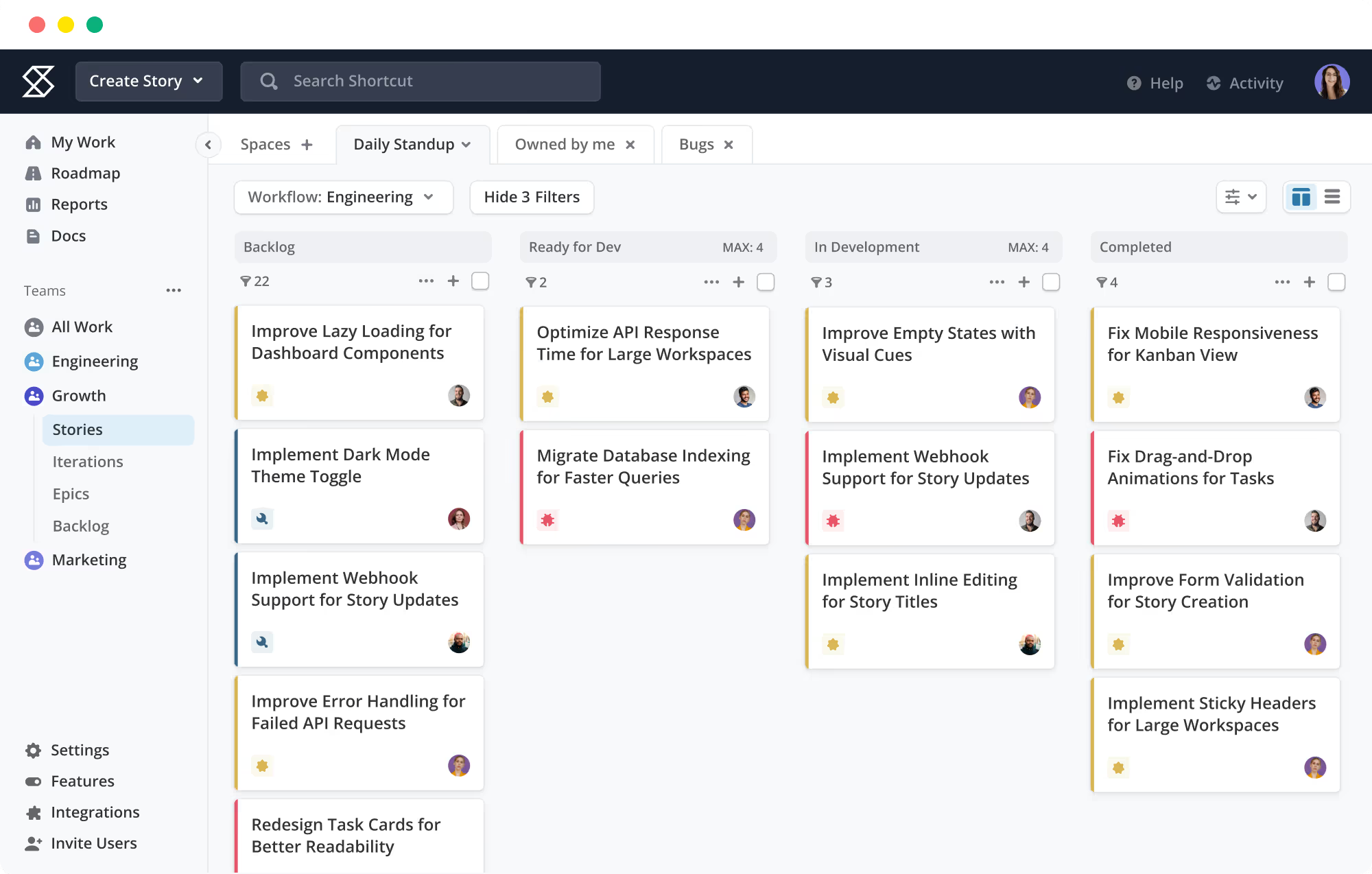
Imagine you are reviewing a queue of bugs before a daily team check-in. Open one issue, check its status and owner, add a concise comment if needed, then move to the next issue.
If your Jira view supports issue navigation shortcuts, use them to move through the queue. Use the edit or comment shortcut only after confirming the active screen and intended action.
Keep issue updates specific
A shortcut can open a comment field quickly, but it cannot make an unclear update useful. Compare “Still working on this” with “Reproduced the timeout on the staging site; I’m checking the retry behavior.”
The second comment gives teammates a concrete status and next step. A faster keystroke matters most when it helps you share useful information without breaking concentration.
Use a simple practice plan
Choose two or three shortcuts that support your daily work.
Practice them in the same Jira view for several work sessions.
Check the shortcut panel when a key behaves unexpectedly.
Drop shortcuts you rarely use instead of trying to memorize everything.
The best part? You can start with one small improvement, such as opening the create-issue form without reaching for the mouse. Add another shortcut only when the first feels natural.
Make Shortcuts More Reliable Across Your Team
Individual habits help, but teams also need consistent issue fields, statuses, and handoffs. If one project uses “Ready for QA” and another uses “Testing,” people may still pause to interpret the workflow after navigating quickly.
For example, a support team might agree that every bug update includes the affected version, reproduction status, and next owner. The shortcut helps open the relevant action; the shared convention makes the update clear.
Agree on a few team conventions
Use consistent names for common statuses and issue types.
Keep comments focused on progress, blockers, or decisions.
Define who owns assignment and triage during each workflow stage.
Share a short list of shortcuts your team has confirmed in its Jira setup.
Let me explain: a team does not need everyone to use every shortcut. A small shared set can reduce repeated questions while leaving room for different working styles.
Troubleshoot Shortcuts That Do Not Work
When a key does nothing, check the context before assuming Jira is broken. The issue page, focused text field, browser, and site configuration can all affect what happens.
Check focus and page context
Click outside any comment or search field, then try the shortcut again. If the command works elsewhere, the original field likely captured the keystroke as text.
Check your current shortcut list
Press ? where available and compare the action you expect with the displayed list. Jira versions and configurations can change shortcut behavior, so an old reference may no longer apply.
Look for browser or operating-system conflicts
Some key combinations are reserved by a browser, operating system, or assistive technology. Try another supported shortcut or use Jira’s visible controls when a conflict remains.
You might be wondering: should you keep practicing a shortcut that fails intermittently? Usually, no. Use the interface control until you can identify the cause, especially before actions that change assignments or issue details.
Jira Hotkeys and Issue Workflows: Where ONES.com Fits
Value proposition: ONES.com brings project management and knowledge management together as a unified platform powered by ONES Assistant. ONES Project is its project management product and Jira alternative, sold separately from ONES Wiki.

Hotkeys can reduce friction during issue updates, while a well-shaped workflow helps prevent confusion across the whole project. If your team is reviewing how it manages issues, ONES Project offers Jira-compatible workflows alongside reporting and configurable project practices.
Core capabilities
Issue workflows: Teams dealing with mismatched handoffs can configure custom workflows, helping issue stages reflect how work actually moves.
Custom fields: Projects that need extra context can add custom fields, making relevant issue details easier to capture and review.
Sprint management: Agile teams can manage sprints in the project workflow, keeping planned work and active issues connected.
Built-in reporting: Teams spending time assembling progress views can use built-in reporting to review project information in one place.
Automation: Repeated workflow actions can be automated, reducing routine manual steps when a rule is appropriate.
Jira-compatible workflows: Teams that want a Jira alternative can use familiar workflow patterns, which may ease the change for people already comfortable with Jira.
Deployment choices: Organizations with different hosting requirements can choose Cloud, On-Premise, Private Cloud, or Air-gapped deployment.
Self-hosted feature parity: Teams choosing self-hosting can access feature parity with the cloud version, helping deployment needs drive the decision rather than reduced functionality.
Reduced plugin dependence: Teams trying to simplify a plugin-heavy setup can evaluate native capabilities for project workflows, reporting, and automation.
Application scenarios
Agile software team: A team tracking sprint work can use issue workflows, custom fields, and sprint management to keep tasks and status changes organized. Confirmed keyboard shortcuts can still speed up routine interaction where available.
Restricted-network organization: A team that cannot use a public cloud service can consider On-Premise, Private Cloud, or Air-gapped deployment. The available deployment options let the organization choose an environment that fits its operational requirements.
ONES.com offers a free plan for up to 30 seats. Cloud and self-hosted deployments are available, and ONES Project and ONES Wiki are sold separately, so choose the product that fits your project needs.
Common Challenges with Jira Shortcuts
1. Shortcuts differ between screens
Problem: A key works on an issue page but not in a board or text field. Solution: Check the shortcut panel in the relevant context and note where the action works.
2. A shortcut triggers the wrong action
Problem: A key combination conflicts with browser behavior or your current focus. Solution: Click outside editable fields, verify the shortcut, and use the visible control if the conflict persists.
3. Teammates use different conventions
Problem: Fast updates still leave teammates unsure about status or ownership. Solution: Agree on concise comment practices and consistent workflow terms, then share only the shortcuts your team has verified.
4. Too many shortcuts are hard to remember
Problem: A long list becomes another thing to manage. Solution: Start with a small set tied to frequent work, such as creating, editing, or navigating issues.
FAQs About Jira Hotkeys
How do I see the keyboard shortcuts available in Jira?
In many Jira experiences, pressing ? opens a shortcut help panel. If that does not work, look for keyboard shortcuts in the Jira help or settings area available to you. The exact location and list can vary by Jira version and configuration. Check the panel on the screen where you plan to use a shortcut, since context can affect what is available.
Can I use the same Jira shortcuts on every page?
No. Some shortcuts apply broadly, while others depend on the current page or the element with keyboard focus. A shortcut may work on an issue view but be captured as text when a comment field is active. Check the shortcut panel and test the action on the page where you intend to use it.
What is the safest way to learn Jira shortcuts?
Start with a few actions you use often, such as opening the shortcut panel, creating an issue, or navigating a list. Test each action on a low-risk issue, and confirm the result before saving changes. Once the keys feel predictable, add another one. This approach is easier to maintain than trying to memorize a long list at once.
Why does a Jira shortcut type a character instead of performing an action?
The cursor may be active in a search box, comment field, or other editable area. In that case, the key can be entered as text instead of activating a shortcut. Click outside the field and try again. If the issue continues, check whether your browser or operating system uses the same key combination.
Do Jira keyboard shortcuts replace mouse controls?
No. Shortcuts are another way to perform supported actions, not a replacement for every visible control. Mouse or touch controls remain useful when a shortcut is unavailable, conflicts with another command, or is difficult to use. Keeping both methods available makes it easier to choose the one that suits the task and your setup.
Conclusion
Jira hotkeys can make common issue updates feel quicker when you choose shortcuts that match your real workflow. Start with the shortcut panel, test a small number of keys, and confirm each action before relying on it.
If a shortcut behaves unpredictably, check the active field, page context, and browser conflicts. Pair your personal routine with clear team conventions so faster updates also remain useful to the people who depend on them.
The problem is repeated friction; the cost is interrupted focus and unfinished updates. A few verified shortcuts offer a practical way to improve your issue workflow without turning memorization into another task.