Jira Knowledge Base: A 7-Step Setup Guide for Teams in 2026
Struggling to keep team guidance up to date? Set up a Jira knowledge base with this 7-step 2026 guide. Read now to build a searchable, reliable hub.
A Jira knowledge base is a searchable collection of help articles connected to Jira workflows, so people can find answers while requesting support or solving issues. Setting one up takes more than adding pages. You need clear ownership, useful categories, sensible permissions, and a reliable way to connect articles to the places where people need them.
Without those choices, a knowledge hub can become a maze of stale instructions. Support teams may keep answering the same questions, while staff struggle to tell which guidance is current. That creates extra work and chips away at trust.
But here's the truth: you can build a practical setup in seven steps. This guide walks you through planning the knowledge base, connecting it to Jira, organizing and maintaining its content, and improving it after launch. You’ll also see common pitfalls and an alternative approach for teams comparing knowledge management options.
How to Set Up a Jira Knowledge Base in 7 Steps
Start by deciding who the knowledge base serves and where they’ll access it. Then create and connect the content, establish ownership, and improve the experience using real searches and support requests.
-

Define the audience and the job the knowledge base must do
Choose whether you’re helping customers, internal employees, support agents, or a mix of audiences. Their needs affect article language, visibility, categories, and the Jira experience you’ll configure.
Write down the top questions your team handles. For example, a software support group might prioritize account access, setup instructions, and troubleshooting steps for common errors.
Set a few measurable goals, such as reducing repeated tickets or helping agents resolve requests faster. These give you a way to judge whether the knowledge base is useful after launch.
-
Choose the Jira and knowledge management setup
Decide where you’ll create and maintain articles, and how people will reach them. Many Jira Service Management setups connect a knowledge base in Confluence to a service project. Your available options can depend on your Jira products, plan, and configuration.
Sketch the journey before changing settings: a customer opens a help portal, searches for “reset my password,” reads an article, and submits a request if the steps don’t help. For internal support, the same search might appear in a staff help portal.
Check your team’s access needs and administration responsibilities. A clear setup is easier to maintain than one that depends on a single administrator remembering every connection and permission.
-
Create the knowledge space and a small set of useful articles
Set up a dedicated space or area for support knowledge. Keep the opening collection focused on frequent, high-impact questions instead of trying to publish everything at once.
Give each article one clear purpose. A password-reset guide, for example, should explain how to reset a password, what to do if the reset email doesn’t arrive, and where to get help next.
Use descriptive titles that match the words people search. “Reset your account password” is easier to understand than “Account management process.” Add a short summary so readers can quickly decide whether the article applies.
-
Connect the knowledge base to the right Jira project
In the relevant service project, find the knowledge or help-center settings and connect the intended content area. Exact menu names can change across product versions, so check your current Jira administration experience if a setting has moved.
Test the connection using a realistic request. Search from the portal for a phrase such as “can’t sign in,” and confirm the expected article appears. Then open the result and check that its instructions are readable.
If agents also need the articles while working on tickets, verify that the content is accessible in their workflow. A connection that works for administrators may still have access restrictions for other readers.
-
Set permissions and organize the content
Separate public guidance from internal procedures. A customer may need a safe account-recovery walkthrough, while an agent may need a private escalation checklist. Give each audience access only to the material intended for them.
Use a modest category structure, such as Getting started, Accounts, Billing, and Troubleshooting. Too many categories make navigation harder; too few can leave readers browsing long, crowded lists.
Try a quick sorting test: ask a colleague who doesn’t know your structure to find a specific article. If they hesitate between categories, simplify the labels or adjust where the article appears.
-
Establish article templates, ownership, and review dates
Give writers a repeatable format. A practical template can include the problem, who the instructions apply to, numbered steps, expected results, and a next action if the steps fail.
Assign an owner to each article or topic area, and set a review date for content that can change. For example, an account-access guide may need review whenever sign-in settings change.
Agree on a simple publishing workflow: draft, check for accuracy, publish, and revisit when the related service or process changes. This keeps useful guidance from quietly becoming outdated.
-
Launch, measure searches, and improve the weak spots
Introduce the knowledge base with a short explanation of where it lives and how to search it. Let support agents know when they should share an article, suggest an edit, or report a missing answer.
Review search terms, article views, feedback, and repeated support requests. If readers search “invoice copy” but your page is titled “Billing records,” consider using the phrase people recognize in the title or summary.
Make small updates regularly. Add an article when the same question keeps appearing, revise instructions when a process changes, and remove or redirect pages that no longer help.
What Makes a Jira Knowledge Base Useful?
A useful knowledge base helps people reach a trustworthy answer with little effort. Search, clear writing, appropriate permissions, and visible next steps all contribute to that experience.
Consider an employee who needs access to a project. A page that starts with the exact action, lists the required steps, and explains what to do if access is denied can prevent a support ticket. A vague page full of internal terminology probably won’t.
Here's why: search quality depends on how well article titles and summaries match the language people use. You can improve discovery by including common terms alongside official product names, without repeating phrases unnaturally.
Keep readers oriented with a clear page structure. Short sections, descriptive headings, and numbered instructions make it easier to complete a task. For a longer troubleshooting guide, put the most common fix near the top.
How to Organize Articles So People Can Find Answers
Build your categories around real tasks and questions, not your internal department chart. Readers usually think, “I need to change my email address,” rather than, “I need the Identity Operations team.”
Use a simple hierarchy and apply it consistently. If you have a category for Account access, place sign-in, password, and verification guidance there. Avoid creating separate categories for every small variation of the same problem.
Let me explain: a clear title works like a signpost. “Connect your calendar” tells readers what they’ll accomplish; “Integration notes” leaves them guessing. Add alternate terms in a summary when people use different language for the same task.
For instance, if customers search for “cancel plan” while your team calls it “subscription termination,” use a reader-friendly title and mention the internal term in the article. That helps people find the right answer without forcing them to learn your team’s vocabulary first.
How to Keep Jira Help Content Accurate
Assigning ownership is the simplest way to make maintenance manageable. Each topic should have someone who can confirm whether the steps still match the current product or policy.
Set review dates according to risk. A frequently changing security process may need checks more often than a stable guide to basic navigation. When a related service changes, review its help content as part of the same work.
The best part? Reviews don’t need to become a heavy approval process. An owner can check that links work, steps match the current experience, and readers still have a useful next action.
For example, if a support team changes its escalation path, update the relevant articles and tell agents what changed. A short change note can prevent staff from following old instructions while the new process settles in.
How to Measure and Improve the Knowledge Experience
Measure whether people find and use the information they need. Article views are useful, but they don’t tell the whole story. Pair them with search terms, feedback, ticket patterns, and comments from support staff.
Look for gaps between a search and a successful answer. If a popular query produces no useful results, add or rename an article. If readers open a page but continue submitting the same request, check whether its steps are incomplete or unclear.
You might be wondering: should you judge success by fewer tickets alone? No single measure explains the full experience. Some requests still need a person, and a well-used article may help customers submit better, more complete requests.
Compare changes over time. If a revised setup guide receives positive feedback and fewer related questions, keep the approach. If readers still get stuck, ask a few of them to walk through the steps and note where confusion begins.
Jira Knowledge Base Solution: ONES.com
ONES.com brings project management and knowledge management together on one platform, with ONES Project for project management and ONES Wiki for knowledge management. The products are sold separately, so teams can choose the capabilities they need.

For a team reviewing its Jira knowledge setup, ONES Wiki can provide a place to organize and maintain knowledge, while ONES Project supports project work. ONES Project is a Jira alternative, and ONES Wiki is a Confluence alternative. Teams can assess either product against their current workflows rather than assuming they need to replace both systems.
Core Capabilities
- Knowledge is split across workspaces: ONES.com combines project and knowledge management in one platform. ONES Project and ONES Wiki remain separately sold, allowing teams to select the product that fits their needs.
- Teams need a Jira alternative: ONES Project supports Jira-compatible workflows. Teams can assess how their existing ways of working translate before making a change.
- Reporting is difficult to bring together: Built-in reporting gives project teams visibility into work without relying on an assortment of add-ons.
- Workflows don’t match team processes: Custom workflows and fields let teams adapt how work is captured and moved through stages.
- Agile teams need sprint planning: Sprint management supports planning and tracking iterative project work.
- Repeated actions consume time: Automation can handle suitable recurring workflow tasks, reducing manual steps for the team.
- Teams want fewer third-party plugins: Native capabilities cover common project needs, helping teams reduce plugin dependence where those capabilities meet their requirements.
- Deployment requirements restrict cloud use: ONES.com offers Cloud, On-Premise, Private Cloud, and Air-gapped deployments. The self-hosted version has feature parity with the cloud version.
Application Scenarios
A support team might use ONES Wiki to organize internal troubleshooting guidance and ONES Project to coordinate service improvements. Keeping the products within one platform can help teams connect knowledge work with project work, while each product remains a separate purchase.
A company with restricted network requirements can evaluate an On-Premise, Private Cloud, or Air-gapped deployment. A smaller team can also explore the free plan, which supports up to 30 seats, before deciding what suits its working environment.
Common Challenges When Setting Up a Jira Knowledge Base
- Articles are hard to discover. Revisit titles, summaries, and categories using the words readers actually search. Test common queries from the help portal instead of relying only on an administrator’s view.
- Readers see content meant for another audience. Review space and article permissions with both a customer account and an internal account. Keep public instructions separate from private support procedures.
- Guidance becomes outdated. Assign owners and review dates, then include knowledge checks in related service changes. If a procedure changes, update its help page as part of the rollout.
- People keep asking the same questions. Compare repeated requests with current articles. Add missing details, clarify confusing steps, or create a new page when one answer cannot address different cases.
- The structure grows too complicated. Merge overlapping categories and remove pages that no longer help. A short, well-maintained collection is often easier to use than a large collection with unclear navigation.
Frequently Asked Questions
Can Jira have a knowledge base?
Yes. Teams commonly connect knowledge content to a Jira Service Management project so people can search for help through a portal. In many setups, the knowledge content is maintained in Confluence and connected to the service project. Available options and setup steps can depend on your Jira products, plan, and administration settings.
Is Confluence required for a Jira knowledge base?
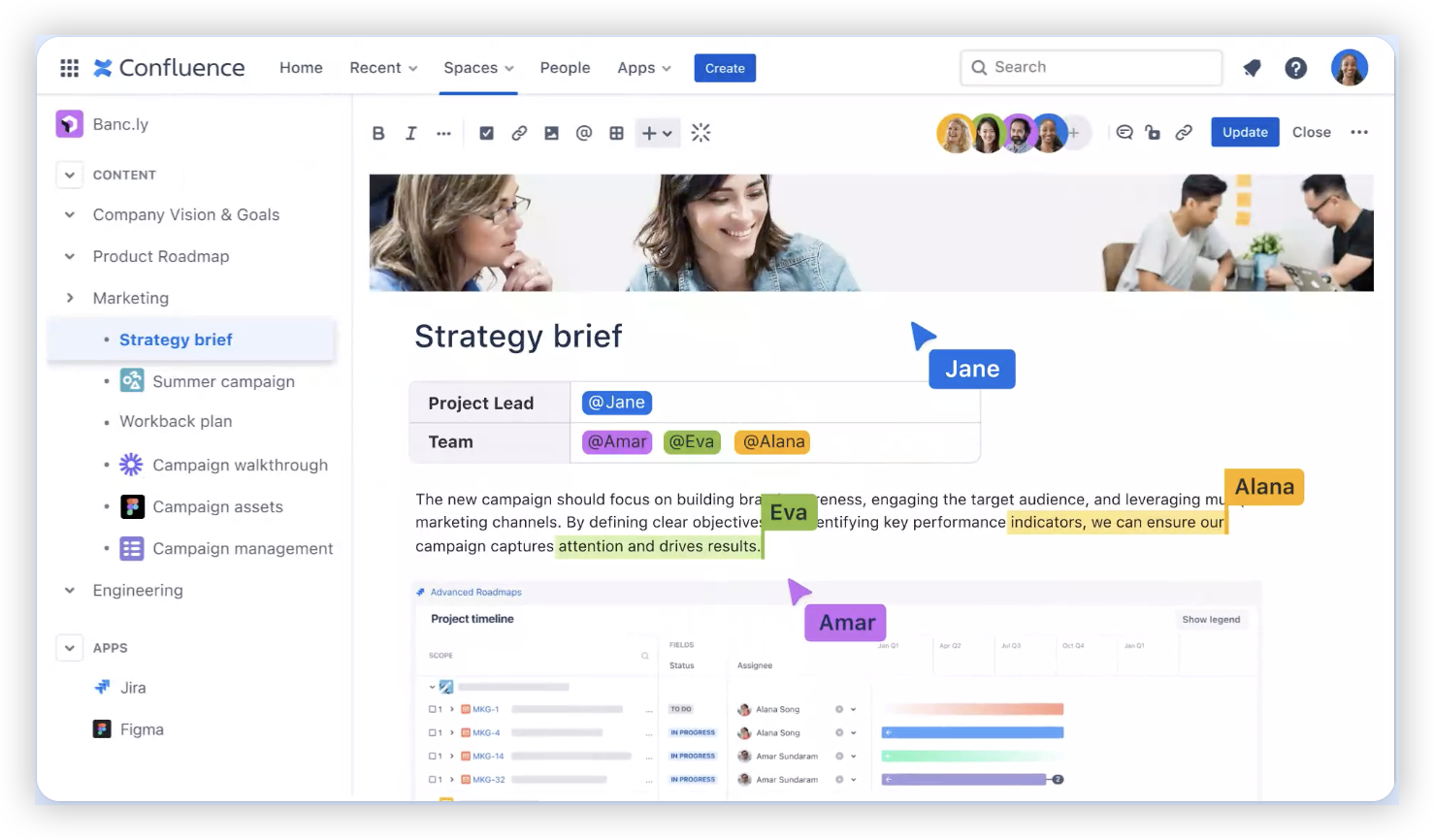
It depends on the Jira products and configuration your team uses. Many Jira Service Management knowledge setups use Confluence to create and manage articles, then surface them in a help portal. Check your current product settings and licensing before planning the connection. If you’re comparing alternatives, assess how each option handles article writing, permissions, search, and support workflows.
How should I organize Jira help articles?
Start with a few categories based on common reader tasks, such as accounts, billing, setup, and troubleshooting. Use plain-language titles that match likely searches, then keep each article focused on one problem. Ask someone unfamiliar with your structure to find a few answers. Their experience can reveal confusing labels or unnecessary categories.
How often should a knowledge base be reviewed?
Choose a review schedule that reflects how quickly the information changes. Security steps and frequently updated services may need more frequent checks than stable guidance. Assign an owner, track a review date, and revisit an article whenever its related process changes. Reader feedback and repeated requests can also signal that a page needs attention before its next scheduled review.
How can I tell whether a Jira knowledge base is working?
Look at a mix of indicators, including useful search results, article feedback, repeated request patterns, and support-team observations. A rise in article views may show interest, but it doesn’t prove that readers found an answer. Check whether people complete the intended task or still need help with the same issue, then improve the pages that create friction.
Conclusion
A Jira knowledge base works best when it gives the right audience clear, current answers where they need them. Define its purpose, connect the content to the right Jira project, organize articles around real questions, and assign owners to keep guidance accurate.
Then pay attention to what readers search for and where they get stuck. Those signals show you what to clarify, add, or reorganize. A focused setup can make support easier to navigate and reduce repeated effort for both readers and agents.