Jira Login Page: A Step-by-Step Sign-In Guide for 2026 Users
Stuck at the jira login page? Follow sign-in steps for Cloud, SSO, and self-managed Jira. Read now and get back to work.
Getting into Jira should take seconds, yet a forgotten password, company sign-in redirect, or unfamiliar site address can leave you stuck outside your work. That delay matters when a sprint task needs attention or a teammate is waiting for an update.
But here's the truth: the right sign-in route depends on whether your organization uses Atlassian Cloud, single sign-on, or a self-managed Jira instance. A generic login link may send you in circles if you choose the wrong account or enter the wrong site address.
This guide shows you how to reach the Jira login page, sign in safely, and fix common access problems. You’ll also learn what to check when your company manages authentication, so you can get back to work without guesswork.
How to Sign In Through the Jira Login Page
Start with the official Atlassian sign-in route for Jira Cloud, or use your organization’s Jira address if your company provides one. Follow these steps to reach the correct workspace.
Open the right sign-in address. For Jira Cloud, visit id.atlassian.com/login. If your organization gave you a Jira site address, open that instead.
Enter the email linked to your account. Use your work email if your company manages Jira access. A personal Atlassian account may not have permission to enter a company workspace.
Complete your organization’s sign-in checks. You may need to enter a password, use single sign-on (SSO), approve a multifactor authentication request, or follow another company security step.
Choose the correct Jira site or project. Some accounts can access several sites. Select the workspace your team uses, then open the project you need.
Confirm that you’re signed in. Check that your profile appears and the expected Jira project loads. If you see an access message, verify your account and site before trying another sign-in method.
Here's why: Jira Cloud accounts and company-managed authentication do not always use the same route. If the sign-in page redirects you to your employer’s login screen, complete that step rather than returning to the Atlassian page.
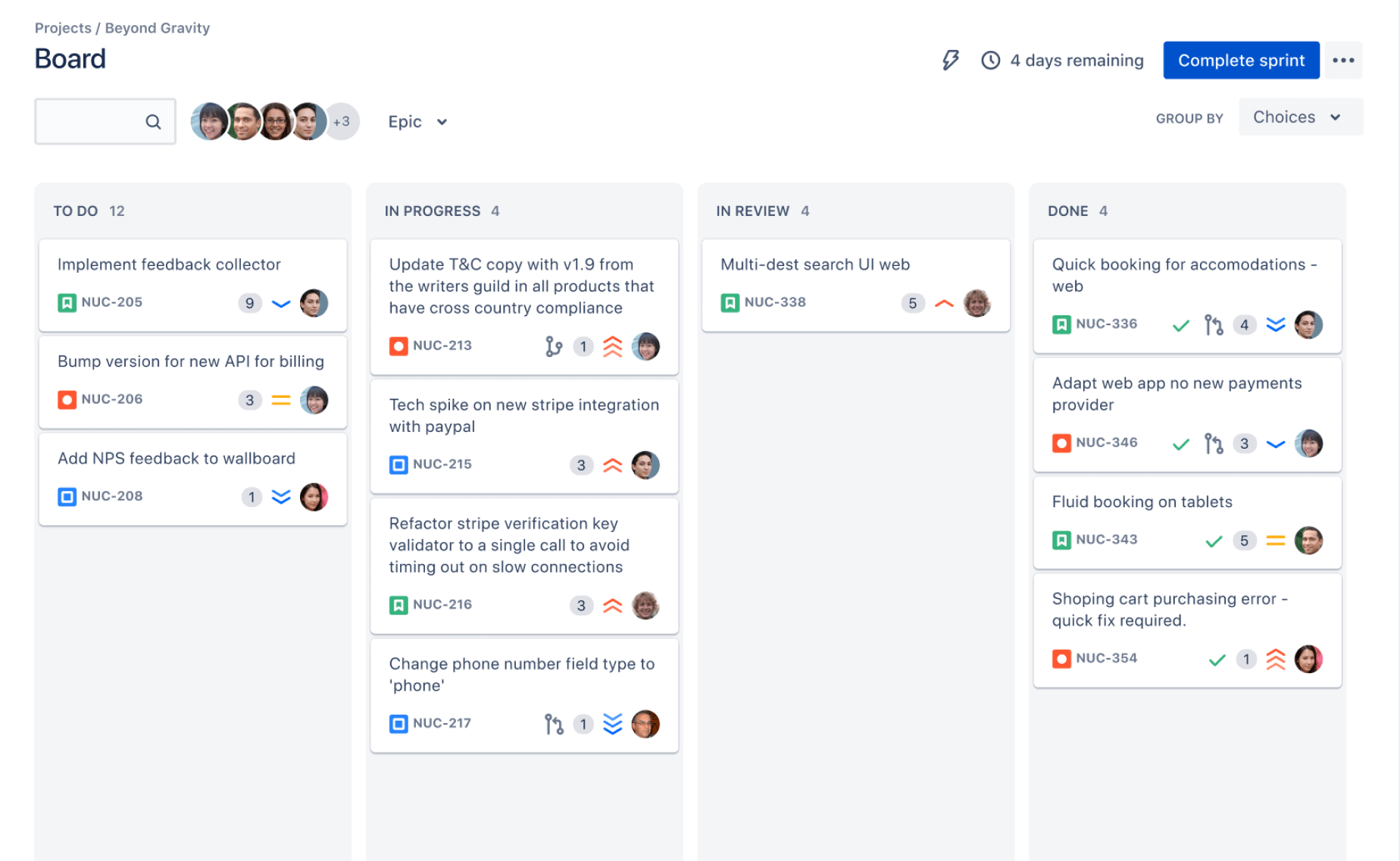
Choose the Sign-In Route That Matches Your Jira Setup
Jira Cloud and self-managed Jira can present different sign-in experiences. For Cloud, you commonly start with Atlassian account sign-in. For a company-hosted or self-managed instance, your administrator may provide a dedicated Jira address and login instructions.
For example, an employee may visit a company Jira URL and then be redirected to an identity provider such as Microsoft Entra ID or Okta. The redirect is part of the company’s access process, so use your work account and follow the prompts.
When your organization uses single sign-on
With SSO, your company verifies your identity through its own sign-in service. You may not need a separate Jira password, and your administrator may require a company device or network connection.
You might be wondering: what if you don’t see the company sign-in option? Start from the Jira address your administrator shared. A bookmarked Atlassian page may lead to a different account flow.
When you have more than one Atlassian account
Choose the email that was invited to the Jira site. If you have both a personal and work account, signing in with the wrong one can show an empty project list or an access error.
Try signing out before switching accounts. Then reopen the company’s Jira address and enter the invited email, rather than relying on whichever account your browser remembers.
Fix Common Jira Login Problems
If you can’t get in, first identify what happens after you enter your email. A password error, an SSO redirect loop, and a missing Jira site point to different causes.
Password rejected: Check the email address and password, then use the password reset option if your account uses an Atlassian password. If your company uses SSO, reset your credentials through your organization’s sign-in service.
Verification code won’t work: Check the time on your authenticator device and request a fresh code. If you’ve lost access to your verification method, contact your company administrator.
Login page keeps reloading: Open a private browsing window. If sign-in works there, old browser cookies may be interfering. Clear cookies for the relevant Atlassian or company sign-in sites, then try again.
Jira site is missing: Confirm you used the invited work email and correct site address. Ask your Jira administrator to check that your account has site access.
Access is blocked: Your account may be inactive, your company may require a managed device, or a security policy may need attention. Contact your administrator rather than repeatedly guessing passwords.
The best part? A quick check of the account, site address, and sign-in method often narrows the problem before you need help. Note the exact error message so your administrator can investigate the right access step.
Keep Jira Sign-In Safe and Reliable
Use your organization’s official Jira address, and save it as a browser bookmark after confirming it with your administrator. This reduces the chance of entering credentials on a misleading page.
Turn on multifactor authentication if your organization supports it. Store recovery options securely, and never share a verification code with someone who contacts you unexpectedly.
On a shared computer, sign out when you finish and close the browser window. On a personal device, keep its operating system and browser updated, especially if your company requires device checks before allowing access.
What to do when you need help
Tell your administrator the Jira site address, the email you used, and what happened after you tried to sign in. Include the exact wording of any error, but never send your password or verification code.
For instance, “I can reach the company sign-in screen, but the Jira site says I don’t have access” is more useful than “Jira is broken.” It points toward an account permission check rather than a password reset.
Reduce Access Friction with ONES.com
Value proposition: ONES.com brings project management and knowledge management together on one platform, with AI assistance through ONES Assistant. ONES Project and ONES Wiki are sold separately, so you can choose the product that fits your team’s needs.
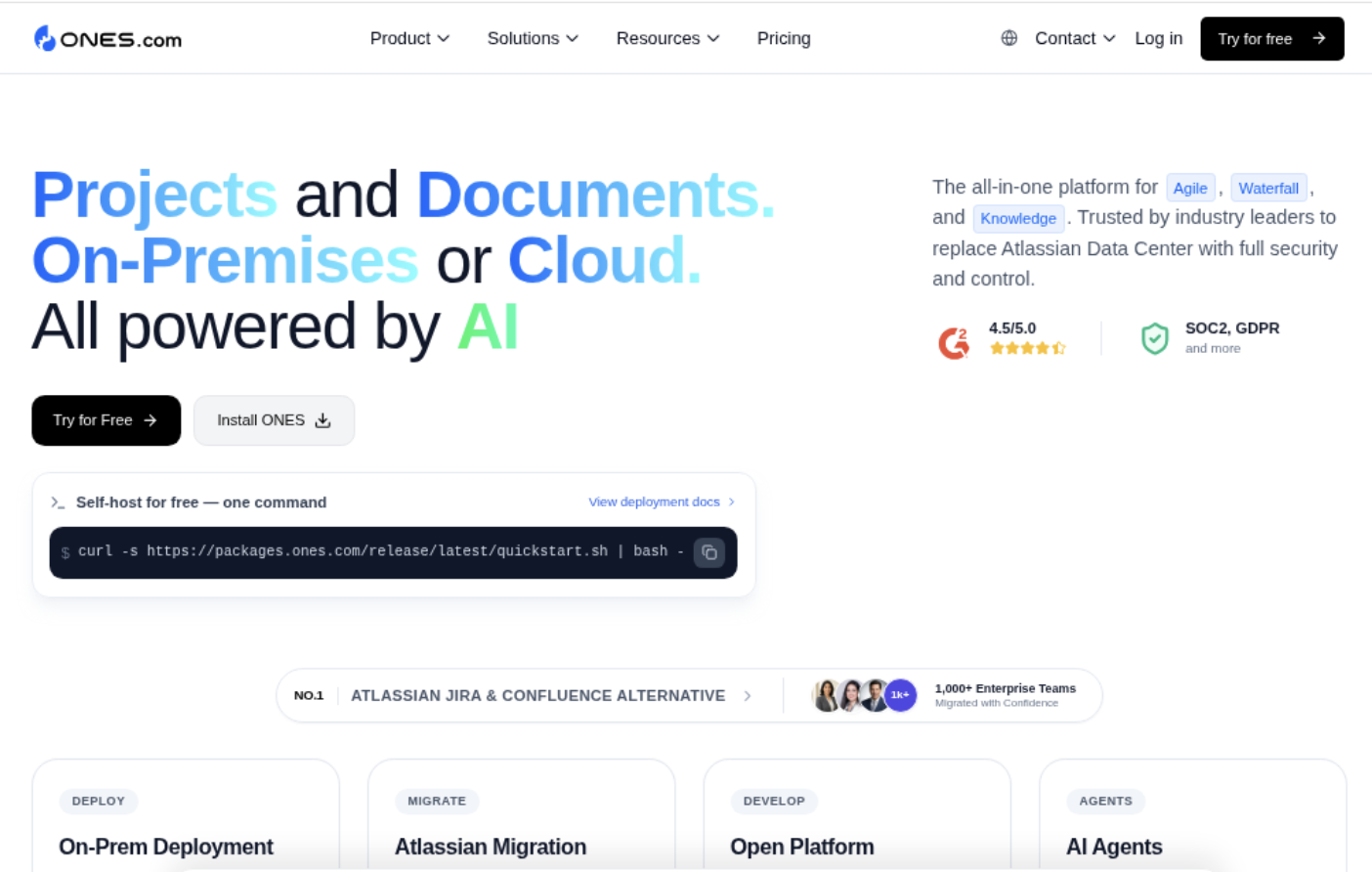
If repeated sign-in confusion is part of a broader project-management challenge, ONES Project is a Jira alternative with Jira-compatible workflows. It gives teams flexible deployment choices and project features without requiring every team to assemble its workflow around extra plugins.
Core capabilities
Project access feels scattered → ONES Project provides a dedicated project-management workspace → your team can organize work in one place.
Jira workflow changes need extra setup → Jira-compatible workflows and custom workflows let teams configure how tasks move → familiar processes can be carried over with less disruption.
Teams need fields that reflect their work → Custom fields capture relevant task details → people can see the information they need while handling an issue.
Sprint planning requires several disconnected steps → Sprint management supports planning and tracking → teams can follow work through the sprint cycle.
Progress is hard to review → Built-in reporting helps teams monitor project activity → leads can review delivery without building every report from scratch.
Repeated task actions take time → Automation can handle configured routine actions → the team spends less effort repeating manual steps.
Some teams need a self-hosted environment → ONES.com offers Cloud, On-Premise, Private Cloud, and Air-gapped deployments → organizations can select an environment that matches their operating needs.
Self-hosted teams worry about missing features → ONES.com provides full feature parity between its cloud and self-hosted versions → deployment choice does not mean giving up feature access.
Project guidance is separated from team knowledge → ONES Wiki provides knowledge management as a separately sold product → teams can maintain project knowledge alongside project work when they choose both.
Application scenarios
A software team moving from Jira can map its issue workflows, fields, and sprint routines into ONES Project. Built-in reporting and automation can support ongoing project work after the transition.
An organization with restricted network requirements can evaluate ONES.com’s On-Premise, Private Cloud, or Air-gapped deployment options. A smaller team can also try the free offering, which supports up to 30 seats.
Common Challenges When Signing In
You’re sent back to the login screen. This can happen when browser cookies conflict or your SSO session has expired. Try a private window, then sign in again through your company’s Jira address.
You see the wrong account or no projects. Your browser may have selected a personal account instead of your work account. Sign out, reopen the correct site, and use the email associated with your invitation.
Your password reset doesn’t help. If your organization uses SSO, Jira may not control your password. Use your company’s password recovery process or contact the administrator who manages authentication.
You can sign in but cannot open a project. Authentication confirms your identity, while project permissions control what you can access. Ask a project or Jira administrator to review your membership.
You cannot complete multifactor authentication. Use an approved recovery method if available. If you no longer have your device, ask your administrator to help restore access safely.
Frequently Asked Questions
What is the official Jira login page?
For Jira Cloud, the Atlassian sign-in page is id.atlassian.com/login. Your organization may instead direct you to a company Jira address, which can send you to its SSO service. Use the route your administrator or invitation provides. If you have several Atlassian accounts, sign in with the email that has access to the Jira site you need.
Why does Jira send me to my company’s login page?
Your organization may use single sign-on to manage access to Jira. In that setup, Jira redirects you to a company identity provider so it can verify your work account. Complete the company sign-in steps and any multifactor verification prompts. If the redirect repeats, try a private browsing window and contact your administrator if the loop continues.
How do I reset my Jira password?
If you sign in with an Atlassian password, use the password reset option on the sign-in page and follow the email instructions. If your company uses SSO, Jira may not manage your password. Reset it through your company’s sign-in service instead. When you’re unsure which method applies, ask your administrator before changing credentials.
Why can I sign in but not see my Jira project?
Signing in verifies your identity, but it does not automatically grant access to every project. Check that you selected the correct Jira site and used the email your team invited. If the project is still missing, ask a Jira or project administrator to review your account permissions and project membership.
Conclusion
A successful Jira sign-in starts with the correct site address, the right account, and the authentication method your organization uses. Check those three details before resetting passwords or trying repeated login attempts.
If you hit a roadblock, match the error to the likely cause: credentials, SSO, verification, browser behavior, or project permissions. That approach can get you back to your work faster and give an administrator useful details when you need help.
When access friction points to wider workflow needs, ONES Project offers another Jira-compatible project-management option, with deployment choices that include cloud and self-hosted environments. Choose the setup that fits how your team works.