Jira Login Screen: A Step-by-Step Guide to Signing In Safely
Unsure if you’re on the right jira login screen? Learn to sign in safely, fix login issues, and protect your account. Read now.
If the Jira login screen looks unfamiliar, a sign-in can feel riskier than it should. A mistyped web address, unexpected sign-in prompt, or password request can make it difficult to tell whether you’re on the right page.
That hesitation matters: rushing through a login can expose your account or lock you out when you need to work. But here's the truth: you can usually sign in safely by checking the address, choosing the right account method, and confirming any security prompts. This guide walks you through each step, explains what to do when login fails, and shows how to protect your account on shared devices. You’ll also learn when your organization’s administrator may need to help.
How to sign in through the Jira login screen
Start with your organization’s official Jira address or the Atlassian sign-in page your team normally uses. Check the web address before entering your credentials, then follow the steps below.
Open the right address. Use a saved bookmark you trust or type your organization’s Jira address directly. Jira Cloud users may be redirected to an Atlassian sign-in page. Self-managed Jira sites usually have an organization-specific address.
Check the page before entering details. Confirm that the address is spelled correctly and uses HTTPS. If a link came through an unexpected email or message, don’t use it until you’ve verified it with your administrator or a trusted colleague.
Enter your work email or username. Your organization may use an email address, a username, or a single sign-on option. Use the method your team has configured rather than creating a new account to get past the prompt.
Complete the required sign-in method. Enter your password if requested, or follow your organization’s single sign-on steps. You may be redirected to another sign-in page managed by your employer.
Approve multi-factor authentication. If prompted, use your registered authenticator app, security key, or approved verification method. Never approve a request you didn’t initiate.
Confirm you reached the expected Jira site. After signing in, check the site name and account details. If the page shows an unfamiliar organization or asks for unrelated information, stop and contact your administrator.
Here's why: Jira access can be managed differently by each organization. The correct steps depend on whether your team uses Atlassian accounts, single sign-on, or a self-managed Jira installation.
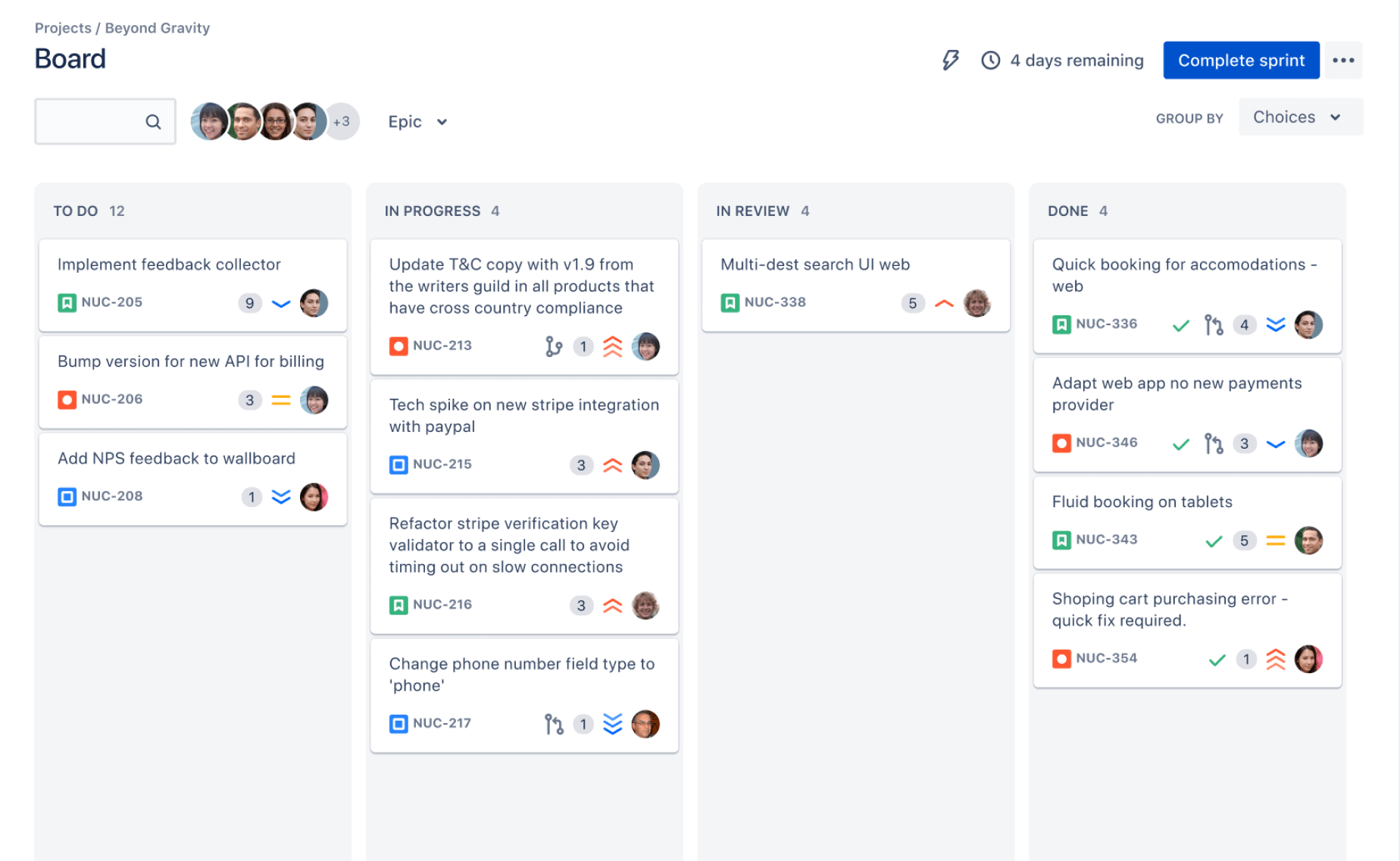
Identify the correct sign-in page for your Jira site
There isn’t one sign-in address that fits every Jira user. Jira Cloud and self-managed installations can use different addresses, and your organization may route both through its own identity provider.
Jira Cloud and Atlassian accounts
With Jira Cloud, you may enter your email on an Atlassian sign-in page and then choose the relevant site. If your organization uses single sign-on, the sign-in flow may redirect you to a company-branded page before returning you to Jira.
For example, a team member might open a bookmarked Jira site, enter a work email, and then approve a login request through the company’s identity service. That redirect can be normal when it matches your organization’s usual process.
Self-managed Jira installations
A self-managed Jira site may use a company-specific web address and a sign-in page configured by its administrator. The organization can also require an internal network connection, VPN, or single sign-on before the page accepts a login.
If you’re unsure which address is current, ask your Jira administrator or use an approved internal link. Avoid guessing a URL from an old message, especially when your organization has recently changed its Jira setup.
Sign in safely and protect your account
A careful login takes only a few extra seconds. Focus on the address, the sign-in request, and what you do after entering Jira.
Inspect the web address. Look for misspellings, extra words, or unusual domain endings. A familiar logo alone doesn’t prove that a page is legitimate.
Use a unique password. Don’t reuse your Jira password on unrelated sites. If your organization uses single sign-on, follow its account security rules.
Use multi-factor authentication when available. A second verification step can help protect an account if a password is exposed. Keep recovery methods up to date.
Be cautious with unexpected prompts. Deny an authentication request you didn’t start. Then change your password and notify your administrator if you suspect someone else tried to access your account.
Sign out on shared devices. Close the session when you finish, and don’t save your password in a browser on a public or shared computer.
The best part? These checks work whether you’re signing in from a home office, a company network, or a shared workstation. A quick address check can help you catch a suspicious page before you reveal account details.
Fix common Jira sign-in problems
When sign-in fails, first identify where the process stops. A rejected password, a missing verification code, and a page that never loads each point to different next steps.
If your password is rejected
Check that you’re using the account associated with your Jira access. Make sure caps lock is off, and confirm that your password manager hasn’t filled in a credential for another account.
If the password still fails, use the approved password reset process for your account. With company single sign-on, reset your credentials through your organization’s identity service rather than trying unrelated Jira account recovery options.
If you can’t complete multi-factor authentication
Check that your phone has the correct time and that you’re using the registered verification method. If you changed phones or lost a security key, contact your administrator for account recovery instructions.
Don’t share a one-time code with anyone who contacts you. A legitimate support person should not need you to send a verification code through chat or email.
If the page loops or won’t load
Try opening the trusted Jira address in a private browser window. If that works, stored cookies or a browser extension may be affecting the session. You can also try a different browser approved by your organization.
If the issue continues across browsers, check whether your organization requires a VPN or managed network. Ask a colleague whether Jira is available to them, then contact support if the problem appears limited to your account.
Common challenges when logging in
The login link looks different from the one you remember
Problem: Your organization may have changed its Jira address or sign-in process, but an old bookmark still points to a previous page.
Solution: Confirm the current address with your administrator or a trusted internal contact. Replace old bookmarks only after you’ve verified the new destination.
You have access to several Jira sites
Problem: A successful sign-in may take you to a site that doesn’t contain the project you need. This can happen when your account belongs to several organizations or Jira sites.
Solution: Check the site name and address after signing in. Ask your administrator which site holds the project, and bookmark that verified destination for future visits.
Your account is locked or access has been removed
Problem: Repeated password attempts can trigger a lockout, while a role or employment change may affect site access.
Solution: Stop retrying once you suspect a lockout. Follow your organization’s account recovery steps or contact the Jira administrator to check your account status and permissions.
You can sign in but can’t open a project
Problem: Logging in confirms your identity, but it doesn’t automatically grant access to every project. Project permissions are often managed separately.
Solution: Ask the project lead or Jira administrator to review your access. Include the project name and the message you see, without sending your password or verification code.
ONES.com as a related project-management option
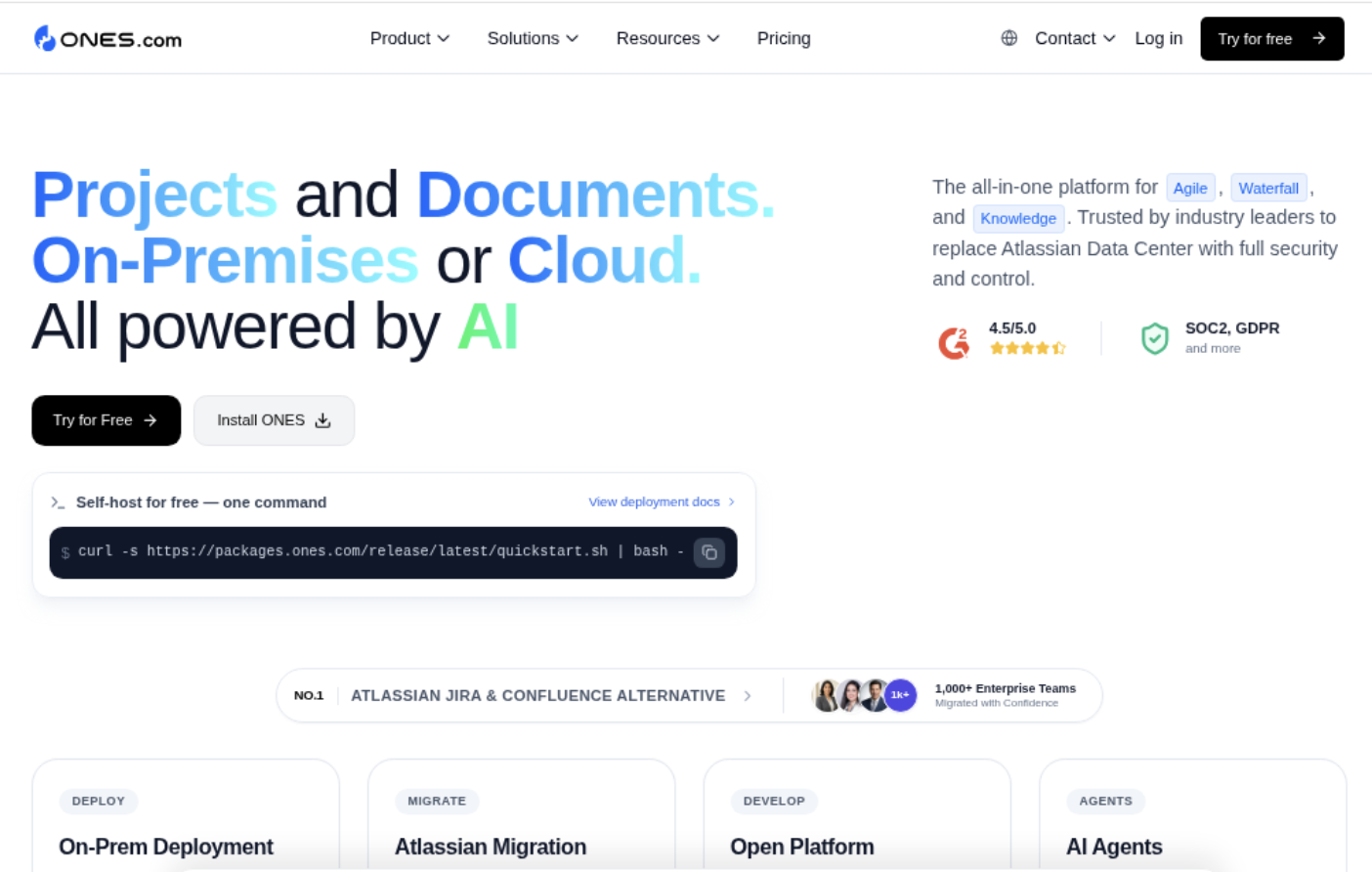
Value proposition
If your team is reviewing its project-management setup while sorting out Jira access, ONES.com offers a separate platform to consider. It combines project management and knowledge management, with ONES Project for project work and ONES Wiki for team knowledge; each is sold separately.
Core capabilities
Jira migration concerns: ONES Project supports Jira-compatible workflows, which can make familiar processes easier to carry across. Your team can retain recognizable ways of working while evaluating a Jira alternative.
Extra plugins add operational overhead: Built-in reporting gives teams reporting capabilities without relying on as many add-ons. That can simplify administration where the native features meet the team’s needs.
Rigid processes slow down delivery: Custom workflows let teams shape work stages around their approval and delivery processes. Custom fields can capture the details each project needs.
Sprint planning needs structure: Sprint management supports teams that plan work in iterations. Teams can organize tasks and review progress through their project workflow.
Repetitive actions consume time: Automation can handle configured routine steps. That helps reduce manual handoffs when a predictable action follows a particular project event.
Project details and team knowledge are split: ONES.com brings project management and knowledge management together as one platform, while ONES Project and ONES Wiki remain separate products.
Deployment needs differ: Teams can choose Cloud, On-Premise, Private Cloud, or Air-gapped deployment. The self-hosted version has full feature parity with the cloud version.
A team wants to test fit before a larger rollout: The free plan supports up to 30 seats. A team can assess its workflows and deployment needs before deciding whether the platform fits.
Application scenarios
A software team evaluating a Jira alternative could test Jira-compatible workflows, sprint management, and reporting with a small group. It could compare its current project routines with ONES Project before planning a broader change.
An organization with strict hosting requirements could assess On-Premise, Private Cloud, or Air-gapped deployment. A product team that also needs a shared knowledge hub could consider ONES Wiki separately, alongside ONES Project for project work.
ONES.com is separate from Jira, and it doesn’t resolve a Jira account or sign-in issue. Treat it as a platform option for project and knowledge management, not as a way to access an existing Jira site.
FAQs about the Jira sign-in page
Where do I find the correct Jira login page?
Use the Jira address supplied by your organization or a bookmark you’ve already verified. Jira Cloud may direct you to an Atlassian sign-in page, while self-managed sites can have organization-specific addresses. If you don’t know which applies, ask your administrator or a trusted colleague. Avoid entering credentials on a page reached through an unexpected link until you confirm its address.
Why does Jira send me to another sign-in page?
Your organization may use single sign-on, which sends you to a company identity service to verify your account. If the redirect matches your team’s normal login process and the address looks correct, it may be expected. If the page is unfamiliar or asks for unrelated details, stop and confirm the process with your administrator before entering anything.
What should I do if I forgot my Jira password?
First determine whether your account uses a Jira or Atlassian password, or company single sign-on. Use the recovery process provided for that account type. If your employer manages sign-in through an identity service, contact its support team or your Jira administrator. Don’t share your password or a one-time code with anyone offering to help.
Why can I sign in but not see a Jira project?
Successful sign-in confirms your identity, but project access depends on permissions. Your account may not have been added to the project, or you may be looking at a different Jira site. Confirm the site address, then ask the project lead or administrator to check your access. Include the project name and any displayed error, but keep your credentials private.
Conclusion
A safe Jira sign-in starts with a verified address, the correct account method, and careful handling of authentication prompts. Check the site after login, and pause when a page or request feels unfamiliar.
If access fails, match the problem to its cause: password recovery, multi-factor authentication, browser trouble, network requirements, or project permissions. That approach can save time and help protect your account. And if your team is separately assessing its project-management setup, ONES.com is one platform you can evaluate without confusing it with your Jira login.