Jira Logo SVG: A Quick Guide to Finding and Using Files
Need a reliable jira logo svg? Find the right version, verify its source and permissions, and use it safely. Read now to choose with confidence.
Looking for a Jira logo in SVG format? The right vector graphic stays sharp on a website, slide, or product screen, even when you resize it. But search results can mix current and retired branding with downloads that have unclear permissions.
Using the wrong version can make a polished page look dated. An unreviewed SVG can also include markup you don’t want to display or distribute. But here’s the truth: finding a suitable logo takes less effort when you check its origin, version, and intended use before adding it.
This guide shows you where to look, how to check an SVG, and how to use it clearly and responsibly. You’ll also learn what to do when you need a different format or a consistent way to coordinate brand updates across your team.
How to Find and Use a Jira Logo in SVG Format
Start with Atlassian’s official brand resources, confirm that the artwork suits your use, then test it where you plan to display it. These steps help you avoid outdated marks and awkward rendering.
- Check official Atlassian resources first. Look for brand guidelines or approved assets on Atlassian’s official website. Follow any stated rules for product names, spacing, colors, and permitted use.
- Confirm which Jira identity you need. Search results may show a current Jira mark, an older Jira Software logo, or a combined Atlassian and Jira design. Compare the artwork with Atlassian’s current branding before choosing.
- Review the license and usage terms. Check whether the artwork is approved for your purpose, especially for commercial use, product interfaces, or promotional material. A graphic being easy to download does not automatically grant permission to use it.
- Inspect and preview the SVG. Open it in a reputable browser or vector editor. Check that the shape, colors, and proportions look right against your intended background.
- Test it in context. Place the logo in your page, slide, or interface and check its appearance at the sizes people will see. Add suitable alternative text when the graphic conveys information.
- Keep a record of the choice. Note where you obtained the artwork, its version, and any usage conditions. This makes later reviews easier when branding changes.
For example, a logo that looks crisp on a white presentation slide may disappear on a dark navigation bar. A quick preview can reveal the issue before publication.
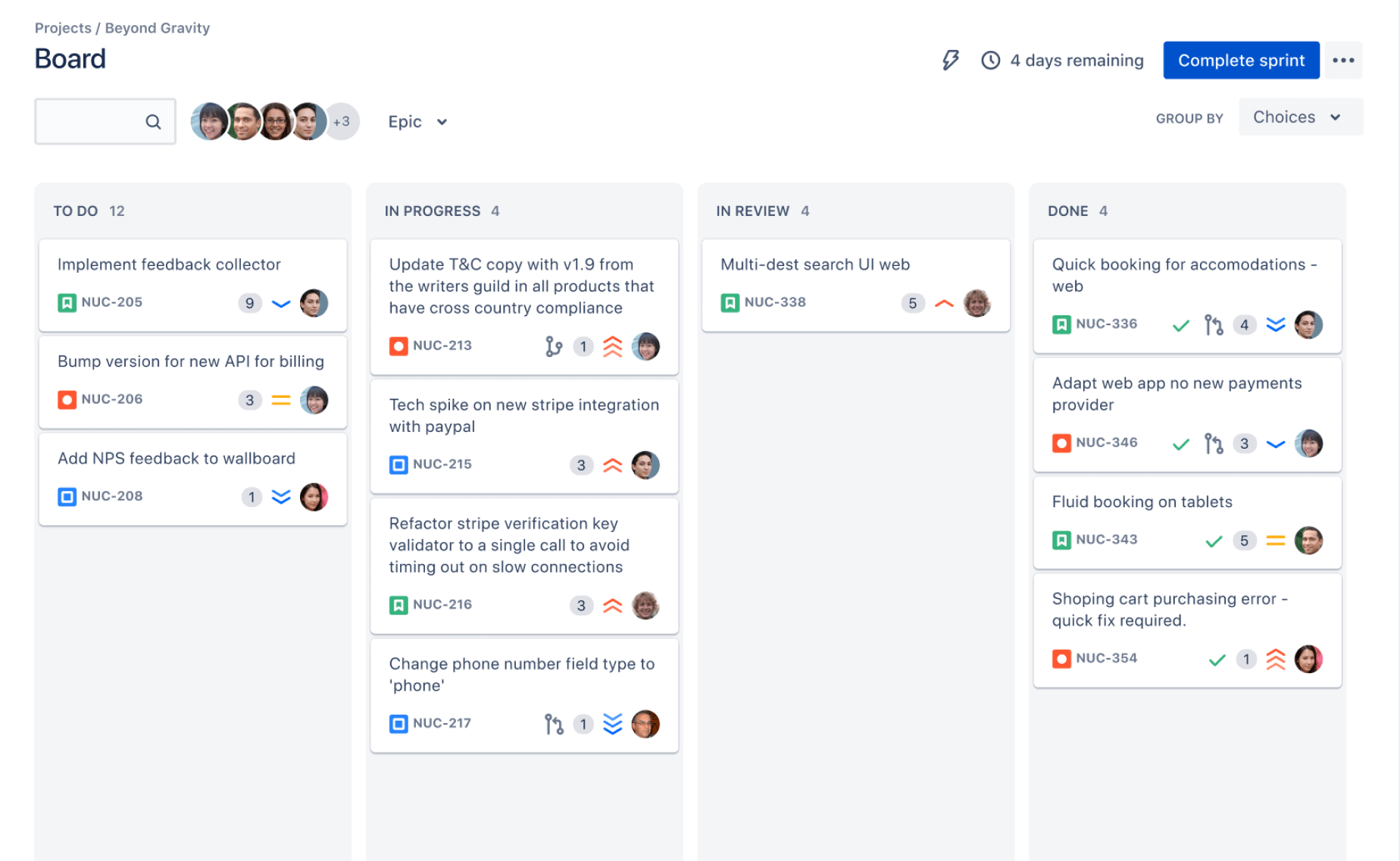
Where to Look for a Reliable Jira Logo
Official Atlassian brand resources are the best place to begin because they can clarify current branding and permitted use. If you can’t find a suitable download there, check whether Atlassian provides guidance for third-party use before choosing another option.
Third-party icon libraries and public code repositories can be convenient, but check who maintains the artwork and what license applies. Look for a clear attribution, a recent update, and a version that matches the identity you intend to show.
For instance, a community-maintained icon package may include both current and legacy Jira marks. Compare the candidate with Atlassian’s current product branding, rather than relying on the search result thumbnail alone.
Be cautious with graphics hosted on unknown websites. A preview image may look correct while the downloaded SVG contains different artwork, unclear terms, or unwanted markup.
How to Tell Current Branding from an Older Logo
Jira branding has changed over time, and older graphics still appear in tutorials, templates, and archived pages. The right choice depends on your context: a current product screen usually calls for current branding, while an older case study may need historical accuracy.
Compare the mark with Atlassian’s current product pages or brand guidance. Check the symbol, wordmark, color treatment, and whether the graphic combines Jira with another Atlassian identity.
Imagine you’re refreshing a help page that shows the current interface. Adding a retired Jira Software mark could confuse readers, even if the illustration itself looks polished. For a historical article, the older mark might be appropriate if you label the period clearly.
When the version is uncertain, pause before publishing. Ask the person responsible for brand approvals or choose an approved current asset instead of guessing.
Using an SVG on a Website, Slide, or Interface
SVG is a vector format, so its artwork can scale without the pixelation you may see in a small raster image. That makes it useful for responsive webpages and crisp presentation graphics.
For a webpage, an image element can display an SVG, such as <img src="jira-logo.svg" alt="Jira">. Use alternative text that describes the logo when it helps identify the product. If the logo is purely decorative beside a clear product name, an empty alternative text value may be more suitable.
On slides, preserve the logo’s proportions and leave clear space around it. Avoid stretching the graphic to fill a box. If a slide has a dark background, preview the artwork first; a dark mark may lose contrast.
For product interfaces, follow Atlassian’s usage guidance and your organization’s design rules. A correctly rendered mark can still be inappropriate if it implies an endorsement or affiliation that doesn’t exist.
Checking and Converting SVG Artwork Safely
An SVG contains XML-based markup as well as visual shapes. Before using one from an unfamiliar location, inspect it with a trusted editor or security process. Remove unnecessary elements and avoid distributing markup you haven’t reviewed.
If you only need a graphic for a slide or a place that doesn’t accept SVG, export a PNG at the dimensions you need. Keep the vector version for future resizing, and check the exported image at its final display size.
For example, a small logo in a footer may work well as a compact PNG, while a responsive site header benefits from the crisp scaling of SVG. The format should fit the destination, not just the download options.
Conversion can alter colors, transparency, or edges. Preview the result on both light and dark backgrounds, then compare it with the approved artwork before publishing.
Using Jira Branding Responsibly
A product logo can identify the software you use, but it can also create an impression of partnership or endorsement. Use the mark only in ways permitted by Atlassian’s guidelines and applicable terms.
Keep the logo intact unless the brand guidance allows a change. Don’t recolor, crop, rotate, or combine it with other artwork in a way that changes its identity. If you’re preparing an advertisement, product integration page, or co-branded campaign, get appropriate approval before launch.
A practical example: a team can mention Jira in a comparison page without making the page appear to be an official Atlassian announcement. Clear wording and restrained logo use help distinguish product identification from endorsement.
When several people create web pages or presentations, agree on one approved version and explain where it can appear. That small step can prevent inconsistent marks from spreading across team materials.
ONES.com Solution for Coordinating Brand-Related Work
Value proposition: ONES.com brings project management and knowledge management together in one platform, powered by ONES Assistant. Teams can coordinate reviews and keep brand guidance accessible while managing related work.
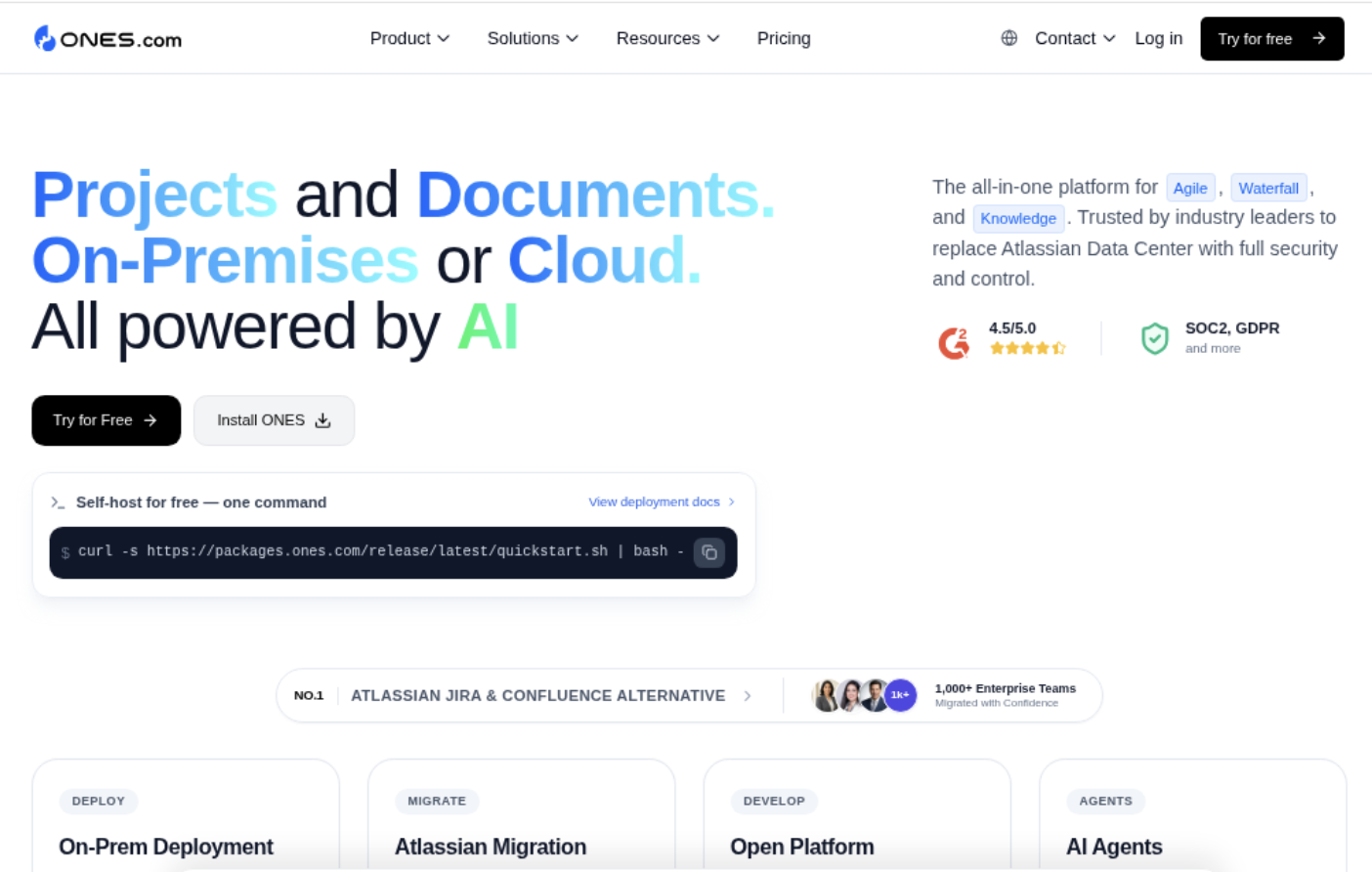
ONES.com doesn’t replace Atlassian’s brand guidance or grant permission to use a Jira mark. It can help your team organize the tasks around a logo update, such as assigning reviewers, tracking approvals, and sharing internal instructions.
Core Capabilities
- Approvals are easy to lose across chats. ONES Project supports custom workflows, so a brand review can move through clear stages. People can see what needs attention next.
- Different teams may follow different steps. Jira-compatible workflows let teams adapt familiar processes in ONES Project. That can make a transition easier for teams seeking a Jira alternative.
- Manual status checks take time. Built-in reporting gives project leads a view of progress. They can spot a delayed review without asking every contributor for an update.
- One approval path may not fit every request. Custom workflows and fields let teams capture details such as the intended placement or review owner. The process can match the work more closely.
- Repeated coordination creates busywork. Automation can handle routine workflow actions. Team members can spend more time checking the artwork and its permitted use.
- Delivery teams need a view of upcoming work. Sprint management supports teams planning brand-related tasks alongside other project work. Owners can coordinate timing and workload.
- Guidance can be difficult to find. ONES Wiki provides knowledge management as a Confluence alternative. Teams can maintain internal guidance for approved branding practices.
- Plugin dependence can complicate administration. ONES Project includes capabilities such as reporting, custom workflows, and automation. Native feature parity between cloud and self-hosted versions can reduce reliance on add-ons.
Application Scenarios
Website refresh: A marketing lead creates review tasks for updated product pages. Designers prepare the layouts, reviewers check branding, and the team tracks approval before release.
Distributed product team: Contributors working across locations use ONES Project to coordinate Jira-related workflow tasks. An internal guide in ONES Wiki explains where to find approved branding instructions.
ONES Project and ONES Wiki are sold separately. ONES.com offers a free plan for up to 30 seats and four deployment options: Cloud, On-Premise, Private Cloud, and Air-gapped. The self-hosted version has feature parity with the cloud version, which can matter to teams with deployment restrictions.
Common Challenges and Practical Fixes
- You find several versions that look almost identical. Compare them with current Atlassian branding and check their revision details. If you can’t confirm which one is current, use an officially approved version.
- The logo looks blurry in a presentation. Use an SVG or export a larger PNG that matches the display size. Avoid enlarging a small raster image beyond its intended dimensions.
- The mark disappears against the background. Preview it on the actual page or slide. Choose a permitted color variant with adequate contrast rather than changing the artwork yourself.
- You can’t tell whether a third-party download is permitted. Check the license and the maintainer’s usage terms. When those terms are unclear, look for an approved alternative or ask for permission.
- Several team members use different versions. Agree on one approved version, assign someone to review it, and share the internal guidance. A coordinated process helps prevent outdated branding from reappearing.
Frequently Asked Questions
Where can I get an official Jira SVG logo?
Start with Atlassian’s official website and check its brand guidelines or approved brand resources. Confirm that the artwork is intended for your use and matches the version of Jira you want to represent. If you can’t find an official SVG, review the terms of any third-party option carefully. Don’t assume that a downloadable graphic is free to use in commercial or promotional material.
Can I use a Jira logo in a commercial project?
That depends on Atlassian’s current brand rules and the details of your use. Read the applicable guidelines, especially if the logo appears in advertising, a product integration, or co-branded material. Keep the mark from implying an endorsement or partnership unless you have permission to make that claim. If the planned use is unclear, ask the appropriate legal or brand contact before publishing.
Why does an SVG sometimes look different in a browser?
Different rendering environments can handle fonts, transparency, dimensions, or embedded styling differently. A graphic may also use a color that blends into your page background. Preview the SVG in the browser and layout where it will appear, then compare it with the approved artwork. If the destination doesn’t handle SVG well, export a PNG and check the result at its final size.
Should I use SVG or PNG for a Jira logo?
SVG is usually useful when you need a crisp mark at different display sizes. PNG can be a practical choice for slides or services that don’t support SVG. The best format depends on the destination and the artwork’s permitted use. Keep proportions intact, preserve enough contrast, and preview the result before publishing. When converting formats, check that color and transparency remain accurate.
Conclusion
A suitable Jira logo starts with a trustworthy download, a confirmed version, and clear permission for your intended use. Check the artwork before placing it, then preview it at the size and on the background your audience will see.
If search results leave you unsure, slow down and verify the details rather than choosing the first graphic you find. A quick review can prevent outdated branding, poor rendering, and avoidable questions about permission.
For teams coordinating a wider brand update, a clear workflow can keep reviews and responsibilities visible. The goal is simple: use the right mark, present it well, and make the approval process easy to follow.