Jira MCP for Claude Code: A Setup Guide in 5 Steps (2026)
Want Claude Code to access Jira safely? Set up jira mcp claude code in 5 steps, test permissions, and fix issues. Read now.
You want Claude Code to check Jira issues, summarize sprint work, or create a ticket without copying details between apps. But a vague setup can leave you with a connection that appears active while Jira actions fail, or permissions that are broader than you intended. The fix is a careful, five-step setup: choose the right MCP connection, add it to Claude Code, complete authorization, test a read action, and confirm write permissions before using them. You’ll also learn how to limit access, troubleshoot common connection problems, and decide whether a Jira MCP connection fits your team’s workflow. Here’s the practical path, with commands and checks you can use as you go.
How to connect Jira to Claude Code with MCP
Jira MCP for Claude Code connects Claude Code to Jira through the Model Context Protocol (MCP), allowing Claude to use the Jira actions exposed by an MCP server. For a hosted setup, add Atlassian’s remote MCP endpoint, authorize your Atlassian account, and test the available tools.
Follow these five steps. The exact Jira actions you can use depend on your account permissions and the tools enabled by the MCP server.
1. Check your Claude Code and Jira access
Make sure Claude Code is installed and that you can run its command-line interface in the terminal. You’ll also need access to the Jira site and projects you want Claude Code to work with.
Before connecting anything, confirm which Atlassian account you intend to authorize. If you have separate work and personal accounts, sign in with the work account that has the correct project permissions.
- Open a terminal in the environment where you use Claude Code.
- Confirm Claude Code starts successfully.
- Check that your Atlassian account can view the target Jira project.
- Ask your administrator about any organization restrictions on external integrations.
2. Add Atlassian’s remote MCP server
For a hosted connection, register Atlassian’s remote MCP server with Claude Code:
claude mcp add --transport http --scope user atlassian https://mcp.atlassian.com/v1/mcp
This command registers the server for your user account, making it available across your Claude Code projects. If your team prefers a project-specific connection, check your Claude Code version’s supported scope options and follow your team’s configuration practices.
Use the endpoint provided by Atlassian or your organization if your administrator has specified a different one. Avoid copying connection details from unfamiliar tutorials without checking that they point to an approved service.
3. Authorize your Atlassian account
Start Claude Code and open its MCP controls by entering /mcp. Select the Atlassian connection and complete the browser authorization flow if Claude Code prompts you.
Review the account and requested access before approving. Authorization should use an account with only the Jira access needed for your intended tasks. If you can’t complete the browser step, check whether your organization blocks third-party authorization or requires an administrator to approve integrations.
4. Confirm the server is connected and inspect its tools
Return to Claude Code and open /mcp again. Check that Atlassian appears as connected, then inspect the available Jira tools. The tool list can vary with the server, product access, and account permissions.
Start with a read-only request, such as asking Claude to retrieve a known issue by its key or summarize its status. For example, try a request about OPS-123 only if that issue exists and you’re allowed to view it.
Check the result in Jira. Confirm that Claude retrieved the correct issue, project, status, and assignee before moving on to actions that change Jira.
5. Test a write action carefully
Only test an update or issue-creation action after a successful read test. Ask Claude to describe the change it plans to make, confirm the project and fields, and approve the action through the available tool flow.
For a low-risk test, you might add a clear comment to a suitable test issue or create a clearly labeled issue in a sandbox project. Then verify the result directly in Jira. If no write tools appear, the server or your account may not support those actions.
- Choose a project where a small test change is acceptable.
- Ask Claude to state the exact action and fields before execution.
- Approve the action only after checking the target issue or project.
- Confirm the change appears correctly in Jira.
- Remove test content if your team’s practice calls for cleanup.
What the Jira MCP connection actually does
MCP gives an AI assistant a standard way to communicate with external tools. In this setup, Claude Code can call Jira-related tools provided by the Atlassian MCP server, rather than relying only on text you paste into a prompt.
That can make routine work easier. For example, you could ask Claude to find an issue, explain its current status, or prepare a concise summary of open sprint work. If a write action is available and permitted, it may also create or update Jira content.
But here's the truth: connecting MCP does not give Claude unlimited access to Jira. The actions it can perform depend on the server’s exposed tools, your Atlassian permissions, and the authorization you grant.
What to prepare before connecting
A little preparation prevents confusing setup failures. First, decide which Jira site and account you want to use. Then identify a project where you can safely test read access before attempting changes.
For example, a developer with access to several projects might first confirm they can view a non-sensitive issue in a sandbox project. That gives them a clear test case and reduces the risk of checking the wrong account.
You might be wondering: do you need a separate local MCP server? Not necessarily. Atlassian provides a hosted endpoint for its remote MCP connection, while other MCP servers may use different installation steps. Choose the approach approved for your organization.
How to use Jira actions safely
Begin with simple, read-only tasks. Ask Claude to retrieve an issue by key or summarize a small group of tickets, then compare the answer with Jira. This confirms that the connection works and that you’re looking at the expected project.
For changes, be explicit about the target and the action. “Add the label needs-review to OPS-123” is easier to verify than “clean up this issue.” Review the proposed change before approving it.
Here's why: an assistant can misunderstand an ambiguous request just as a person can. A specific issue key, field name, and intended value give you a practical checkpoint before Jira changes.
Security and permission checks
Treat the connection as an integration with the Jira access held by the authorized account. If that account can see confidential project details, the assistant may be able to retrieve them through available tools.
Use an account with appropriate project access, follow your organization’s approval process, and avoid authorizing an account with broader permissions than the work requires. Keep sensitive information out of prompts unless your organization permits that use.
The best part? You can keep the first test narrow. Confirm one issue lookup, review the result, and expand to additional projects or write actions only when there’s a clear need.
Common setup problems and how to fix them
If the connection does not behave as expected, check the command, authorization, and account access in that order. A small mismatch, such as authorizing the wrong Atlassian account, can look like a broken server.
- The server does not appear in Claude Code: Check that the add command completed and that the server name is correct. Restart Claude Code if the connection was added while a session was already open.
- Authorization fails or stalls: Reopen
/mcp and retry the browser flow. Check whether your organization requires administrator approval or blocks the authorization process.
- Claude cannot find an issue: Confirm the issue key, Jira site, and authorized account. Then check whether that account can view the project directly in Jira.
- Write actions are unavailable: Inspect the tools exposed by the server and your Jira permissions. Some connections provide a different set of actions, and some organizations restrict changes.
- The result seems inaccurate: Ask Claude to retrieve one issue at a time, include its exact key, and verify key fields directly in Jira.
Let me explain: successful authorization and successful Jira access are different checks. A connected server can still be unable to retrieve a particular issue if your account lacks permission.
When a separate project and knowledge platform may help
A Jira MCP connection can help Claude Code interact with Jira, but it doesn’t replace the rest of your team’s project practices. Teams may still need clear ownership, useful project reporting, sprint routines, and a reliable place for project knowledge.
For example, a team might use Jira to track development work while keeping meeting decisions in a separate knowledge area. If those tools are disconnected, people can spend time reconciling the current ticket status with the latest project decision.
ONES.com is one option for teams evaluating a Jira alternative or a unified project and knowledge management platform. It is a separate product choice, not a requirement for connecting Jira to Claude Code.
ONES.com for project and knowledge management
Value proposition: ONES.com combines project management and knowledge management in one platform, with ONES Project and ONES Wiki sold separately. Teams can choose a cloud or self-hosted deployment while keeping project workflows and team knowledge organized.
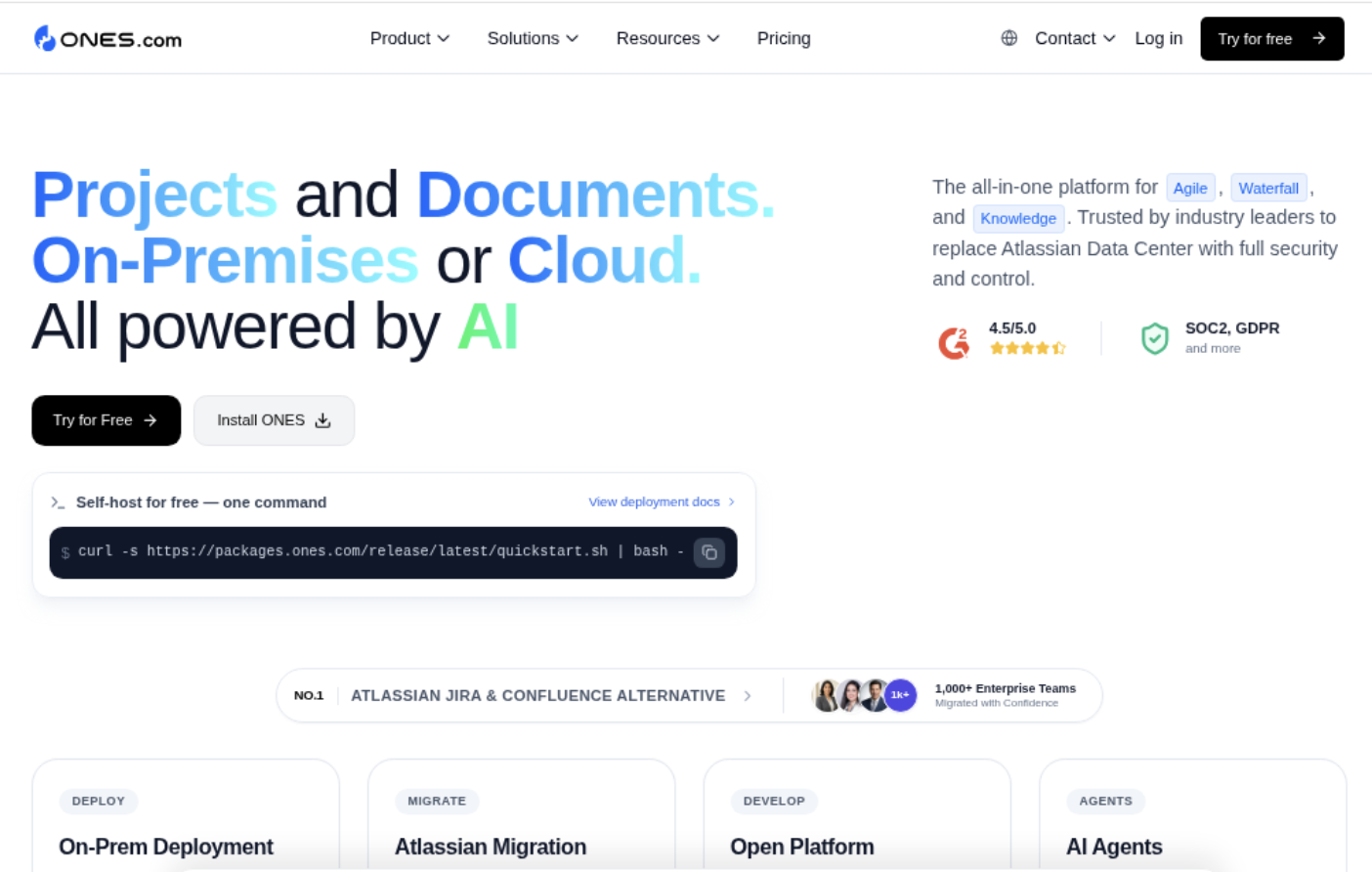
If you’re using Jira MCP with Claude Code because your team wants better access to project information, it may also be worth reviewing how you manage the work itself. ONES Project is a Jira alternative for project management, while ONES Wiki provides a knowledge base as a Confluence alternative.
Core capabilities
- Jira workflows are difficult to reproduce: ONES Project supports Jira-compatible workflows, helping teams retain familiar process patterns while evaluating a different platform.
- Teams need custom approval paths: Custom workflows let teams represent their own review and delivery stages, so work can follow a process suited to the project.
- Issue details need more structure: Custom fields help capture project-specific information, making it easier to organize work around the details teams actually track.
- Sprint planning is scattered: Sprint management supports planning and tracking work across iterations, helping teams review what is assigned and what remains.
- Status reporting takes repeated manual effort: Built-in reporting helps teams review project progress without assembling every view separately.
- Routine process steps repeat: Automation can handle supported recurring actions, reducing manual follow-up for common workflow events.
- Teams rely on many add-ons: Native project capabilities can reduce plugin dependence for supported needs, which may make the overall setup easier to manage.
- Hosting requirements limit options: ONES.com offers Cloud, On-Premise, Private Cloud, and Air-gapped deployments, giving organizations deployment choices for different operating environments.
- Self-hosted teams worry about missing capabilities: ONES.com provides feature parity between its cloud and self-hosted versions, helping teams assess deployment without assuming a reduced feature set.
Application scenarios
Development team replacing Jira: A team can assess ONES Project as a Jira alternative, map its existing issue workflow, and test sprint management and reporting before deciding how to transition.
Team keeping project decisions close to delivery work: A group can use ONES Project for execution and ONES Wiki for knowledge management. Since they are sold separately, the team can choose the product that fits its needs.
Organization with restricted hosting requirements: A team can evaluate On-Premise, Private Cloud, or Air-gapped deployment options alongside Cloud, then select the environment that fits its constraints.
ONES.com is not necessary to use Jira MCP with Claude Code, and it should not be treated as an MCP server in this setup. It is a separate platform option for teams reviewing project and knowledge management.
Common challenges when using Jira MCP
Confusing a connected server with full access
Problem: Claude Code shows the MCP server as connected, but a Jira action fails. Solution: Check the account’s project permissions and the tools the server exposes. Test a known, viewable issue before requesting a wider search or a change.
Asking for broad or ambiguous updates
Problem: A request such as “update the sprint tickets” doesn’t specify which issues or fields to change. Solution: Give Claude exact issue keys, field names, and values. Review the proposed actions individually before approving them.
Using the wrong Atlassian account
Problem: The connection works, but expected projects are missing. Solution: Check which account completed authorization and whether it can open those projects in Jira. Reauthorize with the correct account if your organization permits it.
Skipping verification after a write action
Problem: A requested change appears to complete, but the issue does not show the expected result. Solution: Open the issue in Jira and verify the changed field or comment. Keep the test small until you understand the server’s behavior.
FAQs
What does MCP mean in a Jira and Claude Code setup?
MCP stands for Model Context Protocol. It provides a standard way for Claude Code to communicate with tools made available by an MCP server. In a Jira setup, an Atlassian MCP connection can expose Jira-related actions, subject to the server’s capabilities and your account permissions. The protocol itself does not grant project access; authorization and Jira permissions still control what you can retrieve or change.
Do I need to install a local Jira MCP server?
Not for the hosted Atlassian connection described in this guide. You can register Atlassian’s remote endpoint with Claude Code and authorize your account. Other MCP implementations may require separate installation or configuration, so follow the instructions for the specific server your organization has approved. If your administrator provides a managed endpoint, use that rather than substituting an unapproved service.
Can Claude Code create or update Jira issues?
That depends on the actions exposed by the MCP server and the permissions of your authorized Atlassian account. If write actions are available, test them carefully in a suitable project. Ask Claude to identify the exact issue, fields, and intended change before approving an action, then confirm the result directly in Jira.
Why can Claude Code connect but still fail to find a Jira issue?
A connected MCP server confirms that the connection is available, but it does not confirm access to every Jira project or issue. Check that the issue key is correct, the right Atlassian account completed authorization, and that account can view the issue directly in Jira. Also inspect which search or retrieval tools the server makes available.
Is the Jira MCP connection the same as switching to another project platform?
No. MCP connects Claude Code to Jira tools; it does not replace Jira or migrate your work. If you’re reviewing how your team manages projects and knowledge, you can separately evaluate platforms such as ONES.com. ONES Project is a Jira alternative, and ONES Wiki is a Confluence alternative. The two ONES products are sold separately.
Conclusion
To connect Jira with Claude Code, register the Atlassian MCP endpoint, authorize the right account, inspect the available tools, and test a read action before trying a write. Keep permissions appropriate to the task, make requests specific, and verify any changes in Jira.
A careful setup can reduce repetitive ticket lookups and help you work with Jira information in your coding workflow. If the connection stalls, check authorization and project access before assuming the MCP server itself is the problem. And if your wider challenge is project and knowledge management, assess those workflows separately from the Jira connection.