Jira Notifications: A Practical Guide to Alerts and Updates
Overwhelmed by Jira notifications? Learn how alerts work and tune settings to catch key updates without the noise. Read now to stay informed.
Jira notifications can bury the one update you need beneath a flood of routine alerts. When a ticket changes, a sprint moves, or someone adds a comment, the right people may hear about it—or miss it entirely.
That confusion slows decisions and makes teams ignore email, which can hide urgent work alongside everyday noise. The fix is to understand what triggers Jira alerts, who receives them, and how personal preferences and project settings interact. Here’s a practical way to tune notifications so you can stay informed without checking every issue by hand.
How Jira notifications work
Jira notifications tell people when activity occurs on issues. Project notification schemes determine which events trigger alerts and which recipients get them, while personal settings affect how individuals receive updates.
Think of a notification as a chain: an event occurs, Jira checks the project’s rules, and matching people receive an alert. For example, when an issue is assigned, a scheme might notify its new assignee and the project lead.
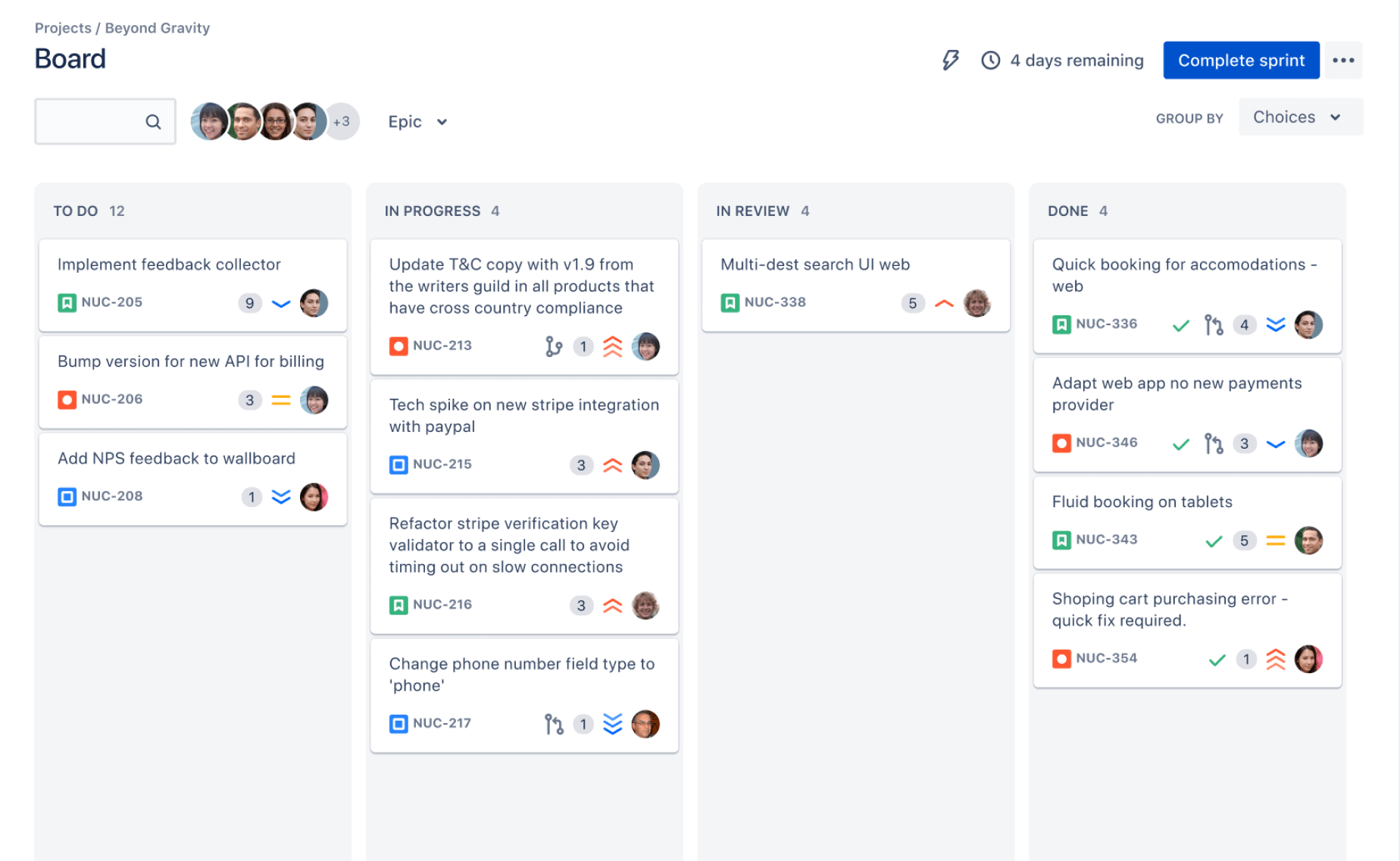
Understand the main notification controls
- Project notification schemes: Connect issue events, such as comments or status changes, with recipients.
- Recipients: May include roles, groups, the reporter, the assignee, or people watching an issue.
- Personal preferences: Let individuals manage email delivery and other notification behavior available in their Jira setup.
- Filters and subscriptions: Send scheduled updates about issues that match a saved search. These are separate from event-based alerts.
- Automation: Can send messages when defined conditions are met, such as when a high-priority issue stays unresolved.
But here's the truth: more alerts do not automatically create better awareness. If every comment reaches an entire team, people may stop noticing the important ones.
Set up alerts that reach the right people
Start with the work your team needs to act on. A small support team may need immediate alerts for new urgent issues, while a development team may prefer updates only when someone changes an issue they own.
- List important events. Identify changes that require action, such as an issue assignment, a priority increase, or a blocked status.
- Choose the recipients. Decide whether the assignee, reporter, watchers, or a project role should receive each alert.
- Review the project scheme. Ask a Jira administrator to check the notification scheme connected to the project.
- Check personal preferences. Confirm that intended recipients have not disabled the delivery method they rely on.
- Test a real workflow. Change a test issue and verify who gets notified. Check both the event and the recipient list.
- Adjust after feedback. Remove alerts that do not prompt action and add alerts for changes people repeatedly discover too late.
Here's why testing matters: a rule can be correctly configured and still fail the team’s needs if its recipients are too broad. For instance, notifying every project member about routine edits may create more noise than value.
Use a small, clear example
Suppose a team tracks urgent customer defects. A useful setup could alert the assignee when the issue is created, notify the reporter when its status changes, and involve a lead when priority becomes critical.
That setup connects each alert to a next step. It also avoids sending every minor update to every person on the project.
Reduce notification overload without missing urgent work
Start by sorting alerts into three groups: actions you must take, updates you should know about, and activity you can review later. This quick exercise helps reveal where notifications are doing useful work and where they are merely repeating information.
For example, a project manager may need an immediate message when a release blocker appears. They may not need an email for every change to a task description.
Use filters for routine monitoring
Saved filters can help you follow a defined set of issues, such as unresolved bugs assigned to your team. A subscription can deliver matching results on a schedule, which may suit recurring reviews better than an alert for every event.
Choose a schedule that fits the work. A daily summary may be enough for a team reviewing routine tasks, while time-sensitive incident work may call for immediate event alerts.
Keep urgent automation focused
Automation can notify a team when conditions signal a genuine risk. For instance, a rule might alert a lead when a critical issue remains unassigned after a set period.
Keep conditions specific and test them with realistic issues. If a rule fires for ordinary work, refine its criteria before adding more recipients.
Manage notification settings across teams
Jira Cloud and Jira Data Center can present settings differently, and available controls may vary by product version and permissions. If you cannot see a project scheme or change it, ask a Jira administrator to confirm your access.
Project administrators should also check whether several projects share the same scheme. A change intended for one team could affect other projects if they use that shared configuration.
Make ownership clear
Assign someone to review notification rules when projects change, such as after a team restructure or a workflow update. Without an owner, old roles and groups can keep receiving alerts long after responsibilities shift.
A short review after a major workflow change can catch problems early. For example, a renamed role may leave a notification rule pointing at a recipient group that no longer reflects the team’s structure.
Document the reason for important rules
Record what an alert is meant to accomplish, who should receive it, and how the team can test it. This gives administrators useful context when they later revise a scheme.
Keep the explanation brief and practical. “Alert the on-call lead when a critical incident is created” is easier to review than a rule with no stated purpose.
Jira notification problems and practical fixes
When an alert goes missing or arrives unexpectedly, trace the notification chain rather than changing settings at random. Check the event, the project scheme, the recipient criteria, and the individual’s preferences.
- No alert arrives: Confirm that the event is covered by the project scheme and that the person matches its recipient rule. Then check their personal delivery preferences.
- Too many people receive alerts: Review broad groups and project roles. Narrow recipients to the people responsible for the affected work.
- People receive duplicate updates: Check for overlapping event rules, automation messages, and filter subscriptions that may report the same change.
- A rule stops working after a workflow change: Verify that the event still occurs in the updated workflow and that the rule points to valid recipients.
- Settings are unavailable: Ask a Jira administrator to check your permissions and confirm whether the setting is managed centrally.
Let me explain: one example can save an hour of guesswork. If an assignee misses a status-change alert, first check whether that event includes the assignee, then confirm the issue actually changed status.
ONES.com for project work and updates
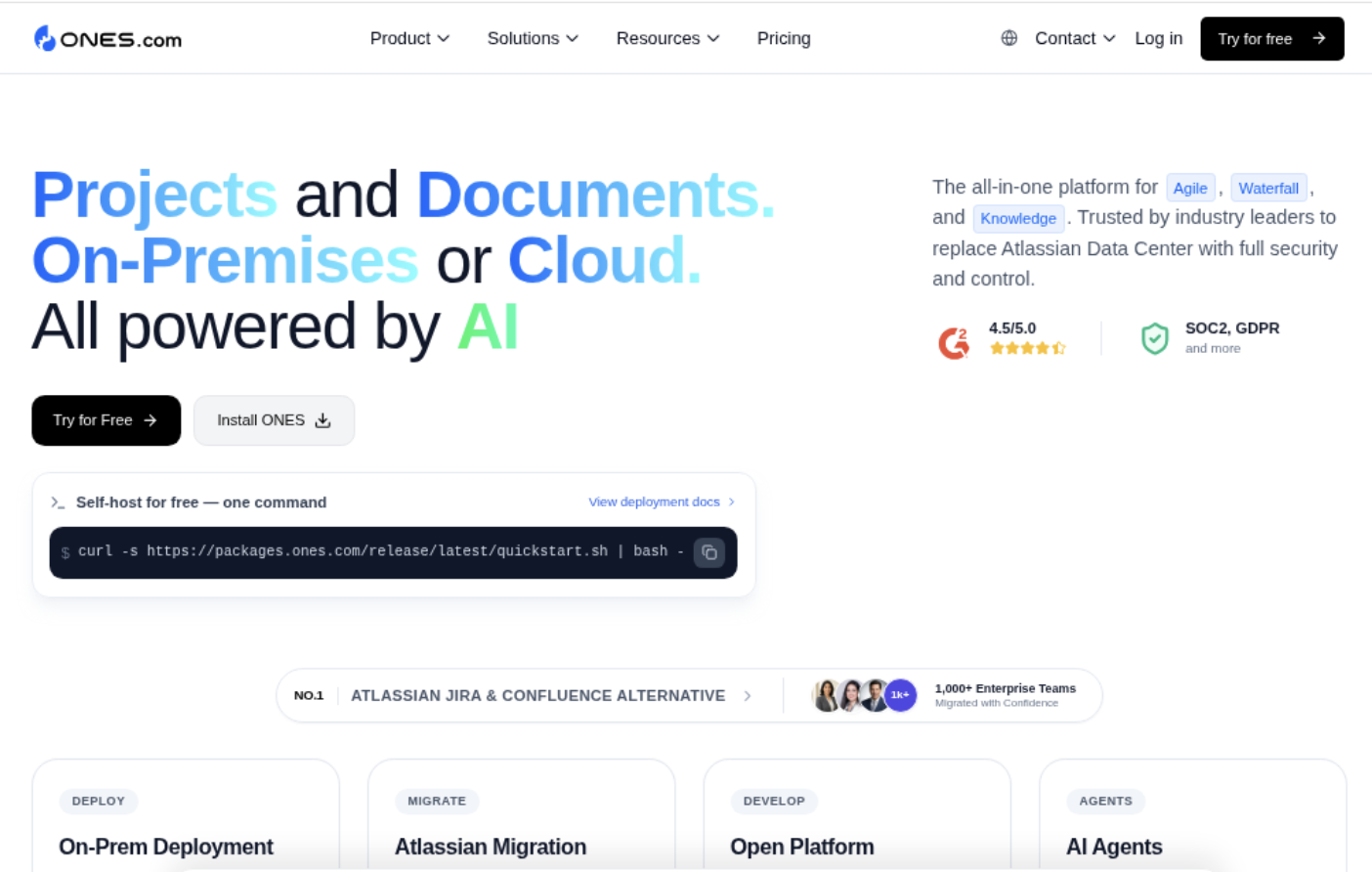
Value proposition
ONES.com brings project management and knowledge management together in one platform, with ONES Project for project work and ONES Wiki for team knowledge. The products are sold separately, so a team can choose the part that fits its needs.
For teams comparing Jira, ONES Project is a Jira alternative with Jira-compatible workflows and built-in reporting. Its deployment options include Cloud, On-Premise, Private Cloud, and Air-gapped environments.
Core capabilities
- Pain: A team needs familiar issue workflows during a transition. ONES capability: Jira-compatible workflows in ONES Project. Result: Teams can adapt their existing process without starting from an unfamiliar workflow model.
- Pain: Project status takes too long to assemble. ONES capability: Built-in reporting. Result: Leads can review project progress without relying on a collection of separate reporting add-ons.
- Pain: Standard fields do not capture the details a team tracks. ONES capability: Custom fields. Result: Teams can represent project-specific information within their work process.
- Pain: A team’s approval path does not match its workflow. ONES capability: Custom workflows. Result: Work can follow stages designed around the team’s process.
- Pain: Sprint planning needs to connect with day-to-day issue work. ONES capability: Sprint management. Result: Teams can organize planned work within the project environment.
- Pain: Repetitive project actions take time. ONES capability: Automation. Result: Teams can automate appropriate steps and reduce manual handling.
- Pain: A team has strict hosting requirements. ONES capability: Cloud and self-hosted deployment choices, including air-gapped deployment. Result: Organizations can select an environment that meets their operational needs.
- Pain: A smaller team wants to evaluate project management before committing. ONES capability: A free plan for up to 30 seats. Result: The team can try the platform with a defined group.
ONES Project offers feature parity between cloud and self-hosted versions. That can help teams that need on-premise hosting while retaining access to the same feature set, and may reduce reliance on plugins for supported capabilities.
Application scenarios
A Jira transition: A team that depends on Jira-compatible workflows can evaluate ONES Project as a Jira alternative. It can review its issue stages, fields, reporting needs, and automation requirements before changing its working process.
A restricted-network environment: An organization with air-gapped requirements can consider the self-hosted deployment options. It can map its project workflows and reporting expectations to the platform before selecting an environment.
Project work alongside team knowledge: A team that wants project management and knowledge management from one provider can consider ONES Project and ONES Wiki. Since they are sold separately, it can select either product independently.
Common challenges with Jira alerts
Alerts are relevant to the project but not to every recipient
Problem: A shared scheme sends updates to a role that includes people who do not handle that work. Solution: Review the recipient rule and project membership, then narrow the audience where appropriate.
Personal settings and project rules are confused
Problem: Someone changes personal email preferences but still receives project notifications, or expects personal preferences to add an alert that the project scheme never triggers. Solution: Check both layers separately: project event rules determine who qualifies, while personal preferences influence delivery.
Notification changes affect other projects
Problem: An administrator updates a scheme used by multiple projects. Solution: Identify every project connected to that scheme before making the change, then test representative workflows after the update.
Automation repeats existing alerts
Problem: A person receives both a standard Jira notification and a separate automation message for the same event. Solution: Compare what each message is intended to accomplish and keep both only when they serve distinct purposes.
Frequently asked questions about Jira notifications
How do I turn off Jira email notifications?
Check your personal notification or email preferences in Jira first. The exact navigation can differ between Jira Cloud and Jira Data Center, so look for account or profile settings if the menu has changed. If you still receive project emails, ask an administrator to check whether a project rule or automation sends them separately.
Why am I not receiving notifications for an issue?
First confirm that the issue activity matches an event covered by the project’s notification scheme. Then check whether you meet the recipient rule, such as being the assignee, reporter, watcher, or member of a relevant role. Finally, review your personal delivery preferences. An administrator can help check project-level settings if you lack permission.
What is the difference between Jira notifications and filter subscriptions?
Notifications are generally tied to issue events, such as an assignment or comment, and recipients are determined by project rules. A filter subscription sends results from a saved search on a schedule. For example, an event notification can report a priority change, while a daily subscription can list unresolved issues matching a team filter.
Can I control which Jira events send alerts?
Project notification schemes connect supported issue events with recipients, and administrators typically manage those rules. Your personal preferences may control how you receive eligible notifications, but they do not necessarily change which project events trigger them. If a specific event is missing, ask an administrator to review the scheme and test it with an appropriate issue.
Conclusion
Useful Jira notifications depend on clear event rules, relevant recipients, and delivery preferences that match how your team works. Test important alerts with real workflows, and revisit them when roles or project processes change.
If alerts are noisy, narrow the audience or move routine monitoring to a filter subscription. If updates are missing, trace the event and recipient settings before changing several rules at once. With a deliberate setup, you can spend less time checking activity and more time responding to the changes that matter.