Jira Permissions: A Step-by-Step Guide to Access Control
Not sure who can access your Jira projects? Learn how jira permissions, roles, and schemes work together to control access. Read now to secure your setup.
A teammate can’t open a project, while another can see issues they shouldn’t. In Jira, unclear access settings can stall work, expose sensitive details, and leave you guessing which permission needs attention.
Changing settings without understanding how they fit together can make the problem worse. One project may use a different permission scheme, and issue-level restrictions can still hide specific work from otherwise authorized people.
But here's the truth: Jira access becomes easier to manage when you check permissions in layers, assign access through roles, and test changes before rolling them out. This guide walks you through those steps, explains the main permission types, and shows how to troubleshoot common access problems. You’ll also learn practical habits that help keep everyday collaboration moving without granting more access than a person needs.
How to Set Up Jira Permissions
To configure Jira access, identify what someone needs to do, grant the appropriate permissions through a project’s permission scheme, and test the result with a real account.
Here's why: Jira access can involve global permissions, project permissions, and issue security. Work through these steps in order so you can pinpoint which layer controls each restriction.
- Define the access need. List the actions a person needs, such as viewing a project, creating issues, editing work, or managing sprints. Include any information they must not see.
- Check the person’s access. Confirm their Jira account is active and they have the application access required for Jira. Review their groups and project roles before changing permissions.
- Review the project permission scheme. Open the project’s settings and inspect its permission scheme. Check which groups, project roles, or other supported principals receive each relevant permission.
- Assign access through suitable groups or roles. Add people to an appropriate group or project role rather than granting the same permission individually whenever possible.
- Check issue security separately. If the person can access a project but cannot see particular issues, review the project’s issue security levels and their membership.
- Test and document the change. Use Jira’s permission troubleshooting features when available, then ask someone with the affected role to verify access. Record what changed and who owns future reviews.
1. Define the minimum access required
Start with the task, not a permission name. For example, a product designer may need to browse a project and comment on issues, but not assign work or edit sprint settings.
Write down both the required actions and the boundaries. A support team might need access to customer-facing issues while restricted from an internal security project. Clear examples make later checks more precise.
2. Check account, group, and project-role membership
A person may be missing access because they lack Jira application access, belong to the wrong group, or have not been added to a project role. Check these basics before editing a scheme.
Groups can grant access across several projects, while project roles let project administrators organize people within a specific project. For instance, a “Developers” role can include different people in different projects.
3. Inspect the project’s permission scheme
A permission scheme defines which groups, project roles, or other supported principals can perform actions in a project. Common permissions include browsing projects, creating issues, editing issues, assigning issues, and managing sprints.
In Jira, open the project’s permission settings and identify the scheme it uses. Check the permission relevant to the blocked action; a person who can browse a project may still lack permission to create or edit issues.
4. Grant access through the right role or group
When several people need the same access, a group or project role is usually easier to maintain than repeated individual grants. Choose the option that matches how your team manages membership.
For example, placing developers in a project’s Developers role can make it easier to adjust project membership without changing the permission scheme. Keep broad groups out of sensitive permissions unless their members genuinely need that access.
5. Review issue security levels
Project access does not always mean access to every issue. Issue security levels can restrict individual issues to selected people, groups, or project roles.
If someone can open a project but cannot find a particular issue, check whether a security level applies. A confidential hiring issue, for example, might be visible only to the hiring team even inside a wider project.
6. Test the change and keep a record
Test with an account that has the affected role, or use Jira’s permission helper when it is available. Confirm both sides of the change: the person can perform the intended action and remains unable to access restricted work.
Record the reason, affected project, permission changed, and review date. This gives an administrator a practical trail when someone later asks why access was granted or removed.
Understand Jira’s Main Permission Layers
Jira access is easier to diagnose when you know which layer controls the action. Think of it like a building: global permissions cover entry to the building, project permissions govern rooms, and issue security can limit access to specific spaces inside a room.
Global permissions control site-wide capabilities
Global permissions apply across the Jira site and are managed by Jira administrators. They can control broad capabilities, such as who can administer Jira or create shared project settings.
Because these permissions can affect many projects, keep them limited to people who need site-wide responsibility. A project lead who manages one team’s backlog may not need global administration rights.
Project permissions control actions inside a project
Project permissions determine what a person can do within a particular project. The permission scheme connects actions—such as browsing, creating, or editing issues—to groups or project roles.
Two projects can use different schemes, so access in one project does not guarantee access in another. If an employee can edit issues in the mobile app project but not the design project, compare each project’s scheme and membership.
Issue security can restrict individual issues
Issue security levels can narrow visibility for selected issues, even when someone can browse the project. The effect is useful for confidential work, but it can look like a missing issue or a project access problem.
For example, a finance project might be open to a department, while salary-related issues remain visible only to a smaller group. Check the issue’s security level before changing project-wide access.
Build a Permission Model That’s Easier to Maintain
A maintainable permission model uses clear roles, limited grants, and predictable membership. The best test is simple: can another administrator understand why a person has access without tracing a long chain of exceptions?
Use roles to reflect real responsibilities
Create project roles that match how people work, such as Project Lead, Developer, or Reviewer. Assign permissions to those roles, then add people according to their responsibilities in each project.
This approach is helpful when teams change. If one developer leaves a project, an administrator can update the role membership instead of editing several permission entries.
Keep broad access separate from sensitive work
Grant common permissions to groups that genuinely share the same need. Use issue security for confidential issues rather than broadly restricting an entire project, when that fits your requirements.
For example, a project may allow the full engineering team to browse regular work while limiting a vulnerability issue to the security team. Review both the scheme and issue security so the two controls do not conflict unexpectedly.
Review access regularly
Set a recurring review for project membership, administrator privileges, and issue security. A quarterly review can help catch access left behind after a person changes teams or a project’s responsibilities shift.
Keep the review focused: ask whether each role still matches the work, whether broad groups still need their permissions, and whether sensitive issue restrictions remain appropriate. A short, consistent review is often easier to complete than a large annual cleanup.
Troubleshoot Common Jira Access Problems
Start with the action the person cannot perform, then trace the relevant access layer. This simple diagnostic habit avoids changing a project-wide scheme when the real issue is one missing role assignment.
Someone cannot open a project
Confirm the person has Jira application access and is included in a group or project role that receives the Browse Projects permission. Then verify that the project uses the scheme you inspected.
If the person can open other projects, compare membership and permission schemes. That side-by-side check can reveal a missing role assignment or a project-specific configuration difference.
Someone can view issues but cannot edit them
Check the Edit Issues permission and whether the person’s group or project role is included in its grant. Also check whether the issue has a status or workflow condition that limits editing.
For example, an issue may be editable during development but locked after approval. If the permission is present, inspect the workflow behavior instead of granting broader access.
An issue is missing from search or a board
First confirm the person can browse the project. Then inspect the issue’s security level and check whether the person belongs to an allowed group or role.
If the issue itself is visible but absent from a board, review the board’s filter and the issue’s status. Board visibility and issue access are related, but they are not the same setting.
A permission change does not appear to work
Confirm the change was made in the scheme assigned to that project, and check the person’s current group and project-role membership. A change to an unused scheme will not affect the project.
Test again with the affected account, and allow for any expected sign-in or membership update behavior in your environment. If the problem remains, use Jira’s permission troubleshooting tools where available and check the relevant workflow rules.
ONES.com Solution for Teams Comparing Project Platforms
ONES.com is a unified platform for project management and knowledge management, powered by ONES Assistant. ONES Project is its project management product and a Jira alternative; ONES Wiki is its knowledge management product and a Confluence alternative. They are sold separately.
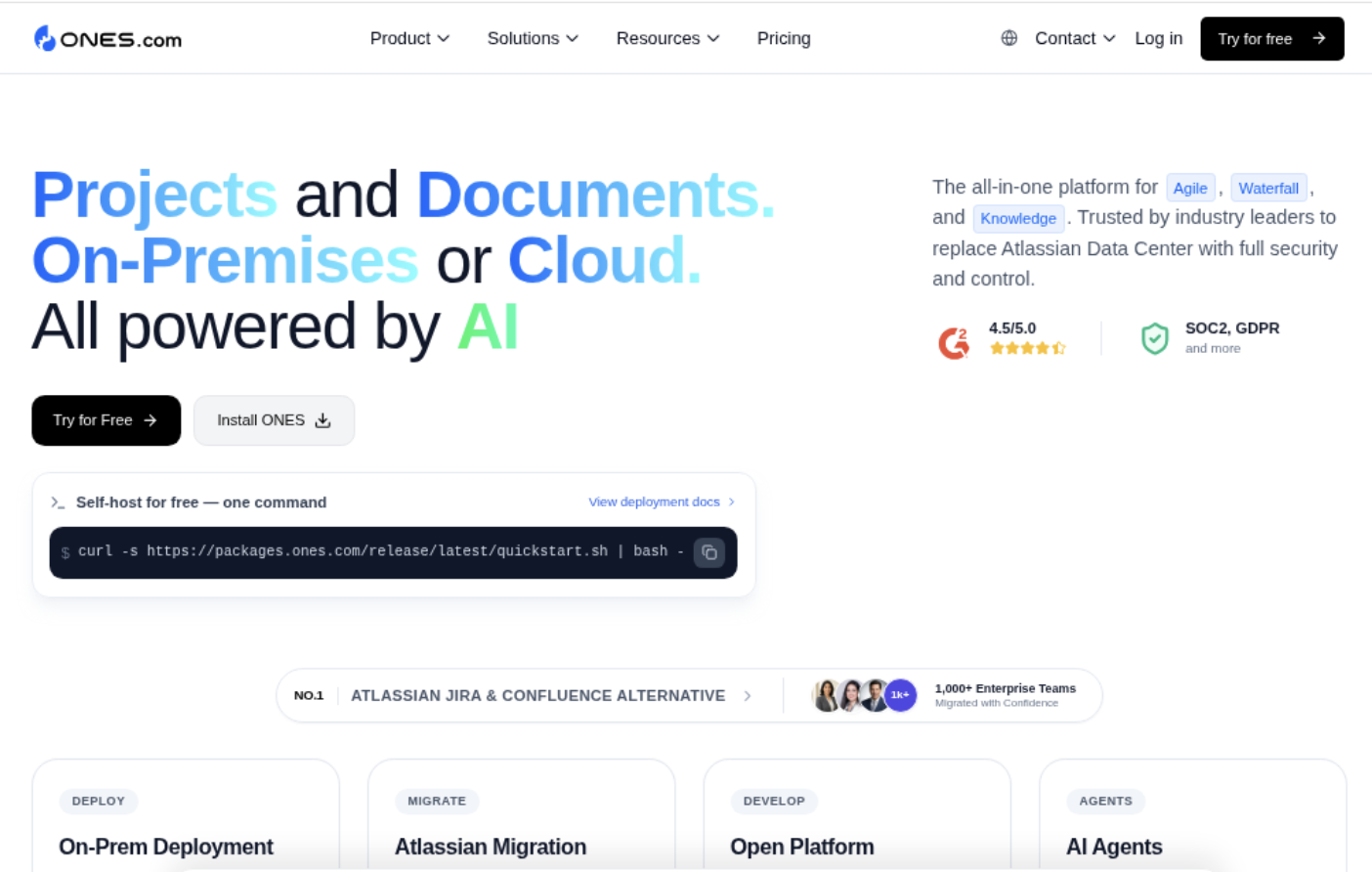
If your team is reviewing Jira access because its project workflows or deployment needs have become difficult to manage, compare platforms against your actual requirements. Look at permissions, project roles, administrative controls, deployment options, and how much extra configuration your team maintains.
Core capabilities for project teams
- Jira-compatible workflows: When a team wants to preserve familiar project processes, Jira-compatible workflows can reduce the disruption involved in evaluating a Jira alternative.
- Custom workflows: When different teams need different approval paths, custom workflows let them shape processes around how work moves through their projects.
- Custom fields: When teams track distinct project details, custom fields help represent those requirements in their work management setup.
- Sprint management: When development teams plan work in iterations, sprint management supports the planning and tracking of that work.
- Built-in reporting: When leads need progress visibility, built-in reporting gives teams reporting capabilities without requiring every view to be assembled through extra add-ons.
- Automation: When recurring project tasks take time, automation can handle supported routine actions and reduce manual steps.
- Reduced plugin dependence: When teams rely on multiple add-ons for core project needs, the platform’s built-in capabilities can help reduce the number of plugins they maintain.
- Four deployment options: When hosting requirements differ, teams can choose Cloud, On-Premise, Private Cloud, or Air-gapped deployment.
- Feature parity across deployments: When organizations need a self-hosted environment, full feature parity between cloud and self-hosted versions helps avoid choosing a deployment with fewer features.
Application scenarios
A development team reviewing its Jira setup: A team with established sprint practices can assess Jira-compatible workflows, sprint management, automation, and built-in reporting. It can compare required workflows and project controls before deciding whether ONES Project fits.
An organization with restricted network requirements: A team that cannot use a public cloud service can evaluate On-Premise, Private Cloud, or Air-gapped deployment. Full feature parity across cloud and self-hosted versions helps the team consider deployment needs without assuming a reduced feature set.
When evaluating access control, confirm that the platform’s permission model meets your specific role, project, and issue visibility requirements. Match those requirements against product capabilities during a hands-on assessment rather than assuming that workflow or deployment features answer every access question.
Common Jira Permission Challenges
Too many people have administrator access
Problem: Broad administrator access increases the chance of accidental or unnecessary changes across projects.
Solution: Review who needs global permissions and remove them from people whose responsibilities are limited to a project. Use project roles for project-level duties where appropriate.
Permission schemes are hard to understand
Problem: A scheme with many groups, roles, and exceptions can make it difficult to identify why someone can perform an action.
Solution: Use clear role names, remove grants that are no longer needed, and record the purpose of unusual exceptions. Test the result after each meaningful change.
Access remains after a role change
Problem: A person may keep access through a group or project role after moving to a different team.
Solution: Include Jira membership in team transitions and scheduled access reviews. Check both group membership and project-specific roles.
Issue security is mistaken for project access
Problem: Someone may assume a missing issue means they cannot access the project, even though issue security is hiding only that item.
Solution: Check project browsing permissions first, then inspect the issue’s security level. This separates project-wide access from restrictions on an individual issue.
FAQs About Jira Permissions
What is the difference between a Jira group and a project role?
A group organizes people across a Jira site and can be used to grant access in multiple projects. A project role organizes people within a specific project, so its members can differ from one project to another. Permission schemes can grant actions to groups or project roles. Use the structure that best matches how your team manages membership and responsibilities.
Why can someone open a project but not edit an issue?
Browsing a project and editing issues are separate permissions. The person may receive Browse Projects through a group or role but lack Edit Issues permission. Check the project’s permission scheme and the person’s membership. If editing remains blocked, inspect workflow rules or conditions that may limit changes at a particular status.
Can Jira permissions hide one issue without hiding the whole project?
Yes. Issue security levels can restrict visibility for specific issues within a project. A person may browse the project and see most of its work while being unable to view an issue with a security level that excludes them. Check the issue’s security settings and the membership required to see that level.
What is the safest way to test a permission change?
Use an account with the affected role or Jira’s permission helper when available. Test the exact action, such as creating an issue or viewing a restricted item, and confirm that unrelated access has not widened. Keep a record of the change and review it with the relevant project owner before applying similar changes elsewhere.
Conclusion
Jira permissions are easier to manage when you identify the task first, check the right access layer, and grant only the permissions people need. Global permissions, project schemes, and issue security each serve a different purpose, so trace the problem before changing settings.
But here's the truth: a quick access fix can create a longer cleanup if it grants more than intended. Use clear project roles, test changes, and review membership regularly. With those habits, you can resolve access issues while keeping sensitive work appropriately restricted.
If your team is reassessing its project platform, compare access requirements alongside workflows, reporting, deployment, and administration. A careful evaluation helps you choose an approach that supports collaboration without losing sight of control.