Jira Pricing Explained: Plans, Costs, and What to Check
Unsure what Jira will cost? Compare the Jira price list, plans, user-based costs, and extra charges before you commit. Read now to estimate your spend.
Comparing Jira plans can feel straightforward until you reach the billing calculator. The price changes with your team size, billing term, plan, and the features you need.
That makes a simple Jira price list easy to misread. A low per-user rate can grow quickly when you add teammates, premium features, or connected products. But here's the truth: you can estimate your likely cost before committing, as long as you check what each plan includes and how Atlassian counts users.
This guide explains Jira’s main cloud plans, gives practical cost examples, and highlights extra charges worth checking. You’ll also find a short checklist for comparing plans and an alternative to consider if you need more control over deployment.
Jira pricing at a glance
Jira Cloud offers a free plan, paid Standard and Premium plans, and an Enterprise option with custom pricing. As a rough USD estimate, Standard starts near $8 per user per month and Premium near $15 per user per month with annual billing.
Prices can change, and the amount you see may depend on your billing term, team size, currency, and region. Treat the figures below as planning estimates, then confirm your exact total with Atlassian’s current pricing calculator before purchasing.
| Plan | Typical fit | Indicative price | What to check |
|---|
| Free | Small teams trying Jira’s core project features | $0 for up to 10 users | Feature limits, storage, and support level |
| Standard | Teams that need more capacity and administration options | About $8 per user per month with annual billing | User tier, billing term, and included storage |
| Premium | Teams needing advanced planning, administration, or support | About $15 per user per month with annual billing | Which premium capabilities your team will actually use |
| Enterprise | Organizations with broader governance or purchasing needs | Custom quote | Contract terms, user count, and included services |
For example, 25 people on Standard would cost roughly $200 per month at an $8 per-user estimate. The same group on Premium would be about $375 monthly at $15 per user, before taxes or additional products.
Here’s why: a small difference per seat becomes meaningful when you multiply it across a team and a full year. Check the price for your exact user tier rather than assuming every seat has the same rate.

What each Jira plan includes
The Free plan gives a small team a way to organize work without a subscription fee. It can suit a startup testing issue tracking or a project group that needs basic boards and task management.
Standard is the common starting point for teams that have outgrown the free limits. It adds more room for team administration and collaboration, though specific limits and inclusions should be checked against the current plan comparison.
Premium is aimed at teams with more demanding planning and administrative needs. Depending on the current offering, it can include capabilities such as advanced roadmaps, sandbox environments, or higher service commitments.
Enterprise is designed for organizations that need broader control or a negotiated arrangement. The price is generally quoted rather than shown as a single public per-user rate, so ask what the proposal includes before comparing it with a cloud plan.
Jira is not the only Atlassian subscription to consider
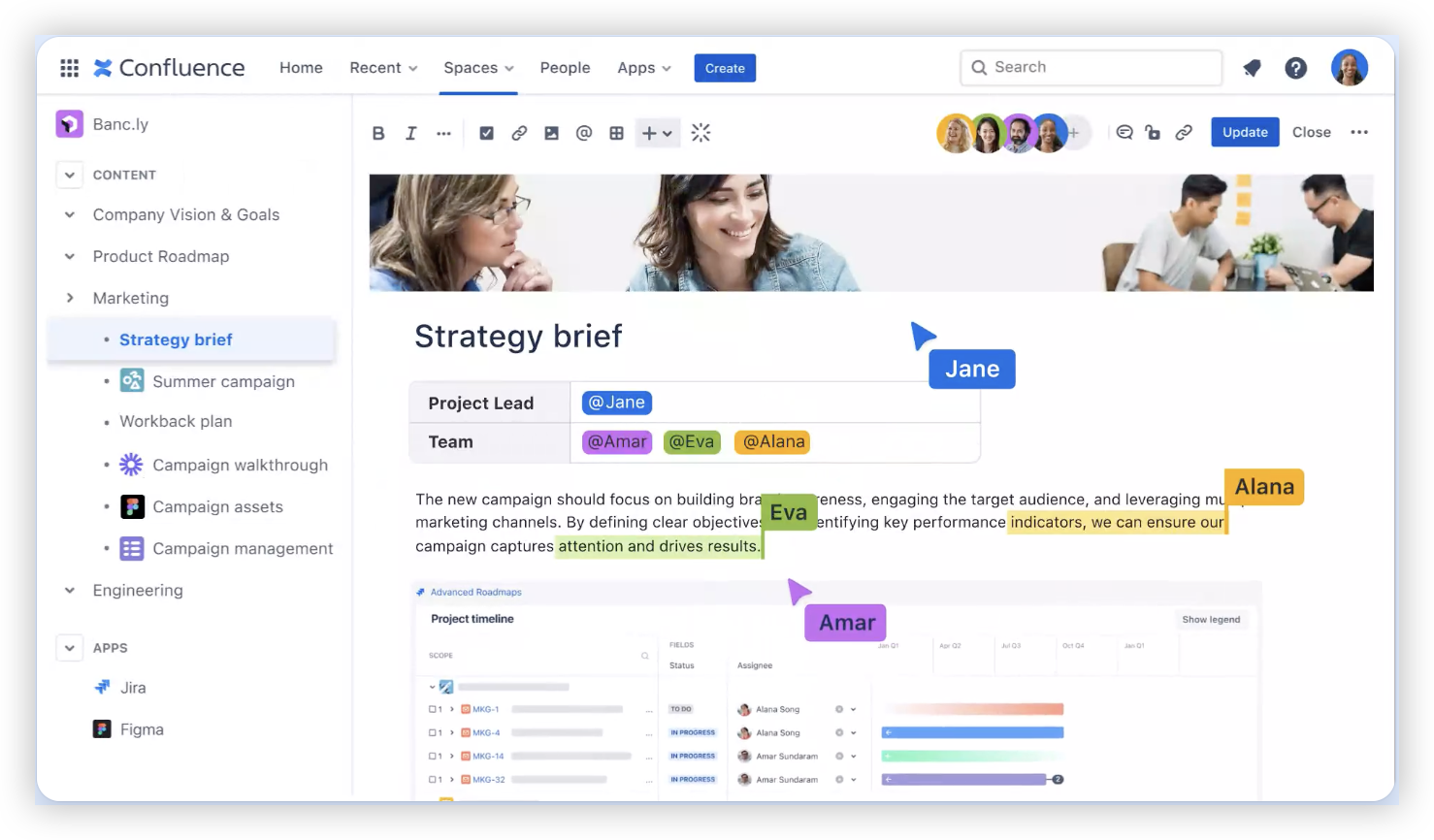
A Jira subscription does not automatically include every Atlassian product. If your team also needs Confluence, Jira Service Management, or other apps, check whether each requires a separate plan.
For instance, a product team might need Jira for sprint planning and Confluence for team knowledge. Add both subscriptions when estimating the full software bill, rather than treating Jira’s seat price as the complete cost.
How to estimate your Jira bill
Start with the number of people who need access, then choose the plan that covers your requirements. A reliable estimate accounts for the plan, user tier, billing term, and any separate apps or marketplace products.
Count the people who need a paid seat. Include developers, project leads, and other teammates who need to create or manage work. Confirm how guest or limited-access roles are treated under the plan you’re considering.
Choose a plan by required capability. Write down the features your team needs today. If you only need issue tracking and basic collaboration, you may not need to pay for advanced administration features.
Check the exact user tier. Pricing may be grouped into seat bands. If your team sits near a tier boundary, a few additional accounts could affect the total.
Compare monthly and annual billing. Annual billing may reduce the effective monthly rate, but it can require a larger commitment upfront. Compare the full contract amount with your expected usage period.
Add other products and extras. Include connected Atlassian apps, marketplace subscriptions, and any additional services your team expects to use.
Review the final checkout estimate. Check currency, taxes, billing dates, and renewal terms. Save the estimate for your purchasing review so you can compare later changes.
Let me explain with a practical example. A 25-person team choosing Standard at roughly $8 per seat would budget around $200 per month, or about $2,400 per year, before taxes and other subscriptions.
If five additional people need access, the team should recalculate rather than simply adding five times the original estimate. The pricing tier may change the per-seat rate, so use the current calculator for the revised headcount.
Costs that can change your total
The subscription rate is only one part of the budget. Your final cost can also reflect add-on apps, taxes, billing choices, and the time required to configure and maintain your Jira environment.
Team growth: More paid accounts can move your subscription into a different pricing tier.
Billing frequency: Monthly billing and annual billing may have different effective rates or payment schedules.
Additional Atlassian products: A separate knowledge base or service management app may add another subscription.
Marketplace apps: Extensions can solve specific workflow problems, but each may carry its own price and renewal terms.
Taxes and currency: Your location and selected currency can affect the amount charged at checkout.
Administration effort: Setup, permission management, workflow configuration, and training take staff time even when they do not appear as a line item.
The best part? You can catch many of these costs before a purchase by listing the apps, roles, and integrations your team plans to use. A simple scenario comparison helps reveal whether a higher plan or a paid extension is genuinely necessary.
For example, if a team pays for several add-ons just to support custom approvals and reporting, compare the combined subscription cost with a plan or platform that includes those capabilities natively. Include migration and training effort in the comparison.
How to choose the right plan
Choose a plan around your team’s actual work, not the longest feature list. A small team running a basic task board may find the free plan sufficient, while a larger organization may need advanced controls or a formal support commitment.
You might be wondering: should you pick Premium now to avoid upgrading later? Consider the features you expect to use in the next year, then compare their value with the additional recurring cost. Paying for unused capabilities can make a budget harder to defend.
Use this quick decision checklist
Choose Free if your team fits the limits and needs only core project tracking.
Consider Standard if you need more room for team collaboration and administration.
Evaluate Premium if advanced planning, administration, or service commitments match a real requirement.
Ask about Enterprise if you have organization-wide governance needs or require a custom commercial arrangement.
Compare the total subscription cost, including other Atlassian apps and marketplace extensions.
Confirm the renewal schedule and how added users affect the amount you pay.
A useful test is to connect each paid capability to a specific task. If Premium’s extra planning features save your delivery lead several hours each month, the upgrade may be worthwhile. If nobody can name a use case, a lower tier may be the sensible starting point.
ONES.com brings project management and knowledge management together in a unified platform powered by ONES Assistant. ONES Project is its project management product and a Jira alternative; ONES Wiki is its knowledge management product and a Confluence alternative. The products are sold separately.

For a team reviewing Jira costs, the relevant question is whether the platform’s capabilities, deployment choices, and administration needs fit the organization. ONES.com offers a free plan for up to 30 seats and four deployment options: Cloud, On-Premise, Private Cloud, and Air-gapped.
Core capabilities: team need, platform option, practical result
Need to keep familiar Jira processes: ONES Project supports Jira-compatible workflows, helping teams continue established ways of managing work.
Need to tailor process stages: Custom workflows and fields let teams shape tracking around their own delivery steps, which can reduce workarounds.
Need sprint planning: Sprint management supports teams that organize delivery into iterations and need to track progress across a sprint.
Need to reduce repetitive actions: Automation can handle routine workflow tasks, giving team members fewer manual updates to repeat.
Need visibility into progress: Built-in reporting helps teams review project status without relying on a separate reporting add-on for every view.
Need connected project knowledge: ONES Wiki provides a knowledge management option that can sit alongside ONES Project when both products are appropriate.
Need a self-hosted deployment: On-Premise, Private Cloud, and Air-gapped deployments give organizations alternatives to a public cloud setup.
Need consistency across hosting choices: ONES.com states that its cloud and self-hosted versions have full feature parity, so deployment preference does not require a separate feature set.
Where it can fit
A software team moving from Jira might assess ONES Project when it wants Jira-compatible workflows, sprint management, reporting, and custom fields. It can compare how much of its current setup relies on built-in functions versus paid plugins, then test whether those needs can be met with fewer extensions.
An organization with restricted network requirements might evaluate the Air-gapped deployment. A team that needs knowledge management as well as project tracking can assess ONES Wiki separately, rather than assuming both products are bundled.
Compare the actual quote, migration effort, integrations, and support requirements with your Jira estimate. The 30-seat free plan can help a team evaluate the product, while the deployment choice may matter to organizations that require self-hosting or restricted-network operation.
Common challenges when comparing Jira prices
Comparing a starting rate with a full team bill
Problem: A per-user price looks affordable, but the yearly total feels larger than expected once every teammate is included.
Solution: Estimate the cost for your full headcount and billing term. Add expected growth as a separate scenario instead of assuming the team size will stay fixed.
Overlooking separate subscriptions
Problem: A Jira estimate omits knowledge management, service management, or paid marketplace apps that the team already depends on.
Solution: List every product and extension needed for the workflow, then add each recurring charge to the comparison. Check whether an included capability could replace a paid add-on.
Choosing a higher tier for hypothetical needs
Problem: A team upgrades because advanced features might be useful someday, even though there is no immediate use case.
Solution: Identify the work each feature would improve and who would use it. Revisit the upgrade when a specific need appears or a lower tier creates a measurable obstacle.
Missing the impact of new accounts
Problem: New hires or occasional collaborators increase the number of accounts beyond the estimate.
Solution: Review account access during team planning and recalculate when headcount changes. Confirm how the vendor handles additions during an active billing period.
Frequently asked questions
How much does Jira cost per user?
Jira offers a free plan for up to 10 users, while paid cloud plans have per-user pricing that varies by plan, billing term, and user tier. As rough USD planning estimates, Standard may start around $8 per user per month and Premium around $15 with annual billing. Check Atlassian’s current calculator for your exact team size, currency, and contract details.
Is Jira free for small teams?
Jira’s Free plan is available for teams of up to 10 users. It can work for a small group that needs core project tracking, though the plan has limits and does not include every paid capability. Before relying on it for an ongoing workflow, check the current feature and storage limits to see whether they fit your team.
Does Jira pricing include Confluence?
Do not assume that a Jira subscription includes Confluence. Atlassian products may have separate subscriptions and plan choices, so include the knowledge management product in your estimate if your team needs it. Check the current product pricing and any bundle terms that apply to your organization before finalizing a budget.
Is annual Jira billing cheaper than monthly billing?
Annual billing may offer a lower effective monthly price, but it can require a larger upfront payment and a longer commitment. Compare the total contract cost with the monthly option, including your expected team size and renewal timing. The best choice depends on cash flow, how stable your headcount is, and the terms shown for your account.
What should I check before selecting a Jira plan?
Check your required features, the number of paid accounts, the exact user tier, billing frequency, and any separate Atlassian products or marketplace apps. Then review taxes, currency, renewal dates, and how account changes affect charges. A plan comparison is more useful when you match each feature to a real team requirement.
Conclusion
Jira’s cost depends on more than the plan name. Your headcount, billing term, user tier, additional products, and marketplace apps can all shape the amount you pay.
Start with the features your team needs, estimate the full year’s cost, and verify the current price for your exact situation. If the total feels higher than expected, compare plan levels and alternatives that match your deployment and workflow requirements.
That small amount of planning can prevent a low starting estimate from becoming a surprising bill. With a clear view of the trade-offs, you can choose a project management setup that fits both your work and your budget.