Jira Pricing Plans: A 2026 Guide to Choosing the Right Tier
Which Jira pricing plan fits your team? Compare 2026 tiers, limits, features, and costs to choose the right one. Read now to find your fit.
Choosing a Jira pricing plan can look simple until you compare team limits, storage, automation, and the features your team actually needs. Pick too little, and people may hit workflow or administration limits; pick too much, and you may pay for capabilities that sit unused.
That decision gets harder as your team grows. A plan that works for a small group may not suit several departments, complex projects, or stricter support needs. Per-user charges can also make a modest price difference add up across a large team.
But here's the truth: you can narrow the choice by matching each tier to your team size, required features, and expected growth. This guide explains the plans, how to estimate costs, and what to check before you commit. You’ll also see when another project management setup may be worth considering.
Jira Pricing Plans at a Glance
Jira Cloud offers Free, Standard, Premium, and Enterprise plans. Free is designed for smaller teams, while paid tiers add more administration, support, capacity, and planning features.
For a quick estimate, Atlassian’s US annual-billing list prices have commonly been around $7.53 per user per month for Standard and $13.53 for Premium. Treat those figures as a budgeting reference, not a guaranteed 2026 quote.
Rates can change and may vary with billing frequency, location, taxes, and user count. Check Atlassian’s live pricing calculator before purchasing or renewing.
| Plan | Pricing approach | What it generally offers | Best fit |
|---|
| Free | No charge for eligible teams, with a user limit | Core issue tracking and project management features for smaller groups | Small teams testing Jira or managing straightforward work |
| Standard | Per user, with monthly or annual billing options | More team capacity, storage, support, and administration than Free | Teams needing paid features without advanced enterprise planning |
| Premium | Higher per-user price than Standard | Advanced planning and administration capabilities, plus enhanced support and service commitments | Growing organizations with complex projects or stronger operational needs |
| Enterprise | Custom pricing through a sales discussion | Organization-wide administration and enterprise-level management options | Large organizations coordinating multiple teams or sites |
Jira’s exact feature limits can change over time. Before comparing tiers, confirm current user caps, storage allowances, automation limits, support terms, and any feature restrictions that matter to your team.
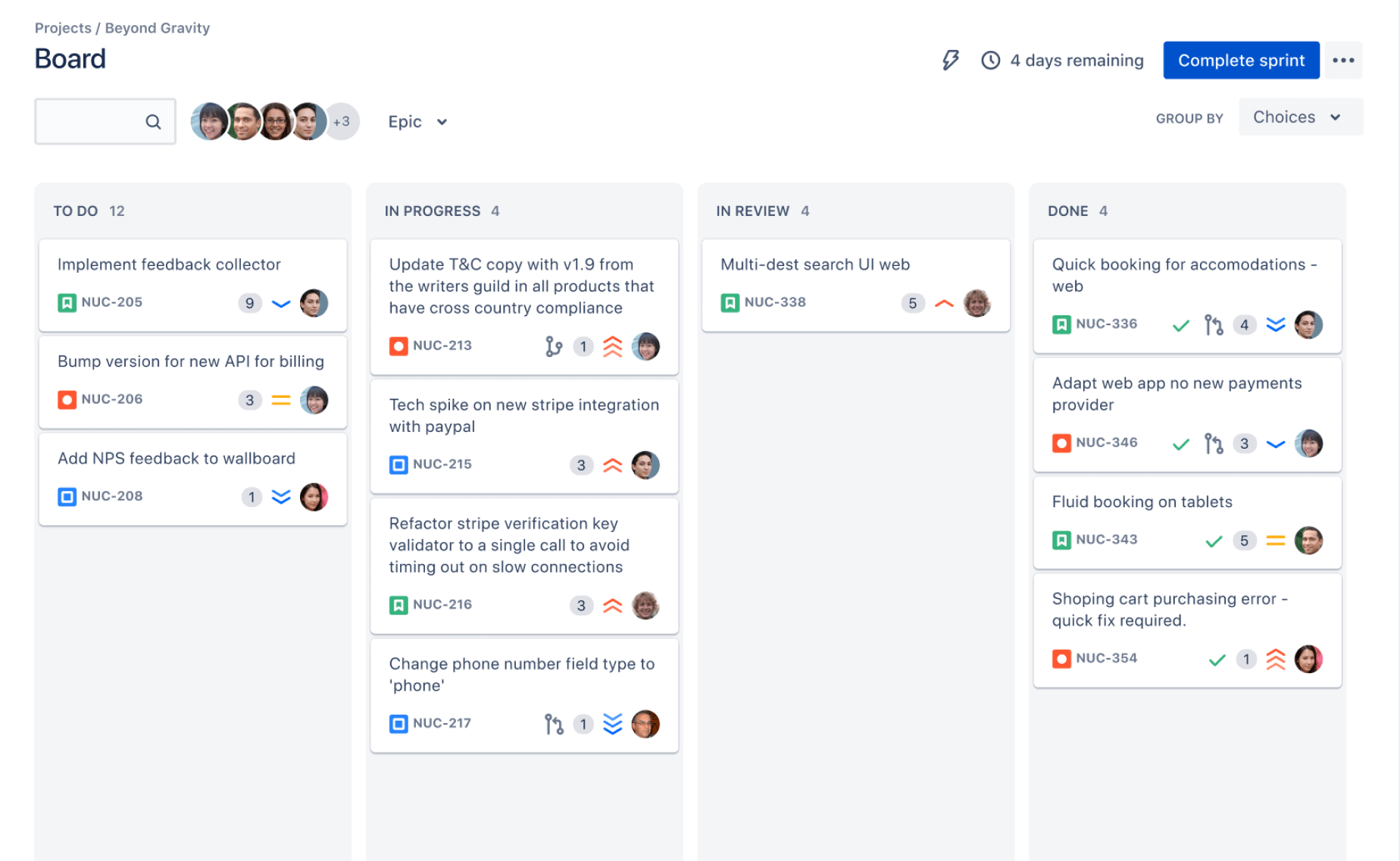
What Each Jira Tier Is Designed to Do
Free: Start with core project tracking
Free can be a practical starting point if your team has straightforward needs and fits within the plan’s current user limit. You can organize work, track issues, and see whether Jira’s approach suits your projects before paying for more.
For example, a small product team could use it to track feature requests and bugs. Check the current limits first, especially if you expect to add people or need more administration controls.
Standard: Add capacity for everyday team use
Standard is the typical next step when a team outgrows Free or needs paid-plan features. It can suit teams that need additional capacity and administrative options without requiring the advanced planning features of Premium.
Consider a team of 25 people managing customer requests and software releases. Standard may provide a better fit than Free, but check the current feature list against your specific workflow before upgrading.
Premium: Support more complex work
Premium is intended for organizations with more demanding planning, administration, or service needs. Its advanced capabilities can help teams coordinate work across projects and manage operations at a larger scale.
A company coordinating several product teams may value shared planning and stronger administrative controls. Compare those benefits with the added per-user cost, and identify who will use each capability.
Enterprise: Manage Jira across a large organization
Enterprise is aimed at organizations that need broader management across teams or sites. Pricing is generally handled through a sales conversation, so the quote depends on organizational requirements.
If you’re considering Enterprise, clarify how the offer handles users, administration, support, security needs, and any related Atlassian services. Ask for a clear breakdown before comparing it with other tiers.
How to Estimate the Cost of Jira
The basic calculation is simple: multiply the number of billable users by the per-user price for your chosen tier and billing period. The final amount can also depend on taxes, billing frequency, discounts, and the terms of your order.
For example, 25 users at an illustrative Standard rate of $7.53 per user per month would come to about $188.25 monthly before taxes. That estimate uses an annual-billing list price and does not represent a confirmed quote.
Count the people who need access
Start with everyone who needs to work in Jira, not only the people who create projects. Developers, project managers, support staff, and business stakeholders may all need access, depending on your setup.
Then account for likely growth. If a 25-person team expects to reach 40 people during the year, compare the costs at both sizes rather than budgeting for today alone.
Compare monthly and annual billing
Monthly billing can provide flexibility when your team size or needs are uncertain. Annual billing may offer a different effective rate, but it requires a longer commitment and an accurate user estimate.
Check how upgrades, downgrades, and added users are handled during the term. A lower listed monthly equivalent may not be the best choice if your team needs short-term flexibility.
Include related costs in your estimate
Jira’s subscription price may not cover every expense connected to your setup. Review any paid apps, implementation work, training, administration time, and integrations your team relies on.
For instance, a team paying for several marketplace apps should add those charges to its plan comparison. Otherwise, a low base price may conceal a higher total cost of ownership.
How to Choose the Right Tier for Your Team
Start with the work Jira needs to support. List the number of people who need access, the projects they manage, and any features or service commitments that are essential.
Then compare those needs with the plans’ current limits. Here's why: a feature that sounds useful in a product description only matters if it solves a real problem for your team.
Use a needs-first comparison
- Choose Free if your team fits its current limits and needs core project tracking.
- Consider Standard if you need more capacity or paid-plan features for everyday team work.
- Consider Premium if advanced planning, administration, or support capabilities address a specific operational need.
- Discuss Enterprise if your organization needs broad management across multiple teams or sites.
For each higher tier, write down the feature that would justify the extra cost. If you cannot identify a likely user or practical use case, that upgrade may be premature.
Test your choice with a real project
Use a representative project to evaluate the plan. A software team might test a sprint workflow with a backlog, bug queue, and release view; a service team could trial request tracking and handoffs.
During the trial, check whether people can complete their usual tasks without workarounds. Ask project leads which reporting and administrative capabilities they truly need, then compare that feedback with the plan price.
Costs and Limits to Check Before You Buy
A plan’s headline price tells only part of the story. Limits and administrative requirements can affect how well a tier works after your team has adopted it.
Review limits that affect your daily work
Check user caps, storage, automation allowances, and any limits on project or administrative features. These details are especially important if your team has many recurring workflows or keeps extensive project history.
For example, a team that automatically routes incoming issues should confirm its automation allowance. If the team reaches a limit, it may need to change its workflows or consider another tier.
Account for marketplace apps
Jira teams often add marketplace apps for reporting, testing, time tracking, or specialized workflows. Those apps may have their own pricing and user-count rules.
Make a list of the apps your team depends on and check whether each one is essential. If you can remove an app without losing a required capability, that may reduce recurring costs.
Check the total cost of administration
Higher tiers can add capabilities, but someone still needs to configure workflows, manage permissions, and help teams adopt them. Estimate the time required to run Jira alongside the subscription expense.
For example, a company with many independent projects may need dedicated Jira administration. Include that workload in your decision, rather than comparing subscription prices alone.
Jira Pricing Alternative: ONES.com
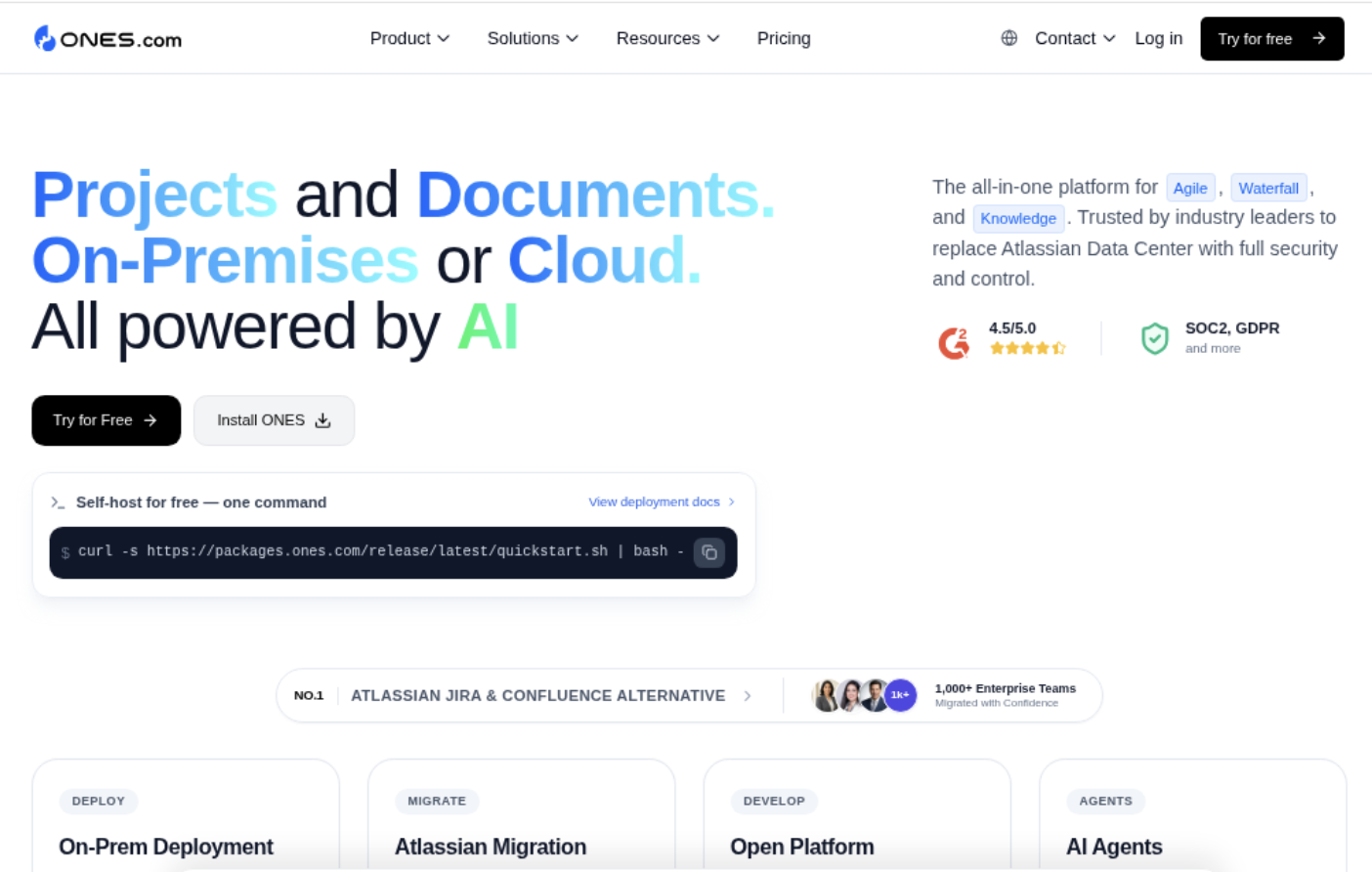
ONES.com is a project management and knowledge management platform powered by ONES Assistant. Its products are sold separately: ONES Project supports project management, while ONES Wiki provides knowledge management.
Value Proposition
If your team is comparing Jira costs with other ways to manage projects, ONES Project is a Jira alternative with Jira-compatible workflows. It offers cloud and self-hosted deployment options, including on-premise and air-gapped environments.
Core Capabilities
- Need Jira-compatible workflows? ONES Project supports Jira-compatible workflows, helping teams preserve familiar ways of organizing work while evaluating another platform.
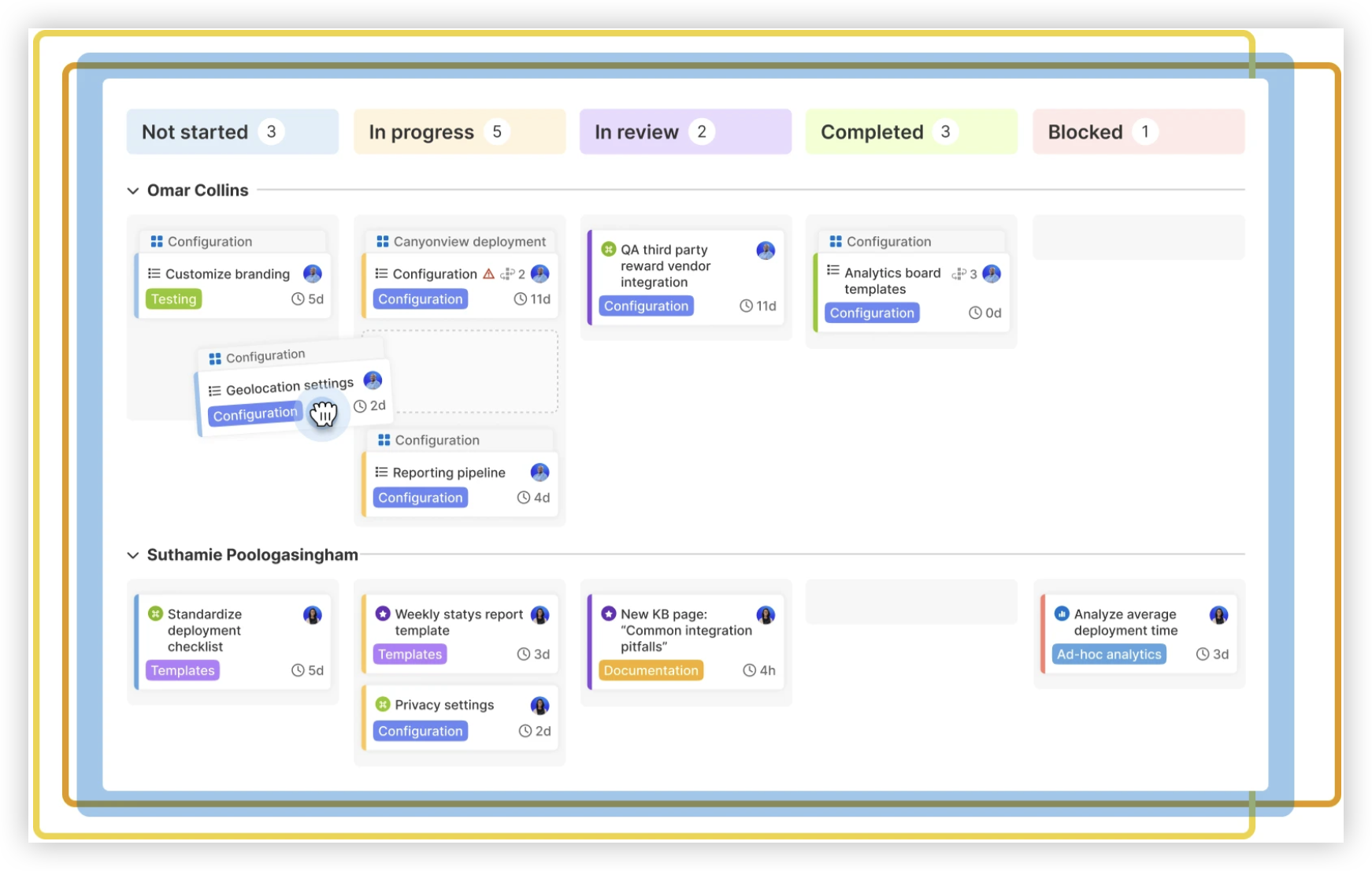
- Need clearer project visibility? Built-in reporting gives teams a way to review project progress without relying on multiple separate reporting add-ons.
- Need to adapt processes? Custom workflows let teams shape how work moves through review, approval, and completion.
- Need fields that match your work? Custom fields help teams capture project details that standard fields may not cover.
- Need sprint planning? Sprint management supports teams that organize development work into planned cycles.
- Need fewer manual handoffs? Automation can handle selected recurring actions, reducing routine work for project teams.
- Need deployment choice? Teams can select Cloud, On-Premise, Private Cloud, or Air-gapped deployment to match their operating requirements.
- Need consistent capabilities across deployments? ONES.com provides full feature parity between its cloud and self-hosted versions, so deployment choice does not mean choosing a reduced feature set.
- Need to limit plugin dependence? Built-in reporting and workflow capabilities can reduce reliance on additional plugins for common project needs.
Application Scenarios
A software team moving away from Jira could reproduce its sprint workflow in ONES Project, then test issue tracking, custom fields, reporting, and automation with a representative project. That gives the team a practical way to evaluate compatibility before changing its wider process.
An organization with restricted network requirements could assess ONES Project in an on-premise, private cloud, or air-gapped deployment. A team that also wants knowledge management can consider ONES Wiki separately, rather than treating it as an included component of ONES Project.
ONES.com offers a free option for up to 30 seats. Compare the current product terms, deployment requirements, and feature needs with your Jira setup before making a decision.
Common Jira Pricing Challenges
Challenge: The user count keeps changing
Why it happens: Teams add contractors, stakeholders, or new departments after setting their initial budget.
What to do: Estimate likely growth and review how your plan handles added users. Recheck the cost before major hiring or rollout decisions.
Challenge: The lowest tier lacks a required capability
Why it happens: A team chooses a plan by price, then discovers a key limit or feature restriction during daily work.
What to do: List essential tasks before choosing a tier. Test them with a real project and confirm current plan details, especially for automation and administration.
Challenge: Add-ons make the bill difficult to predict
Why it happens: Teams add marketplace apps one at a time without reviewing their combined cost.
What to do: Record each app, its price, and the reason your team uses it. Review the list periodically and remove tools that no longer solve a clear need.
Challenge: Paying for features nobody uses
Why it happens: A team upgrades for one promising capability, then does not adopt it across its projects.
What to do: Identify the owner and intended use of each feature before upgrading. Reassess adoption after a trial period to see whether the higher tier provides practical value.
Frequently Asked Questions
Does Jira have a free plan?
Yes. Jira offers a Free plan for eligible teams, with a user limit and restrictions that can change over time. It can work for a small team that needs core project tracking. Before relying on it, check the current user cap and any limits on storage, automation, support, and administration. If your team is close to the cap, estimate the cost of moving to a paid tier.
How much does Jira cost per user?
Jira’s per-user price depends on the plan, billing frequency, user count, location, and current rates. US annual-billing list prices have commonly been around $7.53 per user per month for Standard and $13.53 for Premium, but those figures are not a confirmed 2026 quote. Use Atlassian’s current pricing calculator for a reliable estimate, then add taxes and any paid apps.
What is the difference between Jira Standard and Premium?
Standard is intended for teams that need paid-plan capacity and features for everyday project work. Premium adds advanced planning, administration, and support capabilities for more complex needs. The precise features and limits can change, so compare the current plan details against your team’s requirements. Upgrade only when a Premium capability solves a specific problem or supports a clear operational need.
Can I change my Jira plan later?
Teams can generally move between Jira plans, though the process and billing effects depend on the subscription and billing arrangement. Before changing tiers, check how Atlassian handles upgrades, downgrades, added users, and the remaining term of an annual subscription. It also helps to test whether your workflows depend on features available only in the plan you are leaving.
Is Jira Enterprise pricing public?
Enterprise pricing is generally handled through a sales discussion rather than a simple public per-user rate. The quote can depend on organization size, deployment needs, and the services included in the agreement. Ask for a clear breakdown of users, support, administration, and contract terms. Compare the quote with your actual requirements, rather than assuming the largest plan is automatically the right fit.
Conclusion
The right Jira tier depends on the people who need access, the features they use, and the scale of your work. Free can suit a small team with basic needs, while paid tiers add capacity and capabilities for more demanding projects.
But here's the truth: the lowest listed price is not always the lowest-cost option for your team. Include user growth, paid apps, administration effort, and the current plan limits in your estimate.
Start with a real project, check the live pricing details, and upgrade only when a higher tier solves a clear problem. If Jira’s cost or deployment options do not match your requirements, compare alternatives such as ONES Project against the workflows your team needs to keep running.