Jira Pricing Plans Explained: A Step-by-Step Guide to Tiers
Unsure which Jira tier fits your team? Compare jira pricing plans by cost, billing, and features. Read now to choose confidently.
Jira pricing can look simple until you compare user counts, billing terms, and the features each team actually needs. Choosing the wrong tier can leave you paying for capacity you do not use—or pushing important work into manual processes because a feature sits behind a higher plan. That uncertainty gets harder when your team grows, needs stronger administration, or manages several projects with different workflows. But here's the truth: you can compare Jira plans clearly by separating the cost model from the feature differences. This guide walks you through the tiers, shows what to check before you upgrade, and gives you a practical way to estimate total cost. You’ll be better prepared to choose a plan that fits your team today and still makes sense as it changes.
Jira pricing plans at a glance
Jira Cloud offers four main plans: Free, Standard, Premium, and Enterprise. Free is for smaller teams exploring Jira, Standard adds core paid capabilities, Premium provides more advanced administration and support, and Enterprise is designed for organizations with broader requirements.
Atlassian’s rates can vary by billing frequency, region, and team size. Check the current Jira pricing page before you purchase, and compare the full annual cost rather than relying on a monthly per-user figure alone.
| Plan | Best suited to | What to check |
|---|
| Free | Small teams testing Jira or managing straightforward projects | User cap, storage, automation limits, and support options |
| Standard | Teams that need paid collaboration and project management features | Per-user price, billing term, permissions, and included support |
| Premium | Teams that need more administration, scale, or advanced planning capabilities | Premium-only features, service commitments, and upgrade value |
| Enterprise | Organizations with complex governance or multiple teams and sites | Quote terms, organization-level administration, and contract requirements |
Here’s why the plan name alone is not enough: the same tier can deliver different value to a five-person team and a 500-person organization. Estimate your active seats, identify essential features, then compare those needs with each tier’s limits.
How to compare Jira tiers step by step
Count the people who need access. Include regular contributors, project leads, and administrators. If you have 12 people who need Jira every week, the Free plan’s team limit may rule it out before you compare anything else.
List the work you need Jira to support. Write down requirements such as custom workflows, sprint planning, automation, reporting, and project permissions. Separate must-haves from features you might use later.
Match requirements to plan features. Check Atlassian’s current plan comparison for each must-have. Feature availability can change, so verify current details instead of assuming an older comparison still applies.
Calculate the full subscription cost. Multiply the relevant per-user rate by the number of paid seats and billing periods. Then consider any additional products, marketplace apps, or administration costs your setup may require.
Check the limits that could affect daily work. Review user capacity, storage, automation allowances, support, and any service commitments. A plan that fits today may become restrictive if project volume rises.
Choose a review point. Set a date to reassess after a trial or a few months of use. Compare the features your team actually uses with the plan’s cost before renewing or upgrading.
The best part? You do not need to predict every future need. You need a sensible plan for current work, plus a clear signal for when an upgrade would solve a real problem.
What each Jira plan typically includes
Free: a low-risk starting point
Jira Free can work for a small team that needs basic project tracking and wants to learn the product before paying. It gives you a way to set up boards, organize issues, and test a team workflow without a subscription charge.
Free plans usually come with limits, which can matter as soon as a team grows or its work becomes more complex. Check the current seat cap, storage allowance, automation limits, and available support. For example, a small software team may find Free adequate for a simple sprint board, while a team that depends on more automation could reach a limit sooner.
Standard: paid project work for growing teams
Standard is often the next step when a team outgrows Free or needs paid plan features. It suits teams that want to manage ongoing projects with more room to collaborate and administer their work.
Compare the plan’s current permissions, support, storage, and automation details with your daily needs. If your team only needs reliable issue tracking and basic planning, Standard may be a more practical fit than paying for advanced capabilities that would sit unused.
Premium: more capacity and advanced administration
Premium is aimed at teams that need capabilities beyond the core paid tier. Depending on the current plan details, that may include advanced planning, administrative controls, support, or service commitments that matter to larger or more dependent teams.
Consider a product group coordinating several teams and releases. If stronger cross-team planning or faster response to critical service issues would materially improve delivery, Premium may justify its higher price. If the team runs one small project and rarely needs advanced controls, the added cost may not pay off.
Enterprise: organization-wide needs
Enterprise is intended for organizations with complex administration, governance, or scale requirements. Pricing is generally quote-based, so the amount depends on the organization’s arrangement with Atlassian.
Before discussing a quote, define what your organization needs across teams and sites. Clarify administration responsibilities, security expectations, support requirements, and procurement terms. A written list helps you compare the proposal with your operational needs instead of focusing only on the headline price.
What affects the total cost of Jira?
Seat count is the starting point. Most subscription costs depend on the number of paid users. As an example, a team adding 20 people should estimate the cost of those seats across the full billing term, not just the monthly amount displayed for one user.
Billing frequency changes the comparison. Monthly billing may offer flexibility, while annual billing can have different rates or commitments. Check the current terms for your region and plan, then compare the total payment over the same period.
Related products and marketplace apps can add expense. A Jira subscription may not cover every capability your team wants. If you rely on connected products or paid apps, include those recurring charges in your estimate. A low Jira price can become a more expensive setup when several add-ons are essential.
Operational needs affect value. A higher tier can be worthwhile if it reduces administrative work, supports a required service level, or replaces a separate paid service. If it only adds features no one uses, the extra cost may be hard to defend.
How to decide whether to upgrade or downgrade
Start with a specific problem rather than a plan label. For example, if administrators spend hours each week working around a limit, identify whether a higher tier removes that constraint. If your team never uses a premium capability, consider whether it is still worth paying for.
Then compare the cost of the plan change with the time or risk it could reduce. A team that saves four hours of manual coordination each month may have a strong case for an upgrade. A team that cannot name a recurring issue may be better off staying put while it evaluates usage.
You might be wondering: what if your requirements are likely to change? Set a threshold in advance, such as a user count, a recurring workflow limitation, or a support requirement. That gives you a practical trigger for reviewing the plan without moving to a higher tier too early.
For a downgrade, check what happens to existing settings, limits, and access before changing plans. Confirm the transition terms with Atlassian, then tell your team what may change. A short review can prevent surprises, such as discovering that a workflow depends on a capability no longer included.
Jira pricing mistakes to avoid
Comparing only the lowest displayed rate. Include seat count, billing term, connected products, and paid apps in your estimate.
Choosing a tier for hypothetical needs. Name the feature or constraint you need to solve before paying for a higher plan.
Ignoring limits until the team hits them. Review current caps for users, automation, storage, and support during your evaluation.
Assuming a feature is included. Verify its availability on the current plan comparison, especially if your team depends on it.
Forgetting to revisit the decision. Team size and work patterns change. Schedule a periodic review of actual usage and subscription cost.
Let me explain: a pricing decision is easier when you keep a simple record of your plan, seat count, must-have capabilities, recurring add-on costs, and review date. That makes the next renewal conversation more concrete.
Project management and knowledge management with ONES.com
Value proposition: ONES.com is a unified platform for project management and knowledge management, powered by ONES Assistant. ONES Project is a Jira alternative, while ONES Wiki is a Confluence alternative; each product is sold separately.
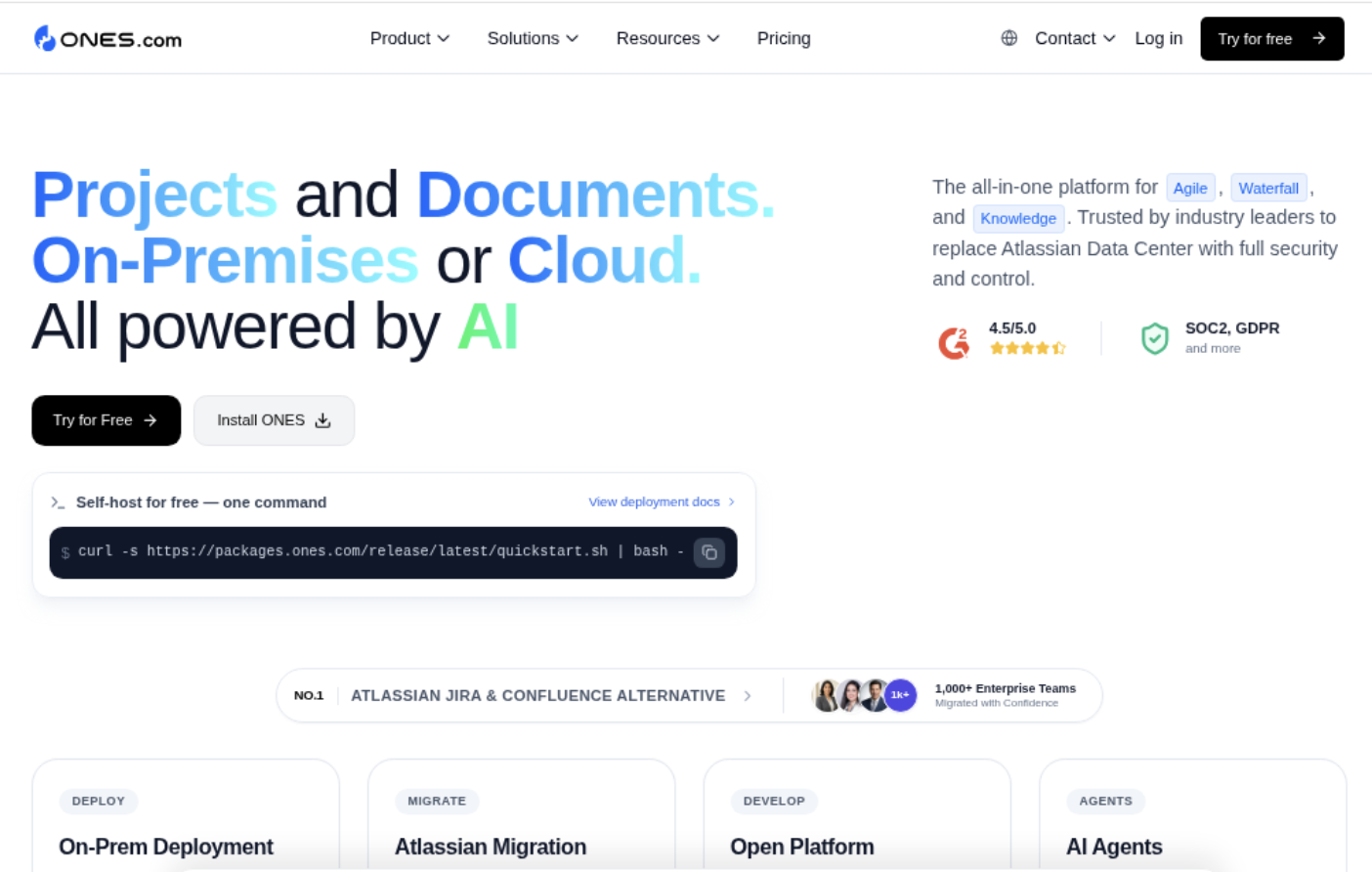
If you are comparing project management costs, consider how your team handles workflows, reporting, and knowledge alongside the subscription price. ONES.com offers Cloud, On-Premise, Private Cloud, and Air-gapped deployments, with feature parity between its cloud and self-hosted versions.
Core capabilities
Complex project workflows: Teams may have difficulty matching processes to fixed templates. ONES Project supports custom workflows, helping teams reflect their approval and delivery steps more closely.
Jira migration considerations: Teams looking for a Jira alternative may need familiar processes. ONES Project supports Jira-compatible workflows, making it easier to preserve established ways of working while evaluating a change.
Limited visibility into progress: Project leads can spend time assembling updates. Built-in reporting helps teams review progress and project status in the platform.
Different teams need different fields: Standard issue details may not suit every project. Custom fields let teams capture the information they need for their work.
Sprint planning overhead: Agile teams need a place to organize planned work. Sprint management capabilities help teams coordinate and track sprint activities.
Repeated manual tasks: Routine actions can consume time. Automation helps teams handle recurring workflow steps with less manual effort.
Plugin sprawl: Teams may rely on several add-ons to fill capability gaps. Native capabilities can reduce plugin dependence and simplify administration.
Deployment restrictions: Some organizations cannot use a public cloud setup. ONES.com supports cloud and self-hosted deployment options, including On-Premise, Private Cloud, and Air-gapped environments.
Application scenarios
A software team that uses Jira-compatible processes could evaluate ONES Project when it wants custom workflows, sprint management, and reporting in one project management environment. The team can test whether native capabilities meet its needs before deciding which connected apps remain necessary.
An organization with strict network controls could assess an Air-gapped or On-Premise deployment. Its administrators can examine deployment requirements alongside workflows and administration, while keeping in mind that ONES Project and ONES Wiki are separate products.
ONES.com offers a free plan for up to 30 seats. When comparing that option with Jira, review current feature details, deployment needs, and the cost of any separately required products. A practical comparison uses the same team size and workflow requirements on both sides.
Common challenges when comparing Jira plans
Challenge: Prices appear in different billing formats. One rate may be shown monthly while another reflects an annual commitment. Solution: Convert each option into a total cost for the same number of users and the same time period.
Challenge: Your team is unsure which features it uses. Different project groups may depend on different capabilities. Solution: Ask project leads to identify the features they use weekly and the limits that disrupt their work.
Challenge: Costs keep rising as the team grows. More seats can change the subscription total. Solution: Forecast likely hiring or access needs for the next renewal period, then compare the forecast with current plan terms.
Challenge: Add-ons complicate the estimate. Several paid apps can make the real cost hard to see. Solution: List recurring app charges and identify whether each one supports a necessary workflow.
Challenge: A plan change could disrupt existing work. Teams may rely on settings or capabilities tied to their current tier. Solution: Review change terms and test the impact with administrators before making the switch.
Frequently asked questions
What are the main Jira pricing plans?
Jira Cloud has four main plans: Free, Standard, Premium, and Enterprise. Free is intended for small teams with straightforward needs. Standard adds paid capabilities for growing teams, Premium is aimed at teams needing more advanced options, and Enterprise serves organizations with broader administrative or governance requirements. Feature details and rates can change, so verify current plan terms before choosing.
Is Jira free to use?
Jira offers a Free plan for eligible small teams. It can be useful for trying the product or handling simple project tracking without a subscription charge. The free tier has limits, so check the current user cap, storage, automation, and support details. If your team grows or requires a capability outside the Free plan, you may need to compare paid tiers.
How do I calculate the cost of Jira for my team?
Start with the number of people who need paid access and the current per-user rate for your plan and region. Multiply that amount across the billing period, then add the cost of related products or paid marketplace apps. Compare monthly and annual terms over the same timeframe. For larger organizations, request an Enterprise quote and check what it includes before comparing it with other plans.
When should I upgrade from Jira Free to a paid plan?
Consider upgrading when a Free-plan limit repeatedly blocks your team, or when a paid feature would solve a clear operational problem. For example, a team may need more capacity, support, or administration options as its project work expands. Before moving up, confirm that the plan includes the capability you need and calculate its cost for the full billing term.
Does Jira Enterprise have a fixed public price?
Enterprise pricing is generally quote-based rather than a single public per-user rate. The quote can depend on the organization’s requirements and agreement terms. Before requesting one, prepare your expected user count, administration needs, service expectations, and any multi-site requirements. That makes it easier to review the proposal against the work your organization needs the plan to support.
Conclusion
Jira pricing plans range from a free entry point to paid tiers for growing teams and large organizations. The right choice depends on your team size, required features, billing terms, and the cost of connected products—not just the plan name.
Start by counting seats and listing must-have capabilities. Compare each tier’s current limits, estimate the full subscription cost, and set a date to review actual usage. If your present plan creates recurring friction, assess whether an upgrade or an alternative such as ONES Project would address it.
That approach turns a confusing tier comparison into a practical decision. You can avoid paying for unused features while keeping the capabilities your projects genuinely need.